iPad


Review: The Origami Workstation for iPad

Incase Origami Workstation for iPad

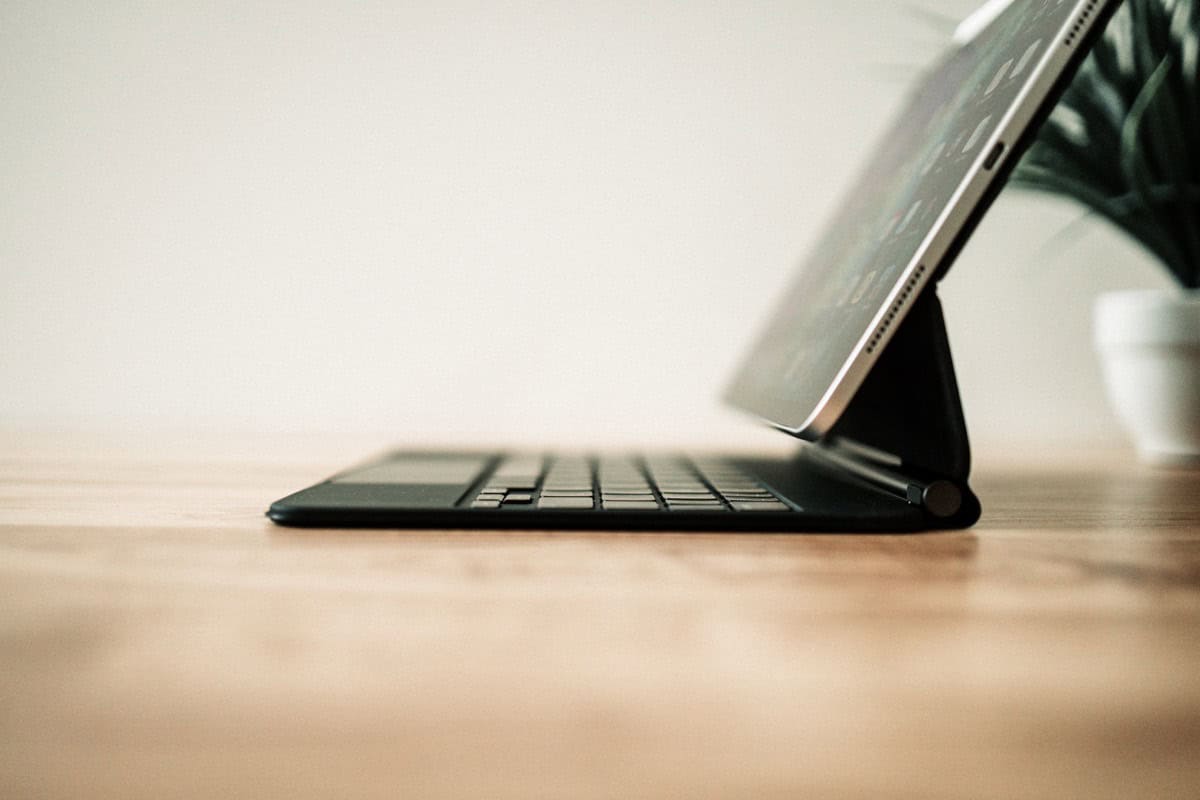
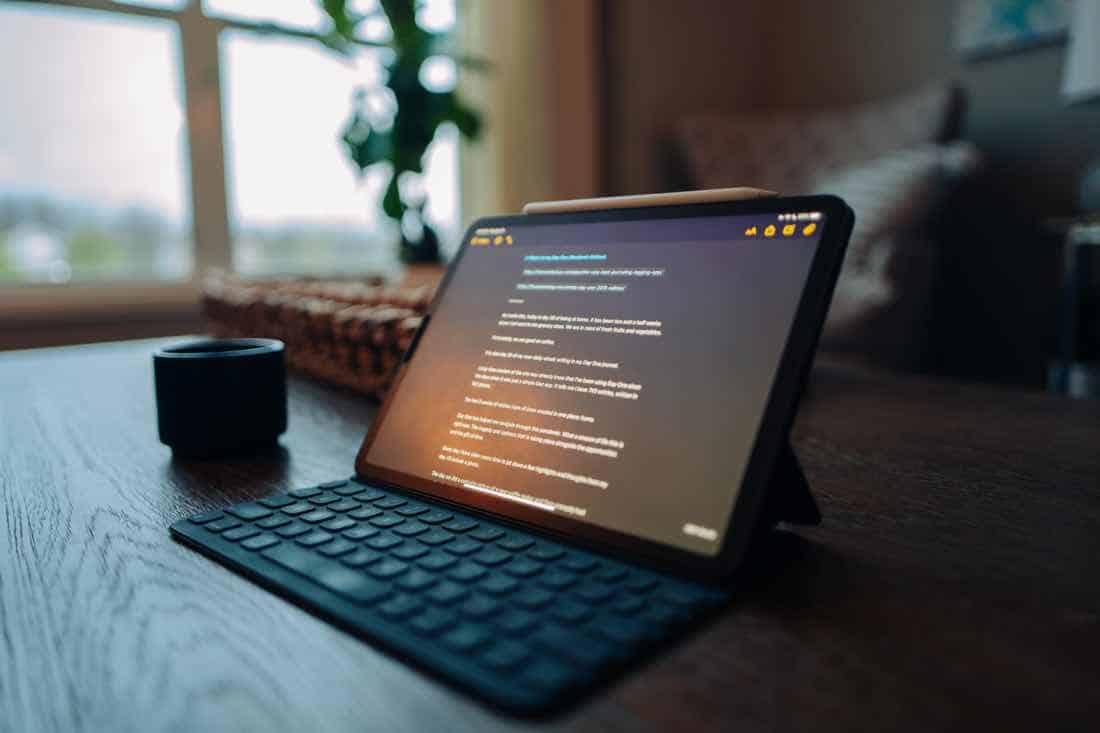
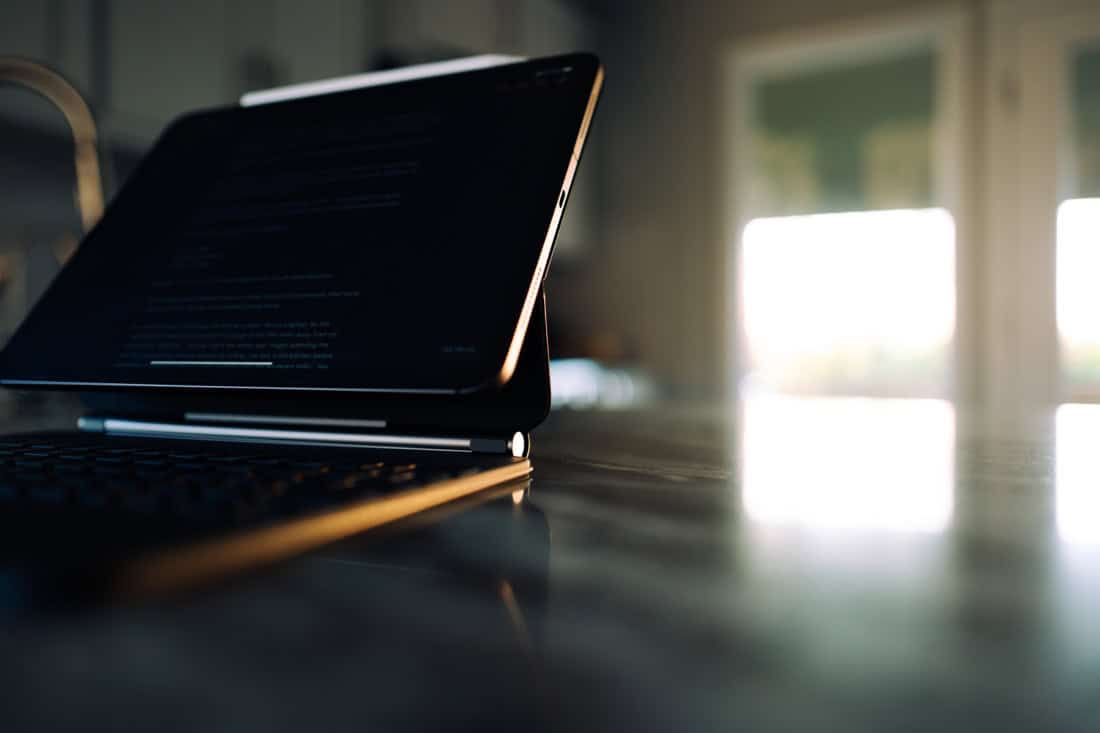
The Origami Workstation from Incase is little more than a folding, rubberized board that wraps around an Apple Bluetooth keyboard.

Incase Origami Workstation for iPad

It has two tabs with velcro that flip underneath and strap to the underside when not in use. Or they fold towards one another to form a triangle stand when you want to prop your iPad up to write. The Workstation uses a half-circle plastic clip that is the exact size for securing the round, battery-holding tube area of the Apple Bluetooth keyboard.

Therefore this case doesn’t work with any keyboard other than Apple’s.

Incase Origami Workstation for iPad

Fortunately, Apple’s Bluetooth keyboard is excellent. It’s sturdy, well built, and capable of controlling the iPad’s volume, brightness, and media playback.

There are, however, other iPad-specific keyboards (such as Amazon’s Basics) that have additional iOS-specific buttons which can return you to the Home screen, or take you to the Spotlight page. While these iPad-specific keyboards have some cool features, I’ve yet to try one that felt better for typing on than Apple’s keyboard. Giving up quality and size for a couple neat buttons is not a fair tradeoff.

Keyboards aside, there are many other reasons I like the Origami Workstation.

The Workstation’s best feature is that it doesn’t permanently affix itself to my iPad. Most of my iPad usage is comprised of non-typing activities like reading iBooks, Instapaper, RSS feeds, surfing the Web, etc. For those activities, the plain iPad is plenty — there is no need for an external keyboard (especially not one that’s attached.)

Well, why not just use the iPad’s smart cover, and carry around the keyboard by itself? I’m glad you asked. For one the Workstation allows me to use the iPad with keyboard on my lap (for times I’m sitting in a conference room or an airport terminal). Secondly, the Workstation offers a sturdier support for the iPad than the Smart Cover. Thus allowing me to press the Home button and navigate the touch screen without using two hands to keep the iPad from tipping over. And if you prefer to type with the iPad in portrait mode, you can do that no problem.

Incase Origami Workstation for iPad

Incase Origami Workstation for iPad

Another great benefit of the Workstation is that it’s device agnostic and future proof. It works perfectly with an iPad 1, 2, 3, 4, iPad mini, or even an iPhone. And it will work with whatever else comes next so long as it isn’t any thicker than an inch.

My Origami Workstation has seen nearly 18 months of use on the road, in coffee shops, and at the kitchen table. It continues to be the ideal typing companion to my iPad.

The iPad Can Be a True Mac Alternative

Ted Landau published an article for Macworld today, entitled “Why the iPad still can’t be a true Mac replacement”. In it, he lays out some of the differences between the Mac and iPad, and why, because of those differences, the iPad is not yet ready to be a Macintosh replacement.

Ted is correct in his reasoning for why the iPad isn’t a Mac replacement. The iPad runs a completely different OS with completely different apps. And it does not have the same hardware expansion capabilities as the Mac does, such as the ability to connect to external hard drives and monitors.

At the heart of Ted’s article, however, is this bit about why he is arguing that the iPad isn’t ready to replace the Mac:

[T]here remains a persistent undercurrent in the media predicting an eventual demise of the Mac at the hands of the iPad. Whoa!

I agree with Ted that this undercurrent exists. There also exists a current going the other direction (as Ted demonstrates) stating that there’s no way the iPad could replace the Mac. I think these two “currents” are black and white, overdramatized extremes.

The future of the Mac is not to shrink until it’s the size of an iPad and the two become one. Nor is the future of the Mac to die a slow and painful death as the iPad eventually gains so much marketshare that Apple just shuts down the manufacturing of all their iMacs and MacBooks.

Which is why I think Ted — and anyone else who argues that the iPad cannot be a Mac replacement — is missing the point. The iPad isn’t meant to be a Mac replacement.

The iPad is a Mac alternative — and only if you want it to be.

Nobody is forcing us to use iPads instead of a Macs. There is no law which requires anyone who purchases an iPad to then dispose of their Mac. When you walk into an Apple store to buy a new Mac, you are not asked to prove that your needs are sufficient enough to warrant the use of a Mac rather than an iPad.

Never has Tim Cook said that the Mac and OS X will be phased out and that we had all better learn to love our iPads. In fact, just look at what Apple was up to in 2012: Retina MacBook Pros, new iMacs, and a commitment to an annual update cycle to OS X. That doesn’t look like the demise of the Mac to me.

Arguing about if the iPad is a Mac replacement or not is a bit like arguing about your favorite color. Yes, there are people who would do quite fine with an iPad as their only computer. There are also those who can use the iPad for some work tasks, but not all. And there are those who prefer their iPad for watching videos and reading and that’s about it. And, of course, there are all those in-between scenarios.

It’s no secret that I’m a big proponent of using the iPad as a workhorse device as much and as often as possible. However, it’s not because I’m “training” myself for that fateful day when Apple stops selling Macs. Nor am I against using the Mac — goodness, no. I mean, I’m typing this on my Mac right now.

The reason I chose to work from my iPad when I can is because I enjoy it. I like the change of pace that comes with using iOS. I like aiming to do the same quality of work without all the fancy macros, scripts, and shortcuts I have at my fingertips when on my Mac. I like staying abreast of iOS apps and workflows. And when I’m away from my home office, I love taking the iPad because it’s such a lightweight device with long battery life and LTE connectivity.

But does my iPad replace my Mac? No. Is it an alternative work device when I want it to be? You bet it is.

The iPad is awesome. The Mac is awesome, too. Those two statements don’t have to conflict with one another. The Mac and OS X can be refined and polished at the same time the iPad and iOS are matured and strengthened.1

The iPad’s hardware gets better and more capable every year. And iOS gets better every day. But the Mac doesn’t have to become less in order for the iPad to become more.

It was through this weblog that I cut my teeth on Mac nerdery. It was for the sake of writing about the Mac that I even started shawnblanc.net in the first place. And, over the years, as we’ve come into the age of the iPhone and iOS and iPad, a lot of my affinity for fine software and hardware has shifted from OS X only to iOS as well.

Like others, I too am ever-increasingly interested in getting the maximum utility possible from my iPhone and iPad. However, this growing interest does not prove that the future of the PC is the iPad as it stands today. I believe the whole underlying principle is behind this argument is that the iPad is showing what the future of technology hopefully looks like. It’s a future of extreme simplicity coupled with extreme usability.

Instead of arguing for or against the iPad as a Mac replacement, let’s discover ways to use both devices better.

I want to know how to use both my Mac and my iPad to do my best creative work. And I want to do that work as often as possible while enjoying and exploiting each device’s respective workflows.


  1. There’s a whole lot of discussion about the future and importance of iCloud that could bunny trail right here.

Professional Grade

Rene Ritchie, in an article about how, for Apple in 2013, it’s all about iOS 7 and iCloud:

It’s not about outdated concepts like widgets or settings toggles, or inconsequential interface trends like skeuomorphism. It’s about software and services that don’t force us to hunt for data or controls, no matter how they’re painted up, but that bring data and controls to us, flat or textured. It’s about actionable notifications powered by headless apps and seamless inter-app communication. It’s about predictive data assistance with multi-layer natural language interfaces. It’s about data moving from cloud to device, or vice versa, transparently, in the background, so we have what we need, when and where we need it, without having to manage or store it. It’s about all our stuff working together directly, device to device, so using one of them is akin to using any one of them. It’s about an app ecosystem that pushes rather than than waits for us to pull, with demos and refunds, and analytics that delight developers and users alike. It’s about the brilliant interaction of software and services both on-device and in the clouds.

Agreed.

Last year was a hardware-packed year for gadgets being designed in California. Retina MacBook Pros, super-slim and bubbly iMacs, iPhone 5, iPad mini, et al.

Of course, 2012 wasn’t strictly a hardware year. We got Mountain Lion, and OS X is now on an annual update cycle; we also got iOS 6 and Apple’s own maps app. But the updates to iOS and OS X were not of the same breakthrough caliber as the hardware updates — last year was a very good year to be in the market for a new Mac, iPad, or iPhone.

This year, I’m hopeful that the pendulum will swing towards the software-side of things.

I believe Apple wants to improve iOS in many of the areas Rene points out above. By removing some of the friction and frustration currently experienced with iCloud, maps, and more. And I also believe Apple wants iOS to be seen as a professional-grade operating system, worthy of “real work”. There is still some low-hanging fruit, and no doubt there are also some significant updates and breakthroughs to the usability and functionality of iOS on the horizon.

Of course, Apple already sees the iPad as being a legitimate work machine. As do many others (Federico Viticci being a chief example).

But I think it’s fair to say that the general perception of the iPad as a legitimate work device just isn’t there yet.

Even amongst the readers of this site — whom are decidedly, clever, nerdy, and prone to living on the bleeding edge — when I talk about using the iPad as my laptop, I get more than a few raised eyebrows and responses from people who still need or prefer to grab their MacBook when it’s time to work away from the office. Even my own wife would not be persuaded to get an iPad when she needed a new computer.

The prejudice against the iPad as a legitimate work machine isn’t isolated to just the iPad. It’s one of the few things all tablets have in common right now. Microsoft is attempting to market the Surface Pro as a professional grade device by showing people in a board room dancing.

Apple, on the other hand, I believe will demonstrate the iPad’s professional viability by bringing best-of-breed solutions and then demonstrating real-life use-case scenarios. A massive component of this is, and always will be, the App Store. But it can’t end there. Apple has more than a few areas where their own technologies and services need to catch up to those of 3rd parties as well as to those of their own competitors.

iOS: Empowered by Apps

It’s 7:00 am on a Saturday morning. Saturday, April 3, 2010. And I’m standing in line at my local Apple Store to buy an iPad.

Believe it or not, just two days prior, I had no plans to buy an iPad. But, be it gadget envy, a hunch, or whatever, I changed my mind at the last minute and I bought an original iPad on day one. And I’m glad I did, because looking back I realize I was, in a way, standing in line for a 9.7-inch slab of history.

For a year or two, my iPad primarily served as a “content consumption” device (ugh). Though mixed with casual email checking, to-do list management, and writing session, my iPad was primarily used for things like reading, watching videos, and surfing the web. Whenever it was time to get to work, I reached for the Mac.

The fact that I primarily “took in” content rather than “create” it wasn’t a limitation of the iPad so much as it was the software that accompanied it. The iPad shipped with a handful of creation-centric apps, but none that could fully replace my dependence on my Mac.

Moreover, when the iPad was new, things created on the iPad liked to stay on the iPad. In Pages, for example, the process of syncing a document was a joke. Notes were synced awkwardly over IMAP to the Mail app on my Mac. And Syncing my Things to-do list, though clever at the time, needed all devices to be on the same wi-fi network with Things launched.

When I first bought my original iPad back in 2010 and friends and co-workers would ask me about what makes it so great, I’d usually tell them about the 10-hour battery life. I can take notes, check email, and surf the web in this little tablet the size of a pad of paper, and I leave the cables at home. Part of what made the iPad so magical wasn’t entirely about what it could do, but what its potential promised us that it would one day be able to do.

Today, a lot of that promise of potential has been realized. Robust software abounds. As does over-the-air syncing of just about everything. Pretty much all of our stuff is accessible, usable, and editable from our Macs, iPads, and iPhones.

Some people don’t even need a Mac anymore, since the iPad is perfectly capable as one’s primary PC. And for those who still rely on OS X, the iPad is so much more than the satellite device it was in 2010 that for many, it can serve as a very good secondary work machine.

For those of us who need a powerful computer for the bulk of their work as well as a computer they can take on the go, we’ve gone from (a) a setup comprising the best desktop computer possible and the cheapest laptop possible, to (b) owning simply the best laptop possible, to (c) owning a Mac and an iPad.

The laptop of yesterday is the iPad of today.

Today, the iPad is what — back in 2010 — we envisioned the iPad could be. So, what has happened between now and 2010? Well, thousands and thousands of world-class 3rd-party apps. That’s what.

The fundamental capabilities of the iPad itself are, more or less, the same today as they were in 2010. Strip away the hundreds of thousands of 3rd-party apps from the fast, Retina- and LTE-equipped iPad, and all you’ve got is a device which is only a little bit more capable as a work machine than what you had in 2010. Albeit, that device is significantly more advanced and delightful than its predecessor. But, without the software, it’s just an attractive slab of glass and aluminum.

When the iPad was new, many of us had ambitions of one day leaving our MacBook Pros at home and traveling only with our iPads. But, at least for me, that idea quickly faded away as I ran head-on into the fact that I just couldn’t get a lot of the work done on my iPad that I needed to do. The iPad was by no means useless, it just wasn’t the laptop replacement I wanted it to be.

But that was nearly three years ago. And, like I said, a lot has changed.

Last summer, I took only my iPad with me to WWDC. It was a bit cumbersome at times, and I had to suspend my daily Shawn Today podcast, but I survived with nary a scratch. Today, I don’t even hesitate for a moment to walk out the door with nothing but my iPad and Origami Keyboard.

I recently looked back at an article I wrote in 2010 about how I used my iPad, Mac, and iPhone. Comparing my usage in 2010 to how I use them now, I use my iPad and iPhone for work-related things much more often. Also, my iPad and iPhone do a much better job at those work-related tasks than they did in 2010 — the experience, usability, and reliability of using these other devices has increased tremendously. And it continues to get even more usable, reliable, and delightful.

This is thanks entirely to the apps I have available to me (along with some nerdy Mac server hackery). These apps have evolved to such a place where I can work from my iPad anytime I want. The projects I’m working on are all in sync, and the apps I have at my disposal allow me to complete the same work.1

My iPad workflow relies heavily on apps and services such as Dropbox, 1Password, TextExpander, Poster, Simplenote, WritingKit, OmniFocus, Instapaper, Reeder, Tweetbot, Diet Coda, and Pinbook. Many of these apps didn’t exist on the iPad in 2010. But now that they do, I can leverage them to get the same work done on my iPad that I do from my Mac.

Our iOS devices have been empowered by 3rd-party apps.


  1. There is one exception: graphic design and photo editing. I use Photoshop for editing graphics and Lightroom 4 for doing post-processing work on my pictures. I know there are solutions for doing graphic editing work, screenshots, and the like on the iPad but I haven’t yet crossed that bridge.
Thursday, January 10

Andrew Kim reviews his iPad mini (with some fantastic pictures) and compares it to his 3rd-gen iPad, his original iPad, his Nexus 7, and his Kindle Keyboard:

To really appreciate what the iPad is doing, it’s worth remembering what the iPad used to be. The mini gives me the same feeling that I get when I hold a beautifully engineered Japanese pen with a tiny diameter. It’s a product that has been reduced to its essence and concentrated to an extract. The iPad mini won’t be the right choice for everyone. It’s like a Moleskine or a paperback novel, where the larger iPad is like a magazine. If you watch movies or do a lot of photo work on the iPad, the 9.7” display will be better for you. When the mini first came out, I was skeptical. But after a month of use, I haven’t felt the need to pick up my Retina iPad once. In fact, I’ve given it to my mother.

(Via Patrick Rhone.

Friday, November 30

Dana Levine’s article, “Why everyone loves the iPad mini (even though the screen sucks)”, makes a point I hadn’t thought about: that the Retina display isn’t a disruptive technology:

… they are a nice-to-have, but not really disruptive to what we already have. When you look at disruptive technologies (as defined in The Innovator’s Dilemma), they typically enable use cases that their predecessors didn’t (such as allowing devices to be smaller or lighter). There isn’t actually any new use case that a retina display enables, other than being prettier. It’s not like visible pixels in any way diminish the functional experience.

I think Levine is right. As awesome as Retina displays are, they don’t fundamentally change the usability or use-case scenarios of the iPad. It’s crazy to think that a bitmapped screen displaying pixels at a density rivaling print, is, in a way, nothing more than an iterative step in the evolution of hardware.

That Bitter Pill

Nearly all the iPad mini reviews I’ve read could be wrapped up thusly: Yes, the non-Retina screen is a bummer, but I’m ditching my bigger iPad nonetheless.

Rene Ritchie wrote:

Personally, the lack of Retina on the iPad mini really bothered me a lot at first. Now I barely notice it unless I’m doing something very text- or line-work-centric. When I’m watching video or playing games, I don’t notice it at all. I do notice the compactness, the thinness, and especially the lightness all the time. They are profound enough that Apple’s compromise on Retina turns out to be the same compromise I’m willing to make.

Marco Arment is in the same boat:

If you’ve never used a Retina-screened device, you probably won’t care, but if you’ve been spoiled by Retina, you’ll notice the lack of it in the Mini almost every time you turn it on. I stop noticing after I start doing something with it, of course, but those first few seconds are a rough reminder every time.

Steven Hackett:

I won’t be going back to the larger iPad.

John Gruber:

Going non-retina is a particularly bitter pill for me, but I like the iPad Mini’s size and weight so much that I’m going to swallow it.

It would seem that just about everyone I know who has used the iPad mini for any length of time has decided to switch to it.

I, however, am sticking with my original intent and will not be getting an iPad mini. And it’s not because I don’t trust the above people’s opinions or think them to be loopy.

In fact, the above opinions are all from guys who own an iPad mini and have used one regularly in their own home. For me, however, my only hands-on experience with the iPad mini is what the Apple retail employees have allowed me. My local Apple store is next door to my favorite coffee shop, and I have stopped in a few times since the mini went on sale to check it out.

There is no doubt that the smaller and lighter form factor is superior. The mini is an awesome slab of tablet and it’s size is a welcome change over the heavier iPad 3 or 4. It’s almost uncanny how much easier the iPad mini is to hold and use with one hand compared to the larger iPad. My full-size iPad 3 begs to slide out of my grip if I’m holding it with just one hand.

And it’s the size of the iPad mini that makes it what it is: miniature. Right? Size is what Apple focused on, size is what they prioritized, and thus we have a product that’s just the right size.

I wouldn’t say the iPad mini is the antithesis of the iPad 3, but the two tablets certainly juxtapose well. With the iPad 3 Apple prioritized the Retina screen and thus the chassis was ever so slightly thicker and heavier than the preceding iPad 2. With the iPad mini, Apple has prioritized the form factor and thus there is no Retina screen.

Rene Ritchie again:

[I]t comes down to technology and price. The goal of the iPad mini was thinness and lightness; to give you everything the full-sized iPad has but in a more concentrated form. When the full-sized iPad went Retina, it actually got slightly thicker and heavier. Apple couldn’t have an iPad mini that was that thin, light, and cheap, with 10 hours of battery life, and a Retina display. They had to choose 2 of the 3, and they chose form factor and battery.

And Marco Arment, again:

It’s not hard to imagine, given what we see with the iPad 3 and 4, what an iPad Mini with a Retina screen would be like with today’s technology. Its battery life, portability, or performance would suffer significantly. (Probably all three.)

If all the iDevices in your home are Retina screens, then it certainly is jarring when you first turn on the iPad mini and you’re greeted with visible pixels. But after a few minutes, your eyes do get used to it and you’re left with a lightweight tablet that seems like your iPad of old but is actually quite a bit more comfortable.

Nevertheless, I’m sticking with my iPad 3. In part because I don’t know if I’ve ever gotten used to my Retina devices — and here I mean the “good” kind of not getting used to them. In that the crisp and sharp displays of my iPhone and iPad screens still seem uncanny to me even though I’ve had a Retina iPhone since the summer of 2010.

On my iPad 3 I play very few games and I watch very little video. I mostly read or write. It’s text that I’m staring at most of the time. And it’s in the text that Retina screens shine the brightest.

Yes, the iPad mini is superior for holding and traveling and so many other things, and the smaller screen seems to be not much of a drawback for the vast majority of tasks. It does feel like what the iPad mini was meant to be.

But for me, it’s not yet compelling enough.

If I was compelled to get an iPad mini, here would be my options:

  1. Buy an iPad mini outright and have it as my “around the house” iPad, and keep it on the living room coffee table for anyone to use at their leisure. I wouldn’t travel with the iPad mini because my iPad 3 is already my laptop replacement, thanks, in no small part to its LTE connection.

  2. Sell my iPad 3 and buy an iPad mini with LTE. Thus making the mini my new main iPad and laptop replacement.

  3. Keep my iPad 3 and use it as I have been, and upgrade to an iPad 5 and/or a Retina iPad mini when the time comes.

Option 1 is just silly for me; I have absolutely no need for two iPads. It would be the height of superfluousness.

Option 2 is viable, and is what I would do if I truly wanted an iPad mini, but I’m not compelled to do it. Just earlier this year I invested several hundred dollars in my 32 GB iPad 3 with LTE and I’m still happily enjoying it.

For long-form reading of books, I have a Kindle Paperwhite which I love, and this is a combo that I’m quite content with. I’ll stay with option 3.

Wednesday, October 31

Marco Arment:

To most people, the iPad Mini will be a no-brainer over the iPad “4”. It’s much smaller and lighter, which we almost always want from our portable devices, it’s much cheaper, and it runs all of the same apps.

Agreed. The iPad mini is thinner, lighter, smaller, and cheaper. Price aside, I have no doubt most people will prefer its form factor to that of the full-sized iPad.

In his review, David Pogue writes:

Over all, the Mini gives you all the iPad goodness in a more manageable size, and it’s awesome. You could argue that the iPad Mini is what the iPad always wanted to be.

Now, don’t get me wrong. Just because I didn’t order one doesn’t mean I don’t like it or that I don’t think it’s going to sell like gangbusters and become the new flagship iPad. I’m just an old fogey who doesn’t like change.

iOS 6 and Every-Day Life

Remember in 2010 when Apple held an iPhone 4 Press Conference as an answer to the “Antennagate” hubbub?

After his presentation, Steve Jobs was joined by Tim Cook and Bob Mansfield. They all sat on barstools at the front of the room and had a Q&A with the press in attendance. John Gruber asked if any of them were using cases on their iPhones. All 3 of them held up their iPhones to show no case. Steve even demonstrated how he uses his phone (by holding it using the infamous “death grip”) and that he has no reception issues.

What these guys also showed was that they’re using the same phones we are. Three of the top leaders at Apple sitting in a room full of writers and broadcasters, and everyone’s got the same phone in their pockets.

We like to think that Cook, Mansfield, Ive, Schiller, Forstall, and the rest of the gang are walking around with private versions of the 2014 iPhone and its corresponding (though surely buggy as all get out) version of iOS 8.

Everyone knows Apple is an extremely organized and forward thinking company that puts a lot of thought and energy into the planning and testing of its future products. But Apple is also riding on the cusp of its production and engineering capabilities.

After Apple announces and demoes the latest iOS at a WWDC event, most developers wait for the first few rounds of updates to ship before installing the iOS beta on their main devices. And it’s far more likely that the hardware prototypes for the next iPhones are locked away in some design vault, and the software roadmap for the far-future versions of iOS is still mostly on the white board. Meanwhile the folks at Apple are using the same daily driver iPhone and the same operating system you and I are.

Today, right now, we’re using the same mobile operating system with the same apps as the guys in Cupertino who dream this stuff up and make it happen.

And it seems to me that there are several things in iOS 6 which reveal just that. This version of iOS is not full of any one amazing new jaw-dropping feature that will have our minds spinning. Instead it’s filled with dozens of little things that will get used by real people ever day. And it will make our lives a little bit nicer and a little bit easier.

Things like Do Not Disturb mode, and the slide-up options you can act on when you get an incoming call, and VIP emailers, are all things that were thought up by guys who uses this device day in and day out and says to themselves, man, I’m tired of always declining phone calls when I’m in a meeting, texting the person back, and then forgetting to call them when I’m done with my meeting. (Or, perhaps, man, I am tired of getting text messages from my crazy uncle at 2 in the morning, but what if my mom calls and it’s an emergency?)

With that said, here are a few of things in iOS 6 that I am most glad about:

Open Browser Tab Syncing via iCloud

The browser tabs you have open on all your devices are now shared via iCloud. Had a website open on your Mac but then had to jet out the door, no problem. You can open it right back up from your iPhone or iPad.

If your Mac is running Mountain Lion, click the cloud icon in Safari and you’ll see the list of tabs open on your iPhone and iPad. And from your iPhone or iPad, tap the bookmarks icon in Mobile Safari and the drill down into the iCloud Tabs bookmarks folder.

Do Not Disturb

Another one of those features that is so simple and obvious, and yet has a significant impact on the day-to-day usability of our phones. You can activate Do Not Disturb mode from the Settings app.

You can turn it on and off manually (like Airplane mode), and you can set it to automatically start and stop at pre-defined times. (Not unlike Glassboard or Tweetbot allow you to set sleep options for when you do not want to get a push notification.)

To fine tune your Do Not Disturb schedule, and who you’re willing to allow to get through, drill down through the Settings App → Notifications → Do Not Disturb.

The Slide-Up Options on Incoming Calls

This has become my main “show off” feature.

When a friend asks me what’s cool about the new iPhone software I ask them to call me. Then I demo the slide-up menu for incoming calls and watch as they “get it” instantly. We’ve all been in that situation — whether it be a board meeting, dinner, a movie, or whatever — where we have to decline an incoming call from a friend or colleague. This is a feature that makes perfect sense and makes you scratch your head a bit about why it took so long to get here.

Pull to refresh in Mail

We were all doing it out of habit anyway. Now it actually accomplishes something.

Notifications for VIPs

I have worked in places were emails are sent like text messages. I often would get an email asking for me to come to a spontaneous meeting that was starting in 5 minutes.

Or how many times do you watch for that email from your boss or assistant or whomever? There are whole conferences centered around the idea of how checking your email every 5 minutes is a massive productivity killer (and it’s true). But that doesn’t mean the fact remains: a lot of workflows and company cultures are still very much dependent upon people being near-instantly-reachable by email.

VIP emails — and, more specifically, the way iOS (and OS X) are helping us to set them apart — are a great example of how iOS is becoming increasingly usable in real life.

High-Resolution Spinner on shutdown

I mean, finally, right?

Folders shown in Spotlight

After 4 years worth of App Store, some Home screens (including the one on the iPhone that’s sitting here on my desk) are getting unwieldy. There are apps I know I have, but I don’t know where they are. For those I have no choice but to use Spotlight to get to them, but say I want to move them to a more prominent spot?

Now when you use Spotlight to launch an app, if it’s in a folder Spotlight will tell you the name of that folder.

This is one more (of what feels like a) bandaid fix towards a better way to launch and mange apps.

Launching Apps using Siri

Siri is becoming the way of “ubiquitous capture” on the iPhone. It’s the quick-entry popup of OmniFocus on the Mac. Assuming Siri can connect to the servers, she is the fastest way to get sports scores, directions, set a timer, log a reminder, and now launch an app that’s not on your first Home screen.

* * *

The mobile phone industry has is no shortage of impressive, whizbang features which sound great and make fun ads but which rarely get used by real people in their day-to-day lives.

The niceties shipping as part if iOS 6 are great because they’re the sorts of little things that will play big, unsung roles in our everyday lives.

Thursday, August 23

John Gruber on why he thinks an iPad mini (or iPad Air) won’t be announced side-by-side with the next iPhone. I think he’s right.

It’s looking like the next iPhone will be a doozy, rocking one of the most significant and dramatic updates yet. And I think Apple is very excited about the next iPhone. Even more excited than they are about the (still-as-of-now-hypothetical) iPad mini.

But if they release both of them side-by-side, a huge amount of media and public attention will go to the new iPad if only by the sheer virtue that it will be an all-new product.

The iPhone is the one device everyone always has with them no matter what. That’s what separates it from all the other Apple products. Our iPhones the are most personal gadget we own, and that’s why it’s Apple’s premier product.

Why LTE Won’t Dictate a Bigger iPhone Screen

A few days ago David Pogue wrote that if the next iPhone is indeed bigger and comes with a 4-inch screen, it could be out of necessity due to LTE:

I’m guessing that the iPhone’s upsizing will be equally necessary to accommodate a bigger battery, so that Apple can solve the 4G/dead battery issue.

Meaning: We all know that LTE chips drain cell phone batteries → thus the iPhone needs a higher-capacity battery → thus the iPhone needs to be physically bigger → thus, why not slap on a bigger screen while you’re at it?

There are two assumptions about this premise that I don’t like: (1) that Apple won’t find a way to implement LTE without also putting a significantly larger battery into the iPhone; and (2) that Apple would allow LTE implementation to dictate significant hardware design changes, especially changes that affect the screen.

The first may be true, but the second I just don’t see happening.

If we take the new iPad as an example of a Retina display device with LTE, we see that the LTE chip Apple is using in the iPad is nothing compared to the screen’s drain on the battery. Matthew Panzarino wrote in March:

LTE on the new iPad accounts for roughly 10% of the battery’s capacity. The rest of the increase can be attributed to the more powerful processor, screen and bump in RAM. This is remarkable on its own, because its far less than most 4G phones require, indicating that Apple has worked with Qualcomm to intensely tweak the chip for power consumption.

Did you know that if you use the new iPad as an LTE hotspot with the display turned off, the battery will last over 25 hours? As AnandTech pointed out in their iPad 3 review: “If you want to use the new iPad as a personal hotspot, you’ll likely run out of data before you run out of battery life.”

Today’s iPhone already has a battery strong enough to power its Retina screen. And though the next iPhone may indeed have a larger screen, a higher-capacity battery, and LTE connectivity. Assuming that happens, we may never know if LTE forced a bigger phone, or if a bigger phone allowed for LTE. Apple will never say which new component was the “most important” component to the hardware design team. But actually, we do know: it’s the display. It’s always been the display and always will be.

  • Apple, at its heart, is a software company. And, using some text from my iPad 3 review, the other side of the coin to iOS is the Retina display. Meaning, iOS is the software and the screen is the hardware and that’s pretty much it. That is the device. It’s a screen that becomes whatever pixels are lit up underneath.

    On a laptop you have three user interface components: the keyboard, the trackpad, and the display where you watch the user interface. On the iPad and iPhone you have one user interface: the screen. And you touch and manipulate and interact with what you see on that screen.

    I love the way Ryan Block explained why the new iPad’s Retina display was such a big deal:

    The core experience of the iPad, and every tablet for that matter, is the screen. It’s so fundamental that it’s almost completely forgettable. Post-PC devices have absolutely nothing to hide behind. Specs, form-factors, all that stuff melts away in favor of something else that’s much more intangible. When the software provides the metaphor for the device, every tablet lives and dies by the display and what’s on that display.

    Ever since 2007, one of the hallmark engineering feats of iOS has been its responsiveness to touch input. When you’re using an iOS app it feels as if you are actually moving the pixels underneath your finger. If that responsiveness matters at all, if iOS matters at all, then so does the quality and realism of the screen itself. The display is the central hardware component.

  • Secondly, of the millions of iPhones that Apple will sell all around the globe, how many will be to people who live in an LTE city? The new iPad’s LTE chip works only with carriers in the US and Canada. There are LTE bands all around the globe that the iPad does not support. While it’s possible the next iPhone will be more versatile in its LTE offerings, and thus be available on more 4G bands than just USA and Canada, it’s no guarantee.

    Looking at LTE coverage just in the United States, AT&T has 39 LTE-equipped markets which cover 79 million people (or 23% of the US population), and Verizon has 258 markets covering 200 million people (or 65% of the US population).

    My point being: 100-percent of iPhone 5 buyers will use the iPhone by holding it in their hand, touching the screen, and plugging it in to charge. But, for one reason or another, less than 100-percent will be able to connect to an LTE network.

The iPhone’s display is its preeminent hardware feature — everything else is secondary. If the next iPhone has a bigger display it will be because Apple decided bigger is better. As awesome as LTE is, it isn’t awesome enough to be the feature which dictates significant hardware changes to the iPhone.

The New Codas

I perform all my own stunts. Some people get sweaty palms when they look down from tall buildings, but for me it’s when it’s time to upgrade WordPress or migrate to a new server.

As nervous as I may get doing database- and server-related tasks, the things that I am comfortable doing — such as stylesheets and basic php functionality to make this site do spiffy things — are a lot of fun for me. I’m not a professional programmer, nor do I play one on the Internet, but I love taking time off from writing on occasion to tackle a web design project. It’s the sort of work I can do with the music turned up.1

If I’m coding, it’s in Coda. I have been using Coda 1 since shortly after it came out more than 5 years ago. The site you’re reading now was built entirely from scratch using Coda and Transmit.

I have never felt constrained by Coda. It is fast, reliable, fun to use, and the way it works with files makes a lot of sense to me.

Coda 2.0

As the saying goes, simplicity is the ultimate sophistication.

There is a challenge with apps like Coda that have much functionality. That challenge is to design the functionality in such a way that it is the user who discovers and then defines how simple or complex they want the application to be.

Coda 1 did this well, but Coda 2 does it better. There are so many options, features and functions within Coda that it seems there is nothing it cannot do. But even for the amateur programmers like myself, Coda never feels overwhelming or overbearing. It expands or contracts to the needs of its user.

In my review of the Coda 1 I wrote:

Panic didn’t set out to make the best text editor, CSS editor, etc… They set out to make one single application that contains all you need to build a website. And Panic has done a great job at keeping each of Coda’s components concise, powerful and focused – giving you the features you need while not requiring you to learn 4 or 5 new applications simultaneously to be able to use Coda efficiently. Sometimes good development decisions are about what you don’t put in.

After its launch on a Monday morning in April of 2007, Cabel Sasser said: “This was by far the most complicated program we’ve ever built.”

Coda went on to win an Apple Design Award at WWDC in 2007 for Best Mac OS X Experience. And rightfully so — Coda was a groundbreaking application. Five years later comes Coda 2 — an application that is better than its predecessor in every way.

Coda 2 has kept all that was great about the original and improved all that was frustrating or confusing.

Using Coda 1 was like sleeping with a pea under the mattress. Or, as Joe Kissel said in his review, “like buying your dream car, only to find out that the seats are kind of uncomfortable and there’s no heater.”

The idea of a one-window web development tool that wasn’t built and priced by Adobe was a dream come true. Yet there was a slight frustration that accompanied the Coda workflow.

Web development usually consists of four (yea five) apps: (1) a text editor, (2) a web browser or three, (3) an FTP client, (4) reference material, and (5) perhaps the terminal.

Coda brought all of these apps together into one so that you wouldn’t need four or five different applications all open and running. It was good, but it was not great.

When I do coding for this site I use Coda as my text editor and FTP client, but that’s it. I still have a browser open in the background because switching between code view and preview always felt a bit clunky to me.

In his review of Coda 1, John Gruber wrote:

The appeal of Coda cannot be expressed solely by any comparison of features. The point is not what it does, but how it feels to use it. The essential aspects of Coda aren’t features in its components, but rather the connections between components.

The premier difference between Coda 1 and Coda 2 is its improvement between components. The workflow. Though each individual component (the text editor, the FTP client, etc.) has been improved upon, the most significant improvement to Coda is its central aim as a one-window web development tool.

Those who have been using Coda 1 as their primary web development app will love the update. Those who use other applications for their Web development may likely find Coda 2 to be a worthy companion.

It is the application I use and recommend for people looking to build websites. Now let’s take a look at some of the highlights in the new version.

The Tabs

The toolbar in Coda 2 is actually a document navigator. Like tabs in a web browser toolbar tabs are for different workspaces and documents. There are two tabs that are always there, always active, and those are the “Sites” tab and the “Files” tab.

The “Sites” tab is the standard start screen we know and love from Coda 1. It’s basically a favorites list containing the remote login information for any and all websites you hack on. Something new here is that sites can now be grouped together. Simply drag one site onto another as you would two apps from your iPhone’s Home screen.

The “Files” tab is basically Transmit integrated right into the app. This is a huge improvement to Coda’s previous FTP functionality. Coda has always used the same FTP turbo-engine from Transmit, but the visual file browser was not nearly as robust. If you’ve ever found yourself using Transmit and Coda at the same time, that habit may change with Coda 2.

After these two tabs, any additional open tabs are yours to set up as you need for your project. You can open multiple documents, a preview tab, a reference tab, and more. This is the meat of what Coda is all about and this is where things have improved the most.

Tabs Improved

The way Coda 1 handled workspaces and open files was awkward at best. And though I became familiar enough with it to feel comfortable, it was never quite natural — for example, a document tab could be both a file and a preview of that file.

In Coda 2, however, the new tabs and the way open files are managed is much more intuitive; this is the area that needed improvement and Panic has improved it greatly.

Tabs Designed

The tabs in Coda 2′s toolbar don’t just function different — they are completely redesigned. Visually, they have three optional states: Small Icon and Text; Large Icon and Text; or Text Only. You can select these from a contextual menu when Control-clicking on the toolbar, or you get them automatically if you resize the toolbar.

Coda 2 Tab Options

I prefer the Text Only tabs if only because I’m short on vertical screen space. However, the tabs with icons are tempting because they give you a live preview of that tab’s document.

For the Sites tab, Coda 2 will grab the Web Clip Icon in your root folder, assuming you’ve got one, and give you a high-resolution thumbnail image for the remote site you are currently working in. This beats the pants off a pixelated favicon.

To correspond with the fluidity of the toolbar and the different tab designs, even the traffic lights in Coda 2 have two different states. For the text only tabs you get the standard left-to-right layout. For the icon-based tabs, you get the top-to-bottom traffic lights akin to our old pal iTunes 10.0.

The Different Styles of Tabs in Coda 2

Additional Tabbiness

  • When you create a new document, it is saved to your local machine by default. If, however, you are in the middle of working on a live site and you want the file to be on your remote server, just grab the tab of your document and drag it into the sidebar file browser to upload it to the folder of your choice.

    Alternatively, you can Control-click within the file browser and select the option for New File.

  • In Coda 1 a small blue circles showed up in the sidebar’s file viewer, just to the right of an unsaved document. Now unsaved documents you are working on sport that small blue circle within their tab as a way of letting you know the current working version of this file has not been saved to the server.

    The iPad version of Coda (Diet Coda) uses these blue dots on the tabs in the file drawer as well.

Preview

If you’re going to have a one-window web development application, you need good in-app preview of the site you’re working on. This is something that never felt easy or natural to me in Coda 1, and so I still used Safari to view and check my changes.

But, thanks to the improved tabs, previewing your work in Coda 2 is much simpler.

You have four options for previewing:

  1. A dedicated tab with web page loaded in it.

  2. Split screen previewing that is side-by-side with the document you are coding.

    Split screen previewing works quite well. You can code in the top window and preview your work in the bottom window. In fact, as you work, the bottom preview pane updates in real time as you code. Hit save and your changes are pushed to the server.

  3. Previewing in another window. Ideal for multi-monitor setups. When your document is in Preview mode (the right-most breadcrumb) click the settings gear icon in the bottom-left corner of the window and choose Preview → New Window. A new Coda window will pop up with a browser preview of the file you’re working on. As you make changes to your document you see them live in the Preview window.

  4. AirPreview: connecting your iPad as an external monitor like a boss.

    Coda 2 will pair with Diet Coda on your iPad to turn your iPad into a dedicated window to preview the site you are editing in Coda.

    You first pair your iPad with your Mac by pointing the camera at your Mac’s screen while a box flashes bright random colors. Then, anytime you have Diet Coda open on your iPad, you can turn the iPad’s screen into a secondary preview window.

    Furthermore, the iPad preview auto-refreshes when you save your changes to the file you are editing in Coda 2. No more hitting save and then navigating to the browser and hitting refresh.

    You don’t have to be working on the root file of your preview window either. You can be working on the CSS stylesheet, or a related php document, while viewing your rendered Index page. When you make changes to the file you are working on, then your previews are auto-updated and relevant changes are then shown. This makes many instances of Command-Tabbing and refreshing far less necessary, if not obsolete.

Miscellany

  • Pro-tip for the Sites tab: If you don’t want to use the auto-generated image for your site, you can Control+click on a site and choose to change the artwork.

  • Coda 2 cannot import the .seestyle settings for syntax highlighting from Coda 1.

  • The new way that auto-tag completion works is much more friendly. In Coda 1, when you typed an opening tag, such as <p> or <span> or <div> then you would get the closing tag auto-inserted into your text immediately. If you were just starting out your opening tag then that’s all fine and dandy, but often times (at least the way I code) I would find myself placing opening tags in front of lines of code that I had already written. And then, Coda would auto-insert the closing tag right there at the front as well.

    Well, Coda’s new format for auto-tag closing is much more clever. They wait until you begin to close the tag yourself by typing </ and then Coda plops in the rest for you.

  • Coda 2 does not support Lion’s auto-saving and versioning for local files.

  • If you buy the Mac App Store version, you get iCloud syncing of your sites. This, however, does not mean that your iPad version and Mac version stay in sync (yet). But if you have more than one Mac that is using Coda 2, then those sites will sync.

* * *

Coda 1 was ambitious. It takes a lot of guts (or, in some cases, naiveté) to build an all-in-one application for a task as extravagant as web development. It also takes self-control to keep that application from getting too big for its britches. Coda 2, while following in the ambitious footsteps of its predecessor, is also more useful and more elegant.

I have been using Coda for years, and all the updates in Coda 2 meet my needs almost exactly. But there was another need I had, and that was the ability to access and edit files on my websites using my iPad.2

And Panic has done it. They not only improved an already impressive one-window web development tool, they also built an equally-impressive one-app web development tool. It’s called Diet Coda for the iPad.

Diet Coda

Diet Coda is an example of why the iPad is thriving as a personal computer.

Using FTP, Diet Coda is both a terminal and a text editor built for the purpose of making changes to files which are already on your remote server. Moreover, Diet Coda is the best name for an iOS app ever. If there were an ADA for app names, Diet Coda would win it.

Does the advent of Diet Coda mean professional web developers can now put away their iMacs and replace them with iPads? No. And that was never the intention.

Diet Coda isn’t meant to be a full-featured web-development tool for the iPad. Because, seriously, who is going to use an iPad for full-fledged website development? Virtually nobody.

But who wants to use an iPad to remote in to their server to update a file, copy a link, reboot something, or perform some other form of on-the-fly maintenance or editing? A lot of us.

My point isn’t that you can’t use the iPad for web development, but that most people won’t. And so why build an app to prove a point when you can instead build an app that meets genuine need just right? For this reason, Diet Coda is the best on-the-go web-development app you can buy. It’s not too much, it’s not too little; it’s just right and that’s the point.

What I like about Diet Coda is that it follows the same flow of working with files that Coda for Mac does. I have worked with a handful of other FTP / text-editing apps for the iPad and while they offer some features that Coda does not, they also make me shuffle my files around in a way that is not completely intuitive to me.

With Diet Coda I connect to my site, navigate to the file I want, edit that file, and then save my changes to the server. I don’t have to juggle both a remote and local version of the file — I just open it, edit it, and save it. This is how Coda 1 worked, it’s how Coda 2 works, and it’s how Diet Coda works. It makes working in Diet Coda feel comfortable and secure.

iPaditized

When creating an iOS version of a desktop app you can’t just drag and drop the code and click an “iPaditize” button. You have to balance the juxtaposition between the two platforms. Keeping the same core functionality of the Mac version, yet completely reimagined what the user experience and interface will be.

There are two dynamics to successfully building two versions of the same app, one for iOS and one for OS X:

  1. Both apps need to feel native on their respective platform. The iOS version needs to feel like it belongs on the iPhone/iPad, and the desktop version needs to feel like it belongs there. This doesn’t just mean the buttons should be bigger to accommodate for fat fingers, it means the presentation of the core functionality, along with the flow of navigation and the user interaction within the application all have to pull together to form a well-developed iOS app that still has striking familiarity to its desktop counterpart.

  2. Both apps need to feel like they are the same app. Meaning, Panic had to reconcile the two-fold need for Diet Coda to feel like a native iPad app while also feeling like the very same application they made for the desktop.

Because iOS and OS X exist side by side — two separate but similar platforms — we are seeing software innovation attain new heights as the two different platforms lean on and learn from one another. Put another way: iOS software is teaching us new things about Mac software and Mac software is teaching us new things about iOS software. The two are playing off one another.

The Omni Group is a prime example as ones who are helping lead the charge in this way. Their suite of iPad apps stand on the shoulders of their already award-winning desktop software, with OmniFocus being one of my favorite examples this. It started as a powerful and feature-rich Mac application and it was then perfectly ported to the iPad. In fact, I find the iPad version of OmniFocus to be superior to the Mac version in many ways, and I have no doubt that the next Mac version will be using many of the best components found in the iPad version.

We even see Apple doing this. With Lion and Mountain Lion they are taking much of the functionality and applications found in iOS and bringing it over to OS X for the sake of unification.

And, of course, Diet Coda is great example of Mac-app-gone-iOS. In addition to having the heart of its desktop sibling, Diet Coda is also filled with many iOS-esque details and innovations that delight.

  • There is the Super Loupe. The Super Loupe is the real steel deal. It is Panic’s take on the iOS magnification bubble for cursor placement, and it is clever, fun, and extremely useful.

    Diet Coda's Super Loupe

  • If you have connected to a remote site and are in the file browser view, a tap on one of the four purple buttons in the Info Panel emits what I can only describe as a purple orb that radiates out from the button.

    Diet Coda's Purple Radiating Buttons

    But the functionality of these buttons is also quite handy. You’re one tap away from copying a link, a URL, a file path, or the img tag with the source URL embedded (though it does not auto-detect the width and height when copying the image tag code).

Working with Files

Diet Coda makes it extremely easy to navigate around your remote server, working with live files, moving them, editing them, and previewing them. However, as I mentioned above, Diet Coda has no place for you to save files locally on your iPad. If you want to create a new file it must be saved to your remote server, and any work you do on server-side files is pushed back up to that live file when you tap save.

This is by design, and as such, it means there are some clever tricks for making sure you don’t lose your work when switching to another app for a moment, nor make an erroneous error to a live file.

If you have a document open in Diet Coda and then leave the app, the file is saved locally just as you left it, even if Diet Coda has to “force quit”.

In Diet Coda, though you are working with a file as it is on the server, you can preview your document before committing your changes. Diet Coda renders the web page as if the local version were the live version. This doesn’t work for dynamic files of course, only static ones.

Quibbles

Diet Coda is not perfect in every way, though. I do have a few requests:

  • I’d love to see support for Amazon S3, and more robust FTP capabilities such as being able to upload files that are on my iPad.

  • I wish I could duplicate a site’s details to more easily create additional sites that are subdomains that use the same connection credentials. (Or better: I wish Coda 2 and Diet Coda synced Sites.)

  • There is no master password for the app. Thus I either need to remember my FTP passwords and enter them every time I connect to a remote site, or else I allow Diet Coda to be freely accessible to anyone whom I let use my iPad.

    (If you wish to have Diet Coda ask you for your FTP password every time you connect, simply leave the password field blank when entering the site info.)

Additionally I’ve found that Diet Coda can get memory constrained when working with large CSS files, or if too many documents are open in the Document Drawer. And though the app has crashed on me a few times, not once have I lost any work.

A Concluding Remark

To say I’m impressed and pleased with Coda 2 and Diet Coda would be an understatement.

My initial impression of Diet Coda is that it is the Tweetie 2 of iPad text-editing apps. As many people have proclaimed, Tweetie 2 was not just one of the best Twitter apps for iPhone, it was also one of the best apps for the iPhone, period. Although Diet Coda is still brand-new, it strikes me being a best-in-class code-editing app as well as a great iPad app, period.


  1. Writing, however, requires silence.
  2. This isn’t so I can turn my iPad into my primary work machine, but rather it’s so I can leave my laptop at home more often without having to sacrifice anything. Though I prefer to work on my MacBook Air, I don’t want to be restrained if I’ve just got the iPad. Put another way: MacBook is now my “desktop” and my iPad is now my “laptop”.
Monday, May 21

Steven Sande at TUAW reviews the Logitech Ultrathin Keyboard Cover:

Combining the protection of Apple’s Smart Cover and the typing ease of the Apple Wireless Keyboard into a wafer-thin cover is a great idea, and Logitech’s execution of the concept is essentially perfect. Without a doubt, this is the best iPad Bluetooth keyboard on the market at this time.

If I were going to get an iPad-keyboard-case-type-thing, Logitech’s Ultrathin Keyboard Cover is probably what I’d spring for. I don’t want one of those keyboard-cases that permanently attached to the iPad because I use my iPad without a Bluetooth keyboard far more than I use it with one.

But, I use the Origami Workstation from Incase along with my Apple Bluetooth keyboard and it is all just great.

Though, one thing I like about the Logitech Ultrathin is that it has specialized iPad keys (like one to go to the Home screen, one to activate Spotlight search, etc.). The AmazonBasics iPad keyboard has these buttons as well, and in my time of trying it out I found that I used the specialized keys quite regularly.

Thursday, May 17

A very nice and brand-new search app. Bang On is technically a dedicated DuckDuckGo search app, but it does a lot more than that. What Launch Center is to your iPhone apps, Bang On is to search. You can set site-specific searches (such as Amazon, IMDB, Wikipedia) and app-specific searches (like Pandora, Instagram, Tweetbot) and then save them as custom !bang shortcuts.

I was fortunate enough to get early access to Bang On a few weeks ago and I’ve been launching it all the time. It’s a great app, it’s got a good-looking icon, it’s universal, and is just $2 in the app store.

Wednesday, May 16

This morning, when trying to unsubscribe from Twitter’s new weekly digest of toots and whatnot, I realized that I could not access my Twitter account settings using my iPad. Twitter insisted on redirecting me to the mobile version of their site and from there you cannot find a link to access your account settings.

Some folks on Twitter pointed out that you can navigate there directly by manual typing in the URL: http://twitter.com/account/settings. However, on a mobile device Twitter only shows you a mobile-sized amount of settings:

Twitter Settings on Mobile Safari

I realized that there could be a time when I am working solely from my iPad and forced mobile redirects like this could be a serious issue. In a worst-case scenario I could simply connect to my MacBook Air using LogMeIn, but it would better if I didn’t have to resort to that just to get around a website’s agent sniffers.

Dave Chartier directed me to a 3rd-party Web browser, iCab.

iCab is $2 in the app store and it is absolutely packed to the rafters with options and settings for things. And one of iCab’s features is the ability to choose your preferred user agent. I won’t use iCab as my default browser, but it’s a nice app to have as another tool in the box.

Now I have a Keyboard Maestro macro for telling Safari on my Mac to pretend that it’s Safari on my iPad (usually just so I can watch Kickstarter project videos), and an app on my iPad that pretends it’s Safari on my Mac so I can change my Twitter account settings. Computers.

In Praise of Pixels

When it comes to pixels I can’t get enough. Ditto my need for a huge desk. I want a lot of pixels on my screen and I want a lot of space on my desk.

It’s not because I want to use these spaces to store application windows and external hard drives. Quite the opposite: I want to use this space for nothing. I work well when I’m sitting at a large and oversized desk that has little on it beyond a big glowing screen and a clicky keyboard. The same goes for my computer monitors. I like a lot of pixels available so that I can not use them.

Why this is, I’m not sure — it’s a part of my personality, but it’s also how I imagine my mind working. When the mind is clear like an open field on a blue-sky day it has absolute liberty to run and twirl and throw the frisbee as far as it can. There are no walls or hinderances or buildings that stand in the way of clear and imaginative thinking.

When I’m at my desk typing on my computer it means my mind is working. And the more open my physical and digital workspaces are then the more open my mental one can be.

In Praise of the 23-Inch Apple Cinema Display

My first Mac was a 12-inch PowerBook that sat on the wrong side of the excessive screen real-estate scale. It was the smallest and cutest computer Apple made at the time, and it had a screen resolution of 1024×768 pixels. I cut my teeth as a print designer on that tiny screen, learning the ropes of Photoshop and InDesign and giving myself a splitting headache. I constantly worked in a slouched over position, with my neck stretching forward to get my head closer to the screen.

After my first paid print job I used the funds to buy myself an external monitor: a 19-inch Somethingorother from the Tiger Direct catalog. A few years later I had saved enough for a Mac Pro and with it I bought a 23-inch Apple Cinema Display, a device that I consider to be one of Apple’s finest pieces of hardware ever.

I had spent many occasions in the Apple Retail store looking at the displays, and I read all of the famous Mac setups featured on Glenn Wolsey’s old blog. The 20-inch model was too small; the 30-inch was too big even though it entitled bragging rights; and so, by deduction, the 23-inch was just right. (I think Apple realized this as well and they cut the sizes of their Cinema Displays down to just the 27-inch monitor. This is a great size, it’s big enough to be big but not so much that you lose open applications.)

I have now been working on a 23-inch Apple Cinema Display for half a decade. I’m on my second one because my original was sold with the Mac Pro. You can’t find them as easily as you could even just a few years ago, especially if you want one in good condition.

What I like about the aluminum Apple Cinema Display is that it epitomizes what I consider to be the highest breed of products designed by Apple in California.

The front of the display is nothing more than a matte screen surrounded by an aluminum bezel. The bezel is not so fat as to distract for your attention. Nor is it too thin. Its proportions are sound.

At the bottom-center of the bezel is the Apple logo in shiny aluminum — subtle. The bezel wraps over the top and bottom of the display, and covers the whole back of the enclosure in a sheet of aluminum as well. The corners are rounded, the sides are white plastic, and the base is a hearty aluminum foot.

On the right edge are the only three buttons: one to power the display on and off, and two for adjusting the brightness of the backlights up or down. At the bottom right-hand corner of the front bezel is a small hole cut out with a white light that shines through. This light “breathes” as the old PowerBooks did when the computer is sleeping. When you turn the display on or off that small light gets bright all at once and then dims down to darkness again.

The greatest feature of all however, is what this display lacks: there is no glass panel glued to the front. The aluminum cinema display sports the great matte screens of yesteryear. And a CJ7 will always be cooler than a modern Wrangler.

What has kept me from upgrading to this next generation of displays found in today’s Apple stores has been that front glass panel. I have worked on these displays (and their iMac cousins), and I admit that they are nice and crisp and pleasing on the eyes. They pose well in pictures of our desks and they display colors and text vividly. They are also much easier to keep clean — the solid glass panel on the front makes it easy to wipe off any trace of dust and fingerprints without fear of damaging the pixels underneath.

In Praise of Retina Display Macs

My 12-inch PowerBook had a good long run. After it I bought a 15-inch MacBook Pro (the aluminum body kind that closely resembled the Power PC laptops that had come just before it). I bought the 15-inch MBP for a few reason: I wanted a laptop with more screen real-estate for the times I was working not at my desk, and Apple had discontinued the 12-inch lineup and replaced it with the 13-inch plastic MacBook which came in white or black. Those plastic laptops never appealed to me, which meant there was only one option: the 15-inch MacBook Pro.

Fast forward a few more years to the summer of 2011 where the laptop which superseded my MacBook Pro was a 13-inch MacBook Air.

Everything about the Air was appealing to me except for one thing: the screen. By the summer of 2011 I was no longer doing print design work and so I wasn’t in absolute need of the biggest screen I could carry in one arm. But my affection for a large screen remained. I was able to justify this conflict thanks to the fact that the 13-inch MacBook Air has the same number of pixels as my 15-inch MacBook Pro. Therefore it would provide me with all the same screen real-estate, just in a smaller and sharper image. I was okay with that; I have good eyes.

But there was a second drawback to the screen on the MacBook Air and that was the screen itself. Though it’s not adorned with a sheet of glass like you find on the modern MacBook Pros and iMacs, it does have a slight shine to it. It’s not matte, it’s glossy.

I thought long and hard about if I could handle working on a glossy screen. It seems like a trite detail, but if you’re a nerd then you understand. We all have our various trite details which can act as peas under our mattresses, and I feared that the MacBook Air’s glossy display would cause me to lose sleep at night.

In my mind’s eye I placed the glossy screen on one side of the scale and on the other I placed the all the rest of the hardware (the new i7 Core Duo processor, the Solid State Drive, the long-lasting battery, the Thunderbolt connection, the slim and light form factor). It was no contest and the scales tipped heavily in favor of the bells and whistles of the new MacBook Airs. I drove to the local Apple store and bought one.

And after all that the glossy screen has proven to be a non-issue for me. What a boring end to the story, right?

There is something that I left out, however. And it’s that all my time using my 15-inch MacBook Pro, I was wishing for a version of it that copied the Air’s form factor. A lightweight, teardrop-shaped laptop that was minus an optical drive and had a Solid State Drive and 15-inch screen. To me, at the time, that sounded like the ideal laptop.

You can do well to figure out future Apple rumors by simply betting on what seems obvious-but-is-not-yet. And a 15-inch MacBook Air strikes me as just such a device. It’s not “mind-blowing” because we can all imagine what it will look like. And it’s not “exciting” because we can all pretty much see it coming — surely it’s only a matter of time.

Earlier this week 9to5 Mac posted a rumor about the what an upcoming 15-inch MacBook Pro may look like. According to this rumor, however, the new MacBook Pro would look just like the current model but thinner, rather than sporting an Air-like teardrop shape.

The biggest talking point, however, isn’t about the size or shape of the laptop but rather the pixels on the screen. The next MacBook Pro is supposedly going to have a Retina display.

The iPhone 4 was too amazing to not push that display into bigger and bigger devices. Retina display Macs have been a long time coming. Last summer, with Lion, the phrase being whispered on the air was the Back to the Mac tagline which Apple themselves used when first demoing the new operating system. That tagline continues to stay relevant, because not only is the software of iOS continually influencing OS X, but we are seeing iOS hardware make its way “Back to the Mac” as well. The Magic Trackpad is a good example, “natural scrolling” is another, and next will be the Retina display.

The idea of a Retina display on a Macintosh sounds fantastic. The words I’m typing at this moment are onto my iPad with its high resolution screen, and the text looks stellar. Retina displays rock. Sure, there are downsides and ugly bits that a Retina display Mac would bring with it — such as non-retina applications and websites — and Marco Arment does a good job of articulating those.

I have the good fortune of using applications on my Mac that are developed by bleeding edge developers. In addition to the native OS X apps I use (Mail and Safari), the 3rd-party apps like OmniFocus, Yojimbo, Coda, Transmit, MarsEdit, Byword, iA Writer, and others which are all run by developers which I have no doubt will be quick to update their Mac applications to support Apple’s new high resolution displays.

While it’s true that non-Retina apps on a Retina screen are like sandpaper on the eyes, the tradeoff is worth it to me. I will suffer ugly graphics on the Web in exchange for print-like text, sharp high-resolution photos, and all the other elements of the operating system which will have Retina assets.

I heard someone mention that it’s not unlike iOS shipping without support for Flash. There was a short period of time when you didn’t get the “full web” when on your iPhone and iPad, but now, a few years later, I can’t remember the last time I visited a website and my iPad was sent back out to the cold thanks to its lack of Flash.

* * *

I began this article talking about how fond I am of big displays with lots of unused space. Contrasted against this truth is the fact that I also enjoy working from my iPad. My iPad is the smallest screen I work from.

Not including my iPhone (I don’t work on that device) I have three work screens. Listed in order of screen size, from smallest to largest, they are: iPad, MacBook Air, and Cinema Display. But listed in order of pixels, from least to greatest, they are: MacBook Air, Cinema Display, iPad.

The smallest working screen is also the one which sports the most pixels. Surely there is a connection here as to why I prefer to work from either my extra large Cinema Display or my extra dense iPad.

Retina displays are coming to the Macintosh — it’s only a matter of time — and the sooner the better.

Sweet App: Visual, an iOS Timer

Visual is a simple countdown timer for your iPhone. Instead of showing a stopwatch-like countdown, the app takes over your whole iPhone screen with a single color. It starts out green and slowly fades to yellow and then red as your time runs out. You can pick other color pallets if you like.

Last month I changed my email workflow to only allow myself 44 minutes per day for email checking — one 22-minute segment in the early afternoon and another 22-minute segment towards the end of my day. And I’ve been using Visual to budget that time. 1

There is no shortage of iPhone timer apps. iOS comes with a built-in timer, and if that’s not good enough for you, Due is a highly-recommended and splendid alternative. What I like about Visual is that the face of the iPhone doesn’t say exactly how much time I have (well, it does, in ultra-fine print at the bottom of the screen for those who just must know).

Instead visual conveys about how much time is left through the nature of the visual timer.

Visual, an iPhone timer app

A countdown timer like this would never fly in a NASA control room, but for my office it works quite well.

My only two gripes with Visual are:

  • The icon. I’m not sure where it came from, but it sure doesn’t seem related to the rest of the app which is simple and well designed.

  • If you launch the app after the timer is done you are greeted with the “timer’s done” screen, rather than the launch screen for starting a new timer. Since you’re pretty much always are launching the app to start a new timer the app always requires an extra tap to get to the settings pane.

Visual is just a buck on the App Store. And be sure to check out the promo video, it’s pretty great as well.


  1. My reasoning behind the 44-minutes of email routine could take up an article all its own. But, in short, my reasoning is that cleaning out my whole inbox every single day is an unrealistic goal. And so, instead of allowing the amount of email in my inbox to dictate how much time and attention I need to spend there, I’ve set my own time budget for how much I’m willing to give to my email inbox. And yes, I admit that I am in a unique and fortunate position that I don’t have to check my email as part of my job. It behooves me to check my email, but I have no boss or co-workers relying on me to read and reply to email.
Thursday, May 10

John Carey:

I would say a good 90 percent of the debate on the iPads usefulness as a computer is coming from writers and casual users and this is where I find the debate getting a little one sided. Of course a writer would like the ipad. The tools most needed to get their work done are right there for the taking, you can hunt and gather all day long and it does make a fantastic, distraction free space to write in.

John is right. The iPad is very well suited for the sort of work that guys like myself, Federico Viticci, and Andy Ihnatko do.

Isaiah Carew, an indie Mac software developer, has nearly the exact same sentiment:

Speaking personally, my job revolves around: writing and debugging software, manipulating production graphics design, and supporting customers. I’ve tried to do all of these tasks on an iPad, and while all are possible, at least in part. There isn’t any task that’s made easier by the iPad. And most are made much more difficult.

The argument for why the iPad doesn’t work as a laptop replacement is just as valid for why it does. There are a lot of folks, like John and Isaiah, who are using professional-grade software to do design work, app development, photography and video editing, and more. The iPad of today can’t handle that.

What the iPad of today can handle is most all of the standard tasks of most average users. Email, Web browsing, Facebook, movies, music, games, and more. What will things look like 5 and 10 years from now?

I like this summary paragraph from John’s article:

As it stands, the iPad is amazing. I use it every single day for writing, browsing the news, sketching ideas, and reading though email or tech riders and I love every minute of it. It complements my daily life and on days when I don’t need to get any real work done, I leave my laptop at home. But when it comes to honest creative work I can not help but find the iPad as little more than a sidekick. I can say with certainty though, that this is far from the last word on this. I can clearly see a future where touch screen devices such as the iPad become more and more viable for the kind of things I have discussed here today. It is still new territory being explored and I for one can not wait to see where it takes us.

Side note: remember when the conversation was about whether or not the MacBook Air could be your only computer?

Friday, April 13

From Sebastian, who has far better iPad sketching chops than I do.

Thursday, April 12

23,039,200 pixels. And it was built with, and thus requires, the Photoshop CS6 beta.

Friday, March 30

Vivek Gowri and Anand Lal Shimpi pen 20,000 extremely nerdy and detailed words on the new iPad. It’s an excellent review covering nearly all the technical and practical tidbits of the iPad. I read it all and drained 20% of my iPad’s battery life in the process.

If you don’t plan to read the whole review, I suggest you at least read the Final words portion.

Here are a few parts that stood out to me:

Regarding the display:

Despite similar brightness and contrast to the previous model, the new iPad offers remarkably better color gamut and color reproduction than its predecessor. Relative to other tablets, the iPad’s display is spectacular.

I feel like I noticed this instantly when comparing my iPad 2 and 3 side by side. I have one of John Carey’s Retina-optimized iPad wallpapers, and not only does the image look crisp and sharp, it also looks much more vibrant and color-rich than it does on my iPad 2.

Regarding battery life and LTE:

“If you want to use the new iPad as a personal hotspot, you’ll likely run out of data before you run out of battery life.”

I’ve had a few people ask me why I went with the LTE model iPad rather than just use my iPhone as a Wi-Fi hotspot. There are two reason:

  • In practice, I’ve found that I rarely take advantage of using my iPhone as a hotspot. And so, as an experiment, I went with the LTE iPad to see if having built-in cellular data connectivity would help me default to the iPad as a work device.

  • LTE is significantly faster than 3G. Using my iPhone as a hotspot would not give me as fast of speeds. As Shimpi writes:

    I mentioned the LTE connectivity on the new iPad is the most tangible feature of the tablet because the improvement in web page loading times alone makes the tablet feel much faster than its predecessor. While you can argue about how significant the Retina Display is, there’s no debating about how much faster LTE is over the 3G iPad 2 models when out of range of WiFi. It’s just awesome.

  • Battery life is another reason. The iPad gets great battery life when using LTE. My iPhone does not get very good battery life when it’s in use as a hotspot. And so, if anything, getting an LTE iPad is also a way to preserve my iPhone’s battery when traveling.

Regarding battery when in use and when charging:

With a 70% larger battery than the iPad 2 but with more power hungry components inside, how does the new iPad fare in real world usage? Subjectively: it doesn’t last as long as its predecessor. Objectively, our numbers seem to agree.

Though I haven’t done any scientific tests with my iPad, my gut tells me this is the case as well. Put another way: the new iPad’s battery life performs as Apple says it should, but it does not last as long or charge as fast as the iPad 2. The iPad 2 was an overachiever I guess.

I remember last March when Walt Mossberg dinged the iPad 2 for this. His iPad 2 got better battery life than what Apple claimed, but he complained that it was not as long as his original iPad had gotten.

Regarding the A5X:

With no change on the CPU side, CPU performance remains identical to the iPad 2. This means everything from web page loading to non-gaming app interactions are no faster than they were last year:

What this says to me is that the iPad 2 just got a one-year-longer shelf life. Of course, 18 months from now Apple could still decide to drop support for the iPad 2 because it has less RAM than the new iPad, but at the moment, there virtually no performance difference between the current and previous generations of iPads.

Diary of an iPad (3) Owner

Wednesday, March 7, 2012

11:51 am CST: With a thermos full of coffee on my desk, half a dozen Safari tabs open, and Twitter in the corner, I am ready to watch the liveblogs.

12:21 pm: Tim Cook announces the new iPad!

12:23 pm: Phil Schiller is now talking about it. Overview of features: Retina display; better camera; 4G LTE; voice dictation; and 10 hours of battery life. Wow.

12:38 pm: Phil Schiller: “This new iPad has the most wireless bands of any device that’s ever shipped.” Wi-Fi, GSM, UMTS, GPS, CDMA, LTE, and Bluetooth to be exact.

iPad wireless bands

1:13 pm: Phil Schiller: “Don’t let anyone ever tell you that you can’t create on an iPad.”

1:45 pm: Schiller says that the non-Retina-optimized apps will still look great on the new iPad’s screen. I disagree. They will look blurry and poor, especially when contrasted against the apps which are Retina optimized.

1:21 pm: Apple is calling the new iPad the same thing everyone else is going to call it: “The new iPad.”

Later this year? “The new iPhone.”

1:30 pm: “Resolutionary” is a brilliant tagline. Reminds me of “Thinnovation” and “The Funnest iPod Ever”.

1:49 pm: Now attempting to order a 16GB, Black, AT&T new iPad.

2:49 pm: Make that trying to order a 16GB, Black, AT&T new iPad.

3:09 pm: Got through. But it looks like the LTE models are not available for in-store pickup when pre-ordering. I’d prefer to wait in line, but I’m not going to wait inline without a pre-order guarantee to get the right model.

Thursday, March 8

1:14 pm: Well, apparently AT&T’s map of 4G coverage (which is linked to from Apple.com’s website talking about LTE coverage) doesn’t actually mean LTE coverage.

I went with AT&T because I thought they had LTE in both Kansas City and Denver, but turns out they do not in Denver. Now canceling my AT&T order and going with Verizon instead.

2:44 pm: Just received the order confirmation email, and fortunately the new iPad is in fact expected to arrive on Friday the 16th. I’m a bit bummed that I won’t be standing in line this time. Me and two other friends were all planning to pre-order for pickup but the Apple online store didn’t have pickup available at the time and so we had to choose to get it delivered to our house.

And, I see that my time spent refreshing store.apple.com yesterday was pretty much in vain.

Wednesday, March 14

7:12 pm: Watching a few episodes of Star Trek: The Next Generation with Anna while we wait for the reviews of the iPad to hit the wire.

7:14 pm: Okay, fine. While I wait for the reviews to hit the wire.

8:31 pm: Looks like the embargo has lifted. Reading the Reviews.

Using my “old” iPad 2 to read reviews about the new iPad seems like some sort of cruel joke.

11:57 pm: I dig the long-form, personal, in-depth stuff. Folks have been griping about bullet point posts for years but I read this type of writing as entertainment. I especially enjoyed Jason Snell’s review.

Friday, March 16

8:00 am: Brewing coffee and getting ready to wait out the day.

8:32 am: Just got a text from my friend who is at the local Apple store and he says there is no line. He just walked right in and snagged a 64GB Black Verizon model.

Well, in that case, why should I sit around and wait for FedEx? Moreover, I’ve been thinking about how 16GB may not be enough any more. Already my iPad 2 is maxed out and I’ve had to delete all my music off of it. I think I’m going to cruise over to the Apple store and pick up a Verizon 32GB model instead. I can simply return my 16GB later.

I guess 32 is the new 16.

9:52 am: After waiting for Noah to go down for his nap, I am now leaving for the Apple store. Anna jokes with me that she’ll sign for my FedEx iPad while I’m out.

10:04 am: I arrive at the Apple store. It’s weird to be here on launch morning but with no huge lines out front. There are the customary police officers, carts of Smart Water, big signs on easels for the pre-order line, and dozens of blue-shirted Apple employees… but only a handful of customers.

I ask the employees manning the front door how the morning has been. They say that yesterday at around 11:00 am the first person arrived and that this morning when the store opened at 8:00 there were about 80 people in line. I hope that guy who waited 21 hours didn’t stick around to see the line totally dissipate after just an hour.

10:11 am: New iPad purchased. This is the 3rd iPad (3) that I’ve bought. (!) First was the AT&T one, then was the 16GB Verizon model, and now this 32 GB Verizon. Oy.

10:43 am: Now back home and beginning setup. The first thing I notice, right away, is the weight. The new iPad is obviously heavier. I think it feels thicker, but if I didn’t know that it was thicker, I’d probably chalk it up to the fact it weighs more.

And since this is a 4G-equipped iPad it’s even a bit heavier than a Wi-Fi-only iPad 3. To get nitty gritty: according to my kitchen coffee scale, my iPad 2 weighs 613 grams and my new iPad weighs 663 grams.

10:44 am: The second thing I notice: the screen. It looks familiar and yet not at the same time. I’m not as shocked to see the iPad’s Retina display because I’ve seen one before (on my iPhone). And yet, I am so thankful that a device which is pretty much just a screen, now has such an incredible screen.

10:53 am: Doing a quick iCloud backup of my iPad 2 so I can restore from that backup to the iPad 3. Since I don’t charge my iPad 2 in on a daily basis, I don’t have a recent iCloud backup of it.

10:58 am: Initiating iCloud restore onto the new iPad.

10:59 am: 21 minutes remaining. Time to brew another cup of coffee? I think yes.

11:40 am: While waiting for all my apps to finish downloading, I set up my Verizon service. I imagine that I could use 1GB without trying too hard, so I’m going with Verizon’s 2GB for $30/month plan. but I guess we’ll see in practice. How often will I take just my iPad when out and about? And how often will I need the cellular data?

It seems Verizon wants me to set up my own account and enter in my credit card info. I was hoping they would charge me through my Apple account and so I could just enable it via my iTunes password, but I had to enter in complete billing info. If I cancel my data plan next month but want to enable it the month after that, will I have to re-enter all this billing information again?

The 4G cellular connection works different than what I thought. For some reason I thought the cellular connection would be off most of the time and if I wanted to turn that on then I would have to manually switch it on each time. But no, it works on the iPad just like it does on my iPhone — it is always connected. If it has a Wi-Fi signal nearby then it grabs that, but if not then it uses the cellular signal. Thus there’s no interruption of connectivity.

I could manually turn off the data connection but I’ve read that leaving it active has a negligible drain on battery life, so I see no point in keeping it disabled when I don’t need it.

11:52 am: The apps download in order of priority. Apps in the Dock download and install first, then left-to-right and top-to-bottom starting on the first Home screen.

Sadly, the apps did not download their latest versions. They downloaded the version I had on my iPad 2. Now go into the App Store and update them all. So more downloads

3:04 pm: FedEx finally arrives with my Apple.com-ordered 16GB iPad 3 and my Apple TV they tried to deliver yesterday. The FedEx guy looks tired.

7:25 pm: The battery was at 94-percent this morning when I first turned it on. I’ve been using surfing, reading, tweeting, and emailing pretty much nonstop since 11:00 am and it is now at 40-percent.

8:30 pm: Hey! The Retina update to Instapaper is now available. It looks fantastic. Loving Proxima Nova.

Saturday, March 17

7:42 am: Rearranging my iPad’s Home screens and apps. What else would I be doing on a Saturday morning?

8:32 am: Setting up the last of the apps that need new passwords entered and to sync their data: Rdio and 1Password.

Apps that are not updated for Retina yet don’t strike me as being as blurry as non-Retina iPhone apps were. Perhaps it’s because I am further away from the iPad screen than the iPhone’s? Or perhaps because the iPhone’s Retina display has a higher pixel density than the iPad’s?

9:10 am: Battery is currently at 22-percent. Letting it charge for a bit while I make my morning cup of coffee.

9:37 am: People on Twitter are talking about difference in color temperature between the screens of the iPad 2 and the 3. I see a color variant but it’s not a temperature difference — rather my iPad 3 is more vibrant and rich.

2:15 pm: The battery is now fully charged, but I’m not sure how long it’s been there. Based on the past few timeline notes, it seems like the iPad charges at about 15-percent per hour.

11:02 pm: Doing my first LTE speed test. It’s averaging 10Mbps down and 3Mbps up. That’s here in the south end of KC, where I live. So it’s not quite as fast as my home broadband connection, nor is it as fast as some of the jealousy-inducing speeds that some folks are tweeting about, but it still pretty impressive and nothing to complain about.

11:14 pm: Streamed an HD video trailer (Unraveled) over LTE with only one minor hiccup at the front end. The HD looks stellar on the new iPad.

Sunday, March 18

9:53 am: Decided to move the Mail app out of the iPad’s Dock. I have every intention of using the iPad more and more as a serious work device. And a serious work device needs its email application in a place where it is least likely to wiggle its way into the center of attention.

Monday, March 19

1:25 pm: After recording Shawn Today and listening to the Apple financial conference call this morning, I’ve been spending the rest of the day working solely from the iPad. Writing, reading, emailing, and linking — all from the iPad while I watch Noah in the living room so Anna can get some down time.

What I like about working with the iPad is that I feel like it’s just me and my work. Even if there are other distractions available (like Twitter) they are not present. They are in the background and in another app, not peeking out from behind the frontmost window.

I remember two years ago, when the first iPad came out, I very much wanted it to be a laptop replacement but it couldn’t be. For me, at least. When the iPad and its 3rd-party apps were still in their infancy I couldn’t properly manage my email workflow, my to-do list, nor could I write to the site or even have synced documents.

Since 2010 so much of that has changed. In part, my own workflow has simplified and can now acclimate mostly to what the iPad is capable of. But also the apps for the iPad have come such a long way, that in some regards (to-do list management, for example) the iPad is a better tool than my laptop.

4:01 pm: While visiting my sister and her husband, I thought I’d bring the iPad so I could do a speed test at Mark’s house and wow, Verizon’s LTE is much faster here than at my place. Seeing speeds around 30Mbps up and 20Mbps down.

9:07 pm: I haven’t touched the older iPad 2 in a few days. But I just now picked it up to do some comparisons of websites rendering on the different displays and it’s amazing how much lighter and thinner this thing feels.

I’ve gotten used to the thickness and the weight of the new iPad and in day-to-day it doesn’t affect its usefulness, but it still is interesting that the difference is so noticeable when picking up the iPad 2. Or, put another way, the difference in weight and thinness is much more noticeable when going from heavy to light than the other way around.

The second thing I noticed with the iPad 2 in hand was how horrid the Internet looks. Everything is fuzzy. Text isn’t clear; Retina display-optimized header graphics look just as blurry as non-optimized graphics on the new iPad. There is no going back.

9:51 pm: It strikes me that the Retina display is the other side of the coin to iOS. Meaning, iOS is the software and the screen is the hardware and that’s it. Those are the two sides to this coin. On a laptop or desktop computer you have three user interface components: the keyboard, the mouse, and the screen where you watch the user interface. On the iPad you have one user interface: the screen. And you touch and manipulate what is on the screen.

I love the way Ryan Block explained why the new iPad’s Retina display is such a big deal:

The core experience of the iPad, and every tablet for that matter, is the screen. It’s so fundamental that it’s almost completely forgettable. Post-PC devices have absolutely nothing to hide behind. Specs, form-factors, all that stuff melts away in favor of something else that’s much more intangible. When the software provides the metaphor for the device, every tablet lives and dies by the display and what’s on that display.

Ever since 2007, one of the hallmark engineering feats of iOS has been its responsiveness to touch input. When you’re using an iOS app it feels as if you are actually moving the pixels underneath your finger. If that responsiveness matters at all, then so does the quality and realism of the screen itself.

Highly-responsive software combined with a dazzling and life-like screen make for the most “realistic” software experience available.

I don’t know how this relates exactly, but it makes me think of how I would flail my hands and the controller of my Nintendo Entertainment System when I was trying to get Mario to jump over a large pit. As if, by moving the controller around I could give Mario that extra boost of speed for his jump. Have we always had that natural tendency to relate our physical actions to the manipulation of pixels on a screen?

10:12 pm: My only disappointment with the new iPad’s display is that it’s not laminated to the glass the way the display of the iPhone 4/4S is. The iPad’s screen is significantly larger than the iPhone’s, and so there is an epic element in that regard, but there is a unique beauty to the iPhone’s Retina display that the iPad does not have.

Tuesday, March 20

1:30 pm: Putting Noah in the car seat to take him to his one-month doctor checkup.

1:38 pm: I need a sleeve for this iPad because, already, taking it out on its own is becoming more common.

This X Pocket iPad case from Hard Graft looks absolutely stellar, but do I really want only a sleeve? If I’m going to be leaving my Air at home it’d be nice to have an iPad bag. My beloved Timbuk2 is already the smallest size they make and though it’s perfect for holding my Air, iPad, keyboard, and other little peripherals, the iPad alone seems to swim in it.

Another option could be this sweet bag from Hard Graft, but it may be just a little bit too small because I’d want to be able to fit my bluetooth keyboard in there as well. My pals Ben Brooks and Brett Kelly both use Tom Bihn’s Ristretto, but I prefer cases that are horizontal rather than vertical.

2:09 pm: Did a quick speed test here in Overland Park before going in to the pediatrician’s office. The LTE service here is faster than by my place, but nowhere near the speeds it was seeing at my sister’s home.

You know, all these speed tests keep me thinking about what I’ll do if and when an LTE iPhone comes out. Will I cancel my AT&T contract and switch to Verizon, will I stick with my 4S for an extra year and move to Verizon when my contract expires, or will I stick with AT&T and get one of their LTE phones?

2:13 pm: Anna’s looking at me like can we go in now?

Wednesday, March 21

12:13 pm: I remember when the iPad was a luxury item and I was embarrassed to use it in church or the local coffee shop. But now? Now it seems everyone has one. I walk into the coffee shop and half of the people here are reading or working on their iPads.

Two years ago, we didn’t know where the iPad fit in. It was a $500 luxury item that went somewhere between a smartphone and a laptop. But now, people are using iPads as their main computers. As a $500 computer replacement the iPad seems sensible, not extravagant.

10:48 pm: Whoa. Turn a page in iBooks.

Thursday, March 22

9:58 am: I have figured out how to properly classify the three generations of iPads: * Vintage * Old and Busted * New Hotness

Friday, March 23

12:45 pm: Ugh. Hit with the stomachs flu; I’m taking it easy today. But while I’m upstairs in bed, trying to relax, I’d like to do some work on my development site. Surely I can do this from the iPad, no?

I search the App Store for “FTP” and come across two apps which allow me to access and edit FTP files: FTP on the Go PRO, and Markup. However, asking for recommendations on Twitter yields a single answer: Textastic.

1:28 pm: Coding on the iPad is a much more delicate process than coding on my Mac. When on my Mac I have at least a few Safari tabs open with the site launched, and Coda going with 3 or 4 or more tabs worth of documents I’m working in. On the iPad it’s a bit more uni-tasky, and you can’t see as many lines of code all at once on the smaller screen.

While I don’t see myself ever doing large-scale coding projects solely on my iPad, it’s nice to know that if I need to jump in and make edits or changes to my site I could do so. Also, it’s nice to be able to make small tweaks to current back-burner projects.

Saturday, March 24

8:37 am: Downloading songs for Anna on the iPad 2, and again I’m reminded of how thin and light this device is compared to the new one.

It is an interesting juxtaposition of the senses to hold the iPad 2 after getting used to the new iPad. The older hardware feels superior according to the physical senses — eyes closed (or screen off) and you would assume you’re holding the latest and greatest iPad. However, one look at the screen and your mind wonders how it was that your hands could have deceived you. How can this lighter and thinner device have such a vastly inferior screen?

John Gruber describes it well:

Apple doesn’t make new devices which get worse battery life than the version they’re replacing, but they also don’t make new devices that are thicker and heavier. LTE networking — and, I strongly suspect, the retina display — consume more power than do the 3G networking and non-retina display of the iPad 2. A three-way tug-of-war: 4G/LTE networking, battery life, thinness/weight. Something had to give. Thinness and weight lost: the iPad 3 gets 4G/LTE, battery life remains unchanged, and to achieve both of these Apple included a physically bigger battery, which in turn results in a new iPad that is slightly thicker (0.6 mm) and heavier (roughly 0.1 pound/50 grams, depending on the model).

The trade off is worth it. After a short while of using the new iPad I quickly acclimate to its size and weight. And who among us would vote for a new iPad that didn’t have 4G LTE, or that didn’t have the Retina screen, or that didn’t have 10 hours of battery life and was instead as thin and light as the iPad 2? Not me. And, well, if you did vote for that, then you can just buy an iPad 2 and even save $100.

11:12 am: Anna’s friends are over for brunch to celebrate her birthday. One of them is currently in nursing school and we all get onto the subject of studying, textbooks, laptops, and iPads.

Her school is excited about the soon-coming transition to when textbook money will be a part of the tuition cost and it will be used to buy the student a new iPad and cover the cost to load up that iPad with the course-necessary electronic textbooks.

But these girls are not excited about that. They don’t want textbooks on iPads because they can’t write in them, can’t highlight them, can’t spread them all out and reference multiple pages simultaneously. And they don’t like the idea of needing a laptop and an internet connection either because it means you have to study at home or at a coffee shop or library, and you can’t go somewhere outside and away from it all.

Sunday, March 25

7:29 am: Checking my iPad to see when the latest iCloud backup was, and yes: the iPad automatically backed up to iCloud last night. This has got to be one of the most underappreciated features of owning an iDevice. Automatic iCloud backups are like Time Machine but better. All my apps, all my settings, all my pictures, backed up to the cloud while I sleep and while my iPad charges.

Remember when we had to plug into iTunes and manually sync? Ew.

Monday, March 26

11:27 am: Finally able to pair my Apple Bluetooth keyboard to the new iPad. In short, this keyboard seems to only want to be paired with a single device at a time. I had to tell my MacBook Air to forget the keyboard (plugging in my Apple USB keyboard instead). Though I like this keyboard more for typing, I had been using the Amazon iPad keyboard with the iPad 2 and, though it is a great and inexpensive Bluetooth keyboard, it isn’t quite on the same par as Apple’s.

Coincidentally, this Apple Bluetooth keyboard is the same one I bought two years ago when I bought an original iPad. I always intended to use it with the iPad but it ended up becoming my desktop keyboard instead.

12:05 pm: Was planning on heading out for the afternoon to field test the iPad some more, and to wrap up this piece, but Noah is having a rough and fussy afternoon. I’ve opted to stay home and give Anna some time off. So hey! I’m “field testing” in the backyard.

I’m in my camping chair out on the back patio, a baby monitor by my side, my lunch shake resting in the cup holder, and the new iPad resting on my lap in its InCase Origami Workstation.

It’s unfortunate that the iPad’s glassy screen doesn’t do well outdoors. If the screen is light and the text is dark, it works pretty well, but only so long as you are away from sunlight. And I notice that there’s virtually no difference of increased visibility between 50- and 100-percent brightness.

12:15 pm: The thing that bothers me the most about promoting the iPad to a more regular work device is that it still doesn’t fit my email workflow. On my Mac I have many rules in Mail that process and file away those “bacon” emails that I want but never want to see. Also, I get a lot of receipts via email, and most of these are for tax-deductible items that I need to keep and process. I can’t do that on the iPad because I use AppleScripts and Yojimbo…

Hmmm. What if there a way to send an email to a Dropbox folder?…

Doing some research reveals there are a few options. Send To Dropbox looks to be the best. It’s a service that connects to your Dropbox account and then gives you a unique email address. It will store any attachments as well as store plain text or HTML version of your emails. Sounds ideal.

12:35 pm: The sun is creeping over to my shaded spot. I may be forced to move inside.

1:02 pm: For the past 30 minutes I have carried on a couple of iChat conversations (thanks to Verbs App app), researched some ways to send an email to Dropbox, worked on this article, and changed a certain baby’s dirty diaper.

However, my backyard is now completely bathed in sun and I have no choice but to move back inside. Noting that the battery level is currently at 68-percent; about an hour ago it was at 82.

1:21 pm: Since I am “field testing,” I’ve been using LTE instead of my home Wi-Fi. This morning I checked my Verizon data plan and it reports 307MB used since the 16th. Today is the 26th, and so that averages out to 31MB per day so far. My plan allows me 2,048MB per month, and that averages out to 66MB per day — twice what I’ve been averaging so far. I think the 2GB plan will prove to be just right.

3:11 pm: Now taking that field trip and driving to the Roasterie.

3:23 pm: The weather is so nice today that everyone else thought they’d head over here as well. I could sit inside, but that’d be a disservice to the weather.

So here I am on a sidewalk bench down by Le Creuest, some kitchen accessories store. This is where the oddity of using an iPad in public comes in to play once again. Sitting on a bench in front of a kitchen store drinking an Italian Soda and tapping away on my new iPad. I’m too timid to bust out the Origami Workstation in this environment.

3:29 pm: Alas, I cannot connect to the coffee shop’s Wi-Fi from way over here on this bench, and Verizon service seems to be poor on this side of town. Ah well, I am mostly only writing and therefore Internet speeds are inconsequential to me at the moment.

You know, it’s funny. I bought a 4G iPad and signed up for a data plan so that I could take the iPad anywhere and still be able to use it with an Internet connection. In some ways the data plan is a safety net — if I find myself in a place with poor or no Wi-Fi, then no problem because I can use my data connection. But in some ways the data plan is a permission slip — if I’d rather go work at the park instead of a coffee shop I can.

In my mind I imagine the permission slip mindset as being the more exciting and freeing option. I mean, that is one of the great advantages to cellular data and it’s certainly the main reason for why I bought the 4G model. Yet, I find myself too timid to take advantage of it in fear that I’ll use up my data plan too fast and then not have it when I need it, or pay unnecessary overage rates.

Tuesday, March 27

11:13 am: Checking the Verizon data usage and today it reports a total of 350MB used. So yesterday, while on the field and using my data connection what seemed like a lot, I only used 43MB. That is still under my daily allotment of 66MB.

3:49 pm: Finished setting up my Send To Dropbox workflow, and I now have a Folder Action and an AppleScript working on my MacBook Air so that any receipts I get via email I can simply forward on from my iPad or iPhone and they’ll safely land in Yojimbo.

And, relatedly, thanks to Printopia I can also now print from my iPad (since I don’t have an Air Print-enabled printer).

All these tricks and workarounds and 3rd-party services that make my iPad work better with my Mac strike me as an odd necessity for a “Post-PC Device”. In some ways it makes the iPad seem more like a thin client rather than its own, stand-alone computing device. Perhaps it’s not a fault of the iPad so much as it is my own desire to fit the iPad into my particular and age-old workflows that I’ve long since gotten used to on my Macs over the years.

Yet, even with my workflows aside, I suppose the iPad is still, in a way, a thin client — a thin client to the World Wide Web. How many of the apps on my iPad have need of an Internet connection? How many of the tasks I do on the iPad require an Internet connection? How often do I front load Instapaper and Reeder before getting on an airplane?

The answer is: a lot.

Because the iPad works best when it is connected to the Web. It is intended to be connected.

Having an iPad with a cellular data connection instantly raises the overall utility of the device. Because it takes it from a device that works best in the comfort of a home or coffee shop Wi-Fi connection and turns it into a device that works virtually anywhere your feet will take you.

This tablet is extremely portable. And its software makes it usable as a work and entertainment device. These are the things that excite me most about the iPad. And I don’t mean this specific new iPad that I am using to write these very very words. I mean the iPad as a product category — as the next generation of devices where things are versatile, robust, and yet simpler.

Wednesday, March 21

Here’s another good review of the new iPad. Stephen does a good job commenting on each of the major updates the new iPad got (the screen, battery, 4G, camera, etc.).

What strikes me after reading Stephen’s review is: what could be left for the iPad? Now that it has a Retina display and 4G LTE connectivity, I don’t see any other hardware sore spots in need obvious need of attention (other than improving the ability to hold the device with one hand).

No doubt Apple will improve the processor and the battery and the camera and the aluminum shell, but it seems that all of the main things have been brought to market already. Does this mean the future of the iPad is going to be bent towards software? And so perhaps the Mac is where we’ll start seeing hardware breakthroughs next — such as LTE and Retina MacBook Airs?

Tuesday, March 20

Basil is a brand-new iPad recipe app from my pal Kyle Baxter. I bought it this morning and it’s very nice. It’s got an open and clean interface, it automatically tags your recipes based on the ingredients, and it auto-converts directions that involve increments of time into actual timers.

In addition to letting you enter in your own recipes, Basil also sports a bookmarklet so if you’re browsing for recipes on your iPad in Mobile Safari you just tap the bookmarklet and Basil will import the recipe. Clever.

Just $4 in the App Store.

Monday, March 19

These geometric designs are pretty rad. And this is the last wallpaper link for today, I promise.

Some stunning images of deep space taken from WISE. On each gallery image’s individual page, look on the left-hand sidebar for links to download it in ultra-high-res.

(Via Mike Rundle.)

Sunday, March 18

If you’ve got one, you’ll want to visit this page from your new iPad in order to properly outfit its background.

Tuesday, March 13

This is an interesting thought from Joe Caiati and Joe Arico about Apple bringing Launchpad from OS X to iOS. Caiati and Arico aren’t talking about the look of Launchpad — the grid of big icons is obviously taken from the iOS Home screen — rather, he’s talking about the way Launchpad works as a place where all the apps you do or don’t use are hidden away out of sight but yet easily accessible.

In short, if Launchpad made if full circle back onto iOS, would it be akin to the App Drawer in Android? Serving as a way to help clean up the plethora of Home screens which are getting more and more full of folders and apps?

Josh Clark on the new iPad’s Retina display and the implications that all those pixels are going to have on iOS designers, content creators, responsive designers, and magazine publishers:

In bandwidth terms, pixels are heavy, and four times the pixels means four times the image size for bitmap images, give or take. If you want to take advantage of this gorgeous screen, every image you push down the wire is about to put on a ton of weight. That has implications in lots of places.

David Sleight:

The question now before platform makers is whether they will begin exploring alternatives or will pass the pain along to users in the form of unsustainably large issue sizes. The three likely options on the table for them are: 1) Do nothing; 2) Start building dynamic layout and text rendering engines; or 3) Begin basing their platforms on Web technologies.

And maybe I’m missing something here, but wouldn’t iBooks Author also work as a magazine publishing tool?

Kyle Baxter:

The iPad is quickly becoming the only “computer” many people need, and it’s going to be a much better experience than it ever was on a computer. It’s this 1.5 pound notebook-sized thing that you can pull out anywhere, anytime, and write, create art, take and edit photos and video, or make music. You don’t have to worry about drivers or viruses or defragmenting the hard drive or any of that other computer crap you had to think about before. All you have to do is create. Or just watch a movie.

Monday, March 12

Jacqui Cheng chronicled her trip to San Francisco last week for Apple’s new iPad event and her liveblogging of it for Ars Technica:

Usually, the words being said on stage go into my ears and out my fingers without any human processing involved, and the only things I “see”—aside from my computer screen, that is—are the pretty colors being filtered through my camera lens.

In an article on GigaOM, Tom Krazit reports that SrcribbleLive (the service The Verge uses) sees a spike of between 50 – 100 times their normal activity during Apple events. And Cover It Live (the service Macworld uses) sees between 50 – 75 times their normal traffic. That’s like getting 2 – 3 months worth of pageviews in around 90 minutes.

Even still, posting live updates of Apple event doesn’t sound enjoyable to me. If (when?) I get invited to an Apple special event I don’t think I would do a live blog for this site. For one: there are other sites which do a far better job of incorporating images and text updates. And secondly, I’d prefer to give my full attention to what was happening on the stage and to enjoy the show — Apple special events aren’t just announcements, they’re carefully-planned presentations.

Friday, March 9

Great piece by Matt Alexander.

Thoughts and Observations Regarding Yesterday’s iPad Event

Resolutionary

Apple is calling the Retina display the most advanced display you’ve ever seen. It has 3.1 million pixels — a million more than are in my HDTV.

I’ve had a Retina display iPhone since the 4 came out last summer and it is still amazing to me. I have no doubt the new iPad’s display will be absolutely stunning. My question though is if it will it be as stunning as the iPhone’s display? The iPad is a bigger display — 9.7 inches compared to the iPhone’s 3.5 — but also worth noting is that the new iPad’s display has less pixel density than the iPhone does. 264 PPI and compared to 326 PPI respectively.

Will a 66 PPI difference make a difference? I don’t know. And my guess is that it won’t. Ryan Block’s comments on the new iPad’s Retina display make it sound just as stunning as (if not more so) the iPhone 4/4S. Jim Dalrymple seems to agree.

I use my iPad for reading more than anything else. And so I’m greatly looking forward having a tablet device that sports a (nearly) print-resolution screen — as if reading Instapaper and Reeder, surfing the Web, and browsing Tweetbot on the current iPad wasn’t already great enough.

Moreover, for websites, breaking out of the standard Georgia and Verdana fonts means your site will look fabulous on an iPad.

4G LTE

My original iPad and my iPad 2 were both Wi-Fi-only models. In the two years I’ve been using my iPads I’ve never felt the need to have 3G connectivity. However, this time around I still chose to order the 4G version. I did so for two reasons:

  • In part because it’s a new technology for Apple — this is their first 4G LTE device — and I think 4G devices are a really big deal. Android phones with 4G LTE are a big deal but their battery life is abysmal. Apple touts that when using 4G data the battery life is only dinged by one 10-percent.

  • Secondly, I have a hunch that owning a 4G connected iPad will prove to be far more useful than I thought. But this is something I won’t know for sure until I’ve got it. Like Marco discovered when he went from his Wi-Fi-only original iPad to the 3G-enabled iPad 2:

    I went Wi-Fi-only on my iPad 1 and regretted it, so I got 3G on my iPad 2. In practice, I found that I brought the iPad 2 more places and used it more because it was always internet-connected. This greatly improved the value of the iPad for me. If you see yourself bringing the iPad outside of your house very often, it’s definitely worth considering the 4G option.

Over the past two years, if and when I’m going somewhere to work and I have to pick between taking my Wi-Fi-only iPad or my MacBook Air then I take the Air. But if the iPad were guaranteed connected (with a speed that rivals broadband) then who knows if I’d take the iPad instead.

There is little left that I can’t do on my iPad that I can do on my Air. From my iPad I can read, browse the Web, answer email, check Twitter, even write and post articles and links to my website. But without an internet connection my iPad feels slightly less useful. It’s a device that is meant to be online.

When I went to San Francisco for Macworld I didn’t crack open my Air one time. I did very little writing on that trip, and nearly all the work I did do (reading, email, posting links to the site) I actually did from my iPhone. But if my iPad had been Internet connected then I would have done a lot more work from it instead. My next trip to San Francisco (for WWDC) it’s likely that I’ll leave the Air at home.

To sum up, though I’ve gone sans-3G on iPads for two years in a row, I bet that a few months from now I’ll be very glad I went with the 4G iPad.

Sans-Siri

Sadly the new iPad doesn’t have Siri. Though it does have voice dictation. This will making typing easier (I wonder how much you can dictate before maxing out the service?) I would love to see Siri come to the iPad.

On my iPhone I use Siri quite a bit (assuming it’s available), and it’s primarily to send text messages, and set reminders. As the iPad grows more and more into a work machine, it will be nice to have the ability to quickly create appointments, send an email, set up a reminder, create a note, search the web, etc. No doubt it is simply a matter of time until Siri does make its way to the iPad — if that will be with iOS 6 or with the 2013 model of the iPad I don’t know. Perhaps the only thing holding Siri back right now is that it’s a service with is still very much in beta, and Apple isn’t ready to expand to further devices.

The $399 iPad 2

This is a huge deal if only for the fact that now the entry-level price for an iPad is $100 less than it used to be. Apple is driving the prices down on a device that they don’t need to drive prices down on. As usual, they are going for mass market share. Could the iPad reach as large of a market-saturation point as the iPod has? Remember how iPod growth curve flatlined because pretty much everyone already owned one?

The Apple TV

In the Blanc house we have one of the current little black Apple TV boxes and we love it. We don’t have cable and so anything we watch is via Netflix or iTunes (or Redbox on occasion if we can get it on Blu-Ray).

But I ordered one of the new Apple TVs because to me it’s worth it get the upgrade to 1080p iTunes and Netflix content. For $99 I think anyone with a Mac and a television should own an Apple TV.

What I Ordered

Black, 16GB, with 4G via AT&T.

  • Black, because obviously.

    (Though I do imagine the White iPad looks much better now with the new Retina display. Something I never quite liked about the white iPads was that the screen felt even further from the glass than on the black models.)

  • 16GB because I’ve always purchased the base model devices and have never once maxed out an iPhone or iPad. And I wanted to spend my extra money on 4G rather than getting the 32GB version.

  • 4G because of the reasons stated above. I went with AT&T because they have fantastic 4G and 3G data service in Kansas City and Denver (the two cities where I spend most of my time). Verizon has great 4G coverage here as well, but if and when the iPad doesn’t have 4G connectivity and it needs to fall back to 3G, AT&T’s network is much faster than Verizon’s.

Additional Miscellany

  • Apple is calling the new iPad the same thing everyone else is going to call it: “The new iPad”.

  • The new iPad has Wi-Fi, GSM, UMTS, GPS, CDMA, LTE, and Bluetooth connectivity. During the presentation yesterday Phil Schiller said, “This new iPad has the most wireless bands of any device that’s ever shipped.”

  • Being thicker and heavier is surely a direct result of the battery.

  • What is Condé Nast going to do with their magazine apps? Their current issues (which use images even for text) are going to look horrible on the Retina display and if they start making their files 4x bigger then the downloads will get even more ridiculous — growing into the ballpark of an 800 MB file. At that size, after few back issues of The New Yorker and Wired your iPad’s storage will be maxed out.

  • Since you can’t see the beauty of a Retina display if you’re looking at pictures of it on a non-Retina display, it seems the only real way to try and compare a non-Retina display against a Retina display is to pixelate the “non-Retina model” so it looks a bit blurry by design. This is what Apple is doing on their side-by-side comparison of the screens on the iPad 2 and the new iPad.

  • Phil Schiller said: “As you’ll remember, when the iPhone 4 went to the Retina Display developers didn’t have to do anything to make their applications run on the Retina Display. Everything will still look great, but if developers take a little time, as with the iPhone, they can do stuff that looks amazing and incredible on the new iPad.”

    But that’s not true. Text will look sharp and native API elements will look sharp but the rest will look very grainy. Non-Retina optimized apps look worse on a Retina display.

  • In the presentation yesterday Tim cook called iOS, “the world’s most advanced operating system and the easiest to use.”

  • Also from Tim Cook: “Our post PC devices made up 76% of our revenues. We have our feet firmly planted in the post PC future.”

  • Yesterday’s was the first iPad event with no armchair on the stage.

  • It’s a bit hard to be surprised when you already knew something was coming. Yesterday’s announcement contained nearly everything we expected. We pretty much knew there’d be a new Apple TV, iPhoto for iOS, and all the main specs about the new iPad. However, being savvy to a spec sheet and feature list is much different than using a device.

    If you’re like me, you too have yet to get used to the iPhone’s Retina display. And so, though it won’t be until next Friday that I am able to start using my new iPad, and it won’t be for another few months before I know how often I do (or don’t) use the 4G, I suspect this new iPad will be amazing for the long haul.

    Could the new iPad end up being the finest device Apple has made yet? And it raises the question: what’s in store for the new iPhone?

Thursday, March 8

Includes app icons for the new iPad.

Wednesday, March 7

Today’s iPad event video is now available for streaming from Apple.com (Hat tip to MacStories.)

The new iPad is all about the Retina display.

Why a New iOS Home Screen is a Big Deal

In his iOS 6 wish list, Federico Viticci wishes for a new iOS Home screen. Viticci has written about the problem of the iOS Home screen before, concluding that “Apple needs to tear apart the whole concept and rebuild it from the ground up.”

I agree. I think Apple does intend to rebuild the iOS Home screen from the ground up. I also think their intentions for the new Home screen are exciting, ambitious, and will prove to be a big deal.

Not until recently have we felt much of a need for a revamped home screen. Since 2007 iOS has evolved significantly in both its functionality (i.e. multitasking and Notification Center) and in the amount of available apps (thus folders, and multiple Home screens). After five years the Home screen is feeling cramped and outdated.

If I were a betting man, I would wager that the iOS Home screen as we know it today is not Apple’s long-term plan. My hunch is that the Home screen is still the way it is because the long-term ramifications of what it could be are huge.

A reimagined springboard is a prime opportunity for significant innovation. And significant innovation takes time.

Rebuilding the Home screen isn’t just about increasing usability. It is also about innovating at that “front-door interface” of how and where we get to the stuff on our devices (you can hardly do anything on your iPhone without going through the Home screen). Moreover, the ramifications of a reimagined Home screen go beyond iOS. As we are now learning via Lion and Mountain Lion, innovation on iOS is a setting of the stage for innovation on OS X.

During a recent episode of The Talk Show, John Gruber talked about how OS X is stuck with the “Desktop” whether they like it or not. Twenty years ago the Desktop as a folder for quick access to your files and your file system made sense. But that was when people predominantly interacted with files first before launching an app. Apple is now steering people away from the need to interact with the file system. With iCloud, automatic and in-app document saving, and versioning, we are seeing a shift in personal computing where people interact less with files first and more with apps first.

Khoi Vinh recently said:

Right now the most interesting [design] thing happening on the desktop, by far, is Apple’s iOS-ification of OS X. They’re clearly in the process of upending a decades-old paradigm for thinking about desktop software, and whether it’s successful or not is going to be very interesting.

A new iOS Home screen is Apple’s chance to get the “front-door interface” right. When they change the Home screen it’s going to be a big deal, and it will become a core part of iOS for the next decade.

Another reason why a new Home screen is such a big deal is because what Apple does to reimagine it on iOS will impact OS X and the Desktop and Dock (or perhaps the next evolution of Launchpad).

Put another way: I don’t see Apple just stealing ideas from Android and Windows Phone and implementing “live widgets” onto the iOS Home screen. When they update the Home screen they’ll have skated to where the puck is going to be.

Monday, February 20

Another interview for your Monday-morning reading enjoyment, this time with Ken Case from The Omni Group. The interview is mostly about OmniPlan for iPad, but Ken also shares about other Omni Group apps. I can’t think of any other Mac software company that has so aggressively ported their Mac apps to the iPad and done such a great job with every single iPad app they’ve built.

Tweetbot for iPad Review

Great design is often polarizing. When opinions about your design work seem to be either extremely positive or extremely negative then it’s likely that you’ve hit a home run.

And I can think of no other Twitter client that has received more polarized praise and criticism than Tweetbot. People seem to love it or hate it; very few are just “meh” about it.

I check Twitter on my iPhone an order of magnitude more than on my Mac and especially on my iPad. It’s no secret that I love Tweetbot. I’ve been using the iPhone app as my main Twitter client since late 2010 when the app was still in its early beta days.

Up until recently I have always used the “official” Twitter for iPad app. It always struck me as odd that an app on my iPhone (Tweetbot) could serve as a better twitter client than one on my iPad (Twitter). But now Tweetbot has an iPad version. And it rocks.

The most obvious differentiator between Tweetbot and other Twitter clients is that Tapbots-style of design. It permeates all of their apps and it is a part of their brand. But design for the sake of design is never enough.

No doubt that the vast majority of those who read this site are familiar with form-versus-function commandment: thou shall not let form trump function. The way an app works is far more important than the way an app looks.

Tweetbot is that rare bird of an app that carries an extremely strong and unique mix of both form and function.

Every single pixel is completely customized. The Tapbots color pallet of blue and black and grey with textures and gradients is prevalent throughout. So too, every sound is unique with the playful robotic sounds of clicks and swooshes.

But it doesn’t stop there. The amount of custom design in this app is only surpassed by the amount of functionality and usability tucked underneath those pixels.

Tweetbot, even with its extremely custom design, is still an app with greater function than form. Though the first thing you see is the custom designs done by Mark Jardine, and these are the pixels which are always before you when you use the app, what makes the app great is how functional it is.

Over time I’ve become so very used to Tweetbot’s functionality that it’s an app which has stuck on my iPhone’s Home screen since its beginning. And now it’s stuck on my iPad’s Home screen as well.

If you love Tweetbot on your iPhone, you’re going to love it for iPad. It carries all same power-user-friendly bells and whistles that the iPhone version has.

Here are a few of the iPad app’s features which stand out to me:

  • Tweetbot for iPad still treats lists as first class citizens. This is one of my favorite bits about the iPhone app and I am glad that on the iPad it is still easy to set lists as your main timeline view.

  • Reading articles via the in-app browser is fantastic. You get a full-screen browser along with that same awesome Readability / Instapaper mobilizer toggle that the iPhone app when in the in-app browser. Just flip the switch and you get a text-friendly layout of the site you’re on:

    Readability view in Tweetbot for iPad

  • Tapping an Instagram or other linked image in your timeline darkens out the background and expands the image:

    Viewing full-size images in Tweetbot for iPad

  • Composing a new tweet is a lot more spacious than the official Twitter client, and has the same quick-access buttons that Tweetbot for iPhone does:

    Composing a new tweet in Tweetbot for iPad

Tweetbot for iPad is a power Twitter user’s best friend. It’s an ideal app for those who make good use of lists and who follow folks who post a lot of links to articles. You can still apply filters to mute certain users or hashtags, you can see your favorites, and retweets, and more.

I’ve been using it for the past several weeks and the more I use it the more I like it. Highly recommended.

Here’s the iTunes App Store link.

Tuesday, February 7

Today’s piece by Federico Viticci is one of the best articles I’ve ever read on MacStories. Viticci pulled together a virtual cornucopia of quotes, articles, and data spanning the past two years in order to give a high-level perspective on the iPad-slash-PC conversation and to help define what exactly a post-PC device looks like. Great work.

Chuck Skoda:

The iPad threw a wrench into the gears of the computer industry. [...] We need to frame the conversation if we want to have meaningful discussions about our industry, and having meaningful discussions about the PC industry can no longer exclude mention of the iPad.

Is It or Isn’t It?

Yea

  • Canalys:

    Apple, after reporting stellar results, became the leading worldwide client PC vendor in Q4 2011. Apple shipped over 15 million iPads and five million Macs, representing 17% of the total 120 million client PCs shipped globally in Q4.

  • Wikipedia (from the definition of “Personal Computer”):

    A personal computer (PC) is any general-purpose computer whose size, capabilities, and original sales price make it useful for individuals, and which is intended to be operated directly by an end-user with no intervening computer operator.

  • Webster (from the definition of “Personal Computer”):

    a microcomputer designed for individual use, as by a person in an office or at home or school, for such applications as word processing, data management, financial analysis, or computer games.

  • Ken Fisher:

    I consider the iPad a PC because, in my view, a PC (Personal Computer) is just that: a personal computing device.

    In my Big Sky view, the PC is best understood as a bundled trajectory of technologies, of which the iPad is a significant plot point in the development of mobile computing. That is to say, I view iPads in the same vein as laptops, believing that for 98 percent of the world, the iPad is equivalent to a laptop, in terms of intended uses. When we fast forward 15 years, I expect that today’s laptop will seem most antiquated to us, having been replaced by tablet-based experiences. I do not think the home PC will feel quite so antiquated.

  • Don Reisinger

    Although the tablet doesn’t look like a PC or act like a PC in the simplest sense, it is a PC. From its functionality to its design, there is simply no reason people should look at the iPad and think it can’t hold up against desktops, notebooks and netbooks.

  • Harry McCracken:

    I think it’s possible to use an iPad as one’s primary device for professional-level content creation. Actually, scratch that. I’m positive it’s possible—because I’ve been doing it for the past three months, and I’ve been having a really good time.

  • Chuck Skoda:

    The iPad was the first computer built to meet you on your terms. It brings the last 35 years of digital technology into the physical world in a way so natural, not only do grandmas and toddlers get it, but so do kittens and lizards.

  • Terry Lucy:

    When Apple released the iPad, I would argue that it actually released the first, truly personal, computer.

  • Graham Spencer:

    So if you are excluding the iPad from the personal computer category, does that mean there is some checklist of requirements for a device to be a PC? Does it need a keyboard, or perhaps a trackpad or a mouse, or does it just have to be able to install any application you want (without the approval of a gatekeeper such as Apple)? All of these ‘requirements’ are completely arbitrary — with no practical reason as to why they are required to be on a PC.

  • Matthew Panzarino:

    Look, tablets are PCs, get over it.

  • Andy Faust:

    It’s replacing people’s needs for traditional computing environments in the home and office, and people are buying it in record numbers.

  • MG Siegler:

    All you need to know about the “is the iPad a PC?” argument: are people buying them instead of traditional PCs? Sure looks like it.

Nay

  • Patrick Moorhead:

    The way technology is headed in the future, calling the iPad a PC will set precedence that will only lead to even more confusion and misinformation. [...] Let’s stop classifying the iPad as a PC, it only serves to confuse people.

  • Adrian Kingsley-Hughes:

    I agree with Moorhead, it’s time to stop the madness. If tablets are classed as PCs then why not smartphones? Or smartfridges? Or digital watches?

  • Eric Grevstad:

    People are using tablets for e-reading, Web surfing, and movie viewing. And—at least for now, at least if you focus on real-world usage patterns—I say Canalys is wrong to count tablets as PCs.

But are We Asking the Wrong Question?

I can’t help but think that asking if the iPad is a PC or not is to ask the wrong question.

Shouldn’t the question be: are consumers buying iPads and other tablets instead of traditional personal computers?

I suppose that the answer to that question would also answer if the iPad is a PC or not, but focusing on the latter seems to be missing the point.

To re-quote MG Siegler:

All you need to know about the “is the iPad a PC?” argument: are people buying them instead of traditional PCs? Sure looks like it.

That is exactly the point. There will come a time when the majority of consumers who are in the market for a new personal computer will consider (and buy) an iPad or other tablet rather than a laptop or desktop computer. And when that time comes, the debate about the iPad being a PC or not will be over.

The market will decide that the iPad is a PC by buying them instead of laptops and desktops.

It seems that those arguing against the iPad being called a PC are really trying to make their own point that, for them, an iPad could not replace their PC. When they say the iPad is not a PC what they mean is that either: (a) there’s no way I would or could give up my PC and use an iPad instead; or (b) the iPad is not yet a PC, but it probably will be soon.

* * *

The reason this discussion about “if the iPad is a PC or not” is interesting is because the iPad is already proving to be disruptive to the PC market.

Horace Dediu writes:

The impact of the iPad is not specific to any single vendor (Apple included). It competes for time and purchase decisions across all computing alternatives and though many times it’s additive, it is also substitutive and will become increasingly so.

Backing away from the minutia of what the true definition is of a PC, we see that millions of people are buying iPads and using them for all sorts of purposes. And why shouldn’t they? The iPad is relatively inexpensive, it is fun, it has incredible battery life, it is extremely lightweight and portable, you don’t have to get it out of your bag for airport security, and it does most all the same basic tasks your laptop or desktop can do.

The fact that: (a) such a young device could be such a smashing success; and that (b) it could disrupt the decades-old PC market, are both interesting topics for discussion. And that discussion is manifesting itself as: “is the iPad a PC or not?”

It’s fascinating that such a small and inexpensive tablet device actually has a shot at replacing someone’s large and expensive desktop computer. But what else is fascinating is that the device and the market are less than 2 years old and people are already starting to make that transition.

For millions of people, an iPad is a perfectly good replacement for their laptop or desktop. They just don’t know it yet.

Monday, February 6

Eric Grevstad’s article for PCMag.com from last November is the best piece I’ve read yet in terms of consolidating the different points of view for and against if the iPad should be considered a PC or not.

The 4 points of view Eric Grevstad lists are:

  1. Yes, the iPad is a PC
  2. No it’s not because it lacks a keyboard
  3. No it’s not because it lacks expandability ports
  4. Yes it is, but if you say iPads and tablets are PCs then you have to say the same of smartphones

Nearly everything I’ve read regarding this discussion lands in one of the above four camps. I’m in camp number 1 — yes, the iPad is a PC.

Grevstad’s conclusion is nearly (but not fully) identical to what I’ve been thinking regarding this discussion. That is: iPads will be considered PCs when consumers begin to use them as such en masse.

It’s only a matter of time until consumers begin buying and using iPads (and other tablets) as their primary computers. Why wait until then to call the iPad a PC? The iPad is a PC today.

An SDK for Writers

There are four primary components to publishing a book:

  1. Writing and Editing: The first and most important component to publishing a book is the actual writing of it followed by the editing of that writing.

  2. Distribution: How will you sell it and distribute it?

  3. Medium: Will it be a PDF, an eBook, a physical book, or any combination? And now there is a new medium: an iBooks book. This is more akin to book-app combos such as Our Choice by Al Gore and Push Pop Press.

    Our Choice is a deeply interactive book that shipped as a standalone iPad app. However, version 2 of iBooks now supports books like this natively. If you want to make a powerful, interactive, unique-looking book you can do so via Apple’s new tools, and then you can ship and sell them as books, not apps.

  4. Design / Layout: Until today, if you wanted a book that worked like Our Choice then you needed to hire an iOS developer to build your book in Xcode. If you were designing a PDF or eBook you could do it in Microsoft Word or Pages, or for more control of the design you could use Adobe InDesign. The cost of these tools ranges from $19 (for Pages), to hundreds of dollars (for InDesign), to thousands of dollars (to hire iOS devs).

    But now, if you want to make an attractive and interactive eBook you don’t have to hire an iOS developer to build you a dedicated app. If you are even remotely familiar with Pages then you’ll be able to take what you’ve written and turn it into a good looking and interactive book for the iPad and then distribute it on the iBookstore to an audience of millions of iPad owners who can buy it and download it with one tap.

In short, the iBooks Author app is a huge breakthrough for the independent writer and publisher. In this author’s humble opinion, this new and free app from Apple was the primary announcement of Apple’s education event today.

iBooks Author is the iPad SDK for writers and publishers. And it’s been simplified so it’s as easy to use as a word processor.

Wednesday, November 23

Instacast HD just released today. I’ve been beta testing it since the beginning and I think it’s fantastic. If you listen to many podcasts and you have an iPad, you ought to get Instacast HD.

Ben Brooks wrote a quick little overview of why he likes and I heartily agree with his sentiments. If you’re looking for a more in-depth review, check out Cody Fink’s review over at MacStories.

Exciting and Ambitious

The USB cable had a good long run, but its usefulness and convenience is breaking down.

I don’t just have an iPod with songs on it any longer. I have an iPhone, an iPad, and a Mac, and all three of them have all sorts of similar content. If you use more than one computer or device, then over-the-air syncing is extremely convenient.

While browsing Twitter on my iPhone, if I come across a link I want to read later I can just send it to Instapaper. Later that evening I can sit down on the couch, pick up my iPad, and the article is there waiting for me. And this is just one of hundreds of examples of the convenience of using the cloud. Emails, photos, documents, music, notes, to-do items, and ebooks are all prime examples of things we want to share and sync across multiple devices.

The iPhone, announced in 2007, was always meant to be more than a widescreen iPod with touch controls, more than a revolutionary mobile phone, and more than a breakthrough Internet communications device.

Smartphones in 2007 were somewhat smart (they could do email and barbaric Internet), but they were not easy to use. And regular, or dumb, phones were easier to use, but they didn’t do a whole lot.

iPhone was designed to be a device that was very smart and very easy to use. Smarter than the smartest smartphone. Easier to use than the most simple dumb phone. This is a hard position to keep because the smarter (or more capable and feature-rich) a device gets the harder it is to maintain its ease of use.

The launch of the App Store in 2008 made the iPhone significantly “smarter”. That was the intention — Apple wants the iPhone and iPad to run desktop class mobile applications. The more our devices work and function as miniature computers (which is what they are), the more important it is that they work side by side with our actual computers.

That side-by-side functionality started with iTunes and the USB cable. You could plug your iPhone into your computer and sync your music, photos, videos, podcasts, contacts, calendars, notes, Safari bookmarks, and email accounts.

In 2008, MobileMe came along, and for $99/year you could ditch the USB cable at least for syncing contacts, calendars, bookmarks, and email.

But the .Mac re-brand and re-launch to MobileMe was disastrous in some ways. In an internal email to Apple employees, Steve Jobs said, “The vision of MobileMe is both exciting and ambitious.”

Over the past 3 years in its current state as “Exchange for the rest of us,” MobileMe has been neither exciting nor ambitious.

What about owning an iPhone is less exciting than having to plug it in, launch iTunes, sync the info, and then eject it every single time you want to get info in sync or transfer over new music?

But now, with iOS 5 and iCloud, we no longer need the USB cable.

In fact, if there were another way to charge the iPhone 4S, I wouldn’t have been surprised if the new phones came only with earbuds. But the cable will be there — if only for the purpose of charging the phone.

I cannot help but wonder if iCloud is what MobileMe was meant to be. MobileMe earned a sour reputation right off the bat. As they say, if you don’t like what people are saying, change the conversation. And so we now have iCloud as the MobileMe successor. It’s better. It’s free. It’s more exciting. It’s more ambitious. It still uses the @me.com email addresses.

iCloud is ambitious and exciting in a way MobileMe never was. This is the foundation, the cornerstone, the hinge, the linchpin, and the future of where Apple is headed. Lion + iOS + iCloud = Apple’s development plans. Their desktop and mobile hardware and software offerings will be unified via iCloud.

On a less dramatic tone, I am very thankful for iCloud because I am tired of plugging in my iPhone and iPad in order to sync them. In fact, I cannot remember the last time I plugged either of them into my computer. I mean, who goes through those iTunes hoops any more? Average consumers never did in the first place unless they had a specific reason (such as to transfer a new album or movie onto their iPhone), and even us nerds gave up on it a while ago.

I sit at my desk for hours every day and my iPhone rarely gets plugged into my laptop. Persnickety power users are surely the most motivated of all to plug our iDevices in and keep things in sync, and yet even we have given up on the chore of syncing.

Ever since App Store purchase became available as over-the-air downloads (regardless of what device the app or song was purchased on) I stopped having any reason whatsoever to plug my iPhone into my laptop.

If I buy an app on my Mac, my iPhone and/or iPad will download it as well. If I buy a song on my iPhone, my Mac will download it as well. If I buy an app on my iPad, my iPhone will download it.

Moreover, since I use MobileMe, my contacts, calendars, and bookmarks are synced. And several of my most-used apps use a web service to sync their data over the air across multiple devices. Apps such as 1Password, OmniFocus, Reeder, Instapaper, and Simplenote.

iCloud promises all this and more. Photos that you take with your iPhone will show up in your iPad’s photo library. Music that is on your laptop will be available to download on your iPhone or iPad. Documents that you’re working on in Numbers will be accessible on your Mac, iPad or iPhone.

“Last Century”

Yesterday I re-watched Steve Jobs’ January 2007 keynote. Something struck me about it when Jobs was demoing the phone app on iPhone he called the number keypad as “last century”. He said:

“If I want to dial the phone, if I’m real last-century, I can push keypad here, and I can dial a call.”

A few minutes later as he was re-capping the phone app and listing the features again, naming them out he again called the keypad as last century:

“Favorites, last century, visual voice mail.”

As if Jobs was annoyed that he couldn’t remove the keypad altogether.

Instead of being “last century” and dialing our calls, Apple wanted us to scroll through our contacts list. They wanted us to tap on names and phone numbers to call people. They wanted us to find restaurants and shops using Google maps and to tap on their contact info to call them. They built the best phone app on any mobile phone — it was one of iPhone’s original killer apps.

Today, iPhone’s “last century” element is the USB cable.

New iPhones will still ship with a USB cable in their box, but Apple doesn’t want you to use it. The only time you should be plugging your iPhone into the cable is to charge the battery. Apple wants you to set up your device wirelessly and let everything sync wirelessly.

What iPhone made the keypad in January 2007 is what iCloud will make the USB cable today: “Last century.”

iMessage

Even iMessages is building on the idea of synced information. Except it’s not syncing media or documents, it’s syncing conversations. You can have an iMessage conversation with someone while reading your Instapaper queue on your iPad, and then continue that same conversation on your iPhone when you’re out of the house. This is something that up until now only Twitter DMs seemed to handle (a DM thread is accessible from the iPhone, iPad, iPod touch, and Mac), which means the next step will be, of course, iMessages for the Mac.

What else is so fun about Apple’s new messaging service is the fact that you can have delivery confirmation, read receipts, and see when the other person is typing. Alas, for me this means that if I get a text message that I’m not ready to reply to yet the other person will still know that I’ve read it. No hard feelings, okay guys?

Notifications

Other than Siri, the new notifications system may be the most exciting and notable front-end feature to iOS. Put another way, notifications in iOS 5 rock.

For the past 4 years iPhone users have had to suffer through a sub-par notifications system on the iPhone. If a text message comes up, you’re in trouble. If you have a handful of calendar reminders, your phone becomes locked down until you clear all of them. It’s been insufferable.

The new notifications not only work much better, but they look much better as well. There are 4 new or different user interface elements:

  • The single-notification window that appears on the lock screen is now black instead of blue, and it has a gradient across the very top of the box instead of the curved bezel.
  • If additional notifications appear while iPhone is locked, then the notifications get smaller and form an unordered list on the lock screen.
  • Notifications that come when you are using your phone “roll in” on the top of the screen for a few moments, and then roll back out. The animation is really quite nice.
  • And there is an entirely new notification pane which houses all your notifications, upcoming events, current weather, stocks, and more. This is accessed by sliding down from the top of the screen.

The new notification system and its accompanying UI elements are great. I think that the look of the lock screen with a few notifications is very cool. And I love the design of the notification slide-down pane.

But a word of caution: don’t overdo it. The temptation is going to be to sneak into the Notification Settings and turn on every app. But my suggestion is to keep it clean. Keep it down to only what’s helpful to you and keep it so that the notification panel doesn’t turn into the new time sink for the Just Checks. Don’t play the notification panel.

When I first installed the beta of iOS 5 a few months ago I turned on just about every notification I could. New emails, @replies and DMs on Twitter, SMS messages, iCal alerts, missed calls, OmniFocus items, and more — all of them were showing up as notifications. I wanted my Lock screen and notification panel to be well stocked.

After enjoying it for a day or two I had to turn nearly all of them off so I could have my life back. It was fun while it was new, but now the only things which alert me are Twitter DMs, SMS and iMessages, phone calls, upcoming meetings, and location-based reminders.

Location-Based Notifications

This is where things get fun.

You can set a notification to remind you of something when you arrive at or leave a place. Set a reminder that tells you to buy some AA batteries when you arrive at Walmart. Or, set a reminder that tells you to swing by the post office when you’re leaving your house.

The update to OmniFocus taps into the location-based API in iOS 5 and you can set the same. Assign a location to a context in OmniFocus and all items assigned to that context will become due upon arrival to or leaving from that location.

Miscellany

Text Expansion Shortcuts

Under Settings → General → Keyboard → Shortcuts you can set up custom shortcuts.

So, for example, typing the letters “omw” will expand to “On my way”. It does not instantly expand like a TextExpander snippet would, but rather iOS treats your shortcut like a misspelling and offers to auto-correct it to the expanded text. Hitting the Space bar launches the expansion, hitting the “x” in the popover box dismisses it.

Faster Camera Access

Double click the Home button from the Lock screen and — in addition to the iPod controls being where they always have been — a camera icon now shows up to the right of the “slide to unlock” slider. Tap that icon and you are in the Camera app. Boom. It is a significantly faster way to get to the camera.

The New Round Toggles and Other Graphical Interface Changes

There are more new design elements in iOS 5 than any previous version of iOS.

  • New look of notifications on the lock screen and the new Notification Center
  • New rounded toggle buttons
  • Camera icon when you double click the Lock screen
  • Blue talk bubbles used for iMessage messages
  • Siri microphone icon on the keyboard
  • Tabs in Mobile Safari

To me, all of these new or modified elements are a welcome change.

What struck me when thinking about the new look of the toggle switches and other new elements in iOS 5 is that this version of the OS has the most new UI elements of any of its previous siblings. Though the iPhone 4S does not have any physical design changes to it, the operating system installed certainly does.

iOS 5 and iCloud mark the next chapter in Apple’s mobile operating system. The groundbreaking and revolutionary new features shipping from Cupertino this week are signposts of Apple’s course for the next several years.

Tuesday, September 13

From Mike Rohde’s sketches to the final UI design.

Chad Sellers’ new note-taking application for the iPad is like no other. Pear Note can record audio as you’re taking notes and it then maps the time stamps of the audio track to the text that is typed and when. If you take your iPad into meetings at all then you may want to check out Pear Note. There is also a Mac version which has previously sponsored the RSS feed.

Apple’s Four-Year Product Rollout

Apple has but one product: Their products. Their product lineup is, in a sense, one single product. The “walled garden” is the whole point.

It hasn’t always been like this. Their products used to be silos — they were individual pieces of hardware that ran independently of one another. You could buy a desktop or a laptop and the files you kept on those computers stayed on those computers unless you intentionally and manually did something about it.

In 2001 the iPod was introduced, and with it you could take the music that was on your computer and put it onto a portable device. And that music could still exist on your computer at the same time it was on your iPod. In 2004 your iPod could also hold photos; in 2005, video.

For those with one or more laptops or desktops then there was probably a frustrating attempt to keep them somewhat in sync. Apple offered .Mac as a subscription service which in part allowed users to keep more than one computer in sync, but it was mostly just the smaller details and data of your computer that were synced. Things like passwords, contacts, and email rules. The big items, which comprise the actual work and play we do on our computers, were not synced.

It wasn’t until 2007, with the advent of the iPhone, that it became clear Apple was trying to incorporate everything together and to build a single product.

I think that Apple is just now finishing the first step of what it began in 2007.

Up until recently, they have been selling tangible products: devices with software. Soon, Apple will be selling universal, ubiquitous access. Or: all your stuff on all your devices in any place.

The future of technology is extreme usability coupled with extreme simplicity. Up until now we have only ever known that as product silos. Look how great this divide is or that app. But the GSMA is predicting 7 internet-connected devices per person in the next 15 years. My home already has 10. And so the future of simple and usable technology will require devices that are connected. And the more simple and usable that interconnectedness is, the better.

Through this lens we can see that the past four and half years have been one single, epic product rollout for Apple:

2007: iPhone (noteworthy refresh in 2010)
2007: Apple TV (noteworthy refresh in 2010)
2008: MacBook Air (noteworthy refresh in 2011)
2008: MobileMe (noteworthy refresh (iCloud) coming)
2008: App Store
2010: iPad (noteworthy refresh coming)
2011: Mac App Store
2011: OS X Lion

The iPhone, iCloud, iPad, iTunes, OS X Lion, iOS, Apple TV, the MacBook Air, and the iMac are all Apple products. But they are more than that. In aggregate they are one single product. Apple’s product lineup is, in and of itself, a single product.

These are devices which are built to be connected. They are built to work with one another. They are built for the purpose of having all your digital media accessible on any (Apple) device at any time.

The chapter that was opened with the iPhone in 2007 is coming to a close this fall with the advent of iCloud. Mobile computing, cloud computing, simpler computing… it is all phase one of the future. And it is now upon us.

The hardware are vessels for accessing your music, movies, apps, websites, documents, and more. Pick the device you want to use at the moment. The rest is just details.

Product Development

Each of the above products didn’t start out perfect. There has been significant improvement and iteration upon the original versions, but I think that in the next few months we will see the attainment of the original goals of each of the hardware and software products that have shipped over the past four years.

  • I think the iPhone 4 is the attainment of the goal that was set forth with the original iPhone.
  • The iPad 3 will be the attainment of the goal that was set forth with the original iPad.
  • iCloud is the attainment of the goal that was set forth with MobileMe (yea .Mac; yea iTools).
  • The 2011 MacBook Air is the attainment of the goal that was set forth with the first Air.
  • The current Apple TV and its upcoming software updates are the attainment of the goal that was set forth with the first iTV.

Or, put more simply: this next season of Apple product releases will mean the drying of the cement that is the foundation for where Apple is headed. The first “phase” is now complete.

Of course there will still be growth and innovation in the days to come, but Apple’s original vision for their product lineup is now nearly realized. They began simple, and they have slowly built upon each product to bring them to where they are today.

The Apple Ante

A common argument against Apple and their walled garden is that their products are too expensive. Those of you reading this likely already know the truth that that claim never actually held up. Just because Apple never sold a $250 laptop doesn’t mean their products were not fairly priced for the quality and value of the product.

But now, that argument has even less ground. Consider this excerpt from John Gruber’s review of the iPhone 3G:

“What’s great about this country is that America started the tradition where the richest consumers buy essentially the same things as the poorest. You can be watching TV and see Coca-Cola, and you know that the President drinks Coke, Liz Taylor drinks Coke, and just think, you can drink Coke, too. A Coke is a Coke and no amount of money can get you a better Coke than the one the bum on the corner is drinking. All the Cokes are the same and all the Cokes are good. Liz Taylor knows it, the President knows it, the bum knows it, and you know it.” — ANDY WARHOL

So too with the iPhone. A billionaire can buy homes, cars, clothes that the rest of us cannot afford. But he cannot buy a better phone, at any price, than the iPhone that you can have in your pocket today.

It is not just for the iPhone. It goes for virtually Apple’s entire product lineup (software included).

  • For $29 you can’t buy a better operating system than OS X Lion.
  • For $0.99 there’s not an easier way to buy a song — regardless of where you are — than on iTunes.
  • For $199 you can’t buy a better phone than the iPhone.
  • For $999 you can’t buy a better laptop than the 11-inch MacBook Air.
  • For $499 you can’t buy a better tablet than the iPad.

Suppose you buy the cheaper variants: some $250 Windows netbook, a $99 HP TouchPad (if you can find one), and a free Android phone of the month. Those products are silos. You’ll be able to sync your email and calendars over the air but that’s about it. You’ll have to sync them all independently of one another to have your media, and documents available on each one.

The future of simplicity and usability in technology means connectedness. It means hardware devices that don’t operate as silos independent of our documents and media and communication channels. But that future is now upon us. Apple’s version has always been the most delightful, but now it is one of the more affordable offerings as well.

Thursday, September 8

Ben Brooks:

For the very first time in computing, the user has been put in control of how best to utilize the display portal they have been given — not the manufacturer.

Leapfrogs

Here’s a thought: the iPhone and iPad are testing grounds for each other.

Steve Jobs said that Apple began building a touch device by first working on the iPad. But they set it aside to build the iPhone first instead. The iPad was the first idea, the iPhone was the first product shipped. The technology and operating system of the iPhone was then used as the foundation to build and ship the iPad.

The iPad was the first device with the A4 chip. Now the iPhone has it as well. The iPad now has the A5, and that is likely coming to the next iPhone.

The iPhone was the first with a front-facing camera and a Retina Display. The iPad has the former and it will soon have the latter.

The iPad has 3G data connectivity without a carrier contract. The iPhone doesn’t (yet).

The two devices keep leapfrogging each other. They swerve in and out of each other’s development cycles. Each one gets its own and different type of technology and then passes it on to the other. Sometimes the iPhone gets it before the iPad, and sometimes the iPad gets it before the iPhone.

Wednesday, August 24

I type like Randy does: with the my pointer, middle, and ring fingers while staring at the virtual keyboard. And I would add another iPad typing tip: cut your fingernails.

But you know what? Even after using the iPad for a year and a half, I rarely ever type long-form on it. Yes I got the memo that the iPad is for creating and not just consuming, but in real life I mostly consume. (Speaking of which, we need a new phrase to replace “consuming content”.)

Friday, August 19

Terminology is a dictionary and thesaurus app on steroids, and I’m thankful to Agile Tortoise for sponsoring the RSS feed this week in order to promote Terminilogy and its Back to School Sale.

It’s an app for iPad or iPhone and is the most feature-rich, thought-through, well-built dictionary and thesaurus app I have used. The iPad app I keep on my Home screen.

I have used other dictionary apps and Terminology is one of the best. Primarily thanks to the information it draws and the way that information is displayed. Once you’ve used Terminology for a little while you’ll instantly realize what a great tool it is — especially for writers.

In fact, this is precisely how Terminology bills itself: “The perfect tool for anyone interested in honing their language. From writers working on the next great novel, to marketers craving the perfect tagline.”

You see, in addition to being shown the definition of the word, you’re also given synonyms, antonyms, and similar suggestions for other words. The raw information found in Terminology is not new, but the way that information is presented is done so in an extremely helpful manner which is a big part of what makes this app so fine.

Moreover, Terminology hooks in with certain apps you may already own, such as Articles, Twitter, and Instapaper. You can add one-tap access to additional online resources such as Google, Wikipedia, and Urban Dictionary. Marco Arment even likes Terminology so much that he added support for it right in to Instapaper. If you have the former installed then the latter will use it when you look up the definition of a word.

Terminology is like a friend who is incredibly well versed in the English language — not just knowing definitions and meanings, but also educated in usage and suggestions as well. Using Terminology is like having that friend’s undivided attention as they help you find just the right word or turn of phrase that you’re looking for.

If you’re going to snag a copy, you should do so soon because Terminology is currently on sale, but only until Sunday.

Thursday, August 11

Shaun Inman’s newest 8-bit game is a lot of fun. I should know, I’ve been playing it all morning. Just $3 in the App Store.

We Just Want to Read

Jeremy W. Peters wrote an article for The New York Times, stating that the reason The New Yorker is more successful on the iPad than its sister publications (such as Wired) is because The New Yorker app has a more simple design:

Magazines are still in the early stages of app experimentation, and the number of buyers is small in the context of The New Yorker’s one million print subscribers. But the figures are the highest of any iPad edition sold by Condé Nast, which also publishes Wired, GQ, Vanity Fair, Glamour and others on the Apple tablet. [...]

The New Yorker, a magazine that has always been heavy on text, took a different tack from its peers. Instead of loading its iPad app with interactive features, the magazine focused on presenting its articles in a clean, readable format.

Via Khoi Vinh, who adds:

In short, the best way to serve a reading audience is to focus on providing a terrific reading experience and to de-emphasize the showy, buggy and difficult-to-use extras that have become synonymous with the ‘iPad magazine app’ format.

I am still convinced that magazine publishers see the iPad as an unstable market, and, as John Gruber put it, they believe the print edition is the “real” version of the magazine. Which means they’re not willing to take risks on the iPad and therefore end result of their product is an over-designed, bloated magazine app. But the publishers have to do it that way because they’re afraid that if they don’t ship an app that “looks just like the magazine” then the consumer’s perceived value of the app will drop and nobody will buy the app anymore.

It’s no secret that the publishing industry is struggling to stay profitable as things switch to digital. But building a digital business that leans heavily on the old-and-dying value of the physical printed publication is not the way forward.

Here are my considerations for moving digital magazines forward.

  • Focus on usability over eye candy. Make it as easy and wonderful as possible for your readership to use and read your publication.

  • Value attention over subscriptions. This requires making qualitative value judgment in place of a quantitative result. But what’s more important than people buying your app is people actually reading it. How many people are subscribers to The New Yorker iPad app that don’t actually read for whatever reason? If the app were easier to use and quicker to access, then you’d have users, not just subscribers. And users tell their friends about the recent article they read; users read the app in front of their co-workers during lunch break; users actually get invested in the app. If you can garner the attention of your subscriber base, and not just their money, then your road to growth gets significantly easier.

  • Cut the fat. track how your users are using the app. Are people interacting with those extra multi-media additions that come with the iPad version of the magazine? If not, cut them out so the app downloads quicker and has less stuff in it.

  • Study how people are reading on the iPad. There are some successful and well-made reading apps out there (such as the Kindle app and Instapaper). Users interact with these apps regularly without complaint. Learn from their strengths.

Friday, July 22

My thanks to Palimpsest for sponsoring the RSS feed this week. Palimpsest is an iPad reading app like I’ve never seen; it’s like Pandora but with long-form articles.

Palimpsest curates long-form magazine articles from magazines like The Atlantic, The New Yorker, and more, and it gives you a simplistic reading view to read in. You get to give a thumbs-up or thumbs-down to the articles you read which then influences the future pieces you’re delivered.

It’s a very clever app and sells for $5 on the App Store.

Reading on the iPad

The iPad makes a fantastic reading device:

  • It carries all types of reading material in it at once: the books and magazines I’m reading, my RSS feeds, and any other Internet articles I want to read later. Its versatility in this regard is primarily what makes the iPad such a great reading device.

  • The battery lasts forever. There is little to no stress or issues related to using the iPad for long periods of time.

  • Since it’s connected to the Internet, I can get the latest news, buy a new book anytime I want, and download the latest magazines as soon as they’re available.

There are a few cons:

  • Though the iPad is thin and relatively light, it is not very easy to hold with one hand. And even when holding with two hands it still gets a bit heavy after holding it for a while.

  • You can’t read outside on a sunny day.

  • The iPad does not have a print-quality display like the Kindle or iPhone. And though the current display is not bad, a retina display on the iPad would certainly make the reading experience better.

My iPad’s primary function has always been as my reading device. I read and skim headlines in Reeder, I use Instapaper to catch up on articles I came across during the day, I read ebooks in iBooks, and I read Wired and The New Yorker in their respective apps.

Ironically, the worst reading experiences are with the apps designed by the “professionals” that are based on the age-old history of reading in print: Apple’s own iBooks, and the Condé Nast apps. The best reading experiences on the iPad are Instapaper and Reeder. In part because they are easy to keep up-to-date, but also because their designs have the least amount of frilly bits, and therefore make reading of the actual text the easiest.

A few months ago Frédéric Filloux wrote an article on Monday Note about the Publishing Failures on the iPad. In short, Frédéric’s point is that it’s nice to have your magazines all in one spot and delivered there via the Web, but there are some deal-breaking shortcomings. Such as: the time it takes to download a media-rich magazine app (in Frédéric’s case it took a few days for an issue of Vanity Fair), and the quality of reading on the iPad isn’t yet superior to a printed magazine.

Anyone who’s spent time with a magazine-ported-to-iPad app (such as the ones from Condé Nast or The Daily) knows the pain of having to wait for the app to download. When downloading an issue of Wired, you literally cannot do anything with your iPad but let it download the magazine issue. They weigh in around 300 MB and easily take 20 or 30 minutes to download on a decent Wi-Fi connection.

Downloading is the biggest of the pain points, but that’s not to say that once you’ve got an issue of the magazine onto your iPad that the reading experience is wonderful. It’s not so much in the layout itself, but in the attempt at being magazine-like. While I somewhat appreciate and enjoy the unique layout of the magazine articles, there is still something to be desired.

I don’t think the magazine industry has failed on the iPad, it just hasn’t hit a home run yet. This is what Frédéric was saying, and I think it’s what most of us would nod our heads to as well. In short, it’s time for the magazine industry to step it up.

Khoi Vihn said something similar in his article and follow-up on iPad Magazines last fall:

There are no easy answers for content publishers right now, which is why in some ways they can hardly be blamed for their iPad enthusiasm — at the very least, they aren’t ignoring the sea change that tablets represent. Perhaps like many of us, they need to fail their way to success. That’s a legitimate strategy, and if they’re nimble enough to recover from these wild miscalculations before it’s too late, then I applaud them for it.

More likely, they will waste too many cycles on this chimerical vision of resuscitating lost glories. And as they do, the concept of a magazine will be replaced in the mind — and attention span — of consumers by something along the lines of Flipboard. If you ask me, the trajectory of content consumption favors apps like these that are more of a window to the world at large than a cul-de-sac of denial.

And:

The strategy that these apps are following is a stand-in for true experimentation. True, it gets something into the market that can then be learned from, iterated and evolved. But in truth it’s really just stalling.

The default reaction of most print publishers since the advent of the Internet has almost always been “Let’s make it just like print.” It’s been tried again and again and it never works. So the fact that publishers are trying it yet again on the iPad doesn’t strike me as experimentation at all. There might be a grain of truth when we say that this is “an experimental year” for publishing on the iPad, yes. But that doesn’t mean we also need to repeat the same mistakes that we made when Flash promised that we could make Web sites flip pages like print magazines, or when the Web was still so new that the only model we had to understand it with was print publishing, or when CD-ROMs tried their best to recreate magazines in ‘multimedia’ form. Those lessons have been learned already.

The Print Mindset

There is a mindset that says printed content is of a higher quality and value than online content. Or, put another way, content in printed form has value simply by virtue of being printed. Therefore, the content provider is justified in selling that printed content, yet has a hard time selling non-printed content.

In part, this is due to soft costs versus hard costs of content creation and distribution. People don’t mind buying a magazine because they know there is a hard cost involved with printing it. On the Web the hard costs are less obvious to the average consumer; some people have a difficult time understanding the need to pay a company to cover its soft costs.

There is a history of value and novelty associated to the printed word. How can publishers build upon that value and novelty while fully embracing new technology and its delivery formats?

Randy Murray, in an article on the digitization of magazines, wrote:

While you can make a fully digital copy of a magazine, you lose something when it no longer exists as a separate, physical object.

And so — perhaps intentionally, or perhaps unintentionally — digital magazines that replicate their printed versions are, in some ways, feeding on the mindset that printed content has a higher value and novelty than digital content does.

They replicate their printed magazines in digital format because they are trying to convey some of that perceived quality and value that historically comes with the printed page. The reader may not be holding a piece of paper, but at least they’re looking at what would be the printed page through the window of their screen.

Unfortunately, replicating print onto a digital format doesn’t best serve the problems of great user experience, sharing through social media, and taking advantage of the rich media possibilities our iPads provide. It does, however, appease the publisher’s need to convey value with their content.

A Better User Experience

I don’t have the answer for Condé Nast and the other publishers about precisely what to fix in their distribution models and their layout and interaction designs. I do, however, have some thoughts about what is valuable and worthwhile to me as a reader.

For starters, here’s what I care about in a magazine subscription on my iPad:

  • Notify me when there’s a new issue.

  • When downloading the latest issue, I want an option to keep past issues downloaded on my iPad or else remove them. If removed, I want to be assured that I can download them again for free anytime I want.

  • When downloading the latest issue, the app should take advantage of iOS multitasking and complete the download in the background whenever possible. When it’s done downloading, it should notify me that the magazine is ready to read.

  • The app should remember where I left off reading when I quit it, and put me there again when I return.

  • I want the articles to be easy to read and have an attractive layout. I am a big fan of form and function, but never should the former win out over the latter.

One area of trouble with digital distribution of magazines on the iPad is that they’re trying to bridge a gap between two very different, but great, user experiences: print and iOS. A printed magazine has the tactile feel, 300 DPI text and images, and a long, rich history. iOS has animation, rich media, user interactions, and more. Digital magazines have been trying to find a middle ground between the two, and it’s not easy.

Instead of trying to find that spot between print and iOS, they should leave the historical traditions of print design altogether. Instead of leaning on the perceived value of a physical printed periodical they should look to the iPad’s new value of delight, ubiquity, and instantaneous digital access. Moreover, they need to find better ways to bring their articles to their iPad readership. Magazines need to cater their layout design and interaction design to the iPad rather than attempting to fit the iPad around their previous print-tested designs.

My favorite iPad apps to read in are Instapaper and Reeder. These two apps are free from unnecessary design elements and simply display large text on a simple background.

A “media-rich” article in Instapaper means there are inline images between paragraphs. Every article in Wired, however, is media rich with its custom graphics designed to compliment each article, fancy text layouts surrounding the graphics, and other frilly bits.

And while I appreciate the customization and care surrounding each article found in Wired or The New Yorker, wouldn’t it be something if the magazine industry took a few cues from Instapaper and Reeder? What if, instead of fancy, two-column layouts they had simple, large-type layouts that you could scroll through? Because, honestly, it’s the forced pagination and multitude of various layout designs that I dislike the most when reading in a magazine app.

Apps like Instapaper and Reeder offer more of a “reading environment” (like a library); Wired and The New Yorker are more like an amusement park with words. One isn’t better or worse than the other, but people who like to read a lot certainly don’t spend the majority of their reading time at a noisy amusement park.

Sunday, July 17

Once a week I go out to morning coffee with a good friend. The Apple store is just two doors over from our favorite coffee shop, and for about a month or more after the iPad 2 launched there was a line for iPads every time we went to coffee.

After a couple weeks I thought it had something to do with new shipments coming in on Tuesdays, but the baristas told us that the line was like that every single day.

Likability

Computers are personal, but tablets are deeply personal.

Because of this, competing with the iPad is not as simple as going head to head with all the tangibles: hardware vs. hardware; OS vs. OS; 3rd-party apps vs. 3rd-party apps; and so on.

The iPad is more than the sum of its parts. The iPad has an intangible: Likability.

To date, nobody has been able to compete with Apple when it comes to the combination of hardware, operating system, and 3rd-party apps. If competitors have yet to even compete with the tangibles of the iPad, how then do they expect to compete with the intangibles?

From what I have seen and read about the TouchPad and webOS so far, this may be the first likable tablet since the iPad. It’s buggy and has a poor app store like the rest of the other tablets. But what the TouchPad has that the others do not is likability. And that gives me hope that it could be great.

Monday, June 27

With iTunes 10.3 and iOS 4.3.3 you can enable certain iCloud features from tomorrow, today.

On your devices using iOS 4.3.3, open the Settings app and select Store to turn on automatic downloads for music, books, and apps as you desire. On your computers using iTunes 10.3 or later, use the Store tab in Preferences and check what you want in the Automatic Downloads section.

Too bad there is still not an option that keeps iPhone apps from automatically downloading to your iPad.

(Via the amiable Rick Stawarz.)

Tuesday, June 21

I don’t even think it’s an issue of the average consumer comparing the offerings and then making an educated decision that they want an iPad instead of a Xoom or a PlayBook or a Samsung Galaxy Tab. The average consumer likely doesn’t even know about all the other tablets that are out there. To them there is the iPad and there are some knockoffs they saw zip-tied to a cardboard end cap at Best Buy while they were buying a printer.

Friday, June 17

Many thanks to Roben Kleene of 1Percenter for sponsoring the RSS feed to promote his iPad app, Review.

Review is a very clever app idea, and is something that strikes me as being perfectly suited for iOS. You use it to make, keep, and review quotes, facts, tips, notes to self, and the like. It’s not a to-do app, it is a self-training app:

Review is for things where the date isn’t important, or that you don’t want to just check off and be done with. For example, an inspiring quote you might want to read periodically, perhaps for the rest of your life. Review works best for things you want to make a part of yourself.

Right now Review is $5 in the App Store.

The WWDC 2011 Keynote

There hasn’t been an Apple keynote like this since January 2007.

Right now the air around Moscone Center, and in the Mac-centric community, is electric. Not unlike when Steve Jobs first introduced the iPhone at Macworld. That was a this changes everything type of moment. But it was more than that — it was an electric announcement. When Steve Jobs announced the iPhone we sort-of all knew it was coming. But we didn’t know what was really coming. It was one of those moments when what was actually announced blew past expectation.

When Jobs introduced the iPad, we also knew it was coming. And it too was a this changes everything type of moment. But, there wasn’t the same type of electricity in the air after the iPad. When we saw the iPad, we though it was just what we thought it would be. It wasn’t until you got one in your hands and began to use it that you realized how great it was.

Up until this week, a lot of people had the hunches about iCloud, the music locker, Lion, iOS 5, et al. And as in the days of the original iPhone announcement, our guesses were not just met, they were exceeded. We had no idea what was coming.

Obviously iCloud was the announcement with the most far-reaching impact. It was the one product that Steve took the stage to announce, and it was saved for last. Ten years from now we won’t remember 2011′s WWDC as the year we got Notification Center on our iPhones. We’ll remember it as the year Apple cut the cord.

iCloud is the most ambitious new product since the original iPhone.

Of course, that is not to say that the features announced in Lion and iOS 5 are chopped liver. By any means. In fact, Monday’s jam-packed keynote could have been three separate WWDCs. It was a wonder they fit all of it into just 2 hours.

Lion

Over the past year, 73% of all new Macs sold have been laptops. The iMac used to be Apple’s flagship Mac. Now it’s the MacBook. (I don’t know if this is a result of Apple’s marketing to their consumer base, or if it is them responding to their customers.)

I have this theory that Apple is building OS X Lion with one particular device in mind: laptops with SSDs.1 Even the demo computers that Craig Federighi used to show off the new features in Lion were laptops. I can’t ever remember a keynote where a desktop computer was not used.

When you take a look at some of the features in Lion — full-screen apps, version saving, session saving, and others — they are features that (a) run optimally on a SSD; and (b) look best on a laptop-sized screen.

Apps which run in full-screen mode are cool, but the bigger the screen, the less cool they are. Running one Lion’s Mail or Safari in full-screen mode on a 23-inch cinema display is just awkward. Running it on the 15-inch display is pretty good. And from what I’ve heard, those with the 13- or 11-inch MacBook Pros/Airs appreciate full-screen apps even better.

Steve said at the front of the keynote, if hardware is the brain then software is the soul of their products. A lot of thought and attention has been put in to Lion.

There are many incredible refinements which make Lion even more polished and attractive than its predecessors. Moreover, there are many new functionalities which make it even more simple and easy to use: LaunchPad, the Mac App Store, auto-saving, and more. These are all an assault against the role of the teenage son as the family tech consultant.

It’s hard to sum Lion up with a single sentence, but if you’re going to twist my arm about it then here goes:

Lion is the the world’s most beautiful and simple operating system.

iOS 5

This is not your average iOS update.

Once Scott Forstall had gone through the premier new features coming to iOS 5 I couldn’t think of one thing which I felt they had left out. That is not to say that iOS is finally perfect, but this one is jam packed with big stuff.

Usually, when an OS update is announced there are a a handful of things we were wishing for or bothered by in the old OS that didn’t make it into the new one. Not so with iOS 5. I cannot think of one thing in iOS 4 that irks me which hasn’t been addressed in this next update.

Not only were several of the biggest wants and needs addressed — such as notifications, faster camera access, and over-the-air updating and “syncing” — but many new things were added as well that we didn’t know we needed. Such as iMessage. It’s as if iOS 5 was built with 4 years of listening behind it.

iCloud

The future is mobile, and the path to that future is paved by the cloud.

iCloud cuts the USB cord between our computers and our iPhones. It “demotes” the Mac and the PC to the same plane as the iPhone and the iPad. It lets you activate and update your iPhone from inside the car when you’re on your way home from the Apple store. It is something that lets you listen to a song on your iPod even though you bought it on your work computer.

But iCloud isn’t just a way to cut the USB cable. iCloud is an exciting and ambitious vision. It is the missing piece to get mobile computing to act the way it ought to.


  1. More specifically, I think they’re building Lion with the MacBook Air in mind.
Tuesday, May 24

The “newsstand” price for a single issue of Wired on the iPad is $4. You can now subscribe to Wired on your iPad for either $20/year or $2/month. If you subscribe to the print edition (which is also $20/year) you get the iPad issues for free. I think it’s odd that they are even selling such steeply discounted, one-month subscriptions to Wired considering that it is a monthly magazine.

The “newsstand” price for a single issue of The New Yorker is $5. They also have a monthly subscription for $6/month. But The New Yorker is a weekly periodical, and so a monthly subscription option seems to make more sense.

I read Wired, just not every month. But now I’ll be subscribing on a month-by-month basis.

Cloudy With a Chance of Music

When I want to put on some music I reach for iTunes. That afternoon playlist is akin to the morning cup of coffee.

Listening to music should be fun and make you feel good. And so it’s unfortunate that some of the cloud-based music landscape is so depressing.

Amazon and Google have both recently announced that you can upload all your MP3s to their website and listen to them there, instead of leaving them on your hard drive. Pandora, is good internet radio, letting you build a radio station based on your favorite song. And then new services like Rdio and MOG provide you with access to their vast music library, but you don’t own any of the music.

I tried Amazon and it just made me depressed. Though I haven’t received my invite yet, the others who have tried Google Music have all said how pitiful it is. Rdio and Pandora are both fantastic at what they do, but the songs you listen to don’t belong to you.

Let’s take a closer look…

Amazon Cloud Player

To set up your Amazon Cloud Drive you have to sign up for it on the Amazon website. You get 5 GBs of storage for free forever (and it doesn’t just store music).

Once I signed up and was ready to add music to my Amazon Cloud Drive I had to download their uploader. Once I had done that, it made me install Adobe AIR, then scanned my laptop for MP3s and playlists, compared what was on my computer with what I may already have in their Cloud (which at that time was nothing).

Once the uploader had scanned and found all the music on my laptop it was then ready to upload it. All of it.

The default option was to upload everything. But I chose to opt out of uploading it all and I only uploaded one album. And I’m glad I did. I uploaded “Waking Up” by One Republic and it took 45 minutes. This one album accounts for 0.1 GB of my 5 GB limit. If I had chosen to upload to the max of my 5 GBs it would have taken over 33 hours. If I were to upload my entire music collection, which is around 40 GB, it would have taken 11 consecutive days.

I fear what would have happened had I chosen to go with the default and just upload my entire music collection. Would I have been automatically upgraded to and charged for the 50 GB, $50/year plan? How would I have survived for 11 days while my bandwidth was being eaten alive by the uploader?

It’s unfortunate that any albums you have purchased on the Amazon MP3 store in the past are not automatically added to your collection. We know they’ve got the files already up there on their servers, so why not just say: we see you have this album that you bought from us last month, we’ll just add it to your Cloud Drive now without making you upload it and waste 45 minutes of your time.

The reason Amazon doesn’t automatically add songs they have that are in your library to is that they cannot. Legally, since they didn’t get permission from record labels, they have to only provide a storage area for us to upload the music that we already bought. It’s like we’re simply copying it from one hard drive to another.

However, if you buy an album after you’ve signed up for the Amazon Cloud Drive then you can have that album added to your cloud straight away. And if you want to download it from there you can do that as well.

Something else Amazon is so happy to tell you is that if you buy an album from their MP3 store it does not count against your storage limit. Moreover, after your first purchase then you also get 20 GBs of storage for free.

However, these special perks are only for albums you buy after you’ve signed up. Any album you bought from Amazon before you signed up for their cloud will still count against your quota when you upload it. And moreover, the extra 20 GB is not the same as their 5 GB for free forever deal. What you actually get is a free one-year trial of their 20 GB plan.

Fortunately, the 20 GB plan will revert back to the free 5 GB plan once your year is over.

Amazon wants you to buy your music from them, but they need additional compelling reasons. Their prices are usually better than iTunes but that is not enough. The perks of buying an album from Amazon combined with the “perk” of what their Cloud Player offers, are meant to add up to a compelling reason to start using Amazon MP3 store.

But even these new perks don’t add up to much. In Safari on my laptop I’m having a very difficult time getting it to play one song after the other — especially if I want to start in the middle of an album.

Moreover, Amazon Cloud Player does not have a native iOS app, nor does it really support listening in Mobile Safari. Though you can technically get it to work, the website and streaming is next to worthless on the iPhone and iPad.

But if you want to power through and listen to your Amazon music from your iOS device, go to this URL from your iPad or iPhone: https://www.amazon.com/gp/dmusic/mp3/player/

Once there, you: - Log in - Tell them you don’t care that your browser is not supported - Enjoy trying to listen to music on a player that was not optimized for the iPhone

In theory the multi-tasking works, and you can listen to music in the background. But I had a hard time getting it to work well. Also, skipping forwards or backwards via the multi-tasking bar doesn’t work.

One of the whole points of a cloud player is so you can listen to all your music when you’re away from your main library, right? Well driving around Kansas City, streaming my Amazon music through Mobile Safari on my iPhone was just about worthless. It buffered several times, and flat-out stalled a few times. It was no way to listen to music in the car. Granted, Amazon doesn’t officially support iOS and so technically they can’t be blamed for the horrible streaming.

It’s funny though because streaming over 3G on Pandora is awesome — we especially use it at Christmas time to listen to Christmas music and drive around looking at lights. Streaming on Amazon is lousy. Perhaps those with the official Amazon app for the Android device have had a better experience.

So, why no iPhone app? My theory is that since Amazon wasn’t winning against Apple with price they’re adding cloud sync and streaming music player in hopes to sell more music. Their story is: “Why buy from iTunes when you can get the same album for less, auto-added to your Amazon Cloud Player, listen to it anywhere you like, and you can still download it to your laptop and play it in iTunes if you want?”

But I am confused as to why Amazon has completely disregarded iOS. Why wouldn’t they want their cloud player to work on iPhones and iPod touches? Either: (a) they did submit a native App and it was rejected but none of us know about it; (b) they are working on getting better in-browser player; or (c) they flat out don’t want to compete against iTunes and are just not trying.

I want to say that it’s (b) — that Amazon wanted to get their cloud player out ASAP and will worry about adding compatibility with iOS later — but my gut tells me it’s (c). Because why ship with an Android app out of the gate and not an iOS app?

Google Music (beta)

I still haven’t received my invitation to check out Google Music, but from what I have read about it, it is nearly the same gig as what Amazon is doing.

You upload your music and then you can listen to it on any web browser or Android device. But here’s the other thing: Google Music Beta is miserable.

Though you can’t take my word for it, because I haven’t yet had a chance to use it. I am still waiting for my invitation from Google. However, from what I’ve read it sounds like it’s even more frustrating to use that Amazon’s cloud player. And so we’re back at one of my first point that listening to music should be fun and make you feel good.

Rdio

Pronounced “ar-dee-oh”, Rdio is a Web-based subscription music service. You pay $5 or $10 per month and get unlimited access to their entire music library. The $5 plan gets you web-only access, and the $10 plan allows you to stream and download music to your iPhone or iPod touch.

The solution that Rdio offers is three-fold:

  • Listen to all sorts of music you don’t own.
  • Listen to that music anywhere and everywhere.
  • Discover new music by connecting with others on the Rdio network and seeing what they are listening to and enjoying.

And I think it’s a pretty good deal. The web app is good, the iPhone app is stellar, and streaming is strong. All in all, Rdio is a top-notch user experience and worth the money.

Rdio also has a desktop app for Mac. It allows you to use the hardware keyboard keys for controlling your music, and it will scan your iTunes music directory and add all your songs to your Rdio collection automatically. However, it requires the Safari flash plugin in order to work.

I used Rdio for a while when it was in beta and enjoyed it, but I jumped ship once they started charging. There are many people I know who use it and rave about it. Since I’m on this kick of fiddling with Cloud Music Players I thought I would re-activate my Rdio subscription and scope the landscape once again.

Here I am listening to Rdio right now, in fact. As I write these words I have Coldplay streaming via the Web app which I have running in Google Chrome. (I’d like to install Rdio’s deskop app for my Mac but am not really wanting to install Flash in Safari again.)

I have nothing but good things to say about the quality of Rdio’s service, its price, or its music collection. However, there is something about Rdio that just doesn’t settle for me. And I think it’s the fact that I’m listening to music I don’t own.

A lot of people have been championing for music the trend which began with movies so many years ago: that access is better than ownership. This is Netflix’s bag: rent all the movies you want, whenever you want, for one low monthly fee.

It’s the same idea with Rdio — you are, in a sense, “renting” an album. Though you never have to return it, so long as you keep paying your monthly dues.

However, I have a different attitude towards movies than I do towards music. I will maybe watch my favorite movies once or twice a year, at the most. A great album that I love I will listen to every day for months and months.

Movies are entertaining. Music is personal.

And so I don’t know if the paradigm that access is better than ownership has the same effect on our music library as it does for our DVD collection. The music we listen to, in many ways, is a definition and extension of who we are.

All this to say, that what excites me right now is the idea of access and ownership. I want to own my music, but I want to have it available anywhere and everywhere and on each of the music-playing devices that I own.

The iTunes Locker

These are all just rumors at this point, but the “iTunes Locker” sounds like it will be Apple’s new service that allows you to store your songs and movies in the cloud. You would then be able to stream them to any computer or device running iTunes or iOS, such as your Mac, Apple TV, iPhone, iPod touch, and iPad.

The reason an iTunes locker sounds appealing to me is primarily because my iTunes library is on an external hard drive up in my office and I am currently writing downstairs on my couch. My iTunes library is far too big for my MacBook Pro’s 120 GB Solid State Drive, and so I had to move it to an external drive.

At first I tried storing the music folder onto my Time Capsule so I could access it via the local network here in my house and still listen to music on my laptop no matter what room I was in. But that was a nightmare. So I put it onto an external hard drive and plug that drive in whenever my laptop is at my desk.

In an ideal world I would always have access to my whole iTunes library from my laptop, Apple TV, iPad, and iPhone. Most people solve this by purchasing a Mac Mini and setting it up as the shared media library for the house. This is a pretty good and clever solution for home media library, and would solve most of my problems. The trouble is that: (a) a Mac mini isn’t cheap; (b) if I’m not at home then I don’t get access to those songs; and (c) if I don’t use the mini for syncing my iPhone and iPad then I can’t get all the music and movies I want onto those devices.

If and when Apple opens their iTunes Locker it could potentially solve my dilemma, as well as providing some other great services.

From where I’m standing, I see 4 significant advantages that Apple will have with their music streaming and syncing service that Amazon and Google do not have:

  1. Your iTunes music library will be instantly available online. This is by far one of the biggest shortcomings of Amazon’s and Google’s offerings. Because they don’t have a deal with any of the music labels they have to force you to upload your music, song by song, for day after day.

    I cannot imagine Apple not saying that “all the music and movies you have bough through iTunes are already waiting for you in the Locker.” The question is will that music bought in iTunes be free to stream or will the be an “upgrade” charge?

  2. Due to a recent patent, it looks like there will be little to no buffering pauses due to combining snippets of songs stored locally with streaming of them. If you synced only the first 15 seconds of your music you could store 20 times more music on your iPod than if you were syncing entire songs.

    This would beat down one of the biggest shortcomings of streaming: the time it take to buffer. Once you “get going” then you usually don’t notice a pause in playback, but jumping from song to song (as opposed to listening to an album straight through) means you have to wait for the next song to buffer.

  3. iPods are the worlds most popular MP3 players. Using Amazon or Google means you have to ditch the MP3 player you’ve been using. (I have many friends who own Android devices and/or PCs who also own iPods.) This to me is one of the primary advantages an iTunes music locker would have, in that, it is a cloud-syncing solution that is integrated with the software and hardware we already use. The Locker would be an upgrade to how we already listen to music.

  4. iTunes is the largest music store in the world and is already a big part of how you listen to music. Which means with iTunes Locker your music could be available on all your Apple devices that have an internet connection. Instead of buying a Mac mini to use as a media center so your iMac, Apple TV, and laptop can all get access to your music and movies, you could just sign up for the locker instead.

There are likely going to be several things that will give the iTunes locker an edge over Amazon and Google, but the premier advantage will be its integration: integration with your current library and integration with your current music-listening lifestyle.

Monday, May 16

J. Eddie Smith regarding the $20 price tag of OmniOutliner for iPad:

It might sound weird coming from a non-seller of apps, but I like seeing higher prices in the App Store. If the market will support higher prices, that’s a really good sign that the App Store is becoming a quality marketplace, not just a snack machine.

I use both free and paid apps that are probably worth hundreds of dollars to me based on what they do for me. Value is worth paying for, and the more profit potential the App Store offers, the better development we’ll see in it.

The Omni Group is helping to raise the perception of app value, and I applaud them for it. If you want apps that are free or cost less than a pack of Juicy Fruit, then you should probably check out another mobile platform. But then again, you won’t find apps like OmniOutliner there.

I couldn’t agree more. For example, the $40 OmniFocus iPad app is, in my opinion, the best of the three-app suite. The Omni Group is not just using the iPad to make apps which act as windows into your documents, their iPad apps are, in some ways, their best apps.

Thursday, May 12

Compared to six months ago, when doing personal computing people are using their desktops less, their laptops less, and their iPads more. More charts from Business Insider’s survey results here.

iCloud Predictions

Last October I wrote about the potential of MobileMe:

When MobileMe re-branded and re-launched in July 2008 it was somewhat of a disaster. In an internal email to Apple employees, Steve Jobs said that “The vision of MobileMe is both exciting and ambitious.”

In its current state as “exchange for the rest of us” MobileMe seems neither exciting nor ambitious. As a web-app, me.com is beautiful and extremely functional. But I for one never use it. Instead I use the native OS X apps. And iDisk? Well, that is also collecting dust.

What would be exciting is an open service that bridged the gap for all the data which is shared between our Macs, iPhones, and iPads. What could be more ambitious than killing the USB cable?

Software development is no longer a contained relationship between a single piece of hardware and the software installed on it. Just as people who are serious about software should make their own hardware, people who are serious about mobile software should make their own cloud.

We know Apple is serious about mobile software and hardware, and it looks like they are getting ready to prove that they’re also serious about the cloud.

There have been many rumors about an iTunes digital locker, a rebranding of MobileMe, and a major software / hardware announcement in the fall. It is exciting to think that in the next several months we may see some significant new software products from Apple.

And so, as any respectable Apple-centric blogger knows, it’s part of the job description to post wild speculations about what we think will happen and when. Below you will find my iCloud predictions.

iCloud

Here’s an unordered list of what I think iCloud will look like in 2011:

  • iTunes Music Locker: Available at a subscription cost, you can use iCloud to store your songs and movies in the cloud and then stream them to any computer or device running iTunes or iOS, such as your Mac, Apple TV, iPhone, iPod touch, and iPad.1

    I see this as being one of two premier features of iCloud touted at WWDC. I also imagine it will be one of the main focal points of the September iPod event.

  • Syncing of 3rd-party app data: Free for everyone with an Apple ID and part of the iOS 5 SDK announced and made available on June 6.

    I see this as being the other premier features of iCloud when announced at WWDC. Because this will allow 3rd-party developers to use iCloud as a server so users can sync an app’s information between multiple iOS and Mac devices.

    It will be great for Developers and could replace what Dropbox has become for apps like 1Password and the multitude of note-taking applications that use Dropbox for sharing of text documents.

    This feature will also be huge for the average user. All they’ll need is their Apple ID and they can set up their app to sync with their other iOS devices.

  • Contacts, calendar, and bookmarks: Just like it works in MobileMe right now, but it will become free for everyone with an Apple ID.

  • Find My iPhone: Will continue to be free for everyone with an Apple ID, just like it already is.

  • iBooks Syncing: Will continue to be free for everyone with an Apple ID, just like it already is.

  • Email: The @me.com email addresses will still be available but at a subscription cost like they currently are within MobileMe. However, I suspect the cost of a subscription will be less than the current pricing of MobileMe’s $99/year.

  • File-storage: 2 GB for free and meant for sharing and accessing your documents on multiple computers and iOS devices. More than 2 GB for a price.

    I don’t think iCloud will be a Dropbox killer as nerds and power users like us might think. It may be one day, but Apple is focusing on making mobile apps and data stay in sync more than they are worried about improving how nerds and power users like us move, share, and sync our large working docs.

    In short, it’s likely that we will keep on using Dropbox just like we always have been.

  • Wild Card: iWork.com and the iWork suite: I have no idea if Apple will address the nightmare that is file-syncing and file-sharing of iWork documents between your Mac and iPad. I could totally see them making this simple and cloud-based as soon as Lion or as late as iOS 5, but I could also see them completely ignoring it for now.

iCloud Pricing

My guess is that there will be two pricing plans for iCloud: free and paid.

The free features, available to everyone with an Apple ID, will include the basic syncing services (contacts, calendars, bookmarks, 3rd-party apps) and small amount of file storage for sharing documents between devices.

The paid service will include the above, as well as the iTunes storage and streaming, email addresses, and extra storage. And I bet the price is dropped from $99/year to something closer to $49.

Rollout Schedule

Here are my wild guesses of when I see these features being rolled between now and the end of the year:

  • June 6: iCloud announced at WWDC; new beta of Lion; beta of iOS 5 and corresponding SDK

    At the June 6 keynote of WWDC I suspect we’ll see a preview of iOS 5, an announcement of iCloud, and an explanation of how integral iCloud will be in bringing OS X and iOS together.

    It’s also likely that the iOS 5 beta will be made available for devs, and the updated SDK will allow for 3rd-party devs to utilize iCloud in their apps, and allow users to sync their app data between multiple iOS devices using their Apple ID.

  • July / August: Lion Ships

    Lion is scheduled to ship this summer we may see it in July, but I wouldn’t be surprised if it shipped in early August. Apple has never shipped a version of OS X in June or July — 5 of the 7 major public releases of OS X have shipped in the fall (August, September, or October).

    I expect that iCloud will first become available to the public as part of Lion and include the basic OTA Mac to Mac syncing and perhaps OTA Mac to iPhone syncing.

    It’s probably that the iTunes locker will ship with iTunes on Lion. While it seems to make more sense that this feature would ship in September along side the music-centric iPod event, I think Apple is chomping at the bit to get iTunes streaming out to the public. Who knows, maybe it’ll come as a major update to iTunes in June.

  • September: iOS 5 Ships

    Since the September iPod event is always focused around iPods and music, in some ways it makes sense that this is when the iTunes Music Locker feature is rolled out. But, as I said above, I think Apple wants iTunes streaming out sooner than the Fall.

    I think the September event will focus on iOS 5 and will be the final stage of the iCloud rollout. This is when we’ll see the iTunes streaming come to our iPhones, iPads, and iPod touches, and hopefully our Apple TVs as well.


  1. Something else interesting about iCloud and the storage of our online media is that it would make Solid State Drives much more reasonable. I would not be surprised if the MacBook lineup got a refresh sometime this fall after Lion comes out and all of Apple’s notebooks begin shipping with SSDs as the default.

App Emails

Developing an app is only half the battle. Once you’ve shipped it you have to sell it. And changing hats from developer to marketer can be hard.

Marketing is a very different skill set than developing. Marketing is much more than buying an ad or a sponsorship. Marketing involves storytelling, connecting with others, getting the word out, building conversation, and more.

Perhaps the biggest difference between developing an app and marketing it is this: control. When trying to market and promote your app you simply do not have the same control as you did when you were developing it.

As the developer you have 100% control of your app. The design, functionality, user experience, feature set — they are all within your control and are simply a matter of building and implementing. Some aspects of development come easier than others, but even if you hit a brick wall you at least have the confidence you can conquer it even if by sheer force and man hours.

Marketing, however, is not fully in your own hands. You don’t have that same control to get what you want or need in terms of exposure, sales, adoption rate, positive feedback, etcetera.

I remember the morning I published “Beginning” — the announcement that I was taking shawnblanc.net full time. I remember sitting there with my mouse cursor hovering over top of the Publish button for about 5 or 10 minutes. I just sat there. Because up until that moment my plans and ideas for taking the site full time had been 100% under my control; they were bulletproof. But, as soon as I made my announcement, then it was no longer under my control. It was in the hands of all the readers and potential members.

Shipping your idea is scary. Marketing can be intimidating, frustrating, and cold hearted. The best way to tackle it is with honesty and gusto. Stop worrying about what you can’t control, and go full-steam with spreading the word about your app in the most personal, thoughtful, and inviting way you can.

There are many possibilities, ideas, and dynamics that go into a successful marketing campaign for apps. So much so that entire books have been written about them.

I want to focus on just one element: emailing online media sites to let them know about your new app.

Once you’ve launched your new app, you should at least start by emailing your friends and family. Ask them to check it out, and let them know that next time they’re in town you’ll buy them lunch in exchange for them buying your app and giving it a good rating in the App Store.

The more downloads and positive ratings that your app receives from users then the better the chances of being automatically promoted from within the iTunes App Store. Also, new and potential new buyers will look at the average ratings and read the reviews before they buy.

Once your friends know about your new app, you’ll want to let blogs and online media know about it. This is perhaps the single best thing you can do in terms of marketing. And in my experience a lot of developers do it wrong.

I regularly get email from people letting me know about their new app or service. These emails can be summed up into three general types:

  1. The Copied and Pasted Email

    You can spot these from 30 feet away. The biggest giveaway is how my name (“Dear Shawn,”) will be in one font and then the body of the email is in another. These emails usually are too long, too impersonal, and are wanting me to do a review.

    I understand that sending personal and specific emails, one at a time, is time consuming. But sending impersonal emails is flat out a waste of time.

  2. The Personal but Shy Email

    This is from the developer who feels like they are inconveniencing me simply by emailing me. They are shy about their app and a bit embarrassed to promote it.

    To them, I simply say that it is okay to be bold and excited about your app.

  3. The Sincere, Personal, and Bold Email

    This one’s just right. The email is personal and thoughtful. They know who I am (or at least have done enough homework to fool me), and they are very excited about their app.

Here are my recommendations for best practices when pitching your new app to someone via email:

Start with your favorite bloggers and podcasters. Write personal, thoughtful, and specific emails to each of them. Give them a promo code (or two — one for themselves and one for them to give to a friend). Tell them why they might like your app and give a few quick points about why. Don’t give an entire feature list, simply mention some previous articles of theirs and touch on why you think your app would be interesting to them in light of what you know they have already written about.

Don’t shy away from pitching it to the seemingly small guys. A lot of the writers and editors who work for the mega-sites (such as Macworld, Ars Technica, Engadget, TUAW, Mashable, et al.) are just regular bloggers who happen to read the smaller guys’s sites.

In The Social Network the way Facebook got adopted by Baylor was by not allowing Baylor students to sign up. Instead they opened up access to the smaller, surrounding schools and once the friends of students at Baylor were getting access to Facebook then the Baylor students wanted in, too.

Once you’ve emailed your favorite sites, find the rest of the larger, influential sites. Write them specific and thoughtful emails as well. As Craig Mod suggests:

Be thoughtful. The goal is to appeal to editors and public voices of communities that may have an interest in your work, not spam every big-name blog. A single post from the right blog is 1000% more useful than ten posts from high-traffic but off-topic blogs. You want engaged users, not just eyeballs

Which is why, at the end of the day, the single best thing you can do is make an app that people will want to use.

Good marketing gets people to show up the first time; a good product will get them to show up the 2nd time and the 3rd time.

Thursday, April 14

I agree with Nick in that many of my most-used and most-beloved iPhone and iPad apps are the ones which look and feel like they were made by Apple. A good rule of thumb is, when in doubt, use the same UI design found in Apple’s native apps. If you are going to do something custom then have a good reason why and do it better than Apple would do it.

See also this article from Marco Arment on optimal iPhone UI.

Tuesday, April 12

Nice tip. (Via Ben Brooks.)

Is Your Site Missing its Custom WebClip Icon?

When I open up Reeder on my iPad I am always reminded by how many websites do not have a WebClip Bookmark Icon.

Missing Apple Touch Icons

Fortunately, setting up a custom WebClip Bookmark Icon is quite easy. Here’s how:

  1. Create a 129×129-pixel png image titled apple-touch-icon.png
  2. Upload it to your website’s root folder:
    http://example.com/apple-touch-icon.png

  3. That’s it.

This png file is the image that Reeder will use when listing your site in the feeds folder. And this is the image that iOS will use as the icon when saving your site as a web clip to the Home screen.

So why 129×129? Because that’s the size Apple uses. However, the exact size that the icon should be is debatable. Mine is actually 158×158 pixels (left over from when Nathan Borror suggested that size in 2008). Jeffery Zeldman’s is 120×120 pixels, Marco Arment’s is 128×128 pixels, and 5by5′s is 144×144 pixels, for example.

And, so long as we’re on the subject, here are four of my favorite WebClip Icons. Left to right it’s Zeldman, Blankenship, Kottke, and Van Damme.

Favorite Apple Touch Icons

Monday, April 4

Kyle Baxter, talking about Apple’s new iPad advertisement:

[Apple is] trying to build an entirely new type of device where, for the first time in the history of computers, technology is secondary to what it does.

Thursday, March 24

Andy Ihnatko’s iPad 2 review. Best read on an iPad 2 with the Smart Cover in the accordion fold.

Friday, March 18

Many, many thanks to Jitouch for sponsoring the RSS feed this week to promote Midori. Midori is a beautiful and powerful Japanese dictionary and translation app for iPhone and iPad. It has hundreds of thousands of entries, example sentences, and names to help you translate and learn Japanese.

Midori’s sponsorship was booked well before last week’s tsunami in Japan, but I can’t think of a more fitting app to be promoted on the RSS feed this week. And it’s worth noting that purchasing a copy of Midori means you’ll be directly supporting the work of a Japanese iOS developer.

You can pick it up for ten bucks as a universal app from the iTunes App Store.

Getting the Best Use Out of the iPad’s Side Switch

When the iPad first shipped the side switch — the one found just above the volume rocker — was for locking the orientation. Meaning, if the iPad was upright in portrait mode then you could toggle the orientation lock and move the iPad around every which way and it would not auto rotate the orientation of the screen.

In iOS 4.2 Apple changed the orientation lock to become a toggle for “silent mode”. Like it is on the iPhone. Toggling silent mode only affects the system sounds, such as keyboard “clicks”, the new email tone, and now (on iPad 2) incoming FaceTime calls.

In iOS 4.3 Apple added a Settings option which allows us to choose what we want to toggle with that side switch: lock rotation or mute system sounds. You can adjust that setting to suit your own needs by going to Settings → General → “Use Side Switch to:”.

iPad Side Switch Options in iOS 4.3

Up until yesterday I have been using the side switch to mute system sounds. I very much like having the system sounds on — I enjoy the click-click sound of when I lock and unlock my iPad; I type better when I can hear the tapping sound while typing on the software keys; I like the sent mail notification sound since the emails are usually sent in the background.

But, there are times when I don’t want the iPad to make noise on it’s own. Such as when new emails arrive or when there are iCal alerts.

One way to mute the iPad is to hold down on the volume rocker for about 2 seconds. But this only works when the iPad is unlocked. When it’s locked the only way to mute system sounds is to unlock it and hold the volume rocker, or use the side switch to toggle system sounds.

Though I read on my iPad more than any other activity, I rarely need to lock the orientation. It’s not often that I am lying on my side with the iPad in landscape mode yet reading with the orientation locked in portrait. And so I’ve kept the side switch option set for muting and un-muting system sounds.

After posting about this on Instagram/Twitter yesterday I got a ton of responses on Twitter from people telling me I was out of my mind.

This morning I spent a few minutes poking around in the System preferences for sounds and I discovered some very helpful settings:

iPad Sound Options in iOS 4.3

In Settings → General → Sounds I found that I can turn off the exact notifications which I don’t want to play when the iPad is locked — the new mail alert and the calendar alerts — which solves the very reason I was using the side switch for muting system sounds in the first place. So, yes, it now makes sense for me to use the side switch for rotation lock.

iPad Side Switch Options in iOS 4.3

Monday, March 14

A side-by-side comparison of the original iPad and the iPad 2. The original had to re-load 4 of the 9 open browser pages, and all the pages showed checker-boarding when scrolling around. The iPad 2 didn’t re-load any pages and showed no checker-boarding.

As I’ve been using the iPad 2 over the weekend it’s not that there is one specific element that really stands out as the premier factor which makes the 2 better than the original. Rather, it is all these little things — the faster processor, the better graphics handling, the increased memory, the slimmer form factor — which, when added up, do their part to make the iPad 2 an altogether noticeably better device than the original.

Saturday, March 12

Andy Ihnatko:

I can’t come up with any reasonable scenario in which I’d recommend anything other than an iPad. “You tried it and hated it” is one reason to shop elsewhere, I suppose. Another is “Your eccentric uncle died and left you ten million dollars, on the proviso that you marry a woman named Vladimir, not buy any Apple products, and eat an entire leather sofa.”

I’m more likely to believe the second one.

Friday, March 11

David Sparks was kind enough to feature my iPad Home screen as part of his Home Screen Series. Click through to find out what I would do if I were in charge at Apple HQ.

This was my “iPad 1 Review” from last year. And, naturally, I’ll be standing in line at the Apple store today to pick up an iPad 2.

Thursday, March 10

Links to and excerpts from all the reviews of the iPad 2 that were posted last night.

Wednesday, March 9

So I remember this time last year when all the pre-launch reviews of the original iPad were coming out and John was posting up links to them all and in his comments there was this slight tone of being bummed out that all these guys had gotten review units from Apple and he didn’t. But now he does and call me sentimental but I’m really glad for John. I’ve been reading DF for years and years and it’s awesome to see it continue to grow and pretty soon it’ll just take over.

Also, worth touting is that John’s iPad 2 review is the only one posted today without a single picture.

Apple’s video demos of just about ever single built-in iPad app. (Via Mac Stories.)

Written last September and still quite relevant.

Pre-Launch iPad 2 Miscellany

The Friday 5:00 pm Sale Time

There have been lines for every iPhone release. In April 2010 there were lines for the original iPad. February 2011 Verizon did there biggest sales day in history of Verizon iPhone pre-sales. But, when the the Verizon iPhone went on sale there were no lines.

I think the choice to offer online orders at the same time as the sale date, and to have a Friday at 5:00 pm sale time is all to help ensure that there will be lines. Because those lines are the best marketing Apple has. Nothing breeds success like success. And nothing says success more than lots of stores with long lines of happy customers.

During the iPad 2 announcement Steve Jobs dubbed 2011 as the year of the iPad 2. Apple wants to tell the story that the iPad 2 is just as amazing as the iPad 1. Even though it’s the second version, and in spite of all these new tablets and iPad competitors coming out, people are still lining up for this new iPad.

And, at least from where I’m sitting, it’s going to work. I was completely planning to pre-order one and, for once, not stand in line. Because last year the pre-orders all arrived quite timely. But, since there are no pre-orders I will once again be standing in line. But more on what I’m doing in a bit.

The Battery

The battery is, by far, the best feature of the iPad. They say it lasts for 10 hours, but my original iPad probably lasts closer to 12. In fact, over the past year that I’ve owned it I have probably only charged it a few dozen times.

Contrast that to my iPhone which I have probably charged a few hundred times since June, and my laptop which I keep plugged in almost all the time.

Granted, I use my iPad the least of all three, but never once have I worried about the battery of the thing. It keeps going and going and going…

The Casing

Sure it’s thinner and lighter — that’s part of the requirement of being new technology, you know? — but will it be easier to hold with one hand?

The thing that makes the original iPad most difficult to hold with one hand is not just the weight but also that slippery aluminum back. And the new iPad has that same slippery aluminum back.

I asked some folks who were at the Apple press conference and who had the chance to fiddle with some of the display model iPad 2s. The response was that the thinner form factor did help somewhat with the ability to hold the iPad one handedly. But the biggest factor is still the weight and so it’s not dramatically easier to hold with one hand.

The Color

The white one has been abundantly displayed throughout Apple’s marketing of the iPad. Probably because (a) they want to make up for the fact the white iPhone never shipped; but I think primarily it’s because (b) a picture of the white iPad is instantly recognizable as the new iPad. At first glance a picture of the black iPad 2 could be mistaken for an iPad 1. Using the white is a way to quickly make a statement that this is the new iPad. In fact, they are showing off the white iPad and it’s cover more than they show off the camera.

The Cover

Apple is going to sell a lot of those Smart Covers. In fact, I almost wonder how many people will assume the cover comes with the iPad.

The Choices

So, say you’ve already got an iPad and you don’t know if you should upgrade or not. I say don’t. I wouldn’t be upgrading except for the fact that I want to give my current iPad to my wife, and also that I kind-of have to upgrade now that tech writing will be my full-time job come April 4.1

For those of you who have been holding out for the next iPad and you’re not sure if you should get one or not, I say go for it. If you want one, now’s a great time to buy one.

Sure another model will come out sometime in the next year and it will have awesome features that this current model doesn’t. But that is always going to be the case.

Marco Arment was right when he said that the best time to buy an Apple product is right when it comes out. It is doubtful that the iPad 2 will ever be cheaper until a the next model of iPad comes out.

If you don’t care about which model you get and you just want the cheapest iPad possible then you might want to consider buying an original iPad from Apple’s website right now. They’re on clearance for about $100 off.

If you need more assistance deciding just which type of iPad to get (white or black, 3G or not, AT&T or Verizon) then I highly recommend you read Marco’s aforementioned article. It’s full of good advice for deciding just which iPad 2 you should buy.

So, Which iPad 2 Will I Bet Getting?

I will be standing in line this Friday to buy a 16 GB, Wi-Fi only, black iPad 2. In part because I want to get the cheapest model possible. But also in part because the cheapest model just so happens to be exactly what I want.

Black because it is much more appealing and cool than that sissy white color.2 16 GB because it’s more than enough for me. And Wi-Fi only because I can’t recall one time in the year I’ve owned my current iPad that I needed 3G. And now that I can use my iPhone 4 as a mobile hotspot, it really isn’t worth the extra cost for me to get 3G.

Also I will be buying a Smart Cover. Hopefully there will be plenty of them out to see before I have to pick one, but I suspect I’ll be getting black leather.


  1. It’s one thing to not buy the latest computer every time they come out, but the iPhone and iPad are at the tip of the arrow right now
  2. Though, for what it’s worth, I suspect white iPad 2s will outsell black ones.
Friday, March 4

Great overview of the iPad 2 by Jeff Carlson for TidBITS:

For several people I know, the size and weight of the first-generation iPad is a detriment; it’s just heavy enough that holding it for long periods of time — even propped against a leg; I’m not talking about elevating the iPad for hours — is tiresome.

I didn’t get a good sense of how much the weight differed; it’s only 0.2 pounds, after all. But the thinness is wonderful, and if anything contributes to a sense that the iPad 2 is lighter than it really is. Your brain sees a sliver of glass and aluminum. Not a slab. Not a slate.

Ben Brooks goes point by point on why the iPad 2 will kick the crap out of all the other competitors. I still tell people that the battery life is one of the premier features of the iPad.

(Insert gush here about how much I love Andy’s writing.)

Wednesday, March 2

Lots of shots of the white one. And the second video, the smart cover one, is super cute.

My iPad 2 Prediction

Want to know my prediction for what the iPad 2 will be like? I think it will be just what we expect and probably not much more.

Apple rarely ships breakthrough devices on the second version. It’s the most obvious “shortcomings” in the current iPad that will be rolled into the next version, and that’s probably it.

The iPhone 3G primarily only improved upon what was most lacking in the original iPhone: better cellular signal. The 3GS improved on the 3G by making it faster and better battery life.

I think the iPad 2 will simply improve upon only the most obvious of shortcomings. And, to be honest, I think those “obvious shortcomings” are actually few and far between. It will be easier to hold with one hand, it will have a front-facing camera, and it will have more memory.

It could have more: a longer battery life, a faster processor, a camera on the back, a retina display… but now we’re just getting greedy.

Does the iPad need any of those features? In the 11 months that I’ve owned my iPad I’ve probably charged it only a few dozen times. How many gadgets can you say that about?

And here’s my wild guess: though I know diddly squat about iOS 5 and a potential update to MobileMe, the iPad 2 announcement will primarily underpin what we’re going to see in software announcements today.

The event starts at 10:00 am Pacific. I’ve got a budget meeting at noon (CST) today, so I won’t be tracking with Apple’s announcement “live”. But once I’ve got some down time later I’ll be checking Engadget’s coverage.

Monday, February 28

The owner’s manual for the 2011 Hyundai Equus is an iPad with an app installed. Brilliant idea. And the whole commercial is a spitting image of what would be an iPad commercial: upbeat music and 1st-person perspective of someone using the iPad.

Wednesday, February 23

Clearly this is the week for launching new projects. Dave Caolo has his first book coming out in just a few weeks: Using Your iPad as a Business Productivity Tool. Dave is a fantastic writer and communicator and he knows his stuff. This book looks great!

It’s available to pre-order for just 5 bucks for Kindle, but I’m holding out for when it comes to the iBookstore.

Wednesday, February 9

John Gruber:

The growth potential of this market is too big to be estimated. I genuinely believe that these platforms are the future of the entire computing industry.

Wednesday, February 2

Now available on iTunes.

Announcement of The Daily is live now. (Flash required for the webstream.)

Also, live blogged from Macworld.

Wednesday, January 26

So at first this sounds like, well duh more people are watching Netflix on their Apple TV than on their iPad. I mean, it’s obvious that people will prefer to watch a movie on their big screen than on their iPad.

Just a few weeks ago I bought my first TV. Before that, whenever Anna and I would stream a Netflix movie it would be in the living room watching on the 15-inch MacBook Pro, or in the office on the 23-inch Cinema Display. Never did we stream a Netflix movie using the iPad. Now, streaming to via our Apple TV is superb.

But what’s so intriguing about these iPad and Apple TV comparison numbers is that the iPad is almost a year old and has sold 15 million units. While the new Apple TV is 4 months old and has sold just over 1 million units. There are one-fifteenth the amount of Apple TVs, they’ve been available for one-third the time, and they’ve already surpassed the iPad.

Jason Snell says it’s (at least in part) because Netflix on the iPad is less than great.

I’m curious how many Apple TVs have led to new Netflix subscriptions. The Netflix Shareholder Report (PDF) states 3.08 million new subscribers in the fourth quarter of 2010. If every single Apple TV purchase also led to a new Netflix subscription there would still be an additional 2 million Netflix subscriptions coming from other channels. You can gather from the report that Netflix attributes a lot of their growth to the new streaming-only plan — one-third of all new accounts are the streaming only.

Friday, January 21

This is the way beta testing for iOS devices should be. At any given time I am helping beta test a handful of apps. A few of the developers have been using TestFlight while it was still in private beta. And keeping up to date with their latest builds became so much easier I became a more useful tester.

If you’re an iOS developer, you should be using TestFlight. If your a beta tester, tell your developer friends to sign up.

Tuesday, January 18

The first iPad app from Lunar/Theory that’s just hitting the App store today.

What really intrigues me about this iPad app is its philosophy. It’s basically a well-built front end for delivering content from almost 100 pre-selected sources. Or, put another way, it’s a fun RSS reader with the feeds pre-subscribed for you.

The whole point of the app is to get design inspiration. And so they’ve gone out and found what they think are the best visual and literary places of inspiration on the web today and are piping their content into their app.

From their website, the features list is:

  • Real-time visual inspiration from 50+ sites
  • Text feeds from 30+ sites
  • In-app web browser
  • Share links via email, Facebook and Twitter

I think this is a fantastic idea, it’s curated content for a specific purpose and has been custom built for use on the iPad.

Monday, January 17

Horace Dediu’s fascinating reports on the total number of apps downloaded from the iOS App Store compared to the total number of songs downloaded from iTunes.

In short? Apps are taking off like crazy. It took the App Store half the time it took iTunes to reach 10 billion downloads. Also:

The amazing story of this chart is not that apps are running at above 30 million download per day, but that the figure is growing. Growth like this is hard to get one’s mind around. Not only are downloads increasing, but the rate of increase is increasing.

Update: Ahmad Alhashemi asked me on Twitter if it matters how many of those 10 billion apps are free and how many are paid. It matters in the fact that total apps downloaded to date would surely be less than 10 billion if there were no free apps (which is the point I’m highlighting here). But, if you read Horace’s report, he’s making a point that iOS users have an increasing investment in their device due to the amount of apps they’ve downloaded and use.

Friday, January 7

Many thanks to Cyberspace for sponsoring the RSS feed this week. Cyberspace is a Web browser for your iPad and iPhone/iPod touch that is jam packed with useful and thought-out features not found in Safari. It’s got Twitter, OmniFocus, and Instapaper support baked in. As well as in-flight text mobilizer using Instapaper’s engine.

Cyberspace is a universal app, and is just $2 on the App Store.

The Best New Mac and iOS Software of 2010

A lot of great software shipped in the past 12 months. There were many new apps for the iPhone and iPad, and many great updates to some already stellar Mac apps.

Here is my list of the best software that shipped in 2010. These are apps I use regularly and which were brand new or received an X.0 update at some point in 2010.

OmniFocus for iPad

OmniFocus for iPad was released in July. It is, without a doubt, the best of the three-app suite of OmniFocus software.

It seems to be a common practice that for apps with a strong presence on the desktop, their iPhone and iPad counterparts are portals, or lighter versions, of their desktop apps. Not so with OmniFocus on the iPad; it is the current king of the OmniFocus hill. Moreover, it is one of the most robust, feature-rich, easy-to-use apps on my iPad.

The two most-addicting features of OmniFocus on the iPad are the review and the forecast views. This app is one of the few which have justified my iPad purchase.

Reeder

Reeder for iPhone 2.0 and Reeder for iPad are my two preferred apps for reading feeds. When Reeder 2.0 shipped in March it answered all of my quibbles about what I wanted from an iPhone Feed Reader.

Reeder for iPad, shipped in June, and it is superb. I enjoy the UI and the top-notch readability it presents. By far, my favorite feed reading app for the iPad.

Canned

Canned is an iPhone app that came out in August. I had the privilege of helping Sky Balloon beta test it, and it’s been on the front of my iPhone Home screen ever since.

Canned lets you pre-write the content of those text messages you send often, and even pre-assign those to the individuals and groups whom you often send that same text to.

I used to have a folder in Pastebot for these types of texts, but Canned is much better suited for the task. The app is simple and blazing fast. Buy it in the App Store for the price of a soda.

Instapaper Pro for iPad

If there ever was a piece of software that was like a good cup of coffee it would be Instapaper. Unlike other software and services where describing the ins and outs and use-cases gives others a very good understanding of the product, Instapaper is much too simple for that.

So in short, Instapaper is the best way to read the Internet. And the iPad app (which launched in April) is the best way to read your Instapaper articles.

And, if you want to get my starred articles in your Instapaper queue, my username is “shawnblanc”.

MarsEdit 3.0

MarsEdit is one of the most-used, most-important, and most-beloved applications I own. I can’t imagine writing shawnblanc.net without it. Version 3.0, which was released in May, added quite a few features to an already rock-solid application.

A highlight feature of the 3.0 release for many was the WYSIWYG editor. However, the most notable for me was the added support for WordPress custom fields, which — when combined with this Linked List plugin — makes posting links on my site a breeze.

Simplenote 3.0

Simplenote is an iPhone and iPad app that offers a minimalistic writing and note-taking interface and over-the-air syncing. Version 3 shipped in August, and is the sort of app adored by those who pride themselves in their use of beautiful and uncomplicated software.

Simplenote is also an app for people with ideas. It’s for those who need some way to jot an idea down, build on it, and refine it until they’re sick and tired of it, regardless of where they are or if they brought their laptop.

And as a writer, Simplenote could very well be your principal writing app. It has a straightforward design that makes it effortless to use. In Simplenote there is no text formatting, it’s just plain. There is no document titling — when you create a new note, the first line is the title. There is no saving a note — you just write and your note is backed up in real time, and even synced with any other other devices you use: iPad, iPhone, and Mac.

Dropbox 1.0

The most common misconception about Dropbox is that it’s solely for file syncing between multiple computers. Well, I only own one computer and I use Dropbox all day long.

Because Dropbox syncs your files to the Web, I use it to keep all folders for my current projects. This means things I am working on at the present moment are always backed up to the Web.

Also, by using Symlinks, I have the Application Support Folder for my most-used apps (MarsEdit, Yojimbo, 1Password, OmniFocus) sitting in Dropbox as well. Which means if I didn’t back up my laptop for a week or two, chances are good I would hardly lose anything important. And if I drop my laptop out the car window on the way home from work, I for sure wouldn’t lose anything from the day.

Dropbox finally hit version 1.0 in December, adding some stability issues and, most notably, options for selective syncing of folders.

Instagram

Instagram launched in October and by the end of 2010 had over 1,000,000 users. It’s part iPhone app, part social network, all fun.

It’s an iPhone-only app that works somewhat like Twitter but with photos. You take a quick snapshot, apply a filter, and share it with your followers. You can also send those photos to your Flickr, Tumblr, and/or Posterus accounts, as well as sharing them on Twitter and Facebook.

Instagram is low friction, and high-fun. And now that Twitter displays Instagram Media inline, it’s not unlike using TwitPic to post photos to your Twitter account. You can find me on Instagram as “shawnblanc”.

Monday, January 3

Very astute essay by Marco Arment on the market which the iPad basically carved out for itself.

A Few Apps You May Want to Get for That New iPod or iPad of Yours

  • Astronut. I rarely play any games on my iPhone or iPad, but the funnest one I’ve bought lately is Astronut. The graphics are superb and it’s a lot of fun when you’ve got 5 or 10 minutes and need a break.

  • Simplenote is a note-taking app that runs on your iPod touch and iPad. It’s free and syncs your notes over the air. I use Simplenote all the time and wrote more about it here.

  • 1Password is a fantastic tool for keeping any and all top-secret info available on my iPhone or iPad, and it syncs over the air via Dropbox.

  • Pastebot is a fantastic clipboard manager for your iPod touch. And it will pair with your Mac to make a dead-simple way for transfering text and images back and forth between the two. I wrote more about Pastebot here.

  • Twitter is the free and “official” twitter app for your iPhone and iPad. It also happens to be iOS’s best-of-breed Twitter app.

  • Reeder is a top-notch app for reading your RSS feeds. It syncs with your Google Reader account and has a clever and delightful GUI.

  • NetNewsWire is also a top-notch app for reading your RSS feeds. It also syncs with your Google Reader account. I absolutely adore NNW for my Mac, and the iPad version is fantastic as well.

  • ESV Study Bible + is my favorite Bible app for my iPhone and iPad. The free version is great as well, but this version comes with more content for studying, audio of the Bible, and a significantly better UX for taking notes within the app itself.

  • Instapaper is the best way to read the Internet. If you’re not already using Instapaper then you can sign up for free online, then buy the pro app (though there is a free version) and all the articles you elect to read later will show up in your Instapaper app.

  • Canned is an iPhone app that lets you pre-write the text messages you send often, and even pre-assign them to the individuals or groups of people whom you often send that text message to.

And if you didn’t actually get an iPad for Christmas but you got some cash and now you’re in the market, you may want to check out my iPad Buyer’s Guide.

Saturday, December 4

Many thanks to Edito for sponsoring the RSS feed this week. Edito is an iPad app for writing and previewing Markdown. I write just about everything in Markdown, not just articles which get posted to the Web, so it’s nice to see Markdown apps coming to the iPad.

Edito has quite a bit to offer as a Markdown editor. It has an extended keyboard for some of the most-common Markdown syntax characters, as well as an in-app cheat sheet for all the rest of the syntax. You can switch back and forth between editing mode and preview mode to see your markdown rendered as HTML, and you can set various interface themes for the editing mode and preview mode. You can save your documents and also send them via email as attachments or in-line text as either markdown or HTML. Edito is $5 in the App Store.

Friday, November 19

Now with background sync completion. The iPad version got it too, last week.

Monday, November 15

A nice overview of the most notable features to the iPad update which is coming any day now. For a super-detailed look, see Rene Ritchie’s walkthrough.

I’m sure there are others, but Reeder is the only app I know of that started on the iPhone, added an iPad version, and is now coming to OS X. It is also the only app I know of that’s using elements from iOS in its desktop UI.

Monday, November 1

A very handsome fellow is featured this week in Ben Brooks’ series of interviews with folks about how they use their iPad in every day life.

A Sledgehammer Called OmniFocus

Despite popular opinion, I do not prefer ultra-powerful task-management tools. I would rather keep my running to-do list inside of Simplenote. Many a weekend I hand write my to-do list onto a sticky note and place it on the fridge or next to my keyboard.

Because the tools — in and of themselves — are not what make me productive. And simply having a to-do list is not the same as doing things.

Unfortunately, low-fi task management is a luxury I cannot afford. In my role as Marketing Director at the International House of Prayer I am personally managing and working on upwards of a dozen projects at any given time. Some of these are personal projects (slowly advancing our approach towards communication and design) and some are group projects (like a website re-design).

One of the things I love about my job is taking complex and/or broken systems and simplifying them. I also enjoy taking nebulous ideas and turning them into clearly defined goals. In many ways, my work is like a giant puzzle I get to solve, and the end results are things like a well-run office, clear pieces of information, and non-complicated designs.

In the office, my team uses Basecamp. At any given time we have as many as 40 active projects — some are print, some web, some editing, and some are all of the above. However, I personally spend very little time in Basecamp. Often my time is spent thinking things through, having meetings and conversations, or doing research before the project is ready for the team to take it on in Basecamp.

Of the several projects I am personally managing at any given time, usually only two or three are truly exciting to me. When a project is the top idea in your mind you don’t need help thinking about it and staying on top of its priorities. But when you are responsible for additional projects which don’t excite you, you need help keeping on track.

Simplicity is not just about whitespace or having the least amount of features possible. It’s about having what you need. A “minimalist” would not do demolition work to their home using a small, lightweight hammer. For that sort of work you need a sledgehammer.

And this is why a powerful task-management tool such as Things or OmniFocus is so helpful to me. I lean towards the feature rich, powerful task managers because it is an area where I am in need of a sledgehammer.

When contemplating the minutia of a task management app it’s important to root out the false notion that a task list in and of itself will make you more productive. Task lists are not your boss; they are more like your assistant. OmniFocus is something I can talk to and tell what I need to get done, and then it assists me in doing that task.

But the tools and systems are just one side of living a focused life. Productivity as a vehicle for getting things done is more like a pair of running shoes: on your left foot is your system and tools, and on your right foot is time management. And you need both feet to run the marathon.

For me, the biggest hinderance to staying focused and productive has never been the tools I use. For the most part I have my “system” down. And so my greatest hindrance for living focused is staying away from the multitude of available distractions. It is amazing how easy it is, in a moment of feeling un-focused, to simply check Twitter or email real quick for anything new (this is why Inbox Zero is not about email).

And so, admittedly, reading in great detail about my sledgehammer of choice will not make you a better worker. But, if, like me, you feel as though you are trying to demolish a house every day, then perhaps you too are in want of a better hammer…

In Praise of Sledgehammers

Finding the right tool to keep track of your projects sometimes feels more like a journey than a destination. Many task-management apps have come and gone (some of us have tried them all). But in the past few years, as task-management software has increased its footprint on the Mac, the one app which has stayed in active development and which continues to grow and improve is OmniFocus.

Everyone in the GTD fraternity knows how easy it is to incessantly fiddle with our systems yet never actually work. And that is the trap door with an app such as OmniFocus. It is so powerful, so robust, and so tweakable that it’s easy to spend more time fiddling with our action items than it is to actually do them.

This is one of the obvious praises for simple and straightforward task managers: they seem to lend themselves to better productivity by the sole virtue that there’s nothing there to fiddle with.

However, my to-do list is sacred ground. I interact with many projects, tasks, notes, and clippings all day long — it doesn’t matter if I’m at work, at home, on the go, or at the amusement park. Which is why this nerd needs a to-do list manager with both brains and brawn. So yes, OmniFocus is a behemoth of an application. It is, in fact, one of the most feature-rich apps I own (second only to the beloved Creative Suite (how ironic!)).

Long-time readers know this is not how I usually roll — I much prefer light-weight, simple apps which do one thing and one thing well. OmniFocus can do so much it’s virtually overwhelming to get your mind wrapped around it. You’re sitting there, staring at all those options, knobs, levers, and buttons, and thinking: I just want to write out a to-do list. And that is a valid feeling. With OmniFocus it can be difficult to feel as if you actually have control over your action items — almost as if there’s a fear that once they’ve left the inbox will you ever seem them again?

This is why simple and straightforward apps like TaskPaper are so popular. Or why folks just keep their to-do list in a plain text file or even a Moleskine journal. I believe it is the same reason the average computer user keeps all sorts of stuff on their computer’s Desktop. They fear that if they can’t see it, they may never find it again.

But what I have found with OmniFocus is that once you’ve taken the time to learn it and get acclimated to its features, it just may be the best thing that ever happened to your task list.

An Aside About Things

It should be noted that I have used and adored Things for more than two years. It is a beautiful and powerful app which worked quite well for me, and so a dissertation in praise of OmniFocus is in no way an indictment against Things.

In my review of Things almost two years ago, I said:

Each of us has our own way of dealing with responsibility and our own expression of productivity. Tinkering and then switching is usually not the fault of the software. We’re not looking for the best app, but rather the best app for us.

Or — to continue with the hammer analogy — my reason for switching to OmniFocus from Things is not the same as buying a new hammer because my old hammer broke. Things still does exactly as promised on the tin. But for me, today, some of the features are no longer powerful enough. That does not imply Things is broken, simply that I now have a different sort of house in need of demolishing.

OmniFocus: A Brief History

The Omni Group has been around over over 20 years. Wil Shipley founded it in 1989 as a technology consulting firm, and at the very beginning brought on Ken Case (who is now the CEO) and Tim Wood. Omni used to build custom software for NextSTEP users until Apple bought NeXT in 1997. Now Omni builds their own software for OS X.

OmniFocus was sort of built by chance. It’s roots are in an add-on to OmniOutliner Pro called Kinkless (kGTD), which was built and developed by Ethan Schoonover. Though it was incredibly clever, Kinkless was really just a hack. It was a bunch of AppleScripts that sat on top of a single OmniOutliner document with some custom buttons and even some Quicksilver actions for quick entry.

In 2006 the Omni Group asked Ethan along with Merlin Mann to help take the ideas and functions of Kinkless and turn them into a bonafide Omni Task-Management Application.

After more than a year of private development with a group of about 500 alpha users, OmniFocus went into public beta in November 2007. At that time they also began pre-selling licenses and OmniFocus pre-sold over 2,500 seats in the first 5 days.

And finally, on January 8, 2008, version 1.0 was launched.

What Kinkless GTD looked like:

Khoi Vihn's Kinkless GTD Setup

The first publicly displayed mockup of OmniFocus:

Original OmniFocus UI Mockup

OmniFocus 1.0:

OmniFocus Version 1.0

OmniFocus today (version 1.8):

OmniFocus User Interface, version 1.8

As you can see, not much in the UI has changed from the original Kinkless implementation of 2005 to what OmniFocus is today in 2010. You could say that OmniFocus is Kinkless 2. And though the front end is still quite familiar, the back end has been significantly supercharged.

The User Interface

Though I confess I am not very familiar with the design and development team at Omni Group, but it seems to me, more or less, that OmniFocus was primarily built by thinkers and developers. Which is why it works so well, but still looks a little rough around the edges.

In a way, it reminds me of the early days with Instapaper. Marco confesses to being an engineer and not a designer, and for a while Instapaper was not exactly the most attractive app on your iPhone. But the functionality and ease-of-use blew any ill feelings towards the UI right out of the water. And over time the UI of Instapaper has been refined into the piece of art that it is today.

So it goes with OmniFocus on the Mac. In fact, I think the biggest hinderance to using it is the user interface. At times I find the interface for the actual list of tasks somewhat difficult to navigate. After a bit you become familiar with it, but I usually have this feeling that there is too much going on at once and I’m not quite sure that it’s all staying together.

In part, this is why perspectives are so important and useful. They allow you to drill down into the right lists at the right times and only see what makes sense to you.

The UI has certainly been refined from that initial mockup, and yes you can refine bits of the UI yourself by using custom icons in the menu bar and custom colors, fonts, and spacing for the lists. But overall the app’s interface could still use some refinement and some breathing room.

And as I’ll talk about later, interacting with the iPad version only reinforces that. The iPad app feels much more “held together”, if that makes any sense, and the design of the iPad app is part of what makes it the best version of OmniFocus out there.

But so long as we’re discussing the UI, one fun feature of OmniFocus on the Mac is the ability to customize the style for your lists. From the application’s Preferences window choose the Style tab. From there you can tweak the colors, line height, and fonts of all your projects and lists. No doubt, many procrastinators have wasted some time fiddling with these options. I know I have.

But in addition to fiddling, you can load and save themes. There are websites which have themes posted for download, or you can download my simplistic theme if you like.

Using OmniFocus

Many of the task-management apps available today are a just another designer’s unique approach towards the same fundamental functionality: the ability to add tasks, organize them by project, assign a due date, etcetera. Put another way: a lot of today’s to-do apps are, more or less, the same app but with different skin.

Of the five areas of Getting Things Done are capturing, processing, organizing, acting, and reviewing, you want the least amount of friction. OmniFocus doesn’t just let you capture, process, organize, and review — once you’ve captured and processed an idea, OmniFocus almost does the rest of the work for you.

This is why OmniFocus is different. It was built from the inside out, meaning it’s a database first and a UI second. It may not win the beauty contest, but in my experience, compared to other to-do apps, OmniFocus handles your projects better than any other tool I’ve used.

For capturing tasks and information, OmniFocus leaves little to be desired:

  • There is a quick entry box you can bring up at any time on your Mac.
  • If you email yourself items and use OmniFocus’ Mail Clip-O-Tron 3000 you can pull messages from your email into OmniFocus. OmniFocus will even write Mail rules for you.
  • You can add files and clippings to your action items.
  • There is a bookmarklet which works on your desktop, iPhone, and iPad to send whatever website you’re viewing to OmniFocus.
  • It is scriptable.
  • And more…

But once you’ve captured your tasks and ideas they need to be processed and organized so they can be done. And the area in OmniFocus with the most friction is processing.

OmniFocus forces you to process your actions. Items just sit mercilessly in your Inbox until you’ve at least assigned them a context or a project (but preferably both). It doesn’t stop there. You can assign a start date and due date, you can flag it, you can mark it as being on hold or delegated, and a then some.

At times, the need for processing your stuff can be frustrating. But the truth is it’s good for you. It’s like your mom reminding you to brush your teeth before you go to bed. Taking that time will mean much better results in the future.

A properly processed Inbox is what leads the way to the two most addicting and powerful features of OmniFocus: the review and perspectives.

The Review

I love how OmniFocus helps you review your projects. Again, like a good personal assistant, OmniFocus brings to your attention each project, one at a time, and lets you review the tasks in that project. This is your chance to refresh yourself on what you’ve committed yourself to and make sure it is all still relevant and accurate.

Moreover, OmniFocus keeps track of your reviews for you. It knows when you last reviewed a project and only brings it to your attention when it is time to review it again. And, like everything else, your reviews sync over the air. Which is fabulous news, because the best way to review your projects is with OmniFocus on the iPad (but more on that in a bit).

In Things, I had to review manually. I would sit down at my laptop and scrub the Today List. Then, if I had the time or energy I would manually go through each project to see what tasks were in there and if any were in need of being done soon, or were no longer necessary. Because everything in Things was centered around the “Today” list in a way, managing my to-do list felt like I was perpetually processing. And since reviews had to be done manually I rarely ever got to them.

Perspectives

Perspectives is a backbone feature in OmniFocus. It is one of many ways to sort and present your action items in a meaningful manner. But perspectives are so powerful, it is as if OmniFocus were thinking for you.

It’s through the perspectives that give OmniFocus a much more robust approach towards that final and all-important stage of getting things done: doing.

As I mentioned earlier, getting actions into OmniFocus is easy. But processing of those actions is where the most friction exists. But that is because the organization and output of your tasks is what makes OmniFocus so powerful. I’m not exaggerating when I say that OmniFocus pretty much organizes your lists for you. It will take your relevant tasks and intelligently order them for you so you only see what you need to see without worrying about other stuff. After years of keeping a to-do list, I just may now be finally understanding what people mean by a “trusted system”.

As Tyler Hall wrote:

It’s hard to describe how incredibly powerful Perspectives are until you actually spend a few days with them in your workflow. Other task managers have smart folders or dedicated “Today” lists, but they absolutely pale in comparison to the flexibility that Perspectives afford.

The perspective I live in the most is one I made myself. It’s called “Today” and only shows me available actions which are due and any flagged items. What I like about having flagged items appear in my Today perspective is that sometimes I know a new action item needs to be done today but don’t want to fiddle with assigning a context or project or due date (especially when entering it via my iPhone or iPad). Thus, flagging the item is the quickest way to get that task into Today’s list.

Defining custom perspectives is easy. You can start by manipulating your “View”. Then from the Perspectives menu chose to Show Perspectives. From there, clicking the gear icon allows you to save your current OmniFocus window as a new perspective or update a currently defined perspective.

Saving Custom Perspectives in OmniFocus

While in the Perspectives Menu, you can also adjust unique Status settings only available from this pane, and you can set custom icons by dragging them into the icon box. This is how my “Today” perspective is built:

Buildig Custom Perspectives in OmniFocus

Once you’ve got your very own perspective you can add it to the toolbar and it will sync to your iPhone and iPad. From the iPad, if you star a perspective it will show up on your home toolbar (a feature I’d like to see come to the iPhone).

Over-the-Air Syncing

Despite all that OmniFocus as a task-management application can do, for me, one of the hallmark features is its ability to sync over the air.

One thing that’s important to understand about why over-the-air sync is so vital to my day is that I don’t spend my whole day working in one location. I spend part of my work day at home, part of it in my office, part of it in meetings, part of it on the go commuting between campuses, and part of it in our on-site coffee shop. Sometimes my location and the device I’m using will switch by the hour, and so I need my tasks and references to be available to me regardless of where I am or what I’ve got with me.

This is partly why I keep a folder of all my current projects and files — “Currently Working On” — in Dropbox. Not only does this keep those files in real-time backup, but it also gives me access to them from my iPhone, iPad, and Mac.

As I said in an aforelinked post about 1Password, apps that don’t sync are becoming increasingly arduous to use and maintain. And it truly did reach the point where Things was nearly useless to me. I would throw tasks in there to get them out of my head and to save them for later, but between my iPhone, iPad, and Mac my lists were so out of sync just by lunchtime that I rarely went to Things when it was time to actually accomplish anything.

Instead I would keeping urgent tasks in my email inbox (horror of horrors!) and would do a daily mind sweep of anything I knew needed to be done that day and build my to-do list in Simplenote / Notational Velocity so I would have access to it throughout my day.

As I said an the outset of this article, in a simpler world I would be delighted to use Simplenote as my task list. But I wear too many hats and have too many plates spinning at the same time for such a low-fi system. And that is ultimately why I switched to OmniFocus from Things.

Clippings and Attachments

When on your Mac you can clip a file to your task. For example, suppose you get an email from your boss asking you to do something. If you’re a clever employee you will do what your boss asks right away. But, perhaps you would rather ignore your boss for the moment and continue reading about Inbox Zero.

You can take that email message from your boss and send it to OmniFocus. Simply hit the Clippings Shortcut key (which can be defined in the Clippings Preference pane) to bring up the quick entry pane with your email message attached as a note. Now you can define the action item your boss needs, and save the email as a reference for later when you get around to doing it.

A clipping is basically an alias to a file on your Mac. You can clip just about any file you want: photos, videos, documents, audio… anything. In fact, I don’t know of any file type that you cannot clip to OmniFocus.

Some clippings — such as email messages and website URLs — get synced to your iPhone and iPad as notes. Other clippings — such as images or files — are treated as aliases, and thus can only be accessed from your Mac.

By default, OmniFocus on the Mac does not embed files you attach to your items. It simply links to them. This offers a tremendous gain of speed for syncing your database between multiple devices. However, if you do have a file that you want to embed in your database from your Mac so it will sync to your iPhone and iPad, then you have to embed it manually.

To embed a file into an action item select the item and click Edit → Attach File…, then from the file picker choose the file you want and pick the option to embed the file in the document (rather than create a link to the file).

Embedding a file in OmniFocus

Now the embedded attachment exists within your database and will sync to all your devices.

In the iPhone and iPad apps, however, there is no such thing as clippings; there are only attachments. From the iPhone or iPad you can attach a photo (by taking a new one or pulling one from your device’s photo library) and you can attach audio.

There seems to be no limit as to how many photos and audio tracks you can attach to an item. And though the process and feature is overall very polished, I do have a few quibbles.

  • Recording Audio: To record an audio attachment on your iPhone you tap “Record Audio”. But then, all you’re presented with is a blank white box. If you’re not familiar with how the UI changes you may be wondering (as I did) if the audio recording is actually taking place.

    In the iPhone’s native Voice Memos app you get a big red bar on top of your screen letting you know you are now recording. In OmniFocus you see nothing, until you begin talking. The you see a green line which is a volume-level indicator.

    Recording an audio attachment in OmniFocus on iPhone

    Surely a pulsing red UI element signifying “now recording” would be more helpful? It wouldn’t even have to replace the volume-level indicator, it could sit right on top of the “Stop” button.

    After you’ve finished recording your voice note in OmniFocus it will sync to your database as a .cafCore Audio Format — file, which is an audio container file used by Apple. The sound quality of a synced audio track is actually quite fantastic and clear.

  • Attaching Photos: When adding a photo attachment from your device’s image library the iPad has the right approach. It says “Image added Today, 2:46 PM”. The iPhone however says “Picture taken Today, 12:14 PM” (or whatever time you added it). On the iPhone, for image attachments that are added from the iPhone’s photo library, it should say “Image added” not “Image Taken”. (And to get especially nit-picky, why is “Today” capitalized? I see no reason.)

    A photo attachment on OmniFocus for iPad

    A photo attachment on OmniFocus for iPhone

The only downside to attachments is wireless syncing. Aside from being able to sync over-the-air the next most important thing is to be able to sync quickly, and big file attachments hinder that.

In day-to-day usage I rarely need to attach audio or photos to a task when adding it on my iPhone or iPad. It is much more common for me to add a clipping to an action item when on my Mac. But since these files are usually are only needed for a project I’m working on when I’m actually at my computer, I don’t attach the clippings I simply link to them. By keeping attachments to a minimum, it helps my database sync quickly when I’m launching OmniFocus on my iPhone or iPad.

Worth pointing out is that when syncing your OmniFocus database, only what is new and/or what has been changed gets synced. This means when your desktop app syncs to the cloud, it only pushes tasks that have been updated since the last sync. And when you launch the iPhone app, it only downloads the tasks which have been created or updated since the last sync. It does not download the entire database every time.

This is, of course, standard operating procedure — it’s the same way programs like SuperDuper, Time Machine, and Dropbox work.

The Omni Sync Server

On the iPad’s sync options you are given the opportunity to join the Omni Group’s beta Sync Server. It is, more or less, their own WebDAV server. The iPad is the only one of the three apps which recognize this as Omni’s own sync server. On the desktop and iPhone versions of the app you have to set up the service under the Advanced WebDAV settings.

Currently all the Omni Sync Server does is sync your data. Though my perception is that it does seem to respond much quicker than the MobileMe sync I used for the first month. Hopefully Omni Group has some exciting features in the pipeline for their sync server beyond just syncing (the ability to email directly to your cloud-based database would be one such feature).

A Few More Miscellaneous Observations About OmniFocus’ Over-the-Air Sync Options

  • Changes to your database don’t get pushed to the desktop app, nor are they pushed to the server in real time. The desktop app syncs on a schedule every 60 minutes; however you can manually initiate a sync anytime you like and it always syncs when quitting.

  • On the iPhone and iPad you cannot sync if OmniFocus is not running in the foreground. Unlike sending an email or a text message, where once you hit send you can lock your iPhone or iPad and the message will still be sent, OmniFocus must be open and running to complete its sync.

    Likewise, if your iPhone is locked it will still fetch new emails. OmniFocus however, just like other iPhone apps, can only sync when it is open. And alas, it does not have “sync completion” — this means if you initiate a sync and then exit out of the app the sync will lose its connection to the server.

    This lack of non-background syncing can be especially annoying when you’ve completed a task, checked it off on your laptop, but then later it beeps your phone reminding you the task is due. The only way around this is to turn off reminders for OmniFocus on your iPhone. This is done in the Settings pane from the OmniFocus home screen on your iPhone.

OmniFocus on iPhone

In the beginning, the best way have your OmniFocus task list while on the go was to print it out. The first version of OmniFocus for iPhone was an iPhone optimized Web interface.

On July 10, 2008 the native iPhone app launched. Unlike the printout or Web interface before it, the iPhone app was a full-featured, stand-alone task management app. Meaning you didn’t need OmniFocus on your desktop to use OmniFocus on the iPhone. But if you did have the desktop counterpart then you could sync your tasks with your Mac. And you could sync them wirelessly, over the air via MobileMe or your own generic WebDAV server. Syncing over the air is something that many applications have still yet to implement, yet Omni Group had it done right out of the gate.

And even before the iPhone app was available in the App Store it had already won an Apple Design award. The iPhone app has come a long way in the past two years, but it’s that initial hallmark feature of OTA syncing that caused me to switch to OmniFocus in the first place.

Perhaps the most clever and thought-through feature on the iPhone (and iPad) app is the ability to quickly enter a task even when the app itself is syncing and updating. The nature of over-the-air sync means the app has to check for changed data and then update itself every time you launch the app. During the updating process the iPhone app’s database is momentarily locked out. Yet you can still add an action item to the inbox via the Quick Entry button.

This is a dream feature for the many times you are launching OmniFocus for the sole purpose of jotting something down.

Quick Entry is available at all times

And so long as we’re discussing the Quick Entry button, it’s worth noting that there is a functional difference between the plus (+) button and the quick entry button. The quick entry is for something to simply go directly to the inbox (hence why the icon is an arrow pointing into an inbox). The plus button will add a task with your currently viewed project or context pre-populated (though you can change it).

As mentioned above, in the settings of the app this is where you can turn off notifications of due items. It’s also where you can set your badge count (I keep my badge count off; I’m already aware that I have things to do). I also have all the current “Experimental features” turned on. Such as Landscape Mode, Undo Support, and Perspectives. The latter is one of the backbones of OmniFocus, so being able to sync your perspectives between your iPad, Mac, and iPhone seems like a requirement not an experiment.

OmniFocus on iPad

The iPad app was released on July 30, 2010 and is, without a doubt, the best of all three versions. Moreover, it is one of the most robust, feature-rich, easy-to-use apps on my iPad. $40 is big ticket compared to many other iPad apps, but you are getting what you pay for.

It seems to be a common practice that for apps with a strong presence on the desktop, their iPhone and iPad counterparts are portals into the desktop app, or light versions. But OmniFocus on the iPad is the current king of the OmniFocus hill. Ask anyone.

Brent Simmons:

Every successful computing platform has to have a “VisiCalc moment” — the moment it goes from fun toy and technology demo to “holy crap this thing is useful.”

I don’t think there’s a single VisiCalc moment that everyone will have for the iPad — but, for me personally, it was OmniFocus. That’s when my iPad went from toy to indispensable tool.

Before OmniFocus, my iPad wandered around my desks without a real place. Now it has a place right next to my dev machine’s keyboard.

Chris Bowler:

OmniFocus [on the] iPad is the best of the three. It is indeed, but I’ll go one further: it’s the best task management tool that I’ve used. Period.

This is partly due because the platform itself is present — and usable — on the three main devices I use. But I must profess my love for the Forecast feature that was added to this client. It is not present on the Mac or the iPhone clients.

After a couple of days of using the Forecast ‘view’, I asked myself, “Why has no other Mac task application used this exact interface?” Indeed, even the Mac client for OmniFocus pales in my usage. The ability to quickly see a timeline of what’s coming down the pipe, no matter the project or context — has been a boon to my tool belt. To have all overdue items available in one quick glance is also beneficial.

In particular, the iPad version soars in two areas: (a) Reviewing your projects; and (b) the Forecast view.

Review

As mentioned earlier, one of the most splendid functions within OmniFocus is the way it helps you review your projects. You currently cannot review them in the iPhone app, but that’s okay because once you’ve done your weekly review with your iPad there’s no going back.

In perfect form the Review pane comes equipped with a coffee cup-bearing icon. Tap that and OmniFocus brings up all the projects you have not reviewed in the past week. (If, perhaps, you need to review more often than once a week you can set your time allotment of choice from within the settings.)

Once in the Review pane you see one project at a time. On the left sidebar is your list of all projects pending your review, and on the bottom are some attractive buttons to let you chose what sorts of projects you want to review (active projects, those you’ve put on hold, those you’ve completed, or those you’ve flat out dropped), and your stamp to mark the project as reviewed.

OmniFocus for iPad: Review buttons

The review pane on the iPad app is a textbook example for why good design is important. The functionality on the iPad app is no different than the desktop version, yet the interface is so well designed it makes the review process faster and significantly more pleasant.

Forecast

The Forecast view is just that, a high-level look at upcoming tasks for the next 7 days; also included is everything past due and everything with a future due date. I second Chris’ statement above: why has no other task manager implemented this view? I use it more than my custom-defined “Today” perspective.

OmniFocus for iPad: Forecast View

Since switching to OmniFocus I’ve had many people ask me if the iPad version is worth getting in addition to the desktop version. I would argue it’s the other way around: is the desktop version worth getting in addition to the iPad?

By nature of how I work, I use the desktop version of OmniFocus significantly more throughout the day than either of the mobile apps. But I prefer and enjoy the iPad and iPhone apps over the desktop. And I especially prefer the iPad version.

Hopefully OmniFocus for iPad will be leading the way for future versions of its iPhone and Mac counterparts and the Omni Group will take what it’s learned on the iPad back to the Mac.

Conclusion

I switched to OmniFocus because of its ability to sync. I’m staying because of its ability to do everything else.


More software reviews can be found here.

Aaron Mahnke’s Sweet Mac Setup

Who are, what do you do, etc…?

My name is Aaron Mahnke. I’m a freelance graphic designer in the Boston area. I work under the banner of Wet Frog Studios, focusing on identity and brand design, though I do a ton of print design and even a bit of web design as well. I blog sometimes at aaronmahnke.com, and share resources for freelancers on my other site, abetterfreelancer.com.

What is your current setup?

Aaron Mahnke's Mac Setup

Aaron Mahnke's Mac Setup

Aaron Mahnke's Mac Setup

My desktop computer is a 27-inch 2.66 GHz Quad-Core i5 iMac with 4GB of RAM. I recently made the switch from the wired Apple aluminum keyboard to the bluetooth version in order to allow my Bamboo Fun (1st gen, medium size) tablet to sit closer to the center of my iMac, eliminating some unnecessary strain on my right shoulder. I’ve found that the mouse that came with the Bamboo tablet is perfect for my work style, and I can easily switch to the pen when needed.

I have a secondary work station set up beside my red reading chair that consists of a newer 2.4 GHz i5 MacBook Pro (also 4GB of RAM) and a 23-inch Apple Cinema Display. I use it mostly as a hub for three Western Digital 1TB MyBook external hard drives that contain years of video production work, as well as an external Sony DVD burner for churning out multiple copies of client work while I read in the red chair.

When I’m mobile I rely on my iPhone 4 and a 32GB 3G iPad to keep me connected and creating. The iPhone is my main device for task capture (via the Things app), RSS feeds (via Reeder) and reading (via Kindle, iBooks and Instapaper). I rarely use it as a phone, though during the work day it’s docked beside my iMac with a pair of Apple in-ear headphones connected and ready.

The iPad is a fantastic work device for me. I keep it naked at home, but it travels in a DoDoCase outside the house. It goes to every meeting with me, and I rely on a combination of SimpleNote and Penultimate for capturing the information I need. I rely heavily on the Photos app to hold my logo design portfolio and digital samples of my print design work. And the Dropbox app is the perfect tool for presenting potential clients with my logo design service information, my contract and glimpses of in-progress work.

Why this rig?

Power and flexibility are my driving motivations, honestly. I put my iMac to work every day, sometimes running Illustrator, Final Cut Pro, VMWare Fusion and a handful of smaller applications all at the same time. I am in this eternal struggle between wanting to be parked at a desk with extreme power and screen space, and being able to pick up and work from anywhere, so this setup allows me to live with a foot in each world for now.

What software do you use and for what do you use it?

The first piece of software I always tell people about is Dropbox. I have a 50GB account to hold all my design projects, which means I can work whether I’m at my desk or using my laptop away from home. The natural back-up that Dropbox brings to the table also helps me sleep easy knowing my clients’ work is always safe.

The applications I launch every day when I sit down at my desk would be Mail.app, Things, Illustrator, Numbers and Billings. On occasion I have to launch Pages, Keynote, Final Cut. Other applications are always running, though, like Notational Velocity, Yojimbo, MailActOn, 1Password, Littlesnapper and Tweetie. I have a few Fluid instances for things like Basecamp and Rdio, but prefer Propane for Campfire chats. And finally, my menu bar plays host to Droplr, which I use a few times a week at most.

How does this setup help you do your best creative work?

I’ve tried my best to surround myself with tools that help me get the job done faster. I take notes in Notational Velocity, which is connected with SimpleNote, so that I never have to save, rename, or move the files again. I keep inspiration logged in Yojimbo and Littlesnapper, both of which sync across my computers. And I try my best to master hot keys to save time and effort.

Creativity is all about reducing the distance from inspiration to retention. I might not be able to react to a moment of inspiration right away, but if I can capture it properly (via screenshot, dragging into Yojimbo, or typing the idea out) I can come back to it when I’m ready. This isn’t multitasking, though. This is all about knowing your tools and having a solid system.

How would your ideal setup look and function?

Honestly, the Apple ecosystem is getting really close to perfect for my needs. I would love to upgrade the RAM in both computers someday soon, and a SSD in the MacBook Pro would be next on my list after that. I can dream about better app syncing between the Mac and iOS devices, but Dropbox really gets the job done for me. My only other “fantasy device” would be a big fat Drobo, but I think that’s because I’m an external storage junkie.

More Sweet Setups

Aaron’s setup is just one in a series of sweet Mac Setups.

The Potential of MobileMe

I am wary to touch any app that does not sync automatically between my Macintosh, iPhone, and iPad.

If you’ve got more than one computer or device that connect to the Web, over-the-air syncing is extremely convenient. While browsing Twitter on my iPhone, if I come across a link I want to read later I can just send it to Instapaper. Later that evening I can sit down on the couch, pick up my iPad, and the article is there waiting for me.

While on the couch it’s likely that I will also check my email. If I read a few messages on my iPad, the next time I sit down in front of my laptop those messages will be marked as read. When applications sync like this it means I don’t have to think about where the most recent version of a file or list is or how I’m going to get to it because, thanks to the Web, the file is always there waiting for me in the app I use.

If you just use one computer, syncing is not a big deal for you. The information exists right there, on your hard drive and is always as you left it. But once you begin using and accessing that information on more than just one computer, keeping it in sync becomes a matter of personal sanity.

With the amount of shared information I keep between my iPad, iPhone, and Mac, apps that sync by themselves are virtually a necessity. Meanwhile, apps which do not sync are becoming increasingly arduous to use and maintain. So much so that even Things, the to-do list manager of my dreams that I have been using exclusively for nearly two years, has become almost useless without over-the-air sync. To-do items get added and subtracted to my list faster than I’m able to have all my devices open and on the same wireless network. And thus my lists were seemingly in a constant state of un-synced-edness.

Because I switch contexts and machines many times throughout my day — morning writing on the iPad, afternoon email on my Mac, meetings with my iPad, errands with my iPhone — the apps I gravitate towards, and end up relying heavily on, are the ones which sync all on their own. These all-stars include Simplenote, 1Password, Instapaper, OmniFocus, and Reeder. All of these apps keep their data in the cloud. If it’s not in the cloud, I no longer want to fiddle with it.

MobileMatters

When first introducing the iPhone in 2007, Steve Jobs quoted Alan Kay: “People who are really serious about software should make their own hardware.”

Apple is a software company. But they also happen to make the best hardware on the planet. The iPhone 4, for example, is equal parts physical masterpiece and software wonder. Or, as John Gruber describes the 4: “It’s like a love letter to Dieter Rams.”

However, software development is no longer a contained relationship between a single piece of hardware and the software installed on it. There is a third factor which increasingly refuses to be ignored: the interconnection between someone’s computer, iPad, et al..

And so if one were to poorly re-write Alan Kay’s quote while taking into account the advent of mobile computing, one might say something like: People who are serious about mobile software should make their own cloud.

Combined, Apple has sold about 100,000,000 iPhones, iPod touches, and iPads. And Apple also happens to have a few “cloud products” that we would assume are meant to keep these millions of mobile devices in sync: MobileMe and iWork.com.

However, iWork.com is, more or less, an collaboration website where you can publish a document for others to comment on and download. And MobileMe is, more or less, a $99 annual service which keeps our basic data (contacts and calendars) in sync without a USB cable.

I am grateful for what MobileMe offers — I use iCal every day and would be pulling my hair out if it weren’t always in sync between my iPhone, iPad, Mac — but I could just as easily get my contacts and calendars synced for free via Google. And that is precisely my point. Apple is letting other cloud services define and strengthen the relationship between our desktops, laptops, and mobiles more than Apple is.

In many ways Dropbox and Google are driving the iOS / OS X relationship more than MobileMe is. While MobileMe is syncing my contacts and calendars, Dropbox is syncing my most-dear files: the projects, articles, and notes I’m interacting with every day. What are iWork.com and MobileMe for if not for the sharing and syncing of everything between our Macintoshes, iPhones, and iPads in sync?

Ted Landau’s hypothesis on why Apple has such a labyrinthine process for syncing documents to your iPad via iTunes:

I’d be willing to bet that it all stems from Apple’s obsessive desire to keep the iPhone OS as closed as possible (a topic I have written about extensively before; check out this article for one recent example). One way Apple does this is by, as much as possible, forcing all iPad-Mac interactions to go through iTunes. Eventually, if the iPad is to truly become an laptop replacement, I believe this will have to change. The iPad will increasingly need to be able to bypass iTunes. Hopefully, Apple agrees.

Dropbox has become the way I get files onto my iPad. If I want to edit a document in Pages or read a PDF in iBooks, I drop it into my Dropbox folder on my Mac and then open it on my iPad. From there I can send it to Pages or iBooks.

Moreover, Dropbox has become the go-to solution for 3rd-party app developers who are building apps which sync between multiple devices. Apple left them no choice. It would be silly for developers to build and implement a flagship feature like syncing and then chain it to a paid subscription service like MobileMe.

Dropbox, however, is free. And although not everyone has a Dropbox account, if you’re selling an app that syncs it is much easier to ask your users to set up a free Dropbox than to pay for a MobileMe subscription (a subscription they’ll have to renew year after year if they continue to use your app).

At the moment there are more than 65 apps for iOS which sync via Dropbox. How many iOS apps use iDisk to sync data? I only know of one: OmniFocus. And even then, MobileMe is just one of several syncing options the Omni Group offers.

Dropbox is flinging wide the door for syncing and sharing of data across multiple computers and devices. It seems to me that Apple should be the ones owning this service.

I’ve got a few ideas as to why MobileMe is still not free and Apple is still not supporting over-the-air syncing of their own iWork documents (let alone the files and apps of 3rd-party developers):

  • Reason 1: Apple considers 3rd-party apps as somewhat inferior and less important to iOS. And therefore they have no desire to help or encourage 3rd-party developers build apps that can sync between iPad, iPhone, and Mac.

    This would explain why MobileMe is still a paid subscription service, and only syncs the default apps. It’s no skin off Apple’s nose if someone does not sign up for MobileMe because they’ve already bought the device and they will still have and use the default iPhone apps.

    This scenario, however, does not explain why trying to sync iWork documents between your Mac and iPad is such a nightmare.

    Moreover, this scenario doesn’t fit into Apple’s advertising model for iOS whatsoever. Nearly every commercial, every magazine ad, and even the giant signage at the Apple store all proudly showcases 3rd-party apps.

  • Reason 2: MobileMe is a revenue stream that Apple sees no reason to give up.

    If MobileMe were to become a free service it would not necessarily drive more iDevice sales. Those who truly care about having their data sync over the air will either use their company’s Exchange server, Google, or pay for MobileMe.

    If this is the case, it explains why iWork.com doesn’t help sync documents over the air. Apple doesn’t see the syncing type of user as mainstream. Why give up a revenue for a subset of users who have already found syncing solutions?

  • Reason 3: Apple is building a syncing solution, and we simply don’t know about it yet.

    As mentioned above, the obvious advantages to Apple are slim to none. At once they would lose the annual revenue of paid MobileMe subscriptions, while simultaneously adding a large new server load from the millions of new MobileMe users.

    And assuming the new MobileMe would allow 3rd-party developers to tap in to the syncing solutions, Apple would then have to support and service the flood of apps making use of the MobileMe Cloud.

When MobileMe re-branded and re-launched in July 2008 it was somewhat of a disaster. In an internal email to Apple employees, Steve Jobs said that “The vision of MobileMe is both exciting and ambitious”.

In its current state as “exchange for the rest of us” MobileMe seems neither exciting nor ambitious. As a web-app, me.com is beautiful and extremely functional. But I for one never use it. Instead I use the native OS X apps. And iDisk? Well, that is also collecting dust.

What would be exciting is an open service that bridged the gap for all the data which is shared between our Macs, iPhones, and iPads. What could be more ambitious than killing the USB cable?

Something Like MobileMe plus Dropbox

The future is mobile and the path to that future is paved by the cloud. For MobileMe to become the premier service which bridges the air between our many devices it needs to be free, and it needs to let other developers use it as their means for syncing data. If not, users and developers will continue take the path of least resistance and greatest adoption.

Imagine if you will what a merging of Dropbox and MobileMe might look like. Something simple and completely expected, I suppose. It would be free, it would sync and share info and files, and it would let other apps use it for syncing. Imagine setting up your iPhone with your Apple ID once, and then any app that has a Mac and/or iPad counterpart would sync. Sounds like mobile bliss.

To keep some bit of a revenue stream, there could easily be a paid version of MobileMe as well. The free version could offer syncing and come a small yet reasonable 2GB of data storage. Paying for an upgrade might buy you increased cloud storage, an @me.com email address, Find my iPhone support, and that photo gallery thing which nobody uses.

The entire point of making MobileMe free and allowing developers to utilize it for their own apps would be to strengthen the overall Mac OS platform and experience. Because the greater the 3rd-party apps are, the greater the overall platform is.

Appendix: A brief survey of MobileMe and Dropbox usage amongst a group of mostly-nerdy Twitterers

Conducting a brief poll on Twitter I asked: (a) who with an iOS device uses MobileMe; (b) who had a MobileMe subscription from back in the day when it was .Mac; and (c) who uses Dropbox. The @replies:

  • 85% of iOS device owners currently have a MobilMe subscription, and of those current MobileMe subscribers 69% of have had an account since it was .Mac

  • 62% of iOS device owners had a MobileMe subscription back when it was .Mac

  • Only 2 people that used to have .Mac no longer have MobileMe, and a few people mentioned that they had tried MobileMe and/or .Mac but never signed up

  • 20% of all respondents don’t own an iOS device

  • 95% of all respondents use Dropbox — the majority of which are ardent enthusiasts (based on many a hearty reply to question C)

Dave Caolo’s Sweet Mac Setup

Who are you, what do you do, etc…?

I’m Dave Caolo, a married father of two, a New Englander and a drummer. I work as an editor and writer at The Unofficial Apple Weblog. I also curate and publish 52Tiger.net.

What is your current setup?

Dave Caolo's Mac Setup

Dave Caolo's Mac Setup

My main computer is a well-worn, 2GHz Intel Core Duo MacBook Pro with a 15″ display. This machine has been in 5 US states and three countries; it’s missing three keys and the bottom is badly scratched. It’s also the most reliable workhorse I’ve ever owned. I’ll continue to use it until it dies or refuses to run essential software, whichever comes first.

When it’s on my desk, it rests in a Radtech Omnistand and connects to a 17″ Viewsonic display, a Mighty Mouse and an old Apple Extended Keyboard II with the help of a Griffin iMate. I back up to an external Western Digital drive via Time Machine. I also use SuperDuper! to create a bootable backup to a LaCie drive which lives in my wife’s classroom Monday – Friday, and comes home on weekends. I back it up each Saturday and send it back to the classroom each Monday. Finally, a 2nd LaCie drive holds “archive” material in cold storage.

Finally, a G5 iMac acts as a media server, storing iTunes purchases and feeding our Apple TV.

Why this rig?

It’s part nostalgia, part reliability and part being satisfied with what I have. When I bought this MacBook Pro nearly five years ago, I was darn proud of it. Just like my father with is 1989 Buick LaSabre, I feel a keen sense of pride in keeping it running. As I mentioned, it works beautifully despite the years of use and abuse, and that’s a testament to the high-quaility products that Apple produces. People balk when they see my computer, but I see an old friend.

Sure, it’d be awesome to own a 17″ MacBook Pro with an i7, but it’s not necessary.

I added the 2nd display years ago when I was spending a lot of time with Dreamweaver, and now I dislike working with one display. I typically keep Colloquy open on the left and a browser open on the right.

What software do you use and for what do you use it?

First and foremost is Safari. I’ve tried nearly every browser I could and always came back to Safari. I spend most of my day writing for TUAW, which I do directly through our CMS, Blogsmith.

Colloquy is another constant for me. My TUAW colleagues and I communicate via IRC all day, and Colloquy is my preferred client. I’ve got it running on my Mac, iPhone 4 and iPad. It’s very Mac-like in its UI and looks great on the iOS devices. Colloquy is our virtual office.

Twitter is also a necessary part of my work day. I use Tweetie on the Mac and Twitterrific on the iPad and iPhone to interact with it. It’s amazing how frequently I communicate through Twitter. It’s completely replaced instant messaging for me and nearly replaced email. When a breaking story hits that we want published right away, the fastest way for the team to communicate is IRC first and then Twitter. I’ve set things up so that direct messages are pushed to my iPhone, so I’m notified right away, even if I’m off doing something else. Email and IM offer the same “bloop” no matter how urgent or silly a message is. Conversely, when I get a push notification from Twitter, I know it’s a direct message that I ought to attend to. I certainly use Twitter for fun, but it’s also become an essential part of my professional life.

OmniFocus keeps my “stakes in the ground” as David Allen would say. I’m one of those annoying GTD guys, and OmniFocus is the project management app that best suits my interpretation of David Allen’s methods. I’ve got a hotkey combination set up to produce the quick entry window and I use it all day long. Also, the iPad and iPhone apps are stellar.

I would not want to work without David Seah’s Printable CEO forms. They’re not software, but they are absolutely essential to my daily routine. Every morning, I grab a fresh Emergent Task Planner and do three things. First, I list the tasks that must be completed by the end of the day. Next, I write “Inbox” at the top of the notes section. Any “stuff” that comes at me during the day that can’t be quickly copied and pasted into OmniFocus (like phone calls, requests from real, live people, etc.) goes there. Then I write “Support” below Inbox. This is free scratch space for me to work out problems, write down reference information (“Width on those images = 720″ for example), etc.

Finally, I write my “hours of operation” in the right hand column and track exactly what I’m doing, hour by hour, in 15 minute increments. That sounds insane, but it helps me identify when I’m efficient and when I’m slacking. At the end of the day, I can see that it took me much longer to complete a certain task than it should have, and I can analyze why. Too much goofing around on Twitter, perhaps?

David’s Task Project Tracker is another essential form that I use daily. I subscribe to David Allen’s notion that a project is anything that takes more than two steps to complete. The Task Project Tracker lets me break a project down into its component steps, track how much time is spent on each, tick them off as they’re finished and monitor my progress towards completion.

I often joke that the 8 years I spent as a special needs teacher prepared me for GTD. Part of my role as a teacher was to break educational goals down into empirical, concrete tasks that could be observed, measured and built upon until a new skill was learned. For example, a shoe tying lesson might include steps like place foot inside the shoe, grasp the tongue with one hand, pull the tongue until taut, grab one lace in left hand, grab one lace in right hand and so on.

The work I do today can be broken down much the same way. For example: acquire software, install software, test x, y, and z, compile notes, outline post, write and review. David’s Task Project Tracker, and GTD, is perfectly suited to this.

I also use Simplenote as storage for reference material and Yojimbo to keep research material in one place. Finally, Billings keeps track of any client work I do.

How does this setup help you do your best creative work?

I trust it. When you’ve got a trusted system in place, your mind stops bugging you about “we ought to be doing [X]” and lets you focus its resources on the task at hand. I know that OmniFocus and the Printable CEO forms will capture anything important so that I won’t miss it. With that off my mind, I can get down to writing.

How would your ideal setup look and function?

I’m less concerned with the look (as my keyboard indicates) than I am the function. What’s most important to me is to reduce friction. When I’m working on “Task A” and something new demands my attention, I want to capture it with as little disruption as possible. I needn’t attend to every little thing upon arrival once I trust that I’ll be able to retrieve it easily when the time is right.

I also enjoy a quiet, tidy room. I rarely work with music playing. If I’m writing I want quiet. If I’m doing something that requires less creative thought, I’ll listen to a movie soundtrack. Clutter distracts me and I can’t have it on my desk. This is making me sound like Felix Unger, isn’t it?

More Sweet Setups

Dave’s setup is just one in a series of sweet Mac Setups.

Mike Rundle’s Sweet Mac Setup

Who are you, what do you do, etc…?

I’m Mike Rundle, a designer & developer living in Raleigh, NC. I’ve been designing for the web since before people used CSS and am currently a User Interface Architect for a marketing software company in Durham, NC. For the past 2 years I’ve been working on Mac and iPhone apps in my spare time and am the designer & developer of Digital Post, a news app for the iPad.

What is your current setup?

Mike Rundle's Mac Setup

Mike Rundle's Mac Setup

I have a 24″ aluminum iMac (bought it right when they came out), a 15″ 2.53Ghz MacBook Pro, an iPad, a first-gen iPhone and an iPhone 4. On my desk at work is a 27″ Core 2 Duo iMac which is the best computer I’ve ever owned. I’ve got a Logitech MX Revolution mouse which is fantastic, and under that is an XTracPads HAMMER mousepad which is gigantic and totally awesome. I highly recommend it. I also own a Rain Design mStand laptop stand which is built as if Apple made it. It’s the best laptop stand out there, hands down.

Why this rig?

The 24″ iMac replaced my aging PowerMac G5. The iMac is a great computer, but I just don’t use it anymore now that I have the MacBook Pro. When I work on my iPhone apps at night I’m usually on the couch so the MacBook Pro is just more versatile. I’m currently planning to sell the iMac that I don’t use and buy a new 27″ Apple LED Cinema Display for when I need extra space that a laptop can’t provide. I’m also planning to buy a new Apple Magic Trackpad to replace a mouse at home but I want to try one first.

What software do you use and for what do you use it?

I have Adobe CS4 at home and CS3 at work; I actually prefer Photoshop CS3 due to how it handles windows and its speed on Snow Leopard. For web coding my tool of choice is TextMate, the finest text editor on the Mac right now. For Cocoa development I use Xcode 3 but have recently been playing with Xcode 4 since it’s the new kid on the block. The new interface is really nice but there are still some quirks that I’ll have to get used to. I use Bjango iStat Menus 3 for putting interactive graphs into my menubar and CloudApp for sharing screenshots and shortening links to post to Twitter. For email I’m a Gmail guy and have been a Mailplane user for awhile, also I use Safari 5 for web browsing.

How does this setup help you do your best creative work?

TextMate is really the key part of my workflow when working on the web. I have dozens of macros that help me write HTML, CSS, Javascript and PHP faster. I actually do something quirky with TextMate: I wrote a macro that maps the 7 key to the Escape key so I can access code completion faster without moving my hands from the main part of the keyboard. I also mapped Ctrl-7 to output the normal 7 key in case I actually have to use it. Crazy, but it’s great!

How would your ideal setup look and function?

My ideal setup would still involve my MacBook Pro but it’d have 2 fast SSD drives in a RAID-0 configuration plus maxed-out RAM. I don’t have a terribly ergonomic office chair so an Aeron would be a must. I have typography and design posters all over my walls so I’d probably just buy more and more till there’s no more paint showing.

More Sweet Setups

Mike’s setup is just one in a series of sweet Mac Setups.

An iPad Buyer’s Guide and Other FAQs

On Saturday, April 3rd at 7:30 in the morning I was standing in line for an iPad.

I bought the 16GB Wi-Fi only model, and for the past five months I’ve been mostly answering the same questions:

  1. What do you like about your iPad?
  2. Does it replace your laptop?
  3. What model should I buy?
  4. What are some cool apps?

Here are my answers to these questions.

What do I like about my iPad?

The greatest value the iPad has added to my life is that I read much, much more. In all the passing conversations I’ve had answering this questions about how I like it I often reply that I will never buy a physical book again (probably). Having all my reading material on one device is bliss.

I also love the undistracted writing environment that the iPad provides. When you’re writing in full-screen mode in Simplenote, that is literally all you see. To switch to another app I have to click the home button, look for the other app’s icon, and tap it. Not exactly an arduous process, but also not as easy as a quick press of Command+Tab with my thumb and ring finger.

If the iPad were for reading and for writing only it would still be worth it. These hallmark features make it a great companion regardless of the setting: meetings or living rooms, offices or hammocks.

And, of course, the never-ending battery must be mentioned. I charge it once or twice a week, and it has never died while I was using it.

Does it replace my laptop?

No. But that’s because my laptop is my only other computer. For those with a laptop and a desktop, it’s quite possible that an iPad could be their new portable.

More often than not I need my laptop for work. Usually because I’m laying out a report in InDesign, working on a major budget spreadsheet, or, most likely, I want to work in front of my 23-inch Cinema Display.

There are the days, however, when I do just use my iPad. It works great for reading books, answering email, reading news, taking meeting notes, and more. And with the bluetooth keyboard I can type out long notes and articles, or hammer through lots of emails. And it’s not like these tasks are just bearable on the iPad. It’s quite the opposite actually; they’re enjoyable.

For music and video I usually stream them over Pandora and Netflix. When traveling I’d rather be writing or reading that watching a movie. I’ve never needed or wanted to have my entire media library with me at all times. If I did, I could more than do so with the 64GB model. In iTunes on my laptop I have a grand total of 39GB of media: 25GB of music, 12GB of video, and 2GB of podcasts.

My 16GB iPad actually has only 14GB of usable storage yet I still have not hit that ceiling. In fact, I currently have 2GB of free space.

iPad Storage Media Breakdown

If I were to buy a higher-model iPad, I would rather spend the money on a 3G version instead of one with more storage. Using the Wi-Fi only model has been fine, and only once have I been in a spot where there was poor wireless and I would have made use of 3G data.

So when it comes to working the iPad does make a light-weight, portable, middle man at times, but it cannot fully replace my laptop. Or, as Brett Kelly defines his iPad, it’s a short-term understudy for his MacBook Pro.

What model should you buy?

There’s no point in going big just because you can afford it. But if you have a lot of media you want to access on you iPad you certainly don’t want to play the juggling act either. Here are a few questions to ask yourself as you consider how much storage capacity you may need, and if you want to pay extra for the 3G model:

While Considering Storage Capacity:

  • Do you have a lot of iTunes music that you need with you at all times?
  • Do you have an iPhone or iPod that can hold your music and podcasts instead?
  • Do you have a thousands of photos you need with you?
  • Do you download every app you encounter or are you particular?
  • Do you watch a lot of movies and/or TV shows that can’t be streamed?
  • Do you subscribe to a lot of video podcasts without ever watching them?

While Considering the 3G Model:

  • Do you have wireless internet at your home, work, and other places you will be using your iPad?
  • Do you travel a lot and need internet reliability?
  • Do you have good AT&T coverage in your home city and/or the cities you travel to regularly?
  • Do you already own a cellular Wi-Fi hotspot or can your mobile phone create one?
  • Are you willing to pay an extra monthly fee when necessary to get 3G internet?

Aside about reselling and upgrading

Year over year I’ve been able to sell my previous iPhone for the same cost as upgrading to the new model. But this is mostly made possible by the subsidized price I get by being a valued AT&T customer. A non-AT&T customer on Craigslist or eBay is willing to pay $300 or more for a used iPhone because it is still hundreds less than a new non-subsidized one.

Not so with the iPad because it is not subsidized. So though it seems like a giant iPhone, it’s not. And so far as resale goes, it should be treated like Apple’s laptops, desktops, or iPods. You either buy one and plan to keep it until you have to upgrade (like I do with my laptops), or else you sell it the day before the new models comes out and hope to get close to what you paid for it.1 (Currently, you can find dozens of used, good-condition 16GB Wi-Fi iPads on ebay selling for for right around the $499 price point — the same price as a brand new one on the Apple store.)

Something worth noting, which may influence your purchase, is that iPad models with larger storage and 3G will retain a higher resale value than lower-end models. Many people care less about how old the hardware is and more about how well it stacks up against what is currently available in the Apple Store. Remember when Apple discontinue the 4GB iPhone? As soon as the smallest iPhone available was the 8GB, used 4GB iPhones became significantly more “out of date” than the used 8GB models.

What are some cool apps?

Here is a shot of my current iPad homescreen. My favorite, and/or most-used apps include: Instapaper, Simplenote, iBooks, Reeder, Twitterrific, and OmniFocus.

My iPad Homescreen


  1. For more on how to sell your used Mac — especially for creating that “factory fresh feeling” — check out Dan Benjamin’s sage advice.

David Chartier’s Sweet Mac Setup

Who are you, what do you do, etc…?

I am David Chartier, an Associate Editor at Macworld. I write about all things Apple, its products, and the third-party ecosystem that helps to make its products great. I also write about tech news and culture at onefps.net, and tweet at @chartier.

What is your current setup?

David Chartier's Setup

David Chartier's Setup

My primary machine is a late 2009 27-inch 2.66 GHz Core i5 iMac that could eat small family pets alive if left unchecked. I have a wireless Apple keyboard and a Magic Trackpad which is probably going to replace my Magic Mouse. My iMac’s partner in crime is a mid-2009 17-inch 2.8 GHz Core 2 Duo MacBook Pro. I have a 64GB iPad WiFi + 3G that I am increasingly using to write pieces (like this one), and an iPhone 4 that is almost never out of my arm’s reach. I also have a 2TB Time Capsule, an 802.11n AirPort Express, a 160GB Apple TV, a Logitech G9 mouse for gaming, and my wife has my old late 2008, first-gen aluminum unibody MacBook (before they went “Pro” and got an SD slot). I know, we’re the shrink-wrapped Apple family. I’ve had to find a way to live with it.

Why this rig?

I love screen real estate. I rarely full-screen apps, so when I’m writing I’ll give my browser, word processor, a chat window or two, any e-mail I need for reference, and other things as much balanced screen space as possible so I don’t need to switch between them to move information back and forth. Some techie friends consider the 17-inch MacBook Pro to be the aircraft carrier of Apple’s portables, but I love having all that space on-the-go when I need to use all those resources for pseudo-multitasking.

What software do you use and for what do you use it?

I have a ton of third-party apps, many of which I use infrequently for tasks like video transcoding or uploading photos to multiple services at once. But if I had to start with the fundamentals for writing at Macworld, I use MacJournal for almost every post, Skitch and Acorn for editing photos, and Safari. For communication I use Mail with MobileMe and Macworld Google Apps accounts, Adium for when I’m not slingshotting back to iChat (until I give in and want to use Facebook or Yahoo chat again), and Propane for the Macworld chat rooms that run on 37signals’ Campfire.

To keep track of story ideas and leads I use a mix of OmniFocus (after my nearly finished exodus from Things), Evernote, and Mail. I also have a few menubar utilities, though I’m trying to be a little more discerning about those lately. I use LaunchBar for lots of productivity stuff like launching apps and creating new e-mails and iCal events, CoverSutra for controlling iTunes, and Divvy for keeping all my windows in their places.

I’m trying to work LittleSnapper into my Macworld process so I can keep original images around for when editors need them for print. I use Time Machine to backup my Macs and my wife’s MacBook to the Time Capsule, ChronoSync to backup key files and media to a secondary external 2TB drive, and CrashPlan as a third layer of remote redundancy.

How does this setup help you do your best creative work?

I love to look at the big picture whether I work at home or on-the-go, which is why I keep lots of resources available at a quick glance and why I use MacJournal. It’s the only Mac word processor I can find which lets me draft in rich text, but copy to the clipboard as the perfectly formatted, plain HTML that most CMSes want. Lots of my peers pen in HTML or Markdown, but I don’t like to look at code or URLs when I write. To me, code is code, and prose is prose. I want to draft, re-read, and continue drafting a piece as the reader will see it, watching for things like the visual flow of text and too many concurrent links that can weigh a paragraph down.

With a desktop, a notebook, and now a tablet, I have a good array of choices between power and portability. I can bang out work and pseudo-multitask at home with my iMac and on-the-go with my MacBook Pro. Or I can bring my iPad out for the day and weekend getaways and focus on one task at a time while lying on the couch or in the middle of Millennium Park.

How would your ideal setup look and function?

I hope this doesn’t mean that I fail the Shawn Blanc Geek Test, but excluding my desire for the latest and fastest hardware, I’m not itching to make major changes. However, now that the 15-inch MacBook Pro has a higher resolution display and can switch graphics cards on the fly, I’m going to downsize and save some weight. I had a Mac Pro with dual Samsung displays for a couple years (22-inch and 24-inch), and while that was a sweet setup, I find that I like having one large, high-res workspace better.

As for the iPad, OS 4.0 and multitasking cannot arrive soon enough, but it really needs at least 512MB of RAM, if not more. I’ll probably upgrade immediately when (but only if) Apple revs the RAM (though possibly at a smaller storage capacity; I’m barely pushing 32GB on this one), because I’m not that desperate for a camera.

Speaking as a reformed mobile phone junkie, the iPhone 4 is the first phone I’ve been thoroughly happy with in years. The antenna thing doesn’t really bug me because I don’t hold it that way. The iPhone 5 will have to have some serious unicorn tear polish to get me to upgrade.

The only other changes to my setup would be more gear mostly for pleasure, not business. Mobile is exploding right now, so I’d love to pick up some Androids and Pres so I could learn a lot more about what they’re up to, but mostly for curiosity and work purposes. I’m also a frequent PC gamer, so I hope to build a dedicated PC again in the next few months. Boot Camp is wearing on me, and Steam for Mac seems like it’s going to need some time to pick up… momentum.

More Sweet Setups

David’s setup is just one in a series of sweet Mac Setups.

Tuesday, August 31

Chris Bowler’s strong and compelling reply to my ttttask piece, stating that OmniFocus is the solution.

I have been getting a lot of recommendations to use OmniFocus lately, but I’m just not ready to switch yet. Is the OmniFocus iPad app getting nothing but rave reviews? Yes. Does their cloud sync look like a dream come true? Yes.

But I am in deep with Things. I adore the app, have a lot tricks established for how I use it on my Mac, and the app itself is built in a way that makes sense to me.

Moving to OmniFocus would be expensive, time consuming, and risky. Risky because we all know cloud sync for Things is en route at full speed, and who knows just how amazing it will be? Even if Cultured Code’s syncing solution did but one thing — let me keep all my devices in sync over the air — I would be ecstatic. But if it does even more than that it almost certainly means another time-consuming switch back to Things for me.

Monday, August 30

Lets developers upload a beta build of their app, and testers can install it directly with just one tap. It’s currently invite only, so check out Neven’s write up on his usage so far for more details. If you build or test iPhone apps, TestFlight looks like a dream.

All You Need is Simplenote

Simplenote is a note-taking app for your iPhone and iPad that syncs with the Web. It is the sort of app adored by those who pride themselves in their use of beautiful and uncomplicated software.

It is also an app for people with ideas. It’s for those who need some way to jot an idea down, build on it, and refine it until they’re sick and tired of it; regardless of where they are or if they brought their laptop.

As a writer, Simplenote could very well be your principal writing app. It has a straightforward design that makes it effortless to use. In Simplenote there is no text formatting, it’s just plain. There is no document titling — when you create a new note, the first line is the title. There is no saving a note — you just write and your note is backed up in real time, and even synced with any other other devices you use: iPad, iPhone, and Mac.

This humble application began a few years ago in response to two big needs of iPhone users: (1) the need for a notes app that synced over-the-air; and (2) the need for a notes app that didn’t use Marker Felt.

In some respects the app has barely changed since 2008. In fact, arguably the most obvious changes have been to the icon. The original icon was as a yellow sticky note taped to the front of a locker. That changed into a grey note card resembling a garage door, which then changed to a white notecard with a blue wi-fi bubble, which changed again to what you see today.

The Simplenote Icon Evolution

To say the app has barely changed since 2008 is, of course, not to say that Simplenote is the same as it was two years ago. It has been refined, polished, and updated with taste. Only a handful of new features and UI improvements have been added over the years, with many of the most notable changes just recently emerging in version 3.

Compare for a moment Simplenote to Apple’s two text and note-taking apps for the iPad, Pages and Notes. Pages was one of the first apps I bought for my iPad. It was touted as having most of the features of Pages for Mac, but on the iPad. For me, after a bit of use, Pages was quickly relegated to nothing but a full-screen typing app. It is a great showcase for what sort of apps the iPad is capable of running, and for those who need to edit Pages documents on their iPad it is a necessity. But it is somewhat difficult to get documents in and out, and the document syncing process is flat out ridiculous.

Notes is Apple’s other in-house note taking app. It ships with iOS and is quite simple (in fact, much of the foundational user experience that Simplenote has is parallel with the built-in Notes app). As it is with Pages, the biggest downfall with Apple’s built-in Notes app is, again, sync. Though the system for syncing in Notes is better than in Pages (your notes sync into your IMAP email account), nobody I know actually uses the IMAP sync.

The Simplenote developers actually beat Apple at their own game. They made an app with a better design (Helvetica!), better functionality (over-the-air sync), and they proved that less (compared to Pages) is, in fact, more.

Version 3

The latest update to Simplenote sports a slew of new toys. But, as Charlie Sorrel said in his review on Wired, “if you don’t want them, you won’t even notice.”

The most notable for me is the full-screen writing environment on the iPad app. When writing on the iPad I prefer to use Simplenote. But at times, I may want to see just the page with no list of notes next to it. Up until now, I would copy my text out of Simplenote and paste it into Pages. But now there is a subtle, full-screen button at the bottom-right corner of your note — tap that and Pages on the iPad all but becomes obsolete.

The Simplenote fullscreen button

Perhaps the most clever of the new features is sharing notes with others. When in a note, tap the icon that resembles a phone with an arrow pointing out. From there you can enable note sharing and email the person whom you want to share with. This is a great way to empower team collaboration and keeping others in the loop with information and ideas.

One of the many thing I keep in Simplenote is meeting agendas — especially talking points for 1:1s. Now for my 1:1s I can share those talking points in a note with the other person I’m meeting. This way he or she can see what’s on the docket, and even add items of their own. Furthermore, with the addition of version history, we can drill down within the same note to see what last week’s agenda items were.

Additional cleverness comes in to play here: if my friend doesn’t have Simplenote installed then I’m going to bug him to get it. And I’m going to bug him to use it so that our collaborating is actually useful. Which means not only is sharing notes useful and helpful for users like me, it is indirectly word-of-mouth marketing for the Simplenote crew. Nicely done.

This is just one example of how the more you use Simplenote the more you find new ways you to use it. People are using it for recipes, ideas, lists, blog posts, chapters of books they’re writing, and more. And for all those power users who are finding themselves with a list of notes longer than there arm, a way to organize may be in order. But a folder structure could slightly hurt the simplicity of Simplenote. Tags on the other hand are a great way to add structuring to your notes if you want.

And one way that I see tags as coming in especially handy is in regard to the aforementioned shared notes feature. Since Simplenote does not label who is sharing a note with you, you can tag that note using their name. Which means someone you’re sharing a lot of docs with, you can see them all at once using a tag filter.

What’s in my Simplenote?

What's in my Simplenote

So what do I actually have in my Simplenote at this moment? All sorts of things. Some are notes of importance which I want synced on all my devices. Others are completely trivial and are in Simplenote by sheer virtue of it being my note taking app of choice.

  • Meeting agendas and talking points: mostly for upcoming 1:1s. These meetings are usually informal and quick. And, in fact, the very point of a 1:1 meeting is so the two of you only have to connect and meet once a week — saving all your conversation topics for that one meeting. Being able to jot down questions, ideas, and the like using Simplenote has long been my workflow.

  • Ideas for businesses, software projects, and other things.

  • A list of gift ideas for friends and family.

  • Blog posts in all stages: I usually write them in Simplenote or Notational Velocity, and finish them in MarsEdit.

  • Recipes: well, actually only one recipe: Grilled Artichoke with golden mustard dipping sauce.

  • Reminders of things to order next time I’m at a restaurant I don’t regularly visit.

  • And other simple notes: such as cool quotes, shopping lists, miscellaneous data, and the like.

For a wider look at what is in other people’s Simplenote, check out Patrick’s community listing on Minimal Mac.

Other Reviews

If you liked this review of Simplenote, there are more like it here.

Tuesday, August 24

Fantastic updates to the iPhone, iPad, and Web apps for Simplenote. Beneath that new icon lies the ability to publish your notes to the Web for sharing and collaborating, view a note’s version history, add tags, and more. My favorite new feature: the iPad / iPhone app now offers full-screen writing mode.

Simplenote is free and tastefully supported by the classy ads found on the Fusion Network. If you own an iPhone or iPad I can’t imagine why you wouldn’t use Simplenote.

Monday, August 23

These look cool. They’re handmade, custom iPad cases. You get to pick the design and color of your case’s material as well as which type of pockets you want. You could make a very fun case for your iPad.

I asked Simon Barker, who runs Slotzz, if he was running any deals and he set up the coupon code “sblanc10″ so you can get 10% off.

An Interview with Neven Mrgan

Neven Mrgan is a designer, developer, and writer. He works at Panic, Inc., writes a popular weblog (or two), draws video game graphics in his spare time, and his last name is a bit of a mystery.

In this interview Neven and I discuss graphic design, life at Panic, and other miscellany.

The Interview

  • Shawn Blanc: Until you joined Panic in 2008 you mostly did freelance work building web apps, correct?

  • Neven Mrgan: I did freelance design and development work — mostly on the web — for a few years, and I had more or less interesting day jobs that time as well. I worked as an engineer on very straight-laced business web apps until 2007. This wasn’t terribly fun, and to be honest, I wasn’t too good at it either. Early in 2007 I decided to start sticking to graphic design and UI design, since I was never going to be a kung-fu-grade developer.

  • Shawn: Your job with Panic seems like a perfect match in the sense that you fit right in as another clever, funny, nerd. But on the flip side, now you work in a team setting with a company that builds desktop software as opposed working solo on web projects. What led you to take the job with Panic?

  • Neven: Regarding desktop software, it was somewhat new to me indeed. Sorry to bring up iPhone this early in the conversation, but it was a big catalyst for me in several ways; it was the first time I was doing non-web UI design. That was the roundabout route I took to designing desktop software.

    As for Panic, the fit was just ridiculously good. They build excellent software, and they do so in a genuinely friendly, likable way. That combination is very uncommon. I was a recently married and ready-to-settle-down old fogie of near 30, and was big on leading a comfortable, quality lifestyle, and working on solid, long-term projects. Panic has those same goals.

    Working on a team was a change after a year of clicking around in our home office. It’s hard to complain about the freedom of that arrangement, but I’ll do my best: a chair in your own house can be a pretty inert environment. It’s a bit of a bummer on a purely social level, and it can make your creative muscle slack as well. That’s been my experience, anyway. I’m happy to be surrounded by really smart folk as I click around now.

  • Shawn: Do you ever miss working from home?

  • Neven: I have that option currently and I don’t believe I’ve taken advantage of it more than three times (and even then, only because I had to be home for some reason). I can’t emphasize enough how much I like the vibe at my office. It reminds me of how I’d go to my high school’s super-awesome computer lab on the weekend, in the evening, and whenever else I could. I love what I do, projects and people and desk and all — it’s my job and my hobby.

  • Shawn: You’ve got a lot of projects running — your couple cool weblogs, The Incident, your full-time job at Panic, and more. What does a day in your life look like?

  • Neven: I half-wake up around 7:30 and remain in a hazy, floating, brain-puree state for about half an hour. This is when I get all of my stupidest ideas (like you know how some restaurants menus have a little V next to vegetarian items and maybe a clipart chili for “spicy”; what if they put an F next to “foodie” items? “Can the salad be made foodie?” -”Certainly; we can make it with Pouligny-Saint-Pierre and shave a black truffle onto it.”). Stupid ideas are excellent springboards, boosters for your thought and your daily mood.

    I then check my email and RSS in bed; if it takes longer than five minutes, I save it for after I’m dressed. To do that I pick a Panic t-shirt from the stack I was given when I started (“your employee uniform”) and put my socks on in front of the computer. I briefly chat with whoever is online – usually only Matt Comi, my partner on The Incident. I take the bus to work; twenty minutes of book-reading on the ride, ten minutes of iPod while I walk.

    I work ten to six. The morning is usually time for catch-up, unfinished business from the previous day, or quick production of ideas pickled overnight. Lunch is important because it brings the office together. It’s our most regular team meeting. The afternoon means serious work — Photoshop and Coda — and a snack break around four. I drink Coke Zero and endorse Nuvrei pastries.

    Most days, I try to cook at least one meal; if there’s time to make dinner after work, I’ll give it a shot. If not, Portland has an embarrassment of excellent restaurants. Either way, I eat early and spend the evening working on whatever side projects I have going on. I go to sleep disgustingly late —midnight or 1 am.

    This isn’t a schedule I make it a point to stick to. It’s just how things typically play out.

  • Shawn: What are your favorite pieces of software?

  • Neven: Photoshop, Coda, and Birdhouse.

    I know, I know — give me a chance to explain.

    I complain about Photoshop. Lord, do I. But it’s not only the essential tool for what I do, it’s a great tool also. I’ve done my best to give the competition a shot, and the truth is just that they don’t allow me to make the things I want to make (yet). Photoshop is internally and externally inconsistent, it’s bloated, it’s slow, and it crashes. But I use it more than I use my pants, and for that I love it.

    Coda is an app I work on, so feel free to consider this a shameless advertisement. You’ll have to take my word for it: I used it before I started at Panic, and if I found a better app for web development, I’d promptly switch to it. Life is too short and the web too demanding to be a slave to cheap loyalty. It’s a great app.

    Birdhouse is the only not-preinstalled app on my iPhone about which I have zero complaints. I use it regularly, and I don’t remember it crashing, slowing down, or confusing me once. You could argue that it does a tiny thing, but it does it well.

    Sometimes I think that if this whole computer thing turns sour — if Apple becomes monstrously evil, if the Internet collapses, if I get old and stop grokking new technologies — I’ll switch to farming or cooking or poster design and be just as happy. Maybe that’s true. Some not-so-small part of me would, however, miss the wizardry I discovered some time in 1985 or so as I typed BASIC into my C-64: I can make a screen do things, and do things that do other things, and do different things depending on the things I do back to it. It’s a wonderful game.

  • Shawn: Other than for your lack of development skills, why did you begin doing work as a designer and developer?

  • Neven: Two beliefs: 1) Things should look good, and 2) Computers are cool. For the rest of my life I’ll be coming up with complicated explanations which boil down to those motivating principles.

    So, I’ve really always wanted to be doing this or something like this. This or drawing comics, which I quickly learned was kind of not so hot.

  • Shawn: Was it a lack of drawing skills that led you to computer-based design? (And do you have any old comic book drawings you’re willing to share?)

  • Neven: I’m very happy with my drawing skills!

    I decided to stick with computers because they could do things the real world couldn’t. I’m all in favor of creative restrictions — yay Twitter — but pen and ink’s lack of an Undo function doesn’t challenge me to do better work. It just makes me frustrated.

    Now here’s a really out-of-context panel done some time in… 1998 or so, maybe?

    Neven Mrgan Comic Panel circa 1998 or so.
  • Shawn: If I ever want a future in art and design it will have to be with a computer. I can never get pen and ink to translate into what I want.

    You’re not alone in with the belief that things should look good and computers are cool. But everyone has their own definition of what looks good and what the best tools for the job are. How do you define when a design looks good? Has that definition changed since seriously began sticking to graphic design and UI design?

  • Neven: One thing I’m learning quickly is to evaluate designs and design ideas in terms of interaction: how they behave under what circumstances, how they work with other elements. That’s sort of new to me, though designing for the web has always been about flexible, unpredictable layouts and such.

    A thing looks good to me when I fall in love with it; that’s test #1. Test #2 is, ok, that’s sweet – what is it? Does it say something, mean something, is it an “it” or an “It”? Test #3 is the more ponderous goatee-rubbing over how the design scales and translates, whether it’s too trendy or too dated, etc.

    Sometimes I learn to eventually accept designs as excellent solutions even if they didn’t hit me right away. And sometimes designs I greet with a WOW bore me very quickly. But it’s very rare that I will love and cherish a design if it has to be “explained”.

    It’s not important that I love everything I design. But hopefully it happens pretty often.

  • Shawn: How would you recommend someone with no facial hair go about completing test #3 as a part of their own design critiques?

  • Neven: There are a number of question you can ask about a design once it’s grabbed you.

    • Will it scale, not just physically, but across cultures, age groups, platforms, ideas? Will your icon idea make sense to a busy person working in a dark room?
    • Can any part of your design be abstracted and used elsewhere? Would anyone want to steal it? (You better wish they would!)
    • If you’re breaking an established pattern or convention, are you doing so with good reason? With what are you replacing what you’re destroying?
    • What if the things you, yourself, like to use were designed in this way? Remember Kant’s categorical imperative, “Act only on that maxim which you at the same time wish to be a universal law.”

    You will add more questions to your list over time; you will also drop some as times change and as you develop your own priorities (the point is not to be able to answer “yes” to every question on the list).

    Now here’s the important thing: DO NOT write down the list. Don’t put checkboxes next to questions and save it all as a file. Don’t print it out. Don’t ask people you work with to start using it. This way lies madness; or at least boredom, burn-out, and blandness.

    My feeling is that many creative endeavors are like this; you should learn specific techniques and aesthetic guidelines, but ultimately you will want to simply do a lot of work and let the aesthetic judgment become a second nature. A good musician can, for the most part, “let their fingers play” instead of focusing on translating each sound-idea into a specific finger movement. A good baker will measure things, but they will only make consistently awesome bread when the dough “feels” right under their fingers. There’s no magic, destiny, or talent at work here, just a gradual process of practicing until the back of your head can do most of the work, not the front.

    So, long answer short, learn as much as you can about the principles of design, about its history, and about other people’s work. But try to let it all soak into your brain through constant creative and functional use, not through cramming or some sort of workflow standardization.

  • Shawn: How much, then, do you suppose good design sense boils down to talent versus practice?

    Can tools and rules, in and of themselves, produce a quality designed product?

  • Neven: I just realized I’ve been harping on the 90%-perspiration thing without going into why the remaining 10% — “the squishy bit” — is important. It’s frustrating to even think about it because it leads me to a mildly fatalistic state where I just throw my hands up and decide that if good design is a matter of talent and destiny, then it isn’t worth doing since most people won’t even know it when they see it. Which is true, in many ways. Why does a designer spend any time deciding between Helvetica and Univers? Most people won’t know or care either way. Or maybe they will, on some unreachable level — maybe Helvetica will appear more generic (at least today it will), Univers more technical; the former, more “design-y”, the latter, more “informative”.

    A designer will obviously have far more opinions of this sort about the minutiae of design. Now, partially these will be a product of the designer’s education and work experience. Maybe they once read Univers was a good choice for signage, or a teacher told them it was a modern classic. Maybe they’re sick of Helvetica.

    But given enough time, these opinions will become more than restatements of other people’s attitudes. Different aesthetic prejudices — sometimes clashing ones — will come together in one head to create a unique taste and signature.

    A great trick I learned from the science writer Matt Ridley: in debates over nature vs. nurture, remember that one is a function of the other, so it doesn’t make sense to say talent “contributes 30%” or some such thing. They’re linked in a much more complicated way.

    To answer the second question a little more directly: no [tools and rules, in and of themselves, cannot produce a quality designed product].

  • Shawn: You’re right that most people won’t know good design when they see it. But in the context of UI design, that’s the point.

    Jeffrey Zeldman wrote a great definition of Web design in an article, “Understanding Web Design“. He said:

    “Great web designs are like great typefaces: some, like Rosewood, impose a personality on whatever content is applied to them. Others, like Helvetica, fade into the background (or try to), magically supporting whatever tone the content provides.”

    Like you said, Neven, the vast majority of people won’t even notice your design. But the very act of them not noticing is (usually) the proof of a good design. On the flip side, of course, are times when the people should notice the design. It’s the Form Versus Function debate that UI designers are faced with every day. The mark of a great designer is one who knows when to chose which side of the issue and how find the balance between both sides.

    The reputation for Panic when they come to a form-versus-function hurdle is to find a simply stellar solution (like Cabel’s 3-Pixel Conundrum). Has Panic developed any official guidelines for working on UI design? Have they ever conflicted with your personal preference?

  • Neven: I work under surprisingly few constraints as far as what must or mustn’t be done. We’re pretty aggressive about staying ahead of the curve, so we insist on certain not-yet-widespread widespread technologies (resolution-independent graphics, for one). We love a good visual metaphor — Coda’s taped pages in the Sites view — but it has to make sense, and it can’t be realistic at the expense of usability, or to the point of sickening cuteness.

    If we’re adding a feature, we almost never go “ah, there’s already a standard control for that, we’re set.” We might just end up using the existing design, but not before we poke it within an inch of its life. Why does this menu look like this? What if we had never seen it before — how would we build it?

    As Cabel has mentioned, we’re big on weenies: elements that make a design stand out immediately. There’s nothing wrong with a simple metal window, but there’s nothing great about it either, and more things should be great!

    This is the designer’s nastiest temptation — over-designed, needlessly custom chrome which neither fits nor improves the platform. This is the land of Windows Media Player skins. Often we try to “fit the OS better than it fits itself”, if that makes sense; if we think an Apple widget betrays the hand of an intern, we’ll draw our own, better one. This is the thing people notice the least, but it’s a great personal victory.

    To get back to rules and guidelines, nothing is off the table, really. I realize that when I say that I’m excluding things obviously off the table: round windows, animated toolbars, blue chrome, scripty type. Part of this intangible, complex, wavelength-syncing soup we as a team live in is the baseline of quality and aesthetic we all appear to share: let’s not do Thing X, ever.

    As for my personal preferences, I’m probably more conservative than the team as a whole. I’m seeing that (slight) difference as a learning opportunity, so I’m happy to report there have been no freak-out arguments over shades of green. You’ll just have to take my word for it, our tastes are creepily aligned — if we weren’t such motormouths, we’d get along fine with an occasional nod or frown.

  • Shawn: Has the process of completing a design project changed for since joining Panic? Is there a boss or an Art Director who signs off on your work?

  • Neven: “Sign-off” is, like most things with us, a matter of conversation and feeling out people’s reactions more than a structured process. I’m the sort of person who has to get total agreement from others before I’m fully happy, so I usually gauge everyone’s feedback as I work, and this hopefully results in a universally accepted design by the time I’m done.
  • Shawn: I have done freelance work from my home as well as being a designer working with a team in an office environment. When I freelanced I had a handful of creative friends whom I could send drafts of my work to and ask for their feedback. Ultimately if my client liked it and I liked it, then it was a done deal.

    In the team dynamic, I enjoy having the ability to tap a friendly co-worker or two on the shoulder to get instant feedback and dialog about the project I’m working on. But there can, at times, be a downside to that setting insofar that more people need to sign off on the finished piece — it’s not just me and the client anymore.

    I prefer the team setting significantly more because it helps me stay more productive, more creative, and more dynamic in approaching problems. But (and maybe it’s just me. But) it can be frustrating when there is not universal head-nodding approval for every project I’m working on or leading.

  • Neven: I find that a team of our size — about a dozen — is a really good middle ground between the isolation of working alone and the tar-pit indecisiveness and slowness of focus groups, market research, surveys, and gigantic corporate meeting fests. I am constantly getting new ideas from the team (while bouncing them off everyone). At the same time, I don’t have to sit and wait for a design to make the rounds and get approved by a chain of people.

    Other than company size, a few other things about Panic help make this possible. We’re close in age, interests, and general attitude about life and work. Everyone is great at their job, and this makes it very different from working for clients. The client’s preference and criticism may or may not come from actual knowledge of the product, the audience, and the technology we’re talking about.

    Here at Panic, I know I’m getting feedback from a tech-savvy person smarter than me who is also a regular user of the product. If they have a complaint — and I should also mention they’re good at knowing what matters how much when it comes to design — it means there’s likely a real problem I should solve. Maybe there’s something I forgot; maybe the design should be a little more polished. Or maybe my idea was crap to begin with. I am far less likely to defend the design by simply saying “I think it’s good”. Keep in mind that this often happens when working for outside clients, and it’s not good for the designer. Not letting yourself get challenged will keep you from exploring new ideas. The trick is to be challenged by knowledgeable people you like and respect.

    I don’t know of any online resource for those, though, so… Your parents/karate instructors were right: there are no shortcuts, it’s going to take time!

The End…

Thank you, Neven.

For more interviews with extraordinary designers, developers, writers, and web nerds, visit here.

Sunday, August 22

Want to know how Instapaper grew into such a wildly popular app for so many iPhone and iPad users? Read this article from Marco Arment, written two years ago, just after the release of Instapaper Pro in the App Store:

Right now, I face a fork in the road: do I continue iterating and improving Instapaper.app, or do I start making other applications and hope for multiple income streams? Instapaper.app is at a relatively stable point. I can stop here and be proud of where I’ve taken such a simple idea. And, theoretically, I’d keep making some money with Instapaper Pro while I work on something else.

But I’m not going to stop here. [...]

I want Instapaper to be the essential app for every iPhone and iPod Touch user. I want it to be on every Apple geek’s short list when their friends and family ask them what apps to install. I want it to be one of your bottom four icons.

John Carey’s Sweet Mac Setup

Who are you, what do you do, and etc…?

My name is John Carey. I am a photographer moonlighting as a live audio engineer or the other way around depending on what day you ask me. I also run the website fiftyfootshadows.net on which I provide many images from my photographic work as wallpaper imagery for my readers. I have done this for somewhere around seven or eight years now and I feel it is just starting to pick up momentum. There is a significant update to the site currently under construction which I hope will help it grow beyond where I have taken it to this point, but more on that when the time comes…

I started out with drive to become a designer, but over time my desires shifted toward photography. I love the honest nature of it, the compromises within it, and the fact that I can bridge a very tangible art form using traditional film cameras with a highly digital one using digital cameras and computers to create images and share the world as I see it with others. I have grown very passionate for the art of photography and the places it takes me, and I am anxious to see where I end up with it next.

My secret double life as a live audio engineer is equally fulfilling and rewards me with the same sort of satisfaction photography does in the way that I am using both analog tools as well as digital ones to get the job done. I love my work and often wonder if I could live without either of these sides of my professional life because they fulfill my lust for adventure in such unique ways.

What is your current setup?

John Carey's Setup

John Carey's Setup

I have been a Mac user my entire life. Honestly, I have been using them since the Apple II days and every iteration they have come out with along the way. I remember shooting with an old Apple Quicktake digital camera along side an old film Canon when I was just starting to get into photography and design. I followed the digital photography revolution very closely as it crept into the minds of skeptical photographers.

My current set up is simple and built from a combination of necessity, luck, and (like any self-respecting geek) an unhealthy desire for new tech.

That said I currently have an old black MacBook which at home is paired with a Cinema Display, bluetooth keyboard, Magic Mouse, Griffin laptop stand, 8 or more hard drives, and a pair of powered studio monitors because I simply need a nice pair of speakers around for my sanity. I also use a 64GB Wi-Fi iPad, and a 32GB iPhone 4.

If anyone is interested in what I shoot with, I use a Canon 5D paired simply with a 35mm f/1.4L lens, a Hasselblad 501cm with its standard 80mm lens, and a Voigtlander R3M 35mm rangefinder with a 40mm f/1.4 Nokton Lens.

Why this rig?

The core of what I use revolves around the MacBook, the last generation of the black plastic bodied ones. At the time it was the top of the line and it has proven itself to be more than capable through its years of use and certainly the most stable and dependable Mac I have ever owned. I will admit that it’s probably seeing its last good year in use and may need to be replaced sooner or later simply to keep up with newer tech and the demands of the work I do.

But the question is WHY. Yes… well, the true nature of my life is pretty nomadic as I am constantly on the move either traveling for work or traveling for pleasure around the world whenever possible. My office is anywhere and everywhere it needs to be so my portable tools are as important to me as the modest space I have at home for computing. My real office is carried in bags with me wherever I go, at times two or three even. I always have my cameras with me, if not all of them at least one, and I usually carry my laptop for work but also simply out of necessity because much of my blogging and internet life I squeeze into down time at work or while traveling and so I often need to have these key things with me wherever I go.

Also I have a small bunch of tools that I always carry for work, as well as a blank notebook or two and a couple nice pens (because nothing beats pen and paper for sketching out ideas, no matter how many apps you have for it) and other sorts of little things depending on what I need on any given day.

My bags of choice are made by an amazing bag company called Spire. I swear by them and their amazing customer service — you really can’t go wrong with those guys. I’m looking forward to seeing what they come up with next, their bags have traveled the world with me.

John Carey's Sketchbook and iPad

When I do set up office away from home I have my iPad to handle more and more of my day-to-day internet shuffle, and I will have to admit at this point the 3G option sure would have been nice at times. It has allowed me to leave the laptop at home more often which is nice. I use a wonderful little stand, the Compass, and it has been more than helpful in giving my iPad a home while out on the job or in a coffee shop working on ideas.

To protect the iPad while out I use a simple fabric sleeve I had a friend make for me to my specifications including a thin piece of wood to protect the screen which was sewn into the fabric and padding. (I actually do this to my laptop bag as well, a worthwhile customization for anyone wanting to really protect their screen.) I also have a Speck candyshell case for it which I use while I am on job sites to keep it safe.

The last piece of the puzzle is my iPhone 4 which I admit I bought into because of the camera and display. Its a wonderful device and the controversy surrounding is just way out of control. It’s a brilliant phone plain and simple, and it holds all the little things in my life together.

What software do you use and for what do you use it?

My favorite applications on the Mac which I use most often are:

  • Aperture: I love Adobe’s take on raw photo management as well as Lightroom being faster overall in its performance, but I greatly prefer the workflow of Aperture — both in file management and editing. I find it is easily worth the compromise.
  • Photoshop: It’s just unavoidable in my photo and occasional design work really. I have been using it since version 3, just before layers came on board and changed everything. My use of the program is admittedly very minimal as I have long since moved beyond my days of over manipulating images (it just got old after a while).
  • Illustrator: I have been using Illustrator for what seems like forever as well. I remember messing about with it when I was very young, making overly complex blends between objects that the poor old computer running it at the time took forever to render. I use it for layout mostly — this and many other design needs. It’s just as relevant to me as Photoshop really.
  • CSSEdit: I love working with websites. I have been making them since the late ’90s to share my design and photography, but the problem is I never REALLY learned how to do it. My knowledge of making websites has been pieced together out of necessity. And I learn as I go, so an application like CSSEdit that helps me simplify editing style sheets is a wonderful thing indeed.
  • Espresso: Any HTML or PHP editing I have to do I reach for Espresso simply because I love its approach to interface design. Simply brilliant.
  • Things: Again with the interface design. I looked for years to find an elegant solution to handle my task list and notes, and this hit the nail on the head. It’s the glue that holds my ideas and projects and jobs together. Now if they would just hurry up and get cloud syncing in there!
  • MarsEdit: The newest member of the family. MacJournal was my go-to, local blogging tool for a long time, but it started to get frustrating with its half-way support for uploading. So I made the switch that was a long time coming.
  • The rest: Then there are all the other in-betweens. iTunes, CoverSutra, DropBox, DeskShade, Safari, Mail, Transmit, and not to mention the iPad and iPhone apps that have made their way into key parts of my workflow. I also create electronic-fueled music with a good friend of mine and have for years. And for that I use Reason and Ableton Live, whereas he uses countless other applications as he is more the musician that lives and breathes electronic music.

John Carey's Music Mixing

How does this setup help you do your best creative work?

Well, as I mentioned, my life is always on the move and these tools allow me to easily and elegantly glide between tools needed to accomplish the many projects I juggle at any given moment. It can be stressful trying to do so much at once and being able to quickly and confidently jump between tasks allows me to focus less on messing about with my computer and focus more on simply getting things done. For me the tech I use should actually make my life easier to manage, not get in the way of the process. I am not a super geek by any stretch of the imagination, I just learn the tools I need to know to accomplish what I want to.

It’s amazing the amount of mileage I have gotten out of this simple old MacBook over the years. It’s not always necessary to constantly have the latest and greatest unless you really have a need to. I do my best to stay relevant in this unbelievably demanding world we live in, but most of the time less is defiantly more.

How would your ideal setup look and function?

My money-is-no-object, ideal setup would be a large 27″ iMac at home for all my heavy lifting and data management, then a MacBook Air for travel. Only I want one that Apple has yet to make — one slightly more capable, and who knows if that will ever see the light of day. This paired with an iPad for presentations and casual use and my iPhone simply because it easily syncs information together with the rest of Apple’s universe.

The last addition would be a hefty RAID Server for hard drive/data management. It’s exhausting having to juggle all of these hard drives!

Also, an oversized desk with plenty of workspace would be nice. One that I could build a light table into. I like the idea of having a lot of extra space… breathing room for my mind.

More Sweet Setups

John’s setup is just one in a series of sweet Mac Setups.

Thursday, August 5

I had about a dozen backups (one as old as July 2008!). Deleting all but the most recent ones for my iPhone and iPad just saved me over 3GB of disk space.

(Thank you Daniel.)

Wednesday, August 4

The best Bible app available for the iPhone and iPad has got to be the ESV Bible app. It’s free, it looks great, and it works great.

This past weekend Crossway released the ESV Bible+ app. It has all the awesome of the free version and also comes with more content for studying, audio of the Bible, and a significantly better UX for taking notes within the app itself. Also, it’s on sale for the rest of this week.

Go Gowalla

Several months ago I began checking in to places on Gowalla.

What first turned me on to Gowalla was its design. The website and mobile apps are beautiful, and Gowalla’s use of cute icons and graphics throughout makes for a great experience.

But it’s not just the design that I like about Gowalla. It’s fun, and it’s meant for people who like to get out, whatever the reason. Errands, dates, local events, road trips, and the like — if you like to get out you might like to Gowalla.

And this focus on travelers (adventurers?) is what makes Gowalla so interesting and fun for me. I don’t have to have a metric ton of “friends” on to make it worth using. And though I suppose it would be more fun to use if more of my friends Gowallad, chances are good that even the 30 friends I do have aren’t paying much attention to where I check in. And that’s okay. Because what is most enjoyable about Gowalla is the cataloging of your own journey.

I just returned from a two-week vacation in Colorado. On the first day of our trip I put the Gowalla iPhone app right on my home screen and decided that while I was traveling around the Colorado Front Range and the Rocky Mountains I would check in at every spot I could.1

Also, in preparation for my Colorado vacation I created a Gowalla trip called “Classic Castle Rock“, which features some of the premier spots around my home town. I built most of the trip on the Gowalla website before I even left Kansas City. There were a couple spots I wanted to be a part of the trip that weren’t created already, so once I got in to town last week I spent one of my mornings driving around and creating the final few spots.

It’s unfortunate that creating new locations and checking in at spots is limited by my connection to the internet. If I’m not connected I can’t check in. And this is particularly unfortunate because some of the most fabulous, visit-worthy locations are in areas with no cell service and no wireless internet.

For instance, my family and I spent a few days in Pine Grove staying at my grandparent’s cabin. It’s an old, red cabin that sits right by Elk Creek. And a half-mile upstream is the Bucksnort Saloon, home of the Buck Burger. We also spent one morning in Bailey to have breakfast at the Cutthroat Cafe and visit Coney Island’s new location. Sadly, my AT&T-connected iPhone couldn’t get a lick of signal at any of these fabulous spots.

It just so happened that on The Big Web Show last week, Jeffery and Dan interviewed Josh Williams, the founder of Gowalla. And they discussed this very issue of mobile connectivity versus spot check-in and creation. Josh is hoping that the Gowalla team will find a way to store GPS location data on your phone even when you don’t have cellular service. Then, once you’re connected to the internet again, you could use that stored GPS location data to check in and/or create the spots you were at.

This would be a great solution considering the situation, but ultimately we just need better cellular coverage. You see, it’s one thing for me to be able to create the Bucksnort Saloon 48 hours after being there, but that won’t necessarily help someone in the area use Gowalla to find the Bucksnort when they’re out in the middle of No Network Land looking for great burger joints.

It has taken me a while to decide how I use Gowalla (though I’m still not sure exactly what that is). At first I had to check in as soon as I arrived at a spot — as if I was punching in on a time clock. If I didn’t check in right away, I wouldn’t check in at all.

Now I check in when I have a few spare minutes. But there are some people who check in to spots they don’t even walk into but that they just walk by and notice. Is that breaking the rules? What are the rules, even?

For me, I prefer to only check in at places I’ve actually walked into and spent at least a little bit of time. But even then there are times I am on the go and don’t have a few spare minutes to check in with Gowalla.

And this is perhaps the most frustrating part of using Gowalla. It usually takes at least a minute or two to fully complete the check-in process on my iPhone. And that’s assuming the spot I’m checking in to has already been created, and I have good 3G coverage. It takes an extra couple of minutes if I also need to create the spot I’m at.

I would love to see a part of Gowalla’s future solution for checking in at places where you don’t have service to also include a way to check in quickly, or even in the background. If my wife and I are out on a fancy date you bet I want to check in at J. Gilbert’s. But giving my wife the attention she deserves is significantly more important. Which is why I want Gowalla to let me check in for my hot date at the best steakhouse in town while also letting me ignore my iPhone and have a great evening out.

Coming back to my question, I don’t think there are any rules. Much of what makes Gowalla so cool is that it’s still being defined and discovered by its developers and users. Every day I seem to discover a new use for Gowalla, and as it grows the more useful and fun it will be.


  1. This check-in behavior is different than what I normally do here at home in Kansas City. Here, I normally only check in to a few spots per week. Though that is mostly because I forget or else don’t make too much of a point to check in to the same place more than once.
Friday, July 30

I mostly use 1Password on my Mac to generate and save passwords and logins for websites. But on my iPhone and iPad it makes for a fantastic way to keep notes and other top-secret info safe and secure. And now that it has free cloud syncing via Dropbox (which works perfectly), 1Password just became that much more useful and vital to me.

With the amount of shared information I keep between my iPad, iPhone, and Mac, apps which sync via the cloud are becoming a necessity while apps that don’t are quickly becoming so cumbersome to maintain they’re almost useless.

Tuesday, July 13

Every little thing they do is magic.

Sunday, July 11

Droptext gives you read/write access for any plain text files on your Dropbox account. You can edit, delete, and even create them from within Droptext. Unfortunately the app has been pretty buggy for me. I am unable to open any file that isn’t a test file, and the app crashes often. But it’s a great concept, and I really hope Droptext sees some refining and polishing in the near future. (Via Nathan.)

Also: it absolutely boggles my mind why Dropbox doesn’t have this functionality built into their iPhone and iPad apps.

Life at Home Without Wi-Fi

On Saturday my 2-year-old Time Capsule had a melt down. If you own a Time Capsule you know how hot they can get. And for some models (like mine) the power components eventually begin to melt inside. Then one day the thing just shuts itself off and if you try to reset it and plug it back in you’re greeted with a high pitch squeal followed by the device turning itself off again.

I never buy AppleCare. But fortunately Apple is freely replacing mine and other certain Time Capsules which are experiencing this squealing melt-down effect. (Which, ironically, only affirms my resolve to not spend money on Apple Care.)

And so the past few days I have been without wi-fi at my house. I’ve actually been enjoying the simplicity of having just one computer connected to the Internet and not having the distraction of being able to get online at any time, in any room, with any device.

By plugging the ethernet cable directly into my MacBookPro it has been nice to have an instant network connection when waking my laptop from sleep. Some people plug in because it’s “so much faster” than Wi-Fi. Which is true. But unless I’m downloading big fat files I really don’t notice the difference in connection speed. I prefer to have less cables.

Syncing my Things apps across devices is even more arduous now because I have to create a network with my laptop and then join my iPad and iPhone to it. (I realize that I could use my MacBook Pro as a wireless router and constantly be sharing its internet connection, but that would defeat the experience of being without wireless for a few days.)

Now that I’m on the $15/month 200MB data plan with AT&T I am annoyingly conscious of my iPhone data usage. Without wi-fi, a casual check of Twitter or email on my iPhone means I’m paying for those bits of data.

But it’s not just my iPhone I’m using less. I’m using my iPad a lot less, too. I have always assumed that the 3G version would not be much better for me because I always have wireless internet wherever I am. Which is true. But knowing that I won’t be connected to the internet has made me less eager to grab the iPad. Even for non-Internet tasks, like reading an ebook.

Tuesday, June 22

You can sync them via iTunes and send them into iBooks from various contextual menus (in Mail, Dropbox, etc…) on your iPhone / iPad. (Via Cameron Moll.)

A Brief Review of iOS 4

iOS 4 is now available, and it is fantastic. But as a long-time iPhone user some old habits die hard.

The unified inbox is great. But I still find myself tapping the “Mailboxes” header on the Inboxes view in attempts to go back one more screen, despite the fact there is no button there.

Folders are great. But I now have to re-learn where my apps are. I used to know where on the screen they were located, now I have to remember which folder I put them in.

Multitasking is great. But double tapping the Home button doesn’t get me to Phone favorites anymore — a function I have used dozens of times a day for the past three years (I’m one of the few who uses my iPhone to make phone calls). In earlier iOS betas you could at least double tap and hold the home button to launch favorites. But alas, that function didn’t make it into the Gold Master.

But eventually I will acclimate and the above quibbles will be non-issues.

Apple’s new mobile OS is the most feature-rich and robust one to date. Just as the iPhone 4 is the biggest leap forward for the hardware since the original iPhone, iOS 4 is the biggest leap forward for the software.

iOS 4 is packed to the brim with features and functions we only dreamt about in 2007. Yet in spite of all the new, nearly everything about this OS is expected. Not because we’ve seen pre-release demos, but because the features are implemented so naturally. There are no new features that require much, if any, explanation. And, save but one, no new features do anything mind blowing.

That is exactly how Apple rolls. The implementation of a feature is just as much a feature as the functionality which it provides. Apple didn’t just add the ability to now create folders, they built the best possible user experience around that functionality that they could.

Current iPhone and iPod Touch users who are able to upgrade to iOS 4 will have no trouble using all the new toys found in iOS 4 without missing a beat. Even the most “hidden” of the new, highlighted features, fast-app switching via the Tray, is easily discoverable to the average user since activating the Tray is now tied to one of the most common functions of double tapping the Home Button.

The New Look

Every major update to the iPhone’s operating system has mostly only provided feature enhancements. iOS 4 is the first to sport a significant change in the look. And it’s beautiful.

Earlier this year I jailbroke my iPhone to install a different GUI and add a Home screen wallpaper and custom icons. But many of the graphical changes in iOS 4 negate my reasons for wanting to jailbreak. From what I’ve noticed, all of the new graphical elements are fantastic. Well, all but one: the default water drops wallpaper is bizarrely ugly. I’m currently using the fun but unobtrusive Pictotype Purple wallpaper from Veer.

I was never, ever, keen on the 3D Dock introduced in Leopard, but on the iPad and iPhone it’s great. For one, it’s much more open than the ‘grid’ Dock in previous iPhone OSes. This makes for a cleaner looking, more simple Home screen. Secondly, the square icons don’t look at all awkward while sitting on the 3D dock, which is not always the case in OS X.

Additionally, I’m a big fan of the scratched fabric texture which shows up in the background when drilling into a folder or when fast-app switching via the Tray. It’s a darker version of what you see behind the Google map if you click on the bottom-right page curl. And it’s the same background Reeder uses for its iPad app.

Folders

Folders are swell, but I suck at naming them.

Choosing a proper and usable name for a folder is proving to be more difficult than I thought. Also difficult is remembering which folder has which apps.

Thanks to folders, my first Home screen now has the apps which used to occupy my first two home screens. These are the apps I use daily or weekly. And the OCD in me decided it would be best to name each folder with names that were five characters long. So: Tools, Photo, Stats, and Sweet.

On my second Home screen, I have seven folders: Rare, Reference, Utilities, A Games, B Games, Misc, and Tools. But off the top of my head I couldn’t even tell you what apps are in each of those folders.

The Rare folder holds all the apps which previously lived on the very last Home screen wasteland. A Games and B Games are just that — except I hardly ever play games on my iPhone so I don’t really know which games are the more or less favorites. And the difference between Reference, Misc, Tools, and Utilities is (embarrassingly) a bit lost on me. I chose those names because I was trying to avoid having four folders with the same name, Utilities. But unfortunately my current solution is just as confusing as the alternative.

Once I’ve nailed down some proper names, my only gripe with folders will be the spacial arrangement of the individual apps. As Lukas Mathis points out, the placement of an app’s icon is in one location in the folder’s icon view, but it’s in another location when you open that folder. (Similar to the same spacial issues the iPad has when you rotate the device from landscape to portrait.)

The Tray and Multitasking

But Apple doesn’t really intend for users to navigate through folders for the apps they use regularly. Instead, they’ve given us the Tray and multitasking.

It used to be that when you were done using an app and you pressed the Home Button you were quitting that app. Some app developers were smart enough to build state persistence into their app. Which meant when you came back to that app, it would load itself at the same spot you left it, but it still had to load.

Now you are no longer quitting the app when you press the Home Button. Instead the app is put into the background and its icon gets slotted into the Tray. You access the Tray by double tapping the Home Button and from there you can swipe through all the apps you’ve recently used. But the computer-savvy geek in me wants to quit out all the apps that I’m not using. It pains me to see an app in that tray which I know I only use once or twice a month. That app is taking up precious memory.

Neven Mrgan wisely advises:

This is not the multitasking you’re used to. The sooner you accept this, the better.

And so I’m learning not to play the Tray because iOS 4 is clever and responsible enough to quit apps on my behalf. The least-recently-used app gets the boot once the system actually begins to run low on memory. And with iPhone 4 rocking twice the memory my 3GS has, there will be even less reason to manually monitor which apps are running in the background.

John Gruber explains the new multitasking quite well:

The new model [of multitasking], [...] is that apps are not quit manually by the user. You, the user, just open them, and the system takes care of managing them after that. You don’t even have to understand the concept of quitting an application — in fact, you’re better off not worrying about it.

The Tray and its fast app switching are just one element of multitasking in iOS. There are also a handful of background APIs which 3rd-party apps can now take advantage of. The most heralded have been the APIs for background music, location, and VoIP. Respectively: Pandora can play music while in the background; GPS apps can give directions while in the background; and Skype can host a phone call while in the background. I don’t use Pandora, GPS apps, or Skype, so these new features, while great, do not really change my life for the better at the present moment.

The API which I am most thankful for, in that it affects my day-to-day usage the most, is task completion. Now I don’t have to wait while Twitter uploads my latest tweet or Simplenote syncs my latest note. But unfortunately, the other side of the coin to task completion, background updating, is not baked in to iOS 4. When you open apps like Simplenote, Twitter, or Instapaper, even if they’ve been running in the background, they will not have been able to update. They still have to wait until they are the frontmost app before they can download any new data.

Which Device for Which Task?

With a cup of hot coffee, most work days begin with combing through email, scrubbing my to-do list, and prepping for any meetings.

No two days are alike. Sometimes it’s all I can do to keep on top of email and put out fires. Occasionally I’m in meetings back to back to back to back. And then some days I am able to do some work of my own. Unless it’s a meetings-only type of day, I need my MacBook Pro to get work done. But regardless my iPad and iPhone are usually close by.

And so I was curious to look at how frequently I use each device for certain tasks I may do on a given day. Secondly, if my preferred device isn’t around, how well do the others fare at completing that same task if and when they have to?

How Frequently I Use a Device for Certain Tasks

Task MacBook Pro iPad iPhone
Check Email Regularly Regularly Regularly
Browse Web Regularly Regularly Regularly
Check Twitter Sometimes Sometimes Regularly
Manage To-Do List Regularly Regularly Regularly
Text Message Never Never Regularly
Phone Call Never Never Regularly
Write Blog Posts Regularly Sometimes Never
Read an eBook Never Regularly Never
Read Instapaper Sometimes Regularly Rarely
Save to Instapaper Regularly Regularly Regularly
Check RSS Feeds Sometimes Regularly Rarely
Write Reports Regularly Sometimes Never
Graphic Design Sometimes Never Never
Listen to Music Regularly Rarely Rarely
Watch Movies Sometimes Rarely Never
Play Games Rarely Sometimes Sometimes
Take Meeting Notes Sometimes Regularly Rarely
Update Calendar Regularly Regularly Regularly
Access / Use Dropbox Regularly Sometimes Rarely

A good example of where quality has affected frequency is with RSS feeds. I rarely check my feeds on my iPhone anymore because checking them on my iPad is just so much better. The same goes for Instapaper — reading things later on the iPad is so fantastic that I practically refuse to use my laptop for it.

Now, if my preferred device isn’t around then how well do the others fare at completing that same task if and when they have to? Here is a chart rating each device’s ability to handle the task at hand.

Device’s Ability to Handle My Regular Tasks

Task MacBook Pro iPad iPhone
Check Email Great Good Good
Browse Web Good Great Good
Check Twitter Good Great Great
Manage To-Do List Great Poor Poor
Write Blog Posts Great Poor Poor
Read Instapaper Good Great Good
Read an eBook Good Great Poor
Check RSS Feeds Great Great Great
Write Reports Great Poor Poor
Graphic Design Great n/a n/a
Listen to Music Great Great Great
Watch Movies Great Good Good
Play Games Great Great Great
Take Meeting Notes Great Good Poor
Update Calendar Great Good Good
Access / Use Dropbox Great Good Good

The ratings are not necessarily based on the scope or limitations of the device. Some of the ratings are due to limitations of the app, or are simply because of my own established workflow.

For example, the only reason Things is poor at managing my to-do list on my iPad is because it doesn’t fully match my work flow. The iPad app, in and of itself, is fabulous. But I can’t map email messages to my to-do list like I do on my laptop, and there is not yet over-the-air syncing. Functionality issues like that make it difficult for me to easily manage my to-do list. (There are times when I email myself a to-do item from my iPad or iPhone because I need to remember it as soon as I return to my laptop.)

What the Charts Don’t Say

Looking at how regularly I reach for my laptop, and how well it handles nearly everything I do all day, it would seem as if my iPad were simply a luxury. Quantitatively, yes. But qualitatively, it’s a different story. Because the scope and feature checklist of the iPad (and iPhone) alone do not accurately convey the value added.

Perhaps a more accurate comparison of devices and tasks would not be based on tasks at all, but rather on context and use-case scenarios. My laptop is what I use at my desk. The iPad is usually with me when I’m on the go or in the living room. One device is not relegated to one type of task. All are for work and, and all are for leisure — the quantity and quality depends mostly on the context.

What the charts don’t say are things like how useful my iPad is on a day full of meetings because it is so easy to carry one place to the next, and its battery is a non-issue. Or how I’m less distracted when using it. Or that I read so much more now.

The only thing missing is how well the three devices work together. As my MacBook Pro, iPhone, and iPad learn to share the same information at the same time, their usage will become even less task-driven and more context-driven.

Friday, June 11

And you thought Reeder for iPhone was good.

iPhone 4 Miscellany

The Battery

With every other gadget I’ve owned keeping the battery charged is one of the costs of ownership. The iPad, on the other hand, has an incredible battery. It’s battery is one of the best features of the whole device, and usually is the first thing I say when people ask me what I like best about my iPad. “The battery,” I tell them. “This thing will run for 12 hours.”

The iPhone 4 boasts virtually the same battery life as the iPad. Imagine then what you can still do after the the 20% power warning. The 4 will still have enough juice for a 90-minute phone conversation, an entire movie, 2 hours of surfing the web, or to just be left sitting around for another two and a half days.

When the 20% battery warning comes up on my 3GS it means I go into iPhone survival mode, keeping usage to a minimum to prolong death before I am able to charge it next. But on the 4 a 20% warning will simply mean charge at my earliest convenience (the same way it is for the iPad).

The Glass

Putting glass on both sides is a great move. I have never put a screen guard on any of my iPhones, and I usually place my 3GS face down because the glass front is more scratch resistant than the plastic back.

The original iPhone was well-built. It felt good and looked good. But it was a bit slippery and had poorer cell reception compared to the 3G and 3GS. But what the 3G-enabled models gained in function they lost in form. The plastic back is not nearly as classy.

And so by putting helicopter-grade glass on both sides the iPhone 4 now gets the best of both worlds: a phone that feels good, looks good, and get’s good reception.

The Screen

I’m afraid of the 4′s new display in that it may cause every other device I use (Apple Cinema Display, MacBook Pro, iPad) to look like pixelated crap.

That Wallpaper

The water drops wallpaper which is set as the default in iOS 4 baffles me. I’m not running the iOS 4 beta, nor have I seen the wallpaper in display on an iPhone 4. But in the promotional shots of the new iOS and phone the wallpaper looks tacky to say the least.

My only guess is that the water drops image was used because it was an ideal image for being the Home Screen wallpaper and showing off the Retina Display hotness. Regardless, I expect to be using something more minimal.

Marketing FaceTime

The FaceTime commercial and its section in the iPhone design video both use classic, emotional music. The show all sorts of happy, real-life scenarios, and really pull you in to the emotion of watching real people connect.

Apple is telling a story about the iPhone through FaceTime. It’s not just a device for fun, games, and work. It is something which can add value to your real life. It’s a story wrapped with families and loved ones connecting like never before.

Gina Trapani says:

That’s the thing about Apple marketing. They don’t talk about how many gigabytes of memory or how many CPU cycles or how many apps (much). They aim for your heart, and show you how technology can make your life better during its most important moments.

It’s this feature alone that makes me want to buy my wife an iPhone 4 as well, instead of giving her a hand-me-down.

AT&T

I was with Verizon for almost 9 years before I bought an iPhone, and their service was great. But AT&T’s service in Kansas City (where I live) and Denver (where my family lives) is also great.

I can count on one hand the dropped calls I’ve had since June 2007. My phone always has solid 3G reception and very speedy data. Moreover, whenever I’ve had to deal with AT&T’s customer service it’s been easy and pleasant.

Two other things I love about AT&T: (1) They subsidize my iPhone upgrades more frequently than every 2 years; and (2) they let me change my plan for just a month or two (when I know I’m going to have a talk-heavy event) without making me renewing my contract for another 2 years.

Saturday, June 5

A nice, first-look review of the forthcoming iPad version of Reeder. I’ve been using NetNewsWire on my iPad since day one, but I use Reeder on my iPhone.

Monday, May 31

Me too.

Friday, May 28

They sold 24,000 apps in 24 hours, and deservedly so. What a fantastic app and experience. Like Dave says in his review: “It’s fun.”

I love how the app saves your spot in each individual article. I love the load screen — it’s simultaneously overstimulating and fascinating. And I love the mixture of audio, video, photos, and text.

In his letter to us iPad users, Chris Anderson, the editor in chief, says this issue is only the beginning of Wired’s transition to tablet publishing. I’m very much looking forward to what’s to come, but five bucks a pop is a lot for a single issue.

Thursday, May 27

Cute video by Jesse Rosten of two of mankind’s greatest inventions.

Thursday, April 29

A great review of the iPad by John Rust. And I couldn’t agree with this statement more:

By far, the best reading experience on the iPad has been Instapaper. Having already loved the iPhone app – it greatly increased the amount of online material I read daily – the iPad app seemed to take everything to a whole new level. Reading articles from The Economist, the New Yorker, and The Atlantic in a beautiful, easy-to-read format is nothing short of incredible, and I’ve actively sought more online content to read just so that I can use the application more.

Tuesday, April 27

I’ve been beta testing this new version for the past few weeks, and on my iPad it’s become nearly my most-used app. And it’s free — how can you not download it?

Tuesday, April 20

I’m in love. ReaddleDocs has it all: access to Dropbox and other file servers; uploading; downloading; emailing; and more. Plus it’s faster than a speeding bullet and is pleasant to use.

I’ve been using the extremely-popular GoodReader for the past two weeks, but its UI is a bit awkward and it has always felt slow to me. The feature set between the two are nearly identical, but ReaddleDocs for iPad feels better. Much better. And that is what makes or breaks a good app.

(Thanks, Derek, for the tip!)

Thursday, April 15

Garrett’s great iPhone app is now a great iPad app, too. And it even comes with a new and improved Settings icon.

Doesn’t really work on my HP PCS 1200 all-in-one. (Via Greg.)

Diary of an iPad Owner

Saturday, April 3, 2010

7:00 am: Ben, Terry, and I are driving down to the Leawood Apple store to stand in line for an iPad. Well, technically it’s me who’ll be standing in line to buy an iPad — the guys are coming along because I convinced them it’d be fun.

7:30 am: We are here. Coffee in hand. And only 75 people in line ahead of us. I talked to the first few folks who apparently arrived the night before around 8:00 pm (a group of them, too, yet only one guy who’s actually buying the iPad). I guess the next group showed up around 2:00 am, and all the rest of us have been trickling in since 6:00.

7:32 am: A young guy and his mom get in line behind us. The guy is wearing a “WWSJD” t-shirt. I like to think that I’m less nerdy than he is, but the fact is I am ahead of him in line.

7:39 am: We are awkwardly interviewed by a young college student, and then a lady comes by handing out menus for breakfast pizza from California Pizza Kitchen. CPK will deliver to us while we wait in line. It’s a clever idea, but nobody orders (I know I’d rather spend that $10 on a few apps).

7:46 am: The WWSJD dude sends his mom to get Starbucks.

8:11 am: The couple in front of us share some of their donuts. (This would have been better 30 minutes ago when my coffee was still hot.)

8:55 am: The store is about open. There have been random bursts of cheering and clapping coming from inside for the past half hour.

Our line (which has grown to about 200 people by now) is directed to split into two groups: those who pre-ordered their iPads, and those who did not. Those of us who didn’t pre-order outnumbered those who did at least five to one. Yet those in the pre-order line were served by the Apple sales team about four to one versus those of us in the non-pre-order line. Considering I’m stuck in the non-guaranteed-to-get-one, slow-moving iPad line, this is seriously annoying.

And now that the line is moving rumors are running amuck that the store is already approaching sold-out status. All of us who came so early to share donuts and buy iPads may have to come back at 3:00 pm to share sandwiches and fight for the leftover iPads (if there even are any).

10:19 am: It’s been nearly three hours in line. The store is not sold out of iPads, and I am finally next to go in. I am equally excited to get out of the cold and into the warm store as I am to actually drop 500 bucks on the iPad. Linda, a nice older lady, greets me and lets me in. She helps me gather my order, charges my Visa, and then sends me on my way. I buy the 16GB iPad, Apple’s black fitted iPad case, and a bluetooth keyboard.

11:00 am: I am back home and ready to unbox. Terry and Ben went home — they had their fun playing with the iPad at the Apple store while I was spending money. Now it’s my turn. Just me and my iPad.

My wife loves me, so she humors me and joins me for the unboxing.

I love her too, so I humor her and let her be the first to click the home button. Hmmm… oddly the thing is already powered on. As Anna clicks the home button the iPad brings up the “plug me into iTunes” display. Well, okay then.

It takes me over an hour to sync it for the first time and fine tune the placement of the icons. But the wait is worth it. In the meantime I surf iTunes and spend next month’s coffee budget on Apps.

12:49 pm: Oh my goodness… my iPhone is so crowded and small and slow and tiny.

1:12 pm: My sister calls me asking what Anna’s and my plans are for Easter dinner and if she can join us.

“Of course you can,” I tell her.

She asks me what I’m up to today, and I tell her I’m playing with my new iPad. “What’s an iPad?” She asks.

2:04 am: My bout against the iPad’s battery has failed. I can barely keep my eyes open and this thing is still running bright.

Sunday, April 4

7:20am : Holy battery. Last night I plugged this thing in to my MacBook Pro with 11% battery life and five hours later it’s only at 62%. Clearly I need a dedicated wall charger.

8:25 am: I am so taking the iPad to church. What a great use-case scenario… I mean who needs a Bible, a note pad, and a pen in your pocket when you’ve got an iPad? It’s the future!

9:17 am: So I’m embarrassed to actually use the iPad for anything. I’m leaving it under my seat because I don’t want to attract any attention. This reminds me a lot of when I bought my iPhone. When the iPhone first came out they were so rare and exotic for the six months or so that every time I’d pull it out people would be like, “Woah! Is that an iPhone?!” And so using my iPhone in public felt like bragging.

11:29 am: I wish Amazon would gift me a free Kindle version of all the new, hard-cover books I’ve ordered lately. Instead of carrying Linchpin, REWORK, and Your Marketing Sucks in my backpack all at the same time it would be ergonomically glorious to have them on my iPad instead. I may never buy a physical book again.

Monday, April 5

7:00 am: The week begins, and I am spending my daily coffee and reading routine downstairs and on the couch this morning.

This is also when I scrub my to-do list and plan my day. And though Things for the iPad is beautiful, it is not nearly as robust as its Mac counterpart. There are so many features on the Mac desktop version that I use regularly. Such as linking emails inside of to-do items and re-shuffling tasks to another due date which I know I won’t get today. But Things on the iPad is more akin to the iPhone version and so a lot of this I can’t do.

But perhaps I don’t necessarily mind the division between work and play. It’s actually a bit nice to do my reading with coffee from the living room and then scrub my email and to-do list from the office.

And speaking of reading: the Wall Street Journal app sucks. It’s slow and will not relent in up-selling me to a subscription. I would consider a subscription if this non-subscriber’s experience were not so horrendous.

9:52 am: So I was going to bring only my iPad to work today, but I wimped out. I will try to do all I can to see if I can get by with just the iPad today, but I’ve got my MacBook Pro with me just in case…

10:19 am: Just met with Jono in a side room to show off our website’s glorious lack of video compatibility on an iPad. For some reason, seeing our website in 1024×768 instead of 480×320, the need to get a non-flash video solution becomes much more real.

12:00 pm: Combing through my email at work for pass number two today. Email on the iPad is easy and delightful, but my workflow and systems are kinda broke now. All the weekly reports that get sent to me on Monday mornings couldn’t be saved to their folders on my Laptop (which means I have to just delete those emails, or process them again later).  

12:14 pm: An email from Isaac with the PDF mockup of this month’s Partners Journal. The Journal looks fantastic on this display. But the 12-page, 6MB file is not easily flicked around in quick view.

12:59 pm: I bring the iPad to our first meeting together. Other than passing it around the table for my directs to check out, it gets no use at all. I write my notes down on the meeting handout as I usually do, and when I do need some info that is digital it is resting with my MacBook Pro and not my iPad.

3:10 pm: Sitting down at my desk and thanks to the florescent lights in my office the iPad is virtually unusable in here. I plug in my laptop to my 23-inch cinema display and work as I have every other day — with a mouse and a keyboard.

7:00 pm: I am done for the day at the office and am heading home. The battery is still at 60% — looks like the iPad got more use today than I’ve let on.

Tuesday, April 6

11:55 am: On my way to a noon meeting. I stop at the coffee shop for a lunch-time Americano. Eddie is walking by sees the iPad under my arm as I head in. He jumps in line with me and I give him a guided tour of some apps: Pages, Sketchbook Pro, and others. The presence of the iPad commanded the attention of everyone in line, even the cashier and barista (I should have asked for a discount).

Noon: Just like yesterday, the iPad’s only use in this meeting was to it show the fellow attendees.

One of the iPad’s best apps is Safari — especially when showing the big touch-screen display to people. It’s a great demo app because it gives them a chance to see something they’re familiar with (a web site) but experience it in a whole new way. Even for iPhone owners it is great to watch people take some time and hold the Web in their hands. Unfortunately the wi-fi in this back office is lousy. So I show them Mail and iBooks instead.

2:51 pm: Back at my office I walk across the hall to show Phil the iPad. He says he’s not getting one for a while because he doesn’t like to buy first-generation gadgets (as he pulls out his first-generation iPhone).

Phil’s wife, Alison, comes in to pick him up while we’re chatting over the iPad. He slides it over to her so she can check it out. She opens up Notes and begins typing away with no trouble at all. “Alison is awesome”, she taps.

It is a tense event to let someone play with your iPad. There is nothing which i want to hide, but it is quite personal to freely let people look at your email inbox, read your notes, and see what web page you were last viewing.

3:21 pm: Just downloaded WeatherStation Pro. It’s a good thing apps are a tax write off I keep telling myself.

4:29 pm: I’ve got a meeting in one minute with Jarrod. I walk out to grab a print out and leave the iPad on my desk. As I walk back in Jarrod’s in my office waiting and perusing the apps on my iPad. Later I open the Notes app to discover a new note: “Jarrod is awesome, too.”

10:15 pm: Up until now it’s always been at my desk where I spend so much of my time. It is where I work and where I create. I write, design, pay bills, share pictures, and more. Something the iPad has really helped me do is disconnect work from play from entertainment from incessant nagging that all exists on my computer.

Unlike my laptop, the iPad is not a do-all, be-all device. Its limited scope helps me stay connected to news and others things which I enjoy but without the distraction of all those things I could be doing at that time.

Wednesday, April 7

6:00 am: My morning routine hits the iPad again. The iPad is great for reading and replying to email, but it’s not great at processing email. At least not the way I process it. I can’t send an actionable email into Things as a to-do item when I’m using the iPad. I can’t save a file from the email into a project’s folder in Dropbox. All this means that checking and processing email on my iPad is about as productive as checking email on my iPhone (though it certainly is a better experience).

Checking email on my iPad is, more often than not, an interim checking. I reply to conversations or other threads but can’t really do much else. And so I have to come back to many of some of those messages a second time when I am at my laptop so I can fully process them into my workflow.

7:00 am: The iPad should have shipped with fingernail clippers and a screen cleaning cloth made of denim.

8:19 am: It’s interesting how some apps, like Pages, require use of the devices orientation for certain functionality.

1:15 pm: Reading in Instapaper. Again. This app has become one of the most-used on my iPad (I use it much more than I use it on my iPhone). It’s a gift to guys like me who have a very hard time doing only one thing at at time. And I love it so much I’ve even started sending articles to Instapaper which I want to read right at that moment, but would rather read in Instapaper on my iPad than in Safari on my MacBook Pro.

1:32 pm I wish iPhone OS shipped with Menlo. But more than that, I wish there was an iPad-version of MarsEdit. Currently I’m unable to post links on shawnblanc.net with the iPad due to some lame limitations in the WordPress Web interface, and because the WP app does not support custom fields. And speaking of writing: All this typing and I have not yet used that bluetooth keyboard. Primarily I guess because it’s not with me most of the time (right now it’s sitting on a shelf above my home office desk).

9:01 pm: Ay caramba. I wish “spp” would auto-correct to “app” instead of “spa”.

Thursday, April 8

7:40 am: Today begins the first real-life, 4-day test of my iPad. I am fairly certain that my iPad can’t replace my laptop. But it could replace my iPhone as the new Command Central for times like today.

This afternoon begins a four-day conference which we are hosting. And so this weekend my normal work schedule and tasks all get put on hold while we host 2,000 conference goers. There will be a lot of communicating via emails (though not as much as through phone calls and texts), and a good deal of short pow-wows.

For the past three years I’ve used my iPhone as Command Central when running marketing at our conferences. This weekend it will be interesting to see if and how the iPad holds up as a replacement for my laptop and an addition to my iPhone.

8:38 am: Test failed: the Monoprice Power Station portable iPhone battery backup dongle does not charge my iPad.

12:15 pm: Sitting in the back room with the rest of the Web team. They’re updating the website, and I’m checking my email. Nick comes in to say hello. He’s my only other friend who owns an iPad and I haven’t seen him since last Friday. So I make him sit down and we geek out over our favorite apps.

I show him some of my embarrassing finger paintings from SketchBook Pro, and he asks me to help him figure out one of the puzzles in Labrynth 2. We’ve officially established ourselves as the nerdiest two in the room.

4:40 pm: I bump into Mark in the main auditorium. He heard I got an iPad and wants to check it out. I hand it to him and he wimpishly peruses it. And so I’ve realized that when showing the iPad to someone, it helps to walk them through how to use it. Or at least show them which apps to tap on, and what do do from there. A lot of people like to see it and hold it, but would rather that I demo it for them.

5:30 pm: So I’ve been thinking a lot today if this iPad could actually replace my MacBook Pro or not. There are certainly some great advantages to it. Like how small and lightweight it is, and the incredible battery life. Some other things I don’t mind:

  • The screen size: Perhaps it’s because i’m used to software like this running on a 3.5-inch screen instead of a 10-inch one, or perhaps it’s the single-app view versus my MacBook Pro’s multi-window view, but the smaller screen (compared to my 15-inch laptop and my 23-inch Cinema Display) really doesn’t bother me.

  • The software keyboard: It certainly takes some getting used to, but for casual use it is perfectly fine. In no way does the software keyboard make me want to chuck this iPad like a frisbee. Sure, I can’t type long-form papers or articles on it, but that’s okay. That’s what the bluetooth keyboard is for.

Friday, April 9

7:40 am: With my iPhone (or just about any other gadget for that matter) it’s not uncommon for the battery life to affect the workflow and interaction I have with the device. But it’s always a negative issue: crappy battery life interrupts and hinders my use of the device.

But with do to the iPad, this is the first time ever that incredible battery life has affected my workflow and usage of a device. Since the iPad’s battery lasts so long I rarely need to plug it in to charge it. Moreover, since it won’t charge through my USB hub, when I do plug it in I rarely connect it to my computer. Thus, I have to make a concerted effort to remember to connect my iPad to my computer and sync it. Why I can’t sync via Wi-Fi (like Cultured Code does with Things) is beyond me.

8:03 am: Every Friday morning Josh and I go get coffee at Einstein Bagels. He just got a new Audi so normally he drives, but today I do so he can play with the iPad. He teases me about the email in the Notes app that I sent to John Gruber pointing out some typos. It’s a little embarrassing, but not really. But clearly I am going to have to start using 1Password for notes that i don’t want other folks to see. People will fiddle around on your iPad and find stuff much more easily than they would if they were fiddling around on your laptop.

10:40 am: I comb through this morning’s fury of new emails related to the conference and yet I’m still thinking if the iPad could actually replace my laptop or not. The blaring hurdles for that to happen are:

  • To-do management: maybe I’m complicated, but it bugs me that I have no way to send tasks into Things. And I have no way to sync over the air so that my iPhone and iPad are in sync without needing my Mac as the mediator.

  • Blogging: Yeah, I still don’t have a way to post links to my website…

  • No Dropbox: all of the files and projects I am currently working on are kept in Dropbox. This keeps them backed up and secure in real time, but also makes them available for viewing and emailing if I’m away from my computer. No doubt the Dropbox team is working on an iPad app, which will be lovely (since this other app called GoodReader sucks), but even still it will only be a useful app for viewing files which are already in my Dropbox and not for syncing or transferring files to and from my iPad.

  • No file storage or management (I have to leave emails in my inbox if they contain files I want to save)

  • No document syncing: Well, no good document syncing, that is. I want the document I’m writing to exist on my Mac and on my iPad (and why not my iPhone, too?). Krikey… I am dying for Simplenote to make its way to my iPad (but even then, it would just be for plain text files). I spent $10 on Pages… really wish I could have some of those documents synced without the nightmare of USB and manual version control.

The size, weight, and battery life of the iPad make me want to leave my laptop at home forever. But the above unordered list necessitates that I don’t. My next laptop could be a MacBook Air.

2:08 pm: Watching a video in a sun-lit room… Oh yeah, this is why I hate glossy displays.

Sunday, April 11

8:39 am: I take the iPad to church again; my confidence to use it in public has grown. Also, Anna and I sit in a row occupied by nobody else.

I try to tap out notes from this morning’s sermon, but I can’t keep up — my tap typing is too slow. The iPad’s auto-correct turns my would-be notes into fragmented sentences less understandable than my own chicken-scratch hand writing. At least I can email them to myself for decoding later.

Saturday, April 10

“No hyphenation, no Lucida Grande, no webfonts, Marker Freaking Felt.”

Friday, April 9

A free and simple app from Adobe that’s very useful for sketching ideas for design mocks, making nots on photographs or screenshots, and quite a bit more. And the sketch can be emailed as a Photoshop- or Illustrator-editable PDF file. (Via DF.)

A whole lot of 1024×1024 goodness from Jorge Quinteros.

Thursday, April 8

This is Daring Fireball at its best: clever, acute, and nerdy. John’s iPad review reminds me a lot of my favorite DF article of all time, his PowerBook review from 2005, “Full Metal Jacket“.

Wednesday, April 7

A great review of Marco’s indispensable read-it-later service, Instapaper.

And Instapaper on my iPad is one of my most-used apps. So much so that I’ve even started sending articles to Instapaper which I want to read right now. It’s just that I would rather read them in Instapaper on my iPad than in Safari on my MacBook Pro.

P.S. I don’t star a lot of articles in Instapaper, but if you want to read the ones I do star, my username is “shawnblanc”.

Secret #2:

Don’t try to please everyone. There are countless people who don’t want one, haven’t heard of one or actively hate it. So what?

Tuesday, April 6

Ah ha! Here’s the iPad’s missing weather app — it’s simple and gorgeous. (Via Gedeon.)

Some great observations by Adam Engst:

So what’s the difference between a Mac and an iPad? It’s that blank slate thing. No matter what you do on a Mac, the keyboard and mouse and window-based operating system make it impossible to ignore the fact that you’re using a Mac, and it’s often equally impossible to ignore the fact that you’re using a particular program.

In contrast, the iPad becomes the app you’re using. That’s part of the magic. The hardware is so understated – it’s just a screen, really – and because you manipulate objects and interface elements so smoothly and directly on the screen, the fact that you’re using an iPad falls away. You’re using the app, whatever it may be, and while you’re doing so, the iPad is that app. Switch to another app and the iPad becomes that app. If that’s not magic, I don’t know what is.

Network Speed Tests on my Three Devices

Sitting at my desk which is about seven feet from my wireless router I ran the Speed Test on my MacBook Pro, iPhone 3GS and iPad. My cable internet provider is Time Warner. I ran the test five times on each device and averaged the times. Here are the results.

Device Download Speed Upload Speed Latency (Ping)
iPhone 3GS 1.206 Mbps 0.452 Mbps 596.8 ms
iPad 3.256 0.462 223.4
MacBook Pro* 9.532 0.49 53.8

* My MBP is the early 2008 model with a 2.4 GHz Intel Core 2 Duo, “Penryn” processor and 4GB or memory.

Since the above info is pretty unexciting, be sure to check out Craig Hockenberry’s iPad benchmarks for native app and website javascript performance compared to the 3GS and original iPhone.

An Initial Miscellany of the iPad

Early this morning I drove to Kansas City’s Apple retail store with two of my friends. One of whom is quite nerdy and the other who is quite not nerdy. We stood in line to buy an iPad. Well, technically I stood in line to buy an iPad — my friends came along because I convinced them it’d be fun.

When we arrived at 7:30am there were about 75 people in line already. The first few folks had arrived the night before around 8:00pm, the next group came at 2:00am, and all the others began trickling in around 6:00am.

While waiting in line we were awkwardly interviewed by a young college student, given the opportunity to order breakfast from the California Pizza Kitchen, and had awkwardly-geeky conversations with those in line around us.

The store opened at 9:00am and our line (which had grown to about 200 people by then) was directed to split in two: those who had pre-ordered their iPads and those who had not. Those of us who did not pre-order outnumbered those who had five to one. However, those in the pre-order line were served by the Apple sales team about four to one versus those of us in the non-pre-order line.

Once the line began moving rumors kept murmuring amongst our line that the store was already approaching sold out status, and that all of us who had come so early to buy our iPads would have to come back at 3:00pm to pick up the leftovers, if there were any.

After three hours waiting in line I finally made it into the store. A nice old lady named Linda helped me gather my order and she checked me out on her iPhone. I bought the 16GB iPad, Apple’s black fitted case, and a bluetooth keyboard. Linda had me sign for the purchase using my index finger, and the receipt was emailed to my Mobile Me account. Amazing.

I had a lot of people ask me why I didn’t pre-order mine. Well, three weeks ago I wasn’t entirely convinced that I wanted one on day one. Secondly, I knew that if I did want one I would have no trouble standing in line at an Apple Stores in Kansas City. And lastly, I did not want to hope in UPS to deliver an iPad to my home first thing in the morning.

After a day of using the iPad not only is the battery still not dead, but this thing is what I have always wanted my iPhone to be. The iPad is an easy, fun-to-use device for the day-to-day at my job (which on many days is comprised mostly of emails, instant messaging with my team, attending or leading meetings, and writing).

I am very much looking forward to how the iPad will affect my day-to-day life at work. Or perhaps, how my day-to-day will be affected by the iPad. This little tablet is so different than what I was expecting that really I haven’t found the words for it yet. That doesn’t mean, however, that I don’t have at least a few words to write about my experience with the iPad so far…

Setting it up (iTunes)

Unexpectedly, after unboxing my iPad, I found it was already powered on. Clicking the home button showed you the “connect to iTunes” image.

You can’t do anything until you connect it to iTunes on your Mac or PC. Once you do, you can then begin registering it in iTunes and simultaneously fiddling with the iPad itself.

I didn’t realize how persnickety I am, but I was more distracted with getting the right apps, songs, and photos installed first than I was to start fiddling with the actual device. Since I already knew what I wanted on there (practically down to what apps in what places), to fiddle with it before I had it set up felt like trying to ride a bike without the handlebars put on yet.

Thoughts on the Hardware

It’s what’s inside that counts, and the haters are wrong: this thing does have flash. It’s called Apple’s A4 processor. Oh. my. word. This thing is so smooth and so fast. Combine that with the longest battery ever for an Apple device and you’ve got a machine that was built to be used. Thank you.

But it’s not just the guts that make the iPad so fantastic. I mean, the shell is just as clever as the pieces it holds together. Although the form factor is smaller and heavier than I thought it would be, it feels just right. And yes the bezel looks large and awkward on all the pictures, but it is the perfect size when holding in your hands (if anything, there could be more bezel).

The aluminum back is beautiful, but it’s also that same slip-friendly metal that was on the first-generation iPhone. And since it’s a bit heavy, I am somewhat nervous about dropping the sucker. Though Jony Ive says the iPad was designed to be tossed around:

If it works beautifully, it should also work robustly,” he says. “It’s made for people to chuck onto the car seat and thrust into luggage without thinking. It’s not to be delicate with.

And so it’s true: the iPad is tough. And honestly, my concerns with dropping it have more to do with how it would interrupt my workflow than if it would break the darn thing.

My only quibble with the hardware is that I wish you could set the double click home button to more options. On my MacBook Pro i have multiple keyboard shortcuts to get to apps and settings that I frequently use. To be able to have a super-fast way to launch Mail or Notes or something would be lovely. (Perhaps this is a software quibble and not a hardware one. But regardless it’s a quibble.)

Accessories

I picked up Apple’s iPad case and a Bluetooth keyboard. The keyboard can be usable for much more than just pairing to the iPad, and the Apple case is useful for much more than propping the device up slightly for better typing.

The case is fantastic. I have never had an iPhone case or screen cover, but the iPad case is great. It allows for a better grip to the iPad, and makes it much easier to use when on a table or on your lap. And like I tweeted this morning, about 9 out of 10 folks coming out the Apple store had this Apple case in hand along with their iPad.

Thoughts on the OS and Apps

There is so much good on this device when it comes to software. I am looking forward to see what sorts of UI and UX settings from the iPad also end up in the next major OS release for iPhone and iPod Touches. For instance, home- and lock-screen rotation based on device orientation would likely be excruciatingly annoying on an iPhone.

What irks me the most is the springboard spatiality which Lukas Mathis wrote about a few days ago. Unless you have your home screen completely full with icons there will always a randomly-displaced app icon, and the only one ever in the same location is the top left one.

And the only bug I came across in the OS was that two times today I found myself “stuck” in an app. For instance in the photo album when trying to adjust the size and placement of a picture of my old Jeep, Champ, I got stuck in a spot where all i could do was pinch and zoom the image — no other controls were available and i had to quit out to get back in.

Similarly, when I clicked on a music video that came with a John Mayer album i got stuck on music videos section with no way in the UI to get back to the iPod main controls without quitting and then going back in.

Mobile Safari

My first thought was that the iPad actually is the best way to experience the Web. Safari is so fast, and navigating around with your fingertips is so natural.

As far as the UI of Safari, the thing I’m most thrown off by is the design of the navigation and address bar at the top.

It’s a logical choice to move the navigation, bookmarks and etcetera buttons to the top address bar area on iPad’s mobile safari, rather than having it sit on the bottom. In iPhone’s Mobile Safari the address bar disappears when you scroll down a web page. On the iPad it doesn’t.

I frequently found myself wanting to go to the navigation buttons based on where they would be on the iPhone. While many apps (such as the App Store app) maintain a similar navigation structure as on the iPhone some apps redo it altogether. Just enough to make sense in context, yet still be a bit confusing to a dude who’s been using his iPhone for nearly three years.

Safari on iPad includes a built-in bookmarks bar, just like the on you see in Safari on your Mac. But many of my synced bookmarks in the bookmarks are not usable on my iPad. Six out of the nine aren’t website bookmarks but are javascript bookmarklets, and two of them don’t work with my iPad (MarsEdit and Yojimbo).

Things (to-do app) for iPad

Things for iPad is, by far, the most attractive iteration of Things yet. It looks very much like an iPad app with the papery-texture added to the UI. And it acts very much like an iPad app: you can pinch open a project to peek at its tasks just like you would to pinch open a photo album to peek at its images.

And the latest update of Things on the Mac (1.3.3.) adds smart syncing if you have multiple devices (like an iPhone and iPad) all with a copy of Things on them. I tested it out by adding or checking off different to-do items on my iPad, iPhone, and MacBook Pro and then launched the apps all to sync. And it worked like a charm.

1Password

The genius of 1Password never sank in for me until I began using its iPad version today. It is like a pre-meditated version of Yojimbo for your iPad. You can safely slot all your vital info into it and have it available whenever you need it. There have been more than one occasions when I’ve need access to my license plate number, bank routing number, etc., but wasn’t at my computer and didn’t have the info committed to memory.

Many of those items are encrypted in my Yojimbo library but if I’m not at my laptop I’m out of luck. 1Password does way, way more than keep website login information. It keeps helpful and necessary information, and it keeps it safe. (Thanks, Dave!)

iCal

Once a meeting or event is added to iCal on the iPad then, just like in iPhone, you cannot change the calendar it’s in. This is always frustrating for me because in have a couple calendars that are synced to my assistant’s iCal and a few that are personal. If i make a meeting in the wrong calendar my assistant won’t see it unless I delete and start over, or remember to change it on my MacBook Pro.

NetNewsWire

Arguably the best feed reader on the iPad. Not that there are many, but NNW on the iPad is very much in its element. I adore NNW on my Mac and using its iPad counterpart feels like home.

Pages

Currently Pages is the top paid app in the iPad App Store. No doubt it’s due to promotion by Apple and simply from people wanting to know how a word processor works on a touch device. “If this tablet is going to replace my laptop I’d better have a word processor on it.”

I downloaded it. And yeah, Pages is a very clever and usable App. But the touch interface is not nearly as robust as having one hand on the mouse and one hand on the keyboard. Moreover, I’m a keyboard Junkie — I use keyboard shortcuts like they’re going out of style(!).

Something else in Pages which throws me off is that there is not a save function. By no means is this a bad thing; I’m just so used to saving regularly (and manually). While typing with my Bluetooth keyboard I kept hitting command+s regularly (Partly because I kept thinking I would get interrupted by a phone call (on the iPad).).

Universal Apps, HD Apps, and Standard iPhone Apps

You can identify a universal app by the little plus symbol (+) parked in the top-left corner of the price of an iPhone or iPad app. A universal app is one that has a working version of itself for both iPhone and iPad.

For example: Instapaper Pro is universal, so all you have to do is buy it once and install it on both devices. Things however has an iPhone version and an iPad version — if you want it on both devices you have to buy both apps (which I did).

It is these iPhone apps which have also been built for the iPad that are now the best version of themselves. Twitterrific for iPad is the best version of Twitterrific on any device.

If the next iPhone is going to be called the iPhone HD and ship with a 640×960 screen, what will the App Store be like with all these current iPad apps coming out with names like “Cool App HD” and combined with all the newly-designed-for-iPhone-HD apps which will also be called “Cool App HD”?

Yikes! I think “Cool App for iPad” is a better name — it tells you precisely what it is (an iPad app) and precisely what you’re getting (an app for your iPad). Say what you mean and mean what you say.

And finally, when using iPhone apps on the iPad there is a nice bezel around the edge of the app, and a bar in place where the status bar normally is. But that is just about as far as the joy goes.

Most of my iPhone apps (even many of my favorite ones in all the world) suck on the iPad. Especially when pixel doubled.

I get that the graphics would have to be pixel doubled, but text too? Is that really necessary? It’s the text-based apps that are totally unusable on an iPad. Some of my favorite iPhone apps, like Birdhouse and Simplenote, are virtually useless on the iPad.

There are some other apps though that survive pixel doubling just fine, like FlightControl. It looks a little pixelated but is totally usable and still quite addicting. And Canabalt looks great as a matter of fact. Its finely-drawn pixel art blows up quite nicely.

If an iPhone app doesn’t support landscape mode then it won’t rotate its orientation with the iPad. Even at 1x size they won’t flip to be right-side-up if you’re holding the iPad upside-down.

Additional Miscellany

  • Wallpapers: I love that you can set different wallpapers for the lock screen and the home screen.

  • The delete key is in a different place on the iPad keyboard than it is on the iPhone’s. It’s in the place it should be, but it throws me off.

  • My wife is going to steal this thing.

  • Reading an iBook: It is ingenious how you can see the ink through the back of a page as you’re turning it in an iBooks book.

  • Mute: Hold the volume rocker button down for two seconds to mute the iPad (Via Twitterrific.)

  • Setting the viewport for your website: In my site’s header I used to have the following code to get it to render properly on an iPhone:

    <meta name="viewport" content="width=780, initial-scale=0.4, minimum-scale=0.4" />

    But it wasn’t filling up enough of the iPad’s screen when browsing. So I updated it to this:

    <meta name="viewport" content="width=800” />

  • “Multitasking”: I have never been frustrated by iPhone’s lack of “multitasking” and on the iPad I actually prefer to be restrained to one thing at a time. (It helps me focus and stuff.) Just so long as apps have state persistence.

  • Apps currently in my iPad Dock: Safari, Notes, Mail, Calendar, Things

The apps that were on the iPhone which have now been re-built and designed for the iPad feel as if they belonged on the iPad all along. Even the apps that originated on the iPhone (such as Instapaper) now feel much more native, and all around more fantastic, on the iPad.

The iPad is not a giant iPod Touch. If anything, my iPhone is now an iPad Mini.

Saturday, April 3

Didn’t know this one: Hitting the eject key on a paired bluetooth keyboard will bring up the virtual keyboard.

Friday, April 2

How nerdy is it that my killer app may very well be a to-do list app? I can’t help it; I love this Thing.

And speaking of winsome wallpapers for your iPad…

Neven:

If you provide a 1024×1024 image, it will be cropped to 768×1024 or 1024×768, depending on the orientation. So, your safe area is the middle 768×768.

A fantastic article for Time Magazine profiling Apple, the iPad, and Steve Jobs. Seriously, a great read.

Thursday, April 1

The iTunes store is now updated with iPad Apps. Some of this nerd’s anticipated favorites include:

It is amazing that almost every single one of the iPad apps available right now were built by developers who have never even held the device.

David answers a few of the most-asked questions after his iPad review on NY Times last night. And also, this little nugget:

But I’m telling you, the multitouch screen/software makes it very, very different from a laptop, and the screen size makes it very, very different from an iPhone. It’s something entirely new.

Lukas Mathis:

Let’s say you want to open the App Store on your iPad, and you know that you’ve put this icon at the bottom right of your apps. Turning the iPad shuffles the positions of your icons. The App Store now suddenly jumps to the middle of the second row.

Most of my apps I don’t even know which homescreen they’re on, just where they are on their screen.

iWork, Instapaper, Things, and 1Password aren’t just apps worth trying, they’re apps worthy of your first homescreen. (Of course, it’s pretty ironic for me to say this without ever even holding an iPad. Ah well… be sure check out the cool hand-drawn sketch that Cultured Code sent Mitch to show what Things on the iPad may look like.) (Via David Chartier.)

Wednesday, March 31

A roundup of iPad reviews via Macworld. If you’re not going to geek out over all of them, then at least dive into David Pogue’s and Andy Ihnatko’s.