Posts From October 2010

DomainBrain

Many thanks to DomainBrain for sponsoring the RSS Feed this week. DomainBrain is an app which honors that great and glorious tradition of software tools which do one thing and one thing well. It’s a clever and attractive, one-stop app for storing all the credentials for the websites you own and/or operate (but don’t mistake it as just another password manager).

You can download and try DomainBrain for free. If you own more than one URL give it a look and I bet it will prove its usefulness.

Daniel is one of the good guys. He’s friendly, cares about his work, and just so happens to make a few of the best applications available for your Mac. I also had the privilege of interviewing Daniel in 2008.

Brilliant thoughts on the Mac App Store, Finder, and more.

Both Aaron and I got a lot of requests for the link to that red forest image shown on his Cinema Display. Here’s the link and story behind it.

And just a few months after raving about Tumblr.

Chris Bowler, answering some questions for Ben Brooks about his iPad:

Thanks to OmniFocus, my iPad is now a key part of my work day. I keep an eye on my tasks there and do all of my weekly reviews with the iPad. It’s the first app where using the iPad version is easier and has less friction than the desktop counterpart. I give the biggest kudos to the OmniGroup team for creating an interface that just … flows.

It got to the point where I didn’t want to add any more info to my 6,000-word review of OmniFocus. But these tips from page 22 of the OmniFocus Manual about how to type in due dates are priceless.

You can be pretty creative with the way you enter dates; OmniFocus is rather smart about guessing what you mean. For example:

  • 2d, -3w, 1h, 1y1m, and so on — Relative dates and times put the date at a certain amount of time from right now. Negative numbers represent times in the past.

  • 2 days, -3 weeks, 1 hour, 1 year 1 month, and so on — You can use the full names of units too.

  • yesterday, tomorrow, next thursday, last month, this friday, and so on — You can refer to relative dates using common words. “This”, “next”, and “last” have specific meanings: this friday always means the Friday in this week, next friday always means the Friday in the next week, and last friday always means the Friday in last week, regardless of what day today is. Other units work in the same way.

  • september, thurs, 2019, and so on — If you enter the name of a specific time period, the date will be at its beginning. So september means Septem- ber first.

  • 5/23/08 10a, 9.30.09 2:00 PM, and so on — You can use the short date format as defined in your International system preferences.

A Sledgehammer Called OmniFocus

Despite popular opinion, I do not prefer ultra-powerful task-management tools. I would rather keep my running to-do list inside of Simplenote. Many a weekend I hand write my to-do list onto a sticky note and place it on the fridge or next to my keyboard.

Because the tools — in and of themselves — are not what make me productive. And simply having a to-do list is not the same as doing things.

Unfortunately, low-fi task management is a luxury I cannot afford. In my role as Marketing Director at the International House of Prayer I am personally managing and working on upwards of a dozen projects at any given time. Some of these are personal projects (slowly advancing our approach towards communication and design) and some are group projects (like a website re-design).

One of the things I love about my job is taking complex and/or broken systems and simplifying them. I also enjoy taking nebulous ideas and turning them into clearly defined goals. In many ways, my work is like a giant puzzle I get to solve, and the end results are things like a well-run office, clear pieces of information, and non-complicated designs.

In the office, my team uses Basecamp. At any given time we have as many as 40 active projects — some are print, some web, some editing, and some are all of the above. However, I personally spend very little time in Basecamp. Often my time is spent thinking things through, having meetings and conversations, or doing research before the project is ready for the team to take it on in Basecamp.

Of the several projects I am personally managing at any given time, usually only two or three are truly exciting to me. When a project is the top idea in your mind you don’t need help thinking about it and staying on top of its priorities. But when you are responsible for additional projects which don’t excite you, you need help keeping on track.

Simplicity is not just about whitespace or having the least amount of features possible. It’s about having what you need. A “minimalist” would not do demolition work to their home using a small, lightweight hammer. For that sort of work you need a sledgehammer.

And this is why a powerful task-management tool such as Things or OmniFocus is so helpful to me. I lean towards the feature rich, powerful task managers because it is an area where I am in need of a sledgehammer.

When contemplating the minutia of a task management app it’s important to root out the false notion that a task list in and of itself will make you more productive. Task lists are not your boss; they are more like your assistant. OmniFocus is something I can talk to and tell what I need to get done, and then it assists me in doing that task.

But the tools and systems are just one side of living a focused life. Productivity as a vehicle for getting things done is more like a pair of running shoes: on your left foot is your system and tools, and on your right foot is time management. And you need both feet to run the marathon.

For me, the biggest hinderance to staying focused and productive has never been the tools I use. For the most part I have my “system” down. And so my greatest hindrance for living focused is staying away from the multitude of available distractions. It is amazing how easy it is, in a moment of feeling un-focused, to simply check Twitter or email real quick for anything new (this is why Inbox Zero is not about email).

And so, admittedly, reading in great detail about my sledgehammer of choice will not make you a better worker. But, if, like me, you feel as though you are trying to demolish a house every day, then perhaps you too are in want of a better hammer…

In Praise of Sledgehammers

Finding the right tool to keep track of your projects sometimes feels more like a journey than a destination. Many task-management apps have come and gone (some of us have tried them all). But in the past few years, as task-management software has increased its footprint on the Mac, the one app which has stayed in active development and which continues to grow and improve is OmniFocus.

Everyone in the GTD fraternity knows how easy it is to incessantly fiddle with our systems yet never actually work. And that is the trap door with an app such as OmniFocus. It is so powerful, so robust, and so tweakable that it’s easy to spend more time fiddling with our action items than it is to actually do them.

This is one of the obvious praises for simple and straightforward task managers: they seem to lend themselves to better productivity by the sole virtue that there’s nothing there to fiddle with.

However, my to-do list is sacred ground. I interact with many projects, tasks, notes, and clippings all day long — it doesn’t matter if I’m at work, at home, on the go, or at the amusement park. Which is why this nerd needs a to-do list manager with both brains and brawn. So yes, OmniFocus is a behemoth of an application. It is, in fact, one of the most feature-rich apps I own (second only to the beloved Creative Suite (how ironic!)).

Long-time readers know this is not how I usually roll — I much prefer light-weight, simple apps which do one thing and one thing well. OmniFocus can do so much it’s virtually overwhelming to get your mind wrapped around it. You’re sitting there, staring at all those options, knobs, levers, and buttons, and thinking: I just want to write out a to-do list. And that is a valid feeling. With OmniFocus it can be difficult to feel as if you actually have control over your action items — almost as if there’s a fear that once they’ve left the inbox will you ever seem them again?

This is why simple and straightforward apps like TaskPaper are so popular. Or why folks just keep their to-do list in a plain text file or even a Moleskine journal. I believe it is the same reason the average computer user keeps all sorts of stuff on their computer’s Desktop. They fear that if they can’t see it, they may never find it again.

But what I have found with OmniFocus is that once you’ve taken the time to learn it and get acclimated to its features, it just may be the best thing that ever happened to your task list.

An Aside About Things

It should be noted that I have used and adored Things for more than two years. It is a beautiful and powerful app which worked quite well for me, and so a dissertation in praise of OmniFocus is in no way an indictment against Things.

In my review of Things almost two years ago, I said:

Each of us has our own way of dealing with responsibility and our own expression of productivity. Tinkering and then switching is usually not the fault of the software. We’re not looking for the best app, but rather the best app for us.

Or — to continue with the hammer analogy — my reason for switching to OmniFocus from Things is not the same as buying a new hammer because my old hammer broke. Things still does exactly as promised on the tin. But for me, today, some of the features are no longer powerful enough. That does not imply Things is broken, simply that I now have a different sort of house in need of demolishing.

OmniFocus: A Brief History

The Omni Group has been around over over 20 years. Wil Shipley founded it in 1989 as a technology consulting firm, and at the very beginning brought on Ken Case (who is now the CEO) and Tim Wood. Omni used to build custom software for NextSTEP users until Apple bought NeXT in 1997. Now Omni builds their own software for OS X.

OmniFocus was sort of built by chance. It’s roots are in an add-on to OmniOutliner Pro called Kinkless (kGTD), which was built and developed by Ethan Schoonover. Though it was incredibly clever, Kinkless was really just a hack. It was a bunch of AppleScripts that sat on top of a single OmniOutliner document with some custom buttons and even some Quicksilver actions for quick entry.

In 2006 the Omni Group asked Ethan along with Merlin Mann to help take the ideas and functions of Kinkless and turn them into a bonafide Omni Task-Management Application.

After more than a year of private development with a group of about 500 alpha users, OmniFocus went into public beta in November 2007. At that time they also began pre-selling licenses and OmniFocus pre-sold over 2,500 seats in the first 5 days.

And finally, on January 8, 2008, version 1.0 was launched.

What Kinkless GTD looked like:
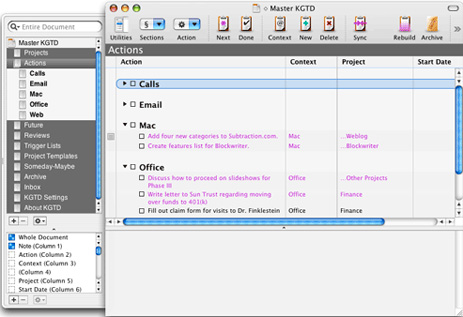
Khoi Vihn's Kinkless GTD Setup

The first publicly displayed mockup of OmniFocus:
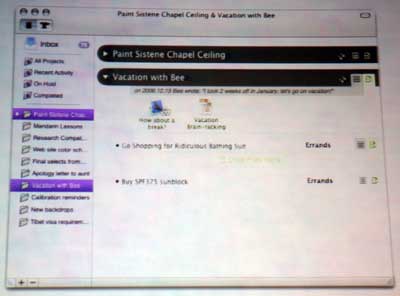
Original OmniFocus UI Mockup

OmniFocus 1.0:

OmniFocus Version 1.0

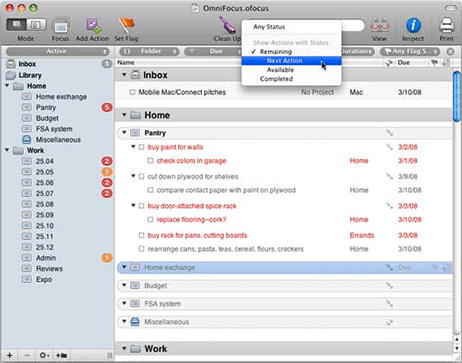
OmniFocus today (version 1.8):

OmniFocus User Interface, version 1.8

As you can see, not much in the UI has changed from the original Kinkless implementation of 2005 to what OmniFocus is today in 2010. You could say that OmniFocus is Kinkless 2. And though the front end is still quite familiar, the back end has been significantly supercharged.

The User Interface

Though I confess I am not very familiar with the design and development team at Omni Group, but it seems to me, more or less, that OmniFocus was primarily built by thinkers and developers. Which is why it works so well, but still looks a little rough around the edges.

In a way, it reminds me of the early days with Instapaper. Marco confesses to being an engineer and not a designer, and for a while Instapaper was not exactly the most attractive app on your iPhone. But the functionality and ease-of-use blew any ill feelings towards the UI right out of the water. And over time the UI of Instapaper has been refined into the piece of art that it is today.

So it goes with OmniFocus on the Mac. In fact, I think the biggest hinderance to using it is the user interface. At times I find the interface for the actual list of tasks somewhat difficult to navigate. After a bit you become familiar with it, but I usually have this feeling that there is too much going on at once and I’m not quite sure that it’s all staying together.

In part, this is why perspectives are so important and useful. They allow you to drill down into the right lists at the right times and only see what makes sense to you.

The UI has certainly been refined from that initial mockup, and yes you can refine bits of the UI yourself by using custom icons in the menu bar and custom colors, fonts, and spacing for the lists. But overall the app’s interface could still use some refinement and some breathing room.

And as I’ll talk about later, interacting with the iPad version only reinforces that. The iPad app feels much more “held together”, if that makes any sense, and the design of the iPad app is part of what makes it the best version of OmniFocus out there.

But so long as we’re discussing the UI, one fun feature of OmniFocus on the Mac is the ability to customize the style for your lists. From the application’s Preferences window choose the Style tab. From there you can tweak the colors, line height, and fonts of all your projects and lists. No doubt, many procrastinators have wasted some time fiddling with these options. I know I have.

But in addition to fiddling, you can load and save themes. There are websites which have themes posted for download, or you can download my simplistic theme if you like.

Using OmniFocus

Many of the task-management apps available today are a just another designer’s unique approach towards the same fundamental functionality: the ability to add tasks, organize them by project, assign a due date, etcetera. Put another way: a lot of today’s to-do apps are, more or less, the same app but with different skin.

Of the five areas of Getting Things Done are capturing, processing, organizing, acting, and reviewing, you want the least amount of friction. OmniFocus doesn’t just let you capture, process, organize, and review — once you’ve captured and processed an idea, OmniFocus almost does the rest of the work for you.

This is why OmniFocus is different. It was built from the inside out, meaning it’s a database first and a UI second. It may not win the beauty contest, but in my experience, compared to other to-do apps, OmniFocus handles your projects better than any other tool I’ve used.

For capturing tasks and information, OmniFocus leaves little to be desired:

  • There is a quick entry box you can bring up at any time on your Mac.
  • If you email yourself items and use OmniFocus’ Mail Clip-O-Tron 3000 you can pull messages from your email into OmniFocus. OmniFocus will even write Mail rules for you.
  • You can add files and clippings to your action items.
  • There is a bookmarklet which works on your desktop, iPhone, and iPad to send whatever website you’re viewing to OmniFocus.
  • It is scriptable.
  • And more…

But once you’ve captured your tasks and ideas they need to be processed and organized so they can be done. And the area in OmniFocus with the most friction is processing.

OmniFocus forces you to process your actions. Items just sit mercilessly in your Inbox until you’ve at least assigned them a context or a project (but preferably both). It doesn’t stop there. You can assign a start date and due date, you can flag it, you can mark it as being on hold or delegated, and a then some.

At times, the need for processing your stuff can be frustrating. But the truth is it’s good for you. It’s like your mom reminding you to brush your teeth before you go to bed. Taking that time will mean much better results in the future.

A properly processed Inbox is what leads the way to the two most addicting and powerful features of OmniFocus: the review and perspectives.

The Review

I love how OmniFocus helps you review your projects. Again, like a good personal assistant, OmniFocus brings to your attention each project, one at a time, and lets you review the tasks in that project. This is your chance to refresh yourself on what you’ve committed yourself to and make sure it is all still relevant and accurate.

Moreover, OmniFocus keeps track of your reviews for you. It knows when you last reviewed a project and only brings it to your attention when it is time to review it again. And, like everything else, your reviews sync over the air. Which is fabulous news, because the best way to review your projects is with OmniFocus on the iPad (but more on that in a bit).

In Things, I had to review manually. I would sit down at my laptop and scrub the Today List. Then, if I had the time or energy I would manually go through each project to see what tasks were in there and if any were in need of being done soon, or were no longer necessary. Because everything in Things was centered around the “Today” list in a way, managing my to-do list felt like I was perpetually processing. And since reviews had to be done manually I rarely ever got to them.

Perspectives

Perspectives is a backbone feature in OmniFocus. It is one of many ways to sort and present your action items in a meaningful manner. But perspectives are so powerful, it is as if OmniFocus were thinking for you.

It’s through the perspectives that give OmniFocus a much more robust approach towards that final and all-important stage of getting things done: doing.

As I mentioned earlier, getting actions into OmniFocus is easy. But processing of those actions is where the most friction exists. But that is because the organization and output of your tasks is what makes OmniFocus so powerful. I’m not exaggerating when I say that OmniFocus pretty much organizes your lists for you. It will take your relevant tasks and intelligently order them for you so you only see what you need to see without worrying about other stuff. After years of keeping a to-do list, I just may now be finally understanding what people mean by a “trusted system”.

As Tyler Hall wrote:

It’s hard to describe how incredibly powerful Perspectives are until you actually spend a few days with them in your workflow. Other task managers have smart folders or dedicated “Today” lists, but they absolutely pale in comparison to the flexibility that Perspectives afford.

The perspective I live in the most is one I made myself. It’s called “Today” and only shows me available actions which are due and any flagged items. What I like about having flagged items appear in my Today perspective is that sometimes I know a new action item needs to be done today but don’t want to fiddle with assigning a context or project or due date (especially when entering it via my iPhone or iPad). Thus, flagging the item is the quickest way to get that task into Today’s list.

Defining custom perspectives is easy. You can start by manipulating your “View”. Then from the Perspectives menu chose to Show Perspectives. From there, clicking the gear icon allows you to save your current OmniFocus window as a new perspective or update a currently defined perspective.
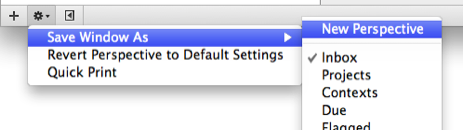
Saving Custom Perspectives in OmniFocus

While in the Perspectives Menu, you can also adjust unique Status settings only available from this pane, and you can set custom icons by dragging them into the icon box. This is how my “Today” perspective is built:
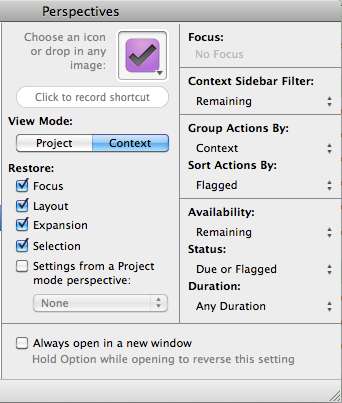
Buildig Custom Perspectives in OmniFocus

Once you’ve got your very own perspective you can add it to the toolbar and it will sync to your iPhone and iPad. From the iPad, if you star a perspective it will show up on your home toolbar (a feature I’d like to see come to the iPhone).

Over-the-Air Syncing

Despite all that OmniFocus as a task-management application can do, for me, one of the hallmark features is its ability to sync over the air.

One thing that’s important to understand about why over-the-air sync is so vital to my day is that I don’t spend my whole day working in one location. I spend part of my work day at home, part of it in my office, part of it in meetings, part of it on the go commuting between campuses, and part of it in our on-site coffee shop. Sometimes my location and the device I’m using will switch by the hour, and so I need my tasks and references to be available to me regardless of where I am or what I’ve got with me.

This is partly why I keep a folder of all my current projects and files — “Currently Working On” — in Dropbox. Not only does this keep those files in real-time backup, but it also gives me access to them from my iPhone, iPad, and Mac.

As I said in an aforelinked post about 1Password, apps that don’t sync are becoming increasingly arduous to use and maintain. And it truly did reach the point where Things was nearly useless to me. I would throw tasks in there to get them out of my head and to save them for later, but between my iPhone, iPad, and Mac my lists were so out of sync just by lunchtime that I rarely went to Things when it was time to actually accomplish anything.

Instead I would keeping urgent tasks in my email inbox (horror of horrors!) and would do a daily mind sweep of anything I knew needed to be done that day and build my to-do list in Simplenote / Notational Velocity so I would have access to it throughout my day.

As I said an the outset of this article, in a simpler world I would be delighted to use Simplenote as my task list. But I wear too many hats and have too many plates spinning at the same time for such a low-fi system. And that is ultimately why I switched to OmniFocus from Things.

Clippings and Attachments

When on your Mac you can clip a file to your task. For example, suppose you get an email from your boss asking you to do something. If you’re a clever employee you will do what your boss asks right away. But, perhaps you would rather ignore your boss for the moment and continue reading about Inbox Zero.

You can take that email message from your boss and send it to OmniFocus. Simply hit the Clippings Shortcut key (which can be defined in the Clippings Preference pane) to bring up the quick entry pane with your email message attached as a note. Now you can define the action item your boss needs, and save the email as a reference for later when you get around to doing it.

A clipping is basically an alias to a file on your Mac. You can clip just about any file you want: photos, videos, documents, audio… anything. In fact, I don’t know of any file type that you cannot clip to OmniFocus.

Some clippings — such as email messages and website URLs — get synced to your iPhone and iPad as notes. Other clippings — such as images or files — are treated as aliases, and thus can only be accessed from your Mac.

By default, OmniFocus on the Mac does not embed files you attach to your items. It simply links to them. This offers a tremendous gain of speed for syncing your database between multiple devices. However, if you do have a file that you want to embed in your database from your Mac so it will sync to your iPhone and iPad, then you have to embed it manually.

To embed a file into an action item select the item and click Edit → Attach File…, then from the file picker choose the file you want and pick the option to embed the file in the document (rather than create a link to the file).
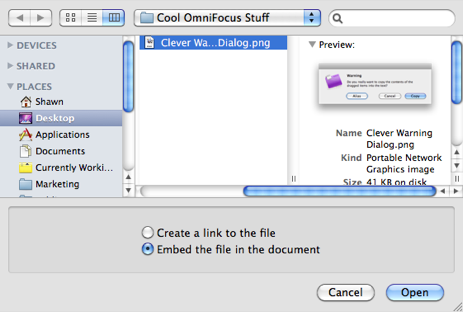
Embedding a file in OmniFocus

Now the embedded attachment exists within your database and will sync to all your devices.

In the iPhone and iPad apps, however, there is no such thing as clippings; there are only attachments. From the iPhone or iPad you can attach a photo (by taking a new one or pulling one from your device’s photo library) and you can attach audio.

There seems to be no limit as to how many photos and audio tracks you can attach to an item. And though the process and feature is overall very polished, I do have a few quibbles.

  • Recording Audio: To record an audio attachment on your iPhone you tap “Record Audio”. But then, all you’re presented with is a blank white box. If you’re not familiar with how the UI changes you may be wondering (as I did) if the audio recording is actually taking place.

    In the iPhone’s native Voice Memos app you get a big red bar on top of your screen letting you know you are now recording. In OmniFocus you see nothing, until you begin talking. The you see a green line which is a volume-level indicator.
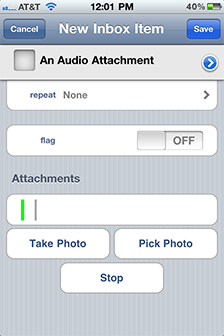
    Recording an audio attachment in OmniFocus on iPhone

    Surely a pulsing red UI element signifying “now recording” would be more helpful? It wouldn’t even have to replace the volume-level indicator, it could sit right on top of the “Stop” button.

    After you’ve finished recording your voice note in OmniFocus it will sync to your database as a .cafCore Audio Format — file, which is an audio container file used by Apple. The sound quality of a synced audio track is actually quite fantastic and clear.

  • Attaching Photos: When adding a photo attachment from your device’s image library the iPad has the right approach. It says “Image added Today, 2:46 PM”. The iPhone however says “Picture taken Today, 12:14 PM” (or whatever time you added it). On the iPhone, for image attachments that are added from the iPhone’s photo library, it should say “Image added” not “Image Taken”. (And to get especially nit-picky, why is “Today” capitalized? I see no reason.)
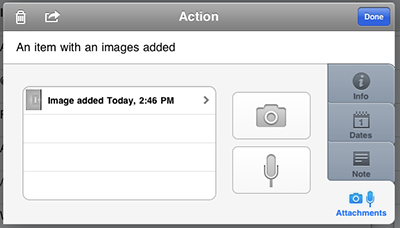
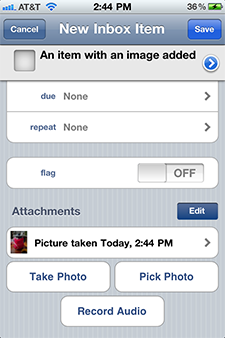
    A photo attachment on OmniFocus for iPad

    A photo attachment on OmniFocus for iPhone

The only downside to attachments is wireless syncing. Aside from being able to sync over-the-air the next most important thing is to be able to sync quickly, and big file attachments hinder that.

In day-to-day usage I rarely need to attach audio or photos to a task when adding it on my iPhone or iPad. It is much more common for me to add a clipping to an action item when on my Mac. But since these files are usually are only needed for a project I’m working on when I’m actually at my computer, I don’t attach the clippings I simply link to them. By keeping attachments to a minimum, it helps my database sync quickly when I’m launching OmniFocus on my iPhone or iPad.

Worth pointing out is that when syncing your OmniFocus database, only what is new and/or what has been changed gets synced. This means when your desktop app syncs to the cloud, it only pushes tasks that have been updated since the last sync. And when you launch the iPhone app, it only downloads the tasks which have been created or updated since the last sync. It does not download the entire database every time.

This is, of course, standard operating procedure — it’s the same way programs like SuperDuper, Time Machine, and Dropbox work.

The Omni Sync Server

On the iPad’s sync options you are given the opportunity to join the Omni Group’s beta Sync Server. It is, more or less, their own WebDAV server. The iPad is the only one of the three apps which recognize this as Omni’s own sync server. On the desktop and iPhone versions of the app you have to set up the service under the Advanced WebDAV settings.

Currently all the Omni Sync Server does is sync your data. Though my perception is that it does seem to respond much quicker than the MobileMe sync I used for the first month. Hopefully Omni Group has some exciting features in the pipeline for their sync server beyond just syncing (the ability to email directly to your cloud-based database would be one such feature).

A Few More Miscellaneous Observations About OmniFocus’ Over-the-Air Sync Options

  • Changes to your database don’t get pushed to the desktop app, nor are they pushed to the server in real time. The desktop app syncs on a schedule every 60 minutes; however you can manually initiate a sync anytime you like and it always syncs when quitting.

  • On the iPhone and iPad you cannot sync if OmniFocus is not running in the foreground. Unlike sending an email or a text message, where once you hit send you can lock your iPhone or iPad and the message will still be sent, OmniFocus must be open and running to complete its sync.

    Likewise, if your iPhone is locked it will still fetch new emails. OmniFocus however, just like other iPhone apps, can only sync when it is open. And alas, it does not have “sync completion” — this means if you initiate a sync and then exit out of the app the sync will lose its connection to the server.

    This lack of non-background syncing can be especially annoying when you’ve completed a task, checked it off on your laptop, but then later it beeps your phone reminding you the task is due. The only way around this is to turn off reminders for OmniFocus on your iPhone. This is done in the Settings pane from the OmniFocus home screen on your iPhone.

OmniFocus on iPhone

In the beginning, the best way have your OmniFocus task list while on the go was to print it out. The first version of OmniFocus for iPhone was an iPhone optimized Web interface.

On July 10, 2008 the native iPhone app launched. Unlike the printout or Web interface before it, the iPhone app was a full-featured, stand-alone task management app. Meaning you didn’t need OmniFocus on your desktop to use OmniFocus on the iPhone. But if you did have the desktop counterpart then you could sync your tasks with your Mac. And you could sync them wirelessly, over the air via MobileMe or your own generic WebDAV server. Syncing over the air is something that many applications have still yet to implement, yet Omni Group had it done right out of the gate.

And even before the iPhone app was available in the App Store it had already won an Apple Design award. The iPhone app has come a long way in the past two years, but it’s that initial hallmark feature of OTA syncing that caused me to switch to OmniFocus in the first place.

Perhaps the most clever and thought-through feature on the iPhone (and iPad) app is the ability to quickly enter a task even when the app itself is syncing and updating. The nature of over-the-air sync means the app has to check for changed data and then update itself every time you launch the app. During the updating process the iPhone app’s database is momentarily locked out. Yet you can still add an action item to the inbox via the Quick Entry button.

This is a dream feature for the many times you are launching OmniFocus for the sole purpose of jotting something down.
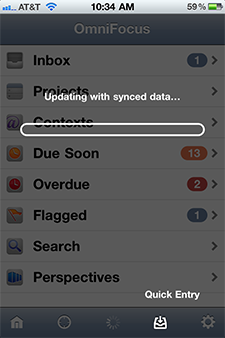
Quick Entry is available at all times

And so long as we’re discussing the Quick Entry button, it’s worth noting that there is a functional difference between the plus (+) button and the quick entry button. The quick entry is for something to simply go directly to the inbox (hence why the icon is an arrow pointing into an inbox). The plus button will add a task with your currently viewed project or context pre-populated (though you can change it).

As mentioned above, in the settings of the app this is where you can turn off notifications of due items. It’s also where you can set your badge count (I keep my badge count off; I’m already aware that I have things to do). I also have all the current “Experimental features” turned on. Such as Landscape Mode, Undo Support, and Perspectives. The latter is one of the backbones of OmniFocus, so being able to sync your perspectives between your iPad, Mac, and iPhone seems like a requirement not an experiment.

OmniFocus on iPad

The iPad app was released on July 30, 2010 and is, without a doubt, the best of all three versions. Moreover, it is one of the most robust, feature-rich, easy-to-use apps on my iPad. $40 is big ticket compared to many other iPad apps, but you are getting what you pay for.

It seems to be a common practice that for apps with a strong presence on the desktop, their iPhone and iPad counterparts are portals into the desktop app, or light versions. But OmniFocus on the iPad is the current king of the OmniFocus hill. Ask anyone.

Brent Simmons:

Every successful computing platform has to have a “VisiCalc moment” — the moment it goes from fun toy and technology demo to “holy crap this thing is useful.”

I don’t think there’s a single VisiCalc moment that everyone will have for the iPad — but, for me personally, it was OmniFocus. That’s when my iPad went from toy to indispensable tool.

Before OmniFocus, my iPad wandered around my desks without a real place. Now it has a place right next to my dev machine’s keyboard.

Chris Bowler:

OmniFocus [on the] iPad is the best of the three. It is indeed, but I’ll go one further: it’s the best task management tool that I’ve used. Period.

This is partly due because the platform itself is present — and usable — on the three main devices I use. But I must profess my love for the Forecast feature that was added to this client. It is not present on the Mac or the iPhone clients.

After a couple of days of using the Forecast ‘view’, I asked myself, “Why has no other Mac task application used this exact interface?” Indeed, even the Mac client for OmniFocus pales in my usage. The ability to quickly see a timeline of what’s coming down the pipe, no matter the project or context — has been a boon to my tool belt. To have all overdue items available in one quick glance is also beneficial.

In particular, the iPad version soars in two areas: (a) Reviewing your projects; and (b) the Forecast view.

Review

As mentioned earlier, one of the most splendid functions within OmniFocus is the way it helps you review your projects. You currently cannot review them in the iPhone app, but that’s okay because once you’ve done your weekly review with your iPad there’s no going back.

In perfect form the Review pane comes equipped with a coffee cup-bearing icon. Tap that and OmniFocus brings up all the projects you have not reviewed in the past week. (If, perhaps, you need to review more often than once a week you can set your time allotment of choice from within the settings.)

Once in the Review pane you see one project at a time. On the left sidebar is your list of all projects pending your review, and on the bottom are some attractive buttons to let you chose what sorts of projects you want to review (active projects, those you’ve put on hold, those you’ve completed, or those you’ve flat out dropped), and your stamp to mark the project as reviewed.

OmniFocus for iPad: Review buttons

The review pane on the iPad app is a textbook example for why good design is important. The functionality on the iPad app is no different than the desktop version, yet the interface is so well designed it makes the review process faster and significantly more pleasant.

Forecast

The Forecast view is just that, a high-level look at upcoming tasks for the next 7 days; also included is everything past due and everything with a future due date. I second Chris’ statement above: why has no other task manager implemented this view? I use it more than my custom-defined “Today” perspective.

OmniFocus for iPad: Forecast View

Since switching to OmniFocus I’ve had many people ask me if the iPad version is worth getting in addition to the desktop version. I would argue it’s the other way around: is the desktop version worth getting in addition to the iPad?

By nature of how I work, I use the desktop version of OmniFocus significantly more throughout the day than either of the mobile apps. But I prefer and enjoy the iPad and iPhone apps over the desktop. And I especially prefer the iPad version.

Hopefully OmniFocus for iPad will be leading the way for future versions of its iPhone and Mac counterparts and the Omni Group will take what it’s learned on the iPad back to the Mac.

Conclusion

I switched to OmniFocus because of its ability to sync. I’m staying because of its ability to do everything else.


More software reviews can be found here.

DomainBrain is a handy tool for Mac OS X that helps webmasters and web designers keep track of server and login information for their websites. Now with customizable fields and data categories, DomainBrain remembers exactly the information you need. Visit domainbrainapp.com to give it a try.

Many thanks to Idea Cafe for sponsoring this week’s RSS feed. Idea cafe is a classy one-stop-shop for notebook nerds where only the best notebooks are sold. Each one is reasonably priced and has large, detailed photos to help you decide. But if you’re not sure what to get, check out the bundles — they’ve been pre-selected and aptly named for different types of users.

One of Marco Arment’s oldies but goodies:

I have enough readers now to cause two problems

PlainText is Dave’s preferred text editor on the iPad. I still use Simplenote and Notational Velocity, but the options for writing and syncing between Macs and iPads seem to get better and more vast every day.

Aaron Mahnke’s Sweet Mac Setup

Who are, what do you do, etc…?

My name is Aaron Mahnke. I’m a freelance graphic designer in the Boston area. I work under the banner of Wet Frog Studios, focusing on identity and brand design, though I do a ton of print design and even a bit of web design as well. I blog sometimes at aaronmahnke.com, and share resources for freelancers on my other site, abetterfreelancer.com.

What is your current setup?

Aaron Mahnke's Mac Setup

Aaron Mahnke's Mac Setup

Aaron Mahnke's Mac Setup

My desktop computer is a 27-inch 2.66 GHz Quad-Core i5 iMac with 4GB of RAM. I recently made the switch from the wired Apple aluminum keyboard to the bluetooth version in order to allow my Bamboo Fun (1st gen, medium size) tablet to sit closer to the center of my iMac, eliminating some unnecessary strain on my right shoulder. I’ve found that the mouse that came with the Bamboo tablet is perfect for my work style, and I can easily switch to the pen when needed.

I have a secondary work station set up beside my red reading chair that consists of a newer 2.4 GHz i5 MacBook Pro (also 4GB of RAM) and a 23-inch Apple Cinema Display. I use it mostly as a hub for three Western Digital 1TB MyBook external hard drives that contain years of video production work, as well as an external Sony DVD burner for churning out multiple copies of client work while I read in the red chair.

When I’m mobile I rely on my iPhone 4 and a 32GB 3G iPad to keep me connected and creating. The iPhone is my main device for task capture (via the Things app), RSS feeds (via Reeder) and reading (via Kindle, iBooks and Instapaper). I rarely use it as a phone, though during the work day it’s docked beside my iMac with a pair of Apple in-ear headphones connected and ready.

The iPad is a fantastic work device for me. I keep it naked at home, but it travels in a DoDoCase outside the house. It goes to every meeting with me, and I rely on a combination of SimpleNote and Penultimate for capturing the information I need. I rely heavily on the Photos app to hold my logo design portfolio and digital samples of my print design work. And the Dropbox app is the perfect tool for presenting potential clients with my logo design service information, my contract and glimpses of in-progress work.

Why this rig?

Power and flexibility are my driving motivations, honestly. I put my iMac to work every day, sometimes running Illustrator, Final Cut Pro, VMWare Fusion and a handful of smaller applications all at the same time. I am in this eternal struggle between wanting to be parked at a desk with extreme power and screen space, and being able to pick up and work from anywhere, so this setup allows me to live with a foot in each world for now.

What software do you use and for what do you use it?

The first piece of software I always tell people about is Dropbox. I have a 50GB account to hold all my design projects, which means I can work whether I’m at my desk or using my laptop away from home. The natural back-up that Dropbox brings to the table also helps me sleep easy knowing my clients’ work is always safe.

The applications I launch every day when I sit down at my desk would be Mail.app, Things, Illustrator, Numbers and Billings. On occasion I have to launch Pages, Keynote, Final Cut. Other applications are always running, though, like Notational Velocity, Yojimbo, MailActOn, 1Password, Littlesnapper and Tweetie. I have a few Fluid instances for things like Basecamp and Rdio, but prefer Propane for Campfire chats. And finally, my menu bar plays host to Droplr, which I use a few times a week at most.

How does this setup help you do your best creative work?

I’ve tried my best to surround myself with tools that help me get the job done faster. I take notes in Notational Velocity, which is connected with SimpleNote, so that I never have to save, rename, or move the files again. I keep inspiration logged in Yojimbo and Littlesnapper, both of which sync across my computers. And I try my best to master hot keys to save time and effort.

Creativity is all about reducing the distance from inspiration to retention. I might not be able to react to a moment of inspiration right away, but if I can capture it properly (via screenshot, dragging into Yojimbo, or typing the idea out) I can come back to it when I’m ready. This isn’t multitasking, though. This is all about knowing your tools and having a solid system.

How would your ideal setup look and function?

Honestly, the Apple ecosystem is getting really close to perfect for my needs. I would love to upgrade the RAM in both computers someday soon, and a SSD in the MacBook Pro would be next on my list after that. I can dream about better app syncing between the Mac and iOS devices, but Dropbox really gets the job done for me. My only other “fantasy device” would be a big fat Drobo, but I think that’s because I’m an external storage junkie.

More Sweet Setups

Aaron’s setup is just one in a series of sweet Mac Setups.

A great “buyer’s guide” article from Marco; yea more than a buyer’s guide.

4,300 words regarding the best Anything Bucket in town.

The hallmark feature of 3.0 is sync support for the brand new Yojimbo iPad app. The Desktop version syncs to the iPad version over a local Wi-Fi network. Alas, the notes and items on your iPad will be read only, and it does not sync over the air. But it’s a good looking, easy-to-use repository of your Yojimbo information right on your iPad.

The 3.0 upgrade is free if you already own 2.x — Bare Bones will send you a free 3.0 license seat in the next several days, and in the mean time you can just download the 3.0 demo. The iPad app is $10 in the iTunes store.

Andy Ihnatko:

Overall, you should be looking for features that tie the whole product line together, such as AirPlay, and ways of integrating the Mac OS file system into mobile devices. Apple’s been building the Death Star for quite some time — aka that huge new data center in North Carolina — so honestly, any guess that would require massive storage and infrastructure seems possible.

Yes, please.

The latest update to LaunchBar has lots of improvements, bug fixes, and added functionality. LaunchBar is a fantastic little utility. I dropped Quicksilver over a year ago when I upgraded to Snow Leopard and now use LaunchBar and FastScrips.

I’ve begun building a list of recommended, non-fiction, help-you-do-what-you-love-to-do-better types of books. The page lists five books so far. Some for writing, one for leading and creating, and one for iOS developing. I’ve read each one and highly recommend them all. And if you’re kind enough to pick a few of them up, I will get a small kickback which, in turn, helps me to continue writing here.

With attractive and targeted packages for multiple disciplines, Idea Cafe is the perfect stop for the creative professional. Check out all our notebooks from the best brands available. Equip yourself.

The best three-minute case for minimalism in design, marketing, and life you’ll watch today.

Sponsorship Opportunities

One of the greatest assets a publisher has is the attention and trust of their readers. It is something cultivated over time as a person or publication slowly becomes a trusted advisor for the things they write about, link to, and share. In short: my RSS Subscribers are my truest fans. They’re the ones who have volunteered to let me share ideas, links, and more with them anytime I want.

And this is much of what makes an RSS Sponsorship so valuable — the sponsor gets exposure to an audience who’s already paying attention.

Placing ads into RSS feeds is laughable. The ads often look horrendous (if they work at all), and offer a minuscule return on investment for both the publisher and the advertiser. Sponsoring an RSS feed however is a fine idea. It provides the promoter with a high-impact way of getting exposure, and allows the publisher to keep their feed clean from ad clutter.

On Monday I began offering sponsorships to this site’s RSS Feed. Yes, the sponsorships help me to continue writing here, but long-time readers of this site know what an advocate I am for the freelance designer, the 3rd-party developer, et al. I am not exaggerating or lying when I say that part of the reason I set up sponsorships was to offer a top-notch promotional channel for designers, developers, writers, and more.

And so good news: for those looking to promote their product or service, shawnblanc.net is not the only site offering Sponsorships for its RSS Feed.1

  • Monday by Noon: a gem of the Internet. Jonathan posts a well-written, well-informed article on Web design and development every Monday. And now, just before his weekly article is published, you have the chance to be endorsed by Jonathan to his healthy readership of Web professionals.

  • Minimal Mac: a site that has taken off like a rocket over the past year. Patrick Rhone is a trusted advisor to many a Mac nerds and minimalists. He is offering you a chance to sponsor his RSS Feed as well. You get a promotion on Monday and a thank-you post on Friday.

  • The Brooks Review: regular, insightful writing about Apple, technology, and the Web. Ben Brooks is quickly becoming a must-read among many well-known technology sites.

Why am I promoting these other guys? Because sponsorship opportunities are a fabulous channel to promote you app, your book, your freelance business, and more. I get frequent requests from app developers asking me to check out and hopefully promote their app. I get emails from web developers asking me if I know any good designers, and vice versa.

There is certainly no shortage of top-notch products and services worthy of being made known. If you’ve got something you’d like to promote, book a sponsorship on this site. But I also recommend Minimal Mac, Monday by Noon, and The Brooks Review. I believe your promotion would do well there also.


  1. Savvy advertisers may think ahead and sponsor the same week — or back-to-back-to-back weeks — across multiple sites.

Many thanks to App Cubby for being the debut sponsor of the RSS Feed and promoting their iPhone app, Gas Cubby. David Barnard and the App Cubby team are exceedingly dedicated to building and developing top-notch iPhone applications. They’re an intuitive and detail oriented team, and their work shows it. Gas Cubby is just one in their lineup of fine iPhone apps.

Tyler Hall:

It’s hard to describe how incredibly powerful Perspectives are until you actually spend a few days with them in your workflow. Other task managers have smart folders or dedicated “Today” lists, but they absolutely pale in comparison to the flexibility that Perspectives afford.

I’ve been using OmniFocus for nearly a month now, and I couldn’t agree more. Or, as I wrote last week:

Organization and output is what makes OmniFocus so mind-blowingly powerful. I’m not exaggerating when I say that OmniFocus pretty much organizes your lists for you. It will take your relevant tasks and intelligently order them for you so you only see what you need to see without worrying about other stuff.

Nicholas Felton’s Sweet Mac Setup

Who are you, what do you do, etc…?

Nicholas Felton. (Photo by Ellen Warfield.)

My name is Nicholas Felton. I am a graphic designer based in New York City. I focus primarily on data visualizations… making charts and graphs and maps for print and online. I also run a website called Daytum that I founded with Ryan Case to help people count the big and little things in their lives and compile these statistics into pages like my own Annual Reports.

What is your current setup?

Nicholas Felton's Setup

Nicholas Felton's Setup

My work machine is a dual quad-core Mac Pro with a 30″ Cinema Display. Away from the office, I use a 13″ aluminum Mac Book.

Why this rig?

The first Mac I owned was a Quadra 840AV and I’ve used Mac towers continually since the G3 days. I may migrate to an iMac for the next office machine, but I like having lots of internal drives in the tower. The internal drives are cheaper and seem to last longer than external backups. I also like how easy it is to upgrade the memory, and that I can hang onto the monitor when I swap the computer out.

My favorite laptop was the 12″ G4, so when Apple did the aluminum MacBook refresh, I bought the 13″, and it still holds its own for travel and home use.

What software do you use and for what do you use it?

  • Adobe Illustrator, Photoshop and InDesign CS3 (with occasional excursions into CS5) for design.
  • Textmate or Coda for web work (css and html).
  • I use Processing to make little data visualization and mapping applications that I output to pdf and import into Illustrator.
  • I use Apple’s Numbers and Pages as Excel and Word clones.
  • I also use TextEdit all the time, for writing notes or answering interview questions and saving data sets. It’s remarkably useful.

How does this setup help you do your best creative work?

In plain terms, it’s fast enough, doesn’t crash too often and tends to not get in the way of what I want to do. Fundamentally, it lets me do my best work because I am familiar and comfortable with the way everything is set up, so I spend very little time looking for things. If it weren’t for email, I would be a very productive person.

Nicholas Felton. (Photo by Ellen Warfield.)

Nicholas Felton. (Photo by Ellen Warfield.)

How would your ideal setup look and function?

If Adobe would kill the feature creep and focus on software that’s fast and doesn’t crash I would be most of the way to an ideal setup. Apart from that, I just need a big monitor, a CPU that can keep up and some decent speakers to be happy.

More Sweet Setups

Nicholas’ setup is just one in a series of sweet Mac Setups.


The three photos of Nicholas were taken by Ellen Warfield.

In his brand new book, my friend David Appleyard has distilled an incredible amount of information to help acclimate new iPhone developers to the iPhone App Market.

I have read the whole book, and it truly is a fabulous resource for iOS developers. As I wrote in my endorsement: “iPhone App Entrepreneur will help you to create and sell the sort of app which gets used and talked about in living rooms, back offices, and everywhere in-between.”

And if you grab a copy using this link, I will get a small kickback.

For the past several years a good friend of mine, Tim Cone, has had a vision to launch a Christian record label which gives away its digital music. This week that dream was realized and Churchyard Records has opened its doors.

Their first release, an EP from Spacesuit, is absolutely fantastic. I mean, it’s really, really good. And it’s 100% free to download and listen to at painfully loud volumes.

And speaking of the Pipeline, Dan’s interview with Andy Ihnatko is likely my favorite episode so far. Jam packed with fantastic Q&A for writers and freelancers.

The Pipeline is such a fantastic podcast. If you’re not already subscribed, you should at least catch Dan’s recent interview with Marco if you want to find out about how Instapaper came to be, what Marco thinks of office hours, and more.

Also, Marco Arment was just interviewed on The Setup (long live the matte display!).

These two ads for the new Windows 7 phone are super clever and funny. But the campaign tagline — “It’s time for a phone to save us from our phones.” — seems odd. It’s cute, but who are they talking to?

I certainly have my iPhone out all too often. But never once have I thought it was due to a problem with my iPhone. (Wouldn’t that be nice?) So why or how could another smart phone relieve me of the constant distraction that is my current smart phone? The answer: it can’t.

Chairman Gruber has the same quibble. His thought?:

Perhaps this message from Microsoft isn’t targeted at existing smartphone owners. It’s for those shopping for the first smartphone, who, because they don’t have one yet, see existing smartphones as something unpleasant — gadgets that turn friends and family into anti-social heads-down faces-underlit jerks. I can see how that message might work.

A forked version of Notational Velocity that brings full-screen mode, a left-hand column for your notes lists, and a few other cool tweaks. I’m using it now and it works great.

Announcing RSS Feed Sponsorships

Up until this morning the only way to promote a product or a service on this site was through ads placed with Fusion. The Fusion ad network is fantastic, but ads placed there are shown across its entire network. But now, if you have a product or service you’d like to promote directly to the fine readers of shawnblanc.net, you can sponsor the RSS Feed.

Feed sponsorships are week-long, exclusive, and very affordable. Your promotion will reach a handsome audience of tech- and design-savvy Mac nerds. This is a fantastic opportunity for freelancers, developers, designers, and anyone else with a product or service in need of exposure.

More info on pricing, reach, and schedule can all be found on the sponsorship page.

To book your sponsorship, or if you have any questions, please email me.

Gas Cubby is the ultimate tool for tracking gas mileage and vehicle maintenance. Whether you’re a hypermiler, or just want a reminder to change the oil, Gas Cubby will help save you money and keep your vehicle operating at its peak. Buy it on iTunes.

Amen. And my quibble isn’t so much that the WP Touch theme and the default Tumblr mobile theme are both ugly, but that they look just like every other site using them. It’s like placing your resume into a Microsoft Word template.

Clever tip. Works for “Save PDF to Yojimbo…” and “Mail PDF” too. (Via Chris Bowler.)

“If you want to tell the most inner workings of an artist’s mind, then of course the desk is the most telling space for that.”

A nice short film about desks by Imaginary Forces. (Via Kottke.)

Iain Broome’s Sweet Mac Setup

Who are you, what do you do, etc…?

I’m Iain Broome and I write fiction. My first novel is called A is for Angelica and is represented by Tibor Jones Associates. They’ll be sending the novel out to publishers soon and I’ll be keeping various things crossed, especially my fingers.

By day I’m a copywriter for The Workshop, a leading UK design company. It’s a little more than writing copy though. Yes, I can give you a tasty strapline or plain English paragraph, but I also work on usability, accessibility and wireframing clients’ websites.

I have a couple of blogs. Write for Your Life offers writing advice for all types of writers. It also has snazzy illustrations provided by the marvellous Matt Pearce. Broomeshtick is my personal blog where I talk about writing, design, technology and, well, more writing.

What is your current setup?

Iain Broome's Setup

Iain Broome's Setup

Iain Broome's Setup

Iain Broome's Setup

I bought my first Mac in March 2008. It’s a 20″ iMac which gets backed up wirelessly to a 500gb Time Machine, which in turn connects to an Xbox 360 in the lounge. Or at least it did before the 360′s second bout of RROD. Microsoft, eh? *spits*

I also have a 16gb iPhone 4 and, when my piggy bank is finally full, I’ll be getting a 16gb, wifi-only iPad. I intend to use the iPad for creation as much as consumption.

The idea that you can’t use an iPad to write anything of substance seems ridiculous to me. All you need is a keyboard and a blank screen. The iPad provides both and I can (will) take it anywhere (everywhere).

Finally, I have a Sony A200 Digital SLR camera. One day I will learn how to use it properly.

Why this rig?

The iMac provides all I need and more as a novelist and blogger — let’s face it, words are pretty easy to process. But I also use it to edit images, record podcasts and put together video blog entries for Write for Your Life. The iMac has all the power and storage I could ever want for those things too.

Sometimes I think I might have been better off with a MacBook or MacBook Pro, but the extra screen size comes in handy for watching movies, viewing pictures and having multiple windows open. Truth is, it’s become the hub of our home. CDs and DVDs? Long forgotten. This is streaming central.

My iPhone 4 stays with me throughout the day. I primarily use it for email, Twitter, my todo list and reading articles through Instapaper. We also use it to play music and podcasts wherever we are in the house.

Truth is, it’s the perfect techno-companion and unless something catastrophic happens, I can’t see me using anything other than an iPhone for quite some time.

Oh. I sometimes make phone calls.

What software do you use and for what do you use it?

Okay, this is the important bit. Having a Mac has changed the way I work, that’s for sure. But really, it’s down to the software.

I explained this in a recent post, which I might as well quote:

Drawn by the bright lights and Apple’s promise of all-the-cool-things-I-could-do, I expected dazzlement and wonder with every mouse-swish and keystroke.

But something strange happened. Instead of reveling in the glitz and relative glamour of iMovie, iPhoto and the multimedia posse, I found myself enjoying quiet nights in with my new best friends, strong and silent types like Finder, TextEdit and, more recently, Simplenote.

And the reason was this. I am simply a writer. I don’t need all that other stuff. Or at least, I don’t need it to do what I do best.

So once the dazzlement wore off, what I found was a computer – a word you hear less and less these days – that gave me tools to do things quicker, more efficiently, perhaps even better.

The technology disappeared and left me alone with my words. Just me and them.

That said, my novel was written in Microsoft Word. I know. But only because I had zillions of drafts and edits left over from my pre-Mac days. I use TextEdit for most other writing and have enjoyed WriteRoom on occasion.

In other news: it’s iTunes and Spotify for Music. Safari for browsing. Transmit for transmitting. Acorn for pretty pictures. Adium for chit chat. Simplenote for todo lists and ideas. Alfred for launching. Then 1Password, my trusty online bouncer.

Finally, there is DropBox. The key to it all.

How does this setup help you do your best creative work?

It’s a pretty time-consuming this writing novels, running two blogs while having a full-time job for a design agency business. It means I have to do things whenever and wherever I can. My setup is designed – well, it’s evolved, more accurately – to allow me to do that. It’s all about the sync.

With DropBox, Simplenote and an iPhone 4, I can access everything I need at all times. I can edit files on my work PC at lunch and know they’ll be there when I get home. I can approve comments, make notes or catch up on some reading on my phone while I’m waiting for the bus. And again, when I get home, my Mac is up-to-date.

Novel number one was written on no less than six different computers – a combination of desktop PCs, laptops and my iMac — in even more locations, using goodness knows how many USB drives for transferring and backing up.

Novel two will be written on just my future-iPad and my iMac. That says it all, really.

How would your ideal setup look and function?

It’s just the iPad, I think. Everything else works just as I need it to. I might be tempted, when the time comes, to replace the iMac with a MacBook, but it won’t change the way I work. And that’s the most important thing.

It takes a while to get a setup that you’re happy with, but after two years together, me, my Macs and a few third-party apps are getting on tremendously.

Frankly, we don’t need no one else.

More Sweet Setups

Iain’s setup is just one in a series of sweet Mac Setups.

A service that lets you email documents into your Dropbox folder. This could be especially helpful for those who are creating a document on their iPads and wishing for a more integrated way to sync and share. (Via Brian Hoff.)

Cloud service which syncs your Basecamp projects and tasks to OmniFocus. If you don’t use Basecamp Spootnik can still sync OmniFocus for you for free. If you’re a heavy Basecamp user, plans run as high as $30 / month.

The feedback I received after posting my initial thoughts on OmniFocus yesterday can be summed up in two groups: (a) those welcoming me to the “OmniFocus community” (I had no idea there were so many of you over here. Hi, guys.); and (b) those assuming I’m trying out OmniFocus because Things is so lame now. The latter is simply not true.

In my review of Things almost two years ago, I said:

Each of us has our own way of dealing with responsibility and our own expression of productivity. Tinkering and then switching is usually not the fault of the software. We’re not looking for the best app, but rather the best app for us.

My reason for switching to OmniFocus from Things is not the same as buying a new car because my old car blew a head gasket. Things is still a beautiful piece of software which does everything promised on the tin. But for me, today, some of the features are not enough — that does not imply Things has a blown head gasket.

A few weeks ago I received a 20″x30″ print from Jorge Quinteros’ fine photoblog collection. I haven’t had a chance to put it up in my office yet, but I am eager to. I really love the photo, and the print itself is very high quality. (This shot is also a new favorite.)

If you’re looking for good-looking, affordable, non-stock photography for your home check out Jorge’s site. And to make it more affordable, the first 50 folks who use the discount code 9E8C5F get 20-percent off their order.

Brent Simmons:

Before OmniFocus, my iPad wandered around my desks without a real place. Now it has a place right next to my dev machine’s keyboard.

This high-level look at Jonathan Christopher’s most-used features in OmniFocus speaks true for me too. Especially: parallel vs. sequential tasks; perspectives; and iPhone / iPad support.

Briefly on OmniFocus

About a week ago I switched to OmniFocus. I don’t switch to, or tinker with, new software that much anymore. I’ve pretty much found and use all the tools that work for me so I can do my best work every day. But my iPhone and iPad are changing how I interact with my work, and so, alas, Things became a casualty of war. (Yes, work is war. Anyone who says differently is selling something.)

OmniFocus is an extremely robust app with a moderately steep learning curve. But two things are instantly clear about it: (a) it is built by guys who get it;1 and (b) there is a lot of horsepower under the hood.

To really get your mind and processes wrapped around this purple nugget takes some time, and I’ve only been using it for a about a week. They say it takes three weeks to develop a habit, so it’s still early for me to tell if the extra bells and whistles here will actually help me work better and smarter.

But I’m fairly certain I see light at the end of the tunnel here. For one, over-the-air sync! Also, what I’ve noticed so far in my brief but determined usage is that OmniFocus has a much more robust approach towards that final and all-important stage of getting things done: doing.

Getting actions in is easy. It’s in the processing of those actions where the most friction exists. However, that’s because the organization and output is what makes OmniFocus so mind-blowingly powerful. I’m not exaggerating when I say that OmniFocus pretty much organizes your lists for you. It will take your relevant tasks and intelligently order them for you so you only see what you need to see without worrying about other stuff. After years of keeping a to-do list, I just may now be finally understanding what people mean by a “trusted system”.

With Things, the scales seem to tip in the opposite direction. While it is easy to add and especially to process tasks, I felt like I was perpetually processing. Even when doing, I was processing. Except I never realized I was always processing until about a week ago when I began tinkering with OmniFocus’ perspectives. In Things I had to decipher what to do on a day-to-day basis and manually build that day’s task list. OmniFocus, however, seems to take care of that for me, provided that I can initially process my tasks with at least some semblance of intelligence.


  1. It is obvious the Omni Group actually uses OmniFocus and that they understand and work by the GTD mindset. OmniFocus is not a trendy app for the latest fad; it is an app built by people who take their work and their software seriously. This also happens to be their ideal user.

A cornucopia of interesting, useful information.

The section I found most interesting was Confidence. Basically, those with less education, had more confidence in their job future than those with higher education. Also, those who were part of a smaller team, or were freelancers, had more confidence than those in larger corporations.

Put another way: non-college-degree freelancers are very confident while those with doctorates working at the corporate level are less confident. (Reminds me a lot of this quote about the self-esteem of those born after 1980.)

Update: I received this very insightful email from Joshua Longbrake, which offers some great perspective on the above findings about confidence:

Almost all the greats in any field had tremendous amounts of education, whether it was from formal academia or via being tutored by another great artist. Education brings an awareness of what has come before you and what it takes to make something good, and it is often the case that that realization and realism will come across as being “less confident.”

Those who have not been educated, either by formal academia or by being mentored by a great, often don’t have the awareness and knowledge of what has come before them and what it takes to make something good, and that lack of awareness can come across as “confidence.”

However, sometimes that confidence, that absence of education, can produce something great because it doesn’t know what it takes to make something great; he or she fears no thing and no one.

My assumption is that the less-education argument will mostly, if not only, come from digital artists, such as graphic designers. I believe the reason for this is that there is no history to graphic design: its history is being made today. Essentially, there is very little to educate them on besides techniques. There are not graphic designers from 200 years ago, or 100 years ago, or 50 years ago, and because of this, there isn’t much on which to educate graphic designers. They are making history, and good on them, but I doubt you’d find the same pattern of thinking from painters, sculptors, and writers.

What nerd doesn’t love a good messenger bag? I’ve got two: a Burton bandwidth case I bought for my MacBook Pro and a beat up, small Timbuk2 I got from a friend which I use for my iPad-sized traveling. Of course, what I’d really love is one of these fine fellows from Levenger.

The Potential of MobileMe

I am wary to touch any app that does not sync automatically between my Macintosh, iPhone, and iPad.

If you’ve got more than one computer or device that connect to the Web, over-the-air syncing is extremely convenient. While browsing Twitter on my iPhone, if I come across a link I want to read later I can just send it to Instapaper. Later that evening I can sit down on the couch, pick up my iPad, and the article is there waiting for me.

While on the couch it’s likely that I will also check my email. If I read a few messages on my iPad, the next time I sit down in front of my laptop those messages will be marked as read. When applications sync like this it means I don’t have to think about where the most recent version of a file or list is or how I’m going to get to it because, thanks to the Web, the file is always there waiting for me in the app I use.

If you just use one computer, syncing is not a big deal for you. The information exists right there, on your hard drive and is always as you left it. But once you begin using and accessing that information on more than just one computer, keeping it in sync becomes a matter of personal sanity.

With the amount of shared information I keep between my iPad, iPhone, and Mac, apps that sync by themselves are virtually a necessity. Meanwhile, apps which do not sync are becoming increasingly arduous to use and maintain. So much so that even Things, the to-do list manager of my dreams that I have been using exclusively for nearly two years, has become almost useless without over-the-air sync. To-do items get added and subtracted to my list faster than I’m able to have all my devices open and on the same wireless network. And thus my lists were seemingly in a constant state of un-synced-edness.

Because I switch contexts and machines many times throughout my day — morning writing on the iPad, afternoon email on my Mac, meetings with my iPad, errands with my iPhone — the apps I gravitate towards, and end up relying heavily on, are the ones which sync all on their own. These all-stars include Simplenote, 1Password, Instapaper, OmniFocus, and Reeder. All of these apps keep their data in the cloud. If it’s not in the cloud, I no longer want to fiddle with it.

MobileMatters

When first introducing the iPhone in 2007, Steve Jobs quoted Alan Kay: “People who are really serious about software should make their own hardware.”

Apple is a software company. But they also happen to make the best hardware on the planet. The iPhone 4, for example, is equal parts physical masterpiece and software wonder. Or, as John Gruber describes the 4: “It’s like a love letter to Dieter Rams.”

However, software development is no longer a contained relationship between a single piece of hardware and the software installed on it. There is a third factor which increasingly refuses to be ignored: the interconnection between someone’s computer, iPad, et al..

And so if one were to poorly re-write Alan Kay’s quote while taking into account the advent of mobile computing, one might say something like: People who are serious about mobile software should make their own cloud.

Combined, Apple has sold about 100,000,000 iPhones, iPod touches, and iPads. And Apple also happens to have a few “cloud products” that we would assume are meant to keep these millions of mobile devices in sync: MobileMe and iWork.com.

However, iWork.com is, more or less, an collaboration website where you can publish a document for others to comment on and download. And MobileMe is, more or less, a $99 annual service which keeps our basic data (contacts and calendars) in sync without a USB cable.

I am grateful for what MobileMe offers — I use iCal every day and would be pulling my hair out if it weren’t always in sync between my iPhone, iPad, Mac — but I could just as easily get my contacts and calendars synced for free via Google. And that is precisely my point. Apple is letting other cloud services define and strengthen the relationship between our desktops, laptops, and mobiles more than Apple is.

In many ways Dropbox and Google are driving the iOS / OS X relationship more than MobileMe is. While MobileMe is syncing my contacts and calendars, Dropbox is syncing my most-dear files: the projects, articles, and notes I’m interacting with every day. What are iWork.com and MobileMe for if not for the sharing and syncing of everything between our Macintoshes, iPhones, and iPads in sync?

Ted Landau’s hypothesis on why Apple has such a labyrinthine process for syncing documents to your iPad via iTunes:

I’d be willing to bet that it all stems from Apple’s obsessive desire to keep the iPhone OS as closed as possible (a topic I have written about extensively before; check out this article for one recent example). One way Apple does this is by, as much as possible, forcing all iPad-Mac interactions to go through iTunes. Eventually, if the iPad is to truly become an laptop replacement, I believe this will have to change. The iPad will increasingly need to be able to bypass iTunes. Hopefully, Apple agrees.

Dropbox has become the way I get files onto my iPad. If I want to edit a document in Pages or read a PDF in iBooks, I drop it into my Dropbox folder on my Mac and then open it on my iPad. From there I can send it to Pages or iBooks.

Moreover, Dropbox has become the go-to solution for 3rd-party app developers who are building apps which sync between multiple devices. Apple left them no choice. It would be silly for developers to build and implement a flagship feature like syncing and then chain it to a paid subscription service like MobileMe.

Dropbox, however, is free. And although not everyone has a Dropbox account, if you’re selling an app that syncs it is much easier to ask your users to set up a free Dropbox than to pay for a MobileMe subscription (a subscription they’ll have to renew year after year if they continue to use your app).

At the moment there are more than 65 apps for iOS which sync via Dropbox. How many iOS apps use iDisk to sync data? I only know of one: OmniFocus. And even then, MobileMe is just one of several syncing options the Omni Group offers.

Dropbox is flinging wide the door for syncing and sharing of data across multiple computers and devices. It seems to me that Apple should be the ones owning this service.

I’ve got a few ideas as to why MobileMe is still not free and Apple is still not supporting over-the-air syncing of their own iWork documents (let alone the files and apps of 3rd-party developers):

  • Reason 1: Apple considers 3rd-party apps as somewhat inferior and less important to iOS. And therefore they have no desire to help or encourage 3rd-party developers build apps that can sync between iPad, iPhone, and Mac.

    This would explain why MobileMe is still a paid subscription service, and only syncs the default apps. It’s no skin off Apple’s nose if someone does not sign up for MobileMe because they’ve already bought the device and they will still have and use the default iPhone apps.

    This scenario, however, does not explain why trying to sync iWork documents between your Mac and iPad is such a nightmare.

    Moreover, this scenario doesn’t fit into Apple’s advertising model for iOS whatsoever. Nearly every commercial, every magazine ad, and even the giant signage at the Apple store all proudly showcases 3rd-party apps.

  • Reason 2: MobileMe is a revenue stream that Apple sees no reason to give up.

    If MobileMe were to become a free service it would not necessarily drive more iDevice sales. Those who truly care about having their data sync over the air will either use their company’s Exchange server, Google, or pay for MobileMe.

    If this is the case, it explains why iWork.com doesn’t help sync documents over the air. Apple doesn’t see the syncing type of user as mainstream. Why give up a revenue for a subset of users who have already found syncing solutions?

  • Reason 3: Apple is building a syncing solution, and we simply don’t know about it yet.

    As mentioned above, the obvious advantages to Apple are slim to none. At once they would lose the annual revenue of paid MobileMe subscriptions, while simultaneously adding a large new server load from the millions of new MobileMe users.

    And assuming the new MobileMe would allow 3rd-party developers to tap in to the syncing solutions, Apple would then have to support and service the flood of apps making use of the MobileMe Cloud.

When MobileMe re-branded and re-launched in July 2008 it was somewhat of a disaster. In an internal email to Apple employees, Steve Jobs said that “The vision of MobileMe is both exciting and ambitious”.

In its current state as “exchange for the rest of us” MobileMe seems neither exciting nor ambitious. As a web-app, me.com is beautiful and extremely functional. But I for one never use it. Instead I use the native OS X apps. And iDisk? Well, that is also collecting dust.

What would be exciting is an open service that bridged the gap for all the data which is shared between our Macs, iPhones, and iPads. What could be more ambitious than killing the USB cable?

Something Like MobileMe plus Dropbox

The future is mobile and the path to that future is paved by the cloud. For MobileMe to become the premier service which bridges the air between our many devices it needs to be free, and it needs to let other developers use it as their means for syncing data. If not, users and developers will continue take the path of least resistance and greatest adoption.

Imagine if you will what a merging of Dropbox and MobileMe might look like. Something simple and completely expected, I suppose. It would be free, it would sync and share info and files, and it would let other apps use it for syncing. Imagine setting up your iPhone with your Apple ID once, and then any app that has a Mac and/or iPad counterpart would sync. Sounds like mobile bliss.

To keep some bit of a revenue stream, there could easily be a paid version of MobileMe as well. The free version could offer syncing and come a small yet reasonable 2GB of data storage. Paying for an upgrade might buy you increased cloud storage, an @me.com email address, Find my iPhone support, and that photo gallery thing which nobody uses.

The entire point of making MobileMe free and allowing developers to utilize it for their own apps would be to strengthen the overall Mac OS platform and experience. Because the greater the 3rd-party apps are, the greater the overall platform is.

Appendix: A brief survey of MobileMe and Dropbox usage amongst a group of mostly-nerdy Twitterers

Conducting a brief poll on Twitter I asked: (a) who with an iOS device uses MobileMe; (b) who had a MobileMe subscription from back in the day when it was .Mac; and (c) who uses Dropbox. The @replies:

  • 85% of iOS device owners currently have a MobilMe subscription, and of those current MobileMe subscribers 69% of have had an account since it was .Mac

  • 62% of iOS device owners had a MobileMe subscription back when it was .Mac

  • Only 2 people that used to have .Mac no longer have MobileMe, and a few people mentioned that they had tried MobileMe and/or .Mac but never signed up

  • 20% of all respondents don’t own an iOS device

  • 95% of all respondents use Dropbox — the majority of which are ardent enthusiasts (based on many a hearty reply to question C)

A jazzy way to start your Monday morning.

The best of both worlds: “[The cases] are conceived as analog-digital ultra-portable workstations for the contemporary nomad.”

(Via macstories.)

Dave Caolo’s Sweet Mac Setup

Who are you, what do you do, etc…?

I’m Dave Caolo, a married father of two, a New Englander and a drummer. I work as an editor and writer at The Unofficial Apple Weblog. I also curate and publish 52Tiger.net.

What is your current setup?

Dave Caolo's Mac Setup

Dave Caolo's Mac Setup

My main computer is a well-worn, 2GHz Intel Core Duo MacBook Pro with a 15″ display. This machine has been in 5 US states and three countries; it’s missing three keys and the bottom is badly scratched. It’s also the most reliable workhorse I’ve ever owned. I’ll continue to use it until it dies or refuses to run essential software, whichever comes first.

When it’s on my desk, it rests in a Radtech Omnistand and connects to a 17″ Viewsonic display, a Mighty Mouse and an old Apple Extended Keyboard II with the help of a Griffin iMate. I back up to an external Western Digital drive via Time Machine. I also use SuperDuper! to create a bootable backup to a LaCie drive which lives in my wife’s classroom Monday – Friday, and comes home on weekends. I back it up each Saturday and send it back to the classroom each Monday. Finally, a 2nd LaCie drive holds “archive” material in cold storage.

Finally, a G5 iMac acts as a media server, storing iTunes purchases and feeding our Apple TV.

Why this rig?

It’s part nostalgia, part reliability and part being satisfied with what I have. When I bought this MacBook Pro nearly five years ago, I was darn proud of it. Just like my father with is 1989 Buick LaSabre, I feel a keen sense of pride in keeping it running. As I mentioned, it works beautifully despite the years of use and abuse, and that’s a testament to the high-quaility products that Apple produces. People balk when they see my computer, but I see an old friend.

Sure, it’d be awesome to own a 17″ MacBook Pro with an i7, but it’s not necessary.

I added the 2nd display years ago when I was spending a lot of time with Dreamweaver, and now I dislike working with one display. I typically keep Colloquy open on the left and a browser open on the right.

What software do you use and for what do you use it?

First and foremost is Safari. I’ve tried nearly every browser I could and always came back to Safari. I spend most of my day writing for TUAW, which I do directly through our CMS, Blogsmith.

Colloquy is another constant for me. My TUAW colleagues and I communicate via IRC all day, and Colloquy is my preferred client. I’ve got it running on my Mac, iPhone 4 and iPad. It’s very Mac-like in its UI and looks great on the iOS devices. Colloquy is our virtual office.

Twitter is also a necessary part of my work day. I use Tweetie on the Mac and Twitterrific on the iPad and iPhone to interact with it. It’s amazing how frequently I communicate through Twitter. It’s completely replaced instant messaging for me and nearly replaced email. When a breaking story hits that we want published right away, the fastest way for the team to communicate is IRC first and then Twitter. I’ve set things up so that direct messages are pushed to my iPhone, so I’m notified right away, even if I’m off doing something else. Email and IM offer the same “bloop” no matter how urgent or silly a message is. Conversely, when I get a push notification from Twitter, I know it’s a direct message that I ought to attend to. I certainly use Twitter for fun, but it’s also become an essential part of my professional life.

OmniFocus keeps my “stakes in the ground” as David Allen would say. I’m one of those annoying GTD guys, and OmniFocus is the project management app that best suits my interpretation of David Allen’s methods. I’ve got a hotkey combination set up to produce the quick entry window and I use it all day long. Also, the iPad and iPhone apps are stellar.

I would not want to work without David Seah’s Printable CEO forms. They’re not software, but they are absolutely essential to my daily routine. Every morning, I grab a fresh Emergent Task Planner and do three things. First, I list the tasks that must be completed by the end of the day. Next, I write “Inbox” at the top of the notes section. Any “stuff” that comes at me during the day that can’t be quickly copied and pasted into OmniFocus (like phone calls, requests from real, live people, etc.) goes there. Then I write “Support” below Inbox. This is free scratch space for me to work out problems, write down reference information (“Width on those images = 720″ for example), etc.

Finally, I write my “hours of operation” in the right hand column and track exactly what I’m doing, hour by hour, in 15 minute increments. That sounds insane, but it helps me identify when I’m efficient and when I’m slacking. At the end of the day, I can see that it took me much longer to complete a certain task than it should have, and I can analyze why. Too much goofing around on Twitter, perhaps?

David’s Task Project Tracker is another essential form that I use daily. I subscribe to David Allen’s notion that a project is anything that takes more than two steps to complete. The Task Project Tracker lets me break a project down into its component steps, track how much time is spent on each, tick them off as they’re finished and monitor my progress towards completion.

I often joke that the 8 years I spent as a special needs teacher prepared me for GTD. Part of my role as a teacher was to break educational goals down into empirical, concrete tasks that could be observed, measured and built upon until a new skill was learned. For example, a shoe tying lesson might include steps like place foot inside the shoe, grasp the tongue with one hand, pull the tongue until taut, grab one lace in left hand, grab one lace in right hand and so on.

The work I do today can be broken down much the same way. For example: acquire software, install software, test x, y, and z, compile notes, outline post, write and review. David’s Task Project Tracker, and GTD, is perfectly suited to this.

I also use Simplenote as storage for reference material and Yojimbo to keep research material in one place. Finally, Billings keeps track of any client work I do.

How does this setup help you do your best creative work?

I trust it. When you’ve got a trusted system in place, your mind stops bugging you about “we ought to be doing [X]” and lets you focus its resources on the task at hand. I know that OmniFocus and the Printable CEO forms will capture anything important so that I won’t miss it. With that off my mind, I can get down to writing.

How would your ideal setup look and function?

I’m less concerned with the look (as my keyboard indicates) than I am the function. What’s most important to me is to reduce friction. When I’m working on “Task A” and something new demands my attention, I want to capture it with as little disruption as possible. I needn’t attend to every little thing upon arrival once I trust that I’ll be able to retrieve it easily when the time is right.

I also enjoy a quiet, tidy room. I rarely work with music playing. If I’m writing I want quiet. If I’m doing something that requires less creative thought, I’ll listen to a movie soundtrack. Clutter distracts me and I can’t have it on my desk. This is making me sound like Felix Unger, isn’t it?

More Sweet Setups

Dave’s setup is just one in a series of sweet Mac Setups.