Posts From August 2010
But this one’s a good one: Chromac. It enables Safari-like keyboard shortcuts for bookmarks in the bookmarks bar, and I’m using it right now.
(Huge thanks to Stuart Maxwell for this one.)
So you can’t define a keyboard shortcut for launching your bookmarklets in Chrome. But you can set a keyword shortcut for quick launching from the Omni Bar.
For example: I’ve added my MarsEdit bookmarklet as a “search engine” and defined its keyword as “m”. Now I can bring up a MarsEdit post linking to the webpage I’m on by: hitting CMD+L to go to the Omni Bar → typing “m” → pressing Return. Not as convenient as just hitting CMD+2 like I do in Safari, but it does beat using the mouse.
(Thanks for the tip, Dan.)
Safari has been acting quite buggy lately. Basic troubleshooting was to no avail, and so instead of fiddling further I thought I’d try Chrome for a while.
My three biggest speed bumps with Chrome so far have been: (a) My own muscle memory of invoking LaunchBar and typing “s” for Safari when I want to launch my web browser; (b) the lack of keyboard shortcuts for bookmarklets I want to launch from the bookmark bar (such as Instapaper and MarsEdit); and (c) the ability to screenshot a website and annotate it.
At least for one of these I found a solution: the Awesome Screenshot extension. And it works exactly like the one in Safari I linked to last week.
Lets developers upload a beta build of their app, and testers can install it directly with just one tap. It’s currently invite only, so check out Neven’s write up on his usage so far for more details. If you build or test iPhone apps, TestFlight looks like a dream.
John Carey has lately become one of my favorite writers. He writes from the heart — very honest, not contrived — and this article, “Form vs. Function”, is a great example of that.
And if you missed it, John’s setup was featured here just a couple Fridays ago.
✚
All You Need is Simplenote
Simplenote is a note-taking app for your iPhone and iPad that syncs with the Web. It is the sort of app adored by those who pride themselves in their use of beautiful and uncomplicated software.
It is also an app for people with ideas. It’s for those who need some way to jot an idea down, build on it, and refine it until they’re sick and tired of it; regardless of where they are or if they brought their laptop.
As a writer, Simplenote could very well be your principal writing app. It has a straightforward design that makes it effortless to use. In Simplenote there is no text formatting, it’s just plain. There is no document titling — when you create a new note, the first line is the title. There is no saving a note — you just write and your note is backed up in real time, and even synced with any other other devices you use: iPad, iPhone, and Mac.
This humble application began a few years ago in response to two big needs of iPhone users: (1) the need for a notes app that synced over-the-air; and (2) the need for a notes app that didn’t use Marker Felt.
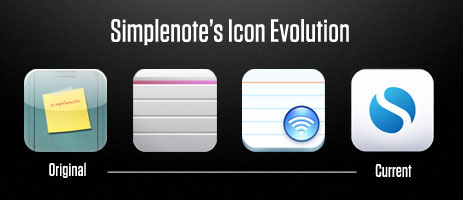
In some respects the app has barely changed since 2008. In fact, arguably the most obvious changes have been to the icon. The original icon was as a yellow sticky note taped to the front of a locker. That changed into a grey note card resembling a garage door, which then changed to a white notecard with a blue wi-fi bubble, which changed again to what you see today.
![]()
To say the app has barely changed since 2008 is, of course, not to say that Simplenote is the same as it was two years ago. It has been refined, polished, and updated with taste. Only a handful of new features and UI improvements have been added over the years, with many of the most notable changes just recently emerging in version 3.
Compare for a moment Simplenote to Apple’s two text and note-taking apps for the iPad, Pages and Notes. Pages was one of the first apps I bought for my iPad. It was touted as having most of the features of Pages for Mac, but on the iPad. For me, after a bit of use, Pages was quickly relegated to nothing but a full-screen typing app. It is a great showcase for what sort of apps the iPad is capable of running, and for those who need to edit Pages documents on their iPad it is a necessity. But it is somewhat difficult to get documents in and out, and the document syncing process is flat out ridiculous.
Notes is Apple’s other in-house note taking app. It ships with iOS and is quite simple (in fact, much of the foundational user experience that Simplenote has is parallel with the built-in Notes app). As it is with Pages, the biggest downfall with Apple’s built-in Notes app is, again, sync. Though the system for syncing in Notes is better than in Pages (your notes sync into your IMAP email account), nobody I know actually uses the IMAP sync.
The Simplenote developers actually beat Apple at their own game. They made an app with a better design (Helvetica!), better functionality (over-the-air sync), and they proved that less (compared to Pages) is, in fact, more.
Version 3
The latest update to Simplenote sports a slew of new toys. But, as Charlie Sorrel said in his review on Wired, “if you don’t want them, you won’t even notice.”
The most notable for me is the full-screen writing environment on the iPad app. When writing on the iPad I prefer to use Simplenote. But at times, I may want to see just the page with no list of notes next to it. Up until now, I would copy my text out of Simplenote and paste it into Pages. But now there is a subtle, full-screen button at the bottom-right corner of your note — tap that and Pages on the iPad all but becomes obsolete.

Perhaps the most clever of the new features is sharing notes with others. When in a note, tap the icon that resembles a phone with an arrow pointing out. From there you can enable note sharing and email the person whom you want to share with. This is a great way to empower team collaboration and keeping others in the loop with information and ideas.
One of the many thing I keep in Simplenote is meeting agendas — especially talking points for 1:1s. Now for my 1:1s I can share those talking points in a note with the other person I’m meeting. This way he or she can see what’s on the docket, and even add items of their own. Furthermore, with the addition of version history, we can drill down within the same note to see what last week’s agenda items were.
Additional cleverness comes in to play here: if my friend doesn’t have Simplenote installed then I’m going to bug him to get it. And I’m going to bug him to use it so that our collaborating is actually useful. Which means not only is sharing notes useful and helpful for users like me, it is indirectly word-of-mouth marketing for the Simplenote crew. Nicely done.
This is just one example of how the more you use Simplenote the more you find new ways you to use it. People are using it for recipes, ideas, lists, blog posts, chapters of books they’re writing, and more. And for all those power users who are finding themselves with a list of notes longer than there arm, a way to organize may be in order. But a folder structure could slightly hurt the simplicity of Simplenote. Tags on the other hand are a great way to add structuring to your notes if you want.
And one way that I see tags as coming in especially handy is in regard to the aforementioned shared notes feature. Since Simplenote does not label who is sharing a note with you, you can tag that note using their name. Which means someone you’re sharing a lot of docs with, you can see them all at once using a tag filter.
What’s in my Simplenote?
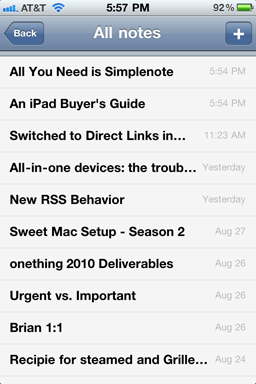
So what do I actually have in my Simplenote at this moment? All sorts of things. Some are notes of importance which I want synced on all my devices. Others are completely trivial and are in Simplenote by sheer virtue of it being my note taking app of choice.
Meeting agendas and talking points: mostly for upcoming 1:1s. These meetings are usually informal and quick. And, in fact, the very point of a 1:1 meeting is so the two of you only have to connect and meet once a week — saving all your conversation topics for that one meeting. Being able to jot down questions, ideas, and the like using Simplenote has long been my workflow.
Ideas for businesses, software projects, and other things.
A list of gift ideas for friends and family.
Blog posts in all stages: I usually write them in Simplenote or Notational Velocity, and finish them in MarsEdit.
Recipes: well, actually only one recipe: Grilled Artichoke with golden mustard dipping sauce.
Reminders of things to order next time I’m at a restaurant I don’t regularly visit.
And other simple notes: such as cool quotes, shopping lists, miscellaneous data, and the like.
For a wider look at what is in other people’s Simplenote, check out Patrick’s community listing on Minimal Mac.
Other Reviews
If you liked this review of Simplenote, there are more like it here.
Seth Godin:
Building your success on being more in sync than everyone else is a sharp edge to walk on. You’ll always be near the edge of perfect sync, but never there.
Related reading: Dave Pell’s “Pull Over Before You Read This“
Awesome Screenshot is light-weight, straightforward, and very useful. You use it to take a screenshot of a site’s entire page, or just what you see in your browser window. And you can draw on your screenshot, add notes, crop it down, save it, share it, and more.
Although it doesn’t have some of the extra functionality and personality of Coda Notes, Awesome Screenshot seems snappier and more reliable (I’ve sent several Coda Notes that never made it to the recipients, though it may have been operator error because you have to type in recipient emails by hand.). And so this is one reason I like Awesome Screenshot — you can save your annotated screenshot to your computer and then email it using your own email client.
If you like getting updates to your favorite blogs via Twitter, you may also want to follow the Twitter account for shawnblanc.net and get updates on all the cool links and new articles.
✚
Jonathan Christopher’s Sweet Mac Setup
Who are you, what do you do, etc…?
My name is Jonathan Christopher, and I’m a Web developer/designer from Albany, NY. I currently spend my days filling the role of Development Director, surrounding myself with writing code, discussing design, site evaluations, and a bit of managerial material along the way.
Perhaps you’ve found yourself at some point reading Monday By Noon, my weekly publication focusing on Web design and development? If not, we’ll need to have a talk.
I try to take photos as much as possible and I’ve got an obsessively long wish list full of gear I’ll never be able to afford, but enjoy thinking and talking about.
I’m recently married and loving every minute of it so far. I’m completely thrilled to be stepping into the next phase of life with my wife. I still get a kick out of saying ‘my wife’ — you can understand.
I also watch at least one episode of Seinfeld per day. Almost.
What is your current setup?
I’m currently using a 15″ unibody 2.66 GHz Intel Core i7 MacBook Pro with 4GB RAM. At home I’m externally connected to a Samsung SyncMaster 205BW, but I wouldn’t mind a 27″ Apple Cinema Display.
- I key with a full-sized wired Apple aluminum keyboard
- I mouse with a Logitech MX Revolution
- I back up to a series of 2TB Western Digital My Book Elites (photos and videos) and 640GB Western Digital Elements (Time Machine)
- I shoot with a Canon 7D (50mm f/1.4, 35mm f/2, 17-85mm f/4-5.6)
Why this rig?
My first Mac was a black MacBook sometime around 2006, and I’ve been hooked ever since. I’ve chosen strictly notebooks since then simply because I work in an office and I truly prefer to be in the same environment both at work and at home. I use external peripherals at both desks which I prefer, but having the ability to go mobile has come in handy on more than one occasion.
What software do you use and for what do you use it?
- Mail.app for all things email.
- iTunes all day every day.
- OmniFocus (and on iPhone) for task management and getting things done.
- 1Password for password management.
- TextMate for every bit of text, code, markup, style, and script I write. I’m even writing this very content in it. I’ve tried everything and always come back to TextMate.
- Fireworks CS5 when designing my own stuff, Photoshop when cutting up everyone else’s. Acorn when I don’t want to wait for Photoshop to start up.
- Yummy FTP when moving sites and assets. Seriously great app; fastest FTP available. Promise.
- ExpanDrive for wonderful network mounted TextMate projects.
- Safari
- Versions for SVN (source control)
- XAMPP for my local development environment.
- Skitch for taking and annotating screenshots. There are lots of apps but Skitch fits my workflow the best.
- Aperture for photo management and post processing. FlickrExport for publishing straight to Flickr.
There’s a bit more but I’m honestly shuffling through these applications every day of my life.
How does this setup help you do your best creative work?
With the combination of mobile hardware along with a tried and tested arsenal of chosen applications, I’m able to focus on the work itself instead of figuring out how I’m going to do it. Not having to worry about software or hardware problems alone helps me get things done, and that can be attributed to being on a Mac running OS X and the software built for it.
The software environment itself also caters to a creative mind. The attention to detail Apple puts forth (as well as software developers) is truly inspirational and sets the bar quite high out of the box. When you’re staring at that in everything you do, you’re inspired subconsciously all day long.
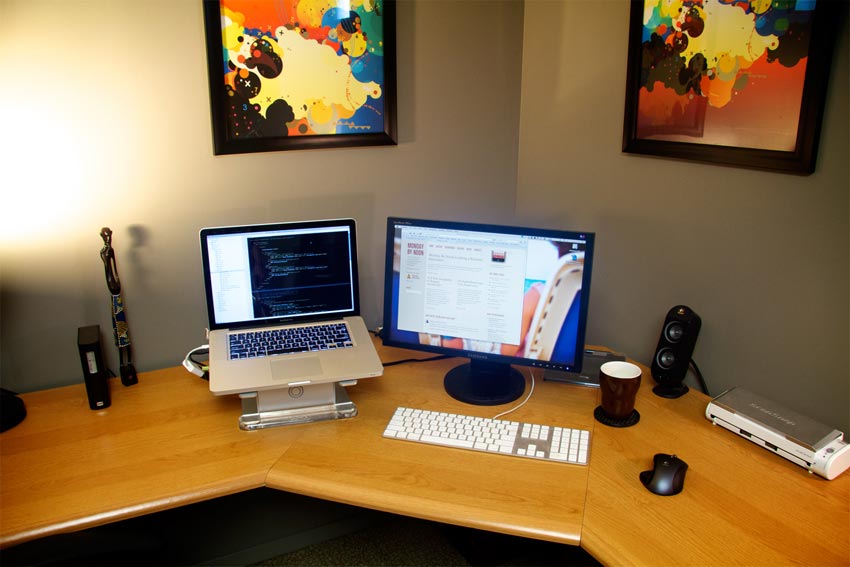
I also try to keep my work environment inspirational as much as I know how. The referenced photo includes a shot of my home office, which I try to keep organized and a bit private. There’s always music playing and it’s always better when heard over speakers instead of headphones. There are two book cases flanking the desk full of not only Web related books but also other books great for leafing through from time to time. Banksy’s Wall and Piece for example is a great piece to revisit from time to time for me. The posters in the background are prints from Joshua Davis, an artist I’ve followed and looked up to for quite some time.
I hope to spend more time on the home office, specifically with my wife as she also has her workstation on the other side of the room. It’ll be a great project for the both of us as time goes on.
How would your ideal setup look and function?
My ideal setup would definitely be in my current home office space, but include a few more details I haven’t had the time (or finances) to pull off quite yet. My wife and I moved into the house (our first home) about a year ago and the office is the last to get attention. It was recently painted Elephant Skin gray and I really like the color, but if I were to change one thing about it I would have to start with the lighting. Lighting is a big deal in an office environment and I’ll be keeping my eyes peeled for a set of lamps to replace the extras I’m currently using.
On a technical level, my ideal setup would include a 27″ LED Apple Cinema Display, completely wireless connections for everything, and wireless electricity. I don’t like wires. I’m supremely happy with my current MacBook Pro and wouldn’t trade that in, but I’d love to see it house a speedy SSD drive should the option come up.
Last, I’d love to have a new series of applications in which to work. Don’t get me wrong, aside from all the quirks here and there I totally love working in Fireworks and TextMate. If I absolutely had to choose two applications to use while stranded on a desert island, they would be it. The issue though, is that the industry has outpaced their development.
TextMate is an open and shut case. The application is truly fantastic but it’s now the job of another publisher to take the torch and continue on. So far, no one has stepped up to the plate as a major player; I’m anxiously awaiting that.
Design software, though, is a different story altogether. Beyond the heated battles surrounding which existing app is better than another, the truth is that no application in existence has been designed to meet the needs of modern Web design. Without getting too philosophical, I’m hoping over the next number of years we see a change in the thought process behind facilitating Web design from the ground up.
More Sweet Setups
Jonathan’s setup is just one in a series of sweet Mac Setups.
Canned is a pitch-perfect iPhone app from Sky Balloon that lets you pre-write the text messages you send often, and even pre-assign those to the individuals and groups whom you often send that same text to.
I used to have a folder in Pastebot for these types of texts, but Canned is the perfect solution — it is simple and oh so fast. You can get it in the App Store for the price of a soda.
The iWork 9.0.4 update “adds export compatibility to Pages with the standard ePub file format (for use with iBooks).”
✚
What Most Writers Do at Their Beginnings
“I did what most writers do at their beginnings: emulated my elders, imitated my peers, thus turning away from any possibility of discovering truths beneath my skin and behind my eyes.”
— Ray Bradbury, from his Martian Chronicles introduction
Something I don’t often write about on shawnblanc.net is what I do when I’m not writing here. For those who may not know, I am the director of marketing for the International House of Prayer in Kansas City (IHOP–KC). We are a Christian ministry with a 24/7 prayer room that has live prayer, worship, and music. I’ve been on full-time staff with IHOP–KC for almost 10 years and have been working with the marketing, design, and Web team for three.
In early 2009 our in-house design team began a massive project: rebranding.
At the time we served about 30 different internal clients (sub-ministries, events, and product development). Each one had their own icon, typeface, and branding style. Our aim was to clean out those unique brands and consolidate everyone into a single, strong brand which could ebb and flow within several contexts and be attractive to a myriad of demographics.
Our in-house team did all the research, use-case studies, mock-ups, and presentations. We worked on the side as we were able, and it took us nearly a year to land the new typefaces and branding guidelines. Moreover, as anyone who has worked for an in-house design team knows, projects of this magnitude are not just about research and implementation. My team and I worked hard to educate our peer departments, internal customers, and the senior leadership all along the way. This naturally made the process longer, but it was enjoyable as well. I work with some of the most wonderful people on the planet, and it was an honor to serve them and the ministry in this project.
Once the new branding was landed it took several more months to implement it into our website, printed material, videos, signage, and more. There are still bits which need to be shored up, but this first step was a big one, and I could not be more proud of my team nor our progress so far.
Great article on Leo’s site, mnmlist, on how to read a lot without getting distracted. In short, it’s not simply a matter of managing all the new articles, tweets, emails, and more which are constantly coming. It is also learning tricks to avoid the unending spiral of new things to be read which are found in those articles, tweets, and emails.
Nice review by Ben Brooks on what’s new in the new Simplenote.
Because when are we not on the lookout for new, worthwhile iPhone wallpapers? (Via Chuck.)
✚
Keeping Mint’s Unique Referrers List Clean and Useful
When I check this site’s new unique referrers list in Mint, I’m looking for referrals from genuine websites written by real people. What I usually get is a muddled list of every search result from every country.
In Mint’s prefrences, there’s a list you can add domains to which you don’t want to show up in the Unique Referrers List. So now you can block images.google.com. But if you block imgaes.google.com you’ll still referrals from other sites images.google.fr and others. And so the easiest way to solve the litter would be to block the all of main offender’s various URLs by using a single wildcard: *.google.*
However, due to the fundamental way Mint works you are unable to use wildcards to remove certain domains from your new unique referrers list. Therefore you have to list each domain separately, and you have to know them all.
I did a bit of research and compiled a list of 286 unique Google domains, many of which send traffic via search results, Google Reader, and translating. Additionally, it’s not that helpful to see all the unique visits coming from the Tumblr Dashboard, someone’s Facebook wall, or an Instapaper/Read it Later/Pinboard account.
Altogether the list includes 291 domains.
There are two things worth noting:
Adding
tumblr.comremoves the referrals from the Tumblr dashboard (such astumblr.com/dashboard/2/982869026), but does not block referrals from sub-domained Tumblr blogs (such asexample.tumblr.com).This list only affects your Unique Referrers List (and its RSS feed if you use it, and you should if you don’t). It will not remove any domains from showing up in the Most Recent Referrers list, nor will it affect the SERPs Pepper.
Instructions
Select all and copy
Go to your site’s Mint install → Preferences → Default Pepper → paste the list into the text field for Referrers → click Done
Enjoy
Fantastic updates to the iPhone, iPad, and Web apps for Simplenote. Beneath that new icon lies the ability to publish your notes to the Web for sharing and collaborating, view a note’s version history, add tags, and more. My favorite new feature: the iPad / iPhone app now offers full-screen writing mode.
Simplenote is free and tastefully supported by the classy ads found on the Fusion Network. If you own an iPhone or iPad I can’t imagine why you wouldn’t use Simplenote.
This service is new to me, but it’s been baked in to OS X for years. And it’s accurate. (If you don’t see it in the Services menu, you may have to check the box for “Summarize” under System Prefrences → Keyboard → Services → Text.)
(Via Ben Brooks.)
These look cool. They’re handmade, custom iPad cases. You get to pick the design and color of your case’s material as well as which type of pockets you want. You could make a very fun case for your iPad.
I asked Simon Barker, who runs Slotzz, if he was running any deals and he set up the coupon code “sblanc10″ so you can get 10% off.
✚
An Interview with Neven Mrgan
Neven Mrgan is a designer, developer, and writer. He works at Panic, Inc., writes a popular weblog (or two), draws video game graphics in his spare time, and his last name is a bit of a mystery.
In this interview Neven and I discuss graphic design, life at Panic, and other miscellany.
The Interview
Shawn Blanc: Until you joined Panic in 2008 you mostly did freelance work building web apps, correct?
Neven Mrgan: I did freelance design and development work — mostly on the web — for a few years, and I had more or less interesting day jobs that time as well. I worked as an engineer on very straight-laced business web apps until 2007. This wasn’t terribly fun, and to be honest, I wasn’t too good at it either. Early in 2007 I decided to start sticking to graphic design and UI design, since I was never going to be a kung-fu-grade developer.
Shawn: Your job with Panic seems like a perfect match in the sense that you fit right in as another clever, funny, nerd. But on the flip side, now you work in a team setting with a company that builds desktop software as opposed working solo on web projects. What led you to take the job with Panic?
Neven: Regarding desktop software, it was somewhat new to me indeed. Sorry to bring up iPhone this early in the conversation, but it was a big catalyst for me in several ways; it was the first time I was doing non-web UI design. That was the roundabout route I took to designing desktop software.
As for Panic, the fit was just ridiculously good. They build excellent software, and they do so in a genuinely friendly, likable way. That combination is very uncommon. I was a recently married and ready-to-settle-down old fogie of near 30, and was big on leading a comfortable, quality lifestyle, and working on solid, long-term projects. Panic has those same goals.
Working on a team was a change after a year of clicking around in our home office. It’s hard to complain about the freedom of that arrangement, but I’ll do my best: a chair in your own house can be a pretty inert environment. It’s a bit of a bummer on a purely social level, and it can make your creative muscle slack as well. That’s been my experience, anyway. I’m happy to be surrounded by really smart folk as I click around now.
Shawn: Do you ever miss working from home?
Neven: I have that option currently and I don’t believe I’ve taken advantage of it more than three times (and even then, only because I had to be home for some reason). I can’t emphasize enough how much I like the vibe at my office. It reminds me of how I’d go to my high school’s super-awesome computer lab on the weekend, in the evening, and whenever else I could. I love what I do, projects and people and desk and all — it’s my job and my hobby.
Shawn: You’ve got a lot of projects running — your couple cool weblogs, The Incident, your full-time job at Panic, and more. What does a day in your life look like?
Neven: I half-wake up around 7:30 and remain in a hazy, floating, brain-puree state for about half an hour. This is when I get all of my stupidest ideas (like you know how some restaurants menus have a little V next to vegetarian items and maybe a clipart chili for “spicy”; what if they put an F next to “foodie” items? “Can the salad be made foodie?” -”Certainly; we can make it with Pouligny-Saint-Pierre and shave a black truffle onto it.”). Stupid ideas are excellent springboards, boosters for your thought and your daily mood.
I then check my email and RSS in bed; if it takes longer than five minutes, I save it for after I’m dressed. To do that I pick a Panic t-shirt from the stack I was given when I started (“your employee uniform”) and put my socks on in front of the computer. I briefly chat with whoever is online – usually only Matt Comi, my partner on The Incident. I take the bus to work; twenty minutes of book-reading on the ride, ten minutes of iPod while I walk.
I work ten to six. The morning is usually time for catch-up, unfinished business from the previous day, or quick production of ideas pickled overnight. Lunch is important because it brings the office together. It’s our most regular team meeting. The afternoon means serious work — Photoshop and Coda — and a snack break around four. I drink Coke Zero and endorse Nuvrei pastries.
Most days, I try to cook at least one meal; if there’s time to make dinner after work, I’ll give it a shot. If not, Portland has an embarrassment of excellent restaurants. Either way, I eat early and spend the evening working on whatever side projects I have going on. I go to sleep disgustingly late —midnight or 1 am.
This isn’t a schedule I make it a point to stick to. It’s just how things typically play out.
Shawn: What are your favorite pieces of software?
Neven: Photoshop, Coda, and Birdhouse.
I know, I know — give me a chance to explain.
I complain about Photoshop. Lord, do I. But it’s not only the essential tool for what I do, it’s a great tool also. I’ve done my best to give the competition a shot, and the truth is just that they don’t allow me to make the things I want to make (yet). Photoshop is internally and externally inconsistent, it’s bloated, it’s slow, and it crashes. But I use it more than I use my pants, and for that I love it.
Coda is an app I work on, so feel free to consider this a shameless advertisement. You’ll have to take my word for it: I used it before I started at Panic, and if I found a better app for web development, I’d promptly switch to it. Life is too short and the web too demanding to be a slave to cheap loyalty. It’s a great app.
Birdhouse is the only not-preinstalled app on my iPhone about which I have zero complaints. I use it regularly, and I don’t remember it crashing, slowing down, or confusing me once. You could argue that it does a tiny thing, but it does it well.
Sometimes I think that if this whole computer thing turns sour — if Apple becomes monstrously evil, if the Internet collapses, if I get old and stop grokking new technologies — I’ll switch to farming or cooking or poster design and be just as happy. Maybe that’s true. Some not-so-small part of me would, however, miss the wizardry I discovered some time in 1985 or so as I typed BASIC into my C-64: I can make a screen do things, and do things that do other things, and do different things depending on the things I do back to it. It’s a wonderful game.
Shawn: Other than for your lack of development skills, why did you begin doing work as a designer and developer?
Neven: Two beliefs: 1) Things should look good, and 2) Computers are cool. For the rest of my life I’ll be coming up with complicated explanations which boil down to those motivating principles.
So, I’ve really always wanted to be doing this or something like this. This or drawing comics, which I quickly learned was kind of not so hot.
Shawn: Was it a lack of drawing skills that led you to computer-based design? (And do you have any old comic book drawings you’re willing to share?)
Neven: I’m very happy with my drawing skills!
I decided to stick with computers because they could do things the real world couldn’t. I’m all in favor of creative restrictions — yay Twitter — but pen and ink’s lack of an Undo function doesn’t challenge me to do better work. It just makes me frustrated.
Now here’s a really out-of-context panel done some time in… 1998 or so, maybe?

Shawn: If I ever want a future in art and design it will have to be with a computer. I can never get pen and ink to translate into what I want.
You’re not alone in with the belief that things should look good and computers are cool. But everyone has their own definition of what looks good and what the best tools for the job are. How do you define when a design looks good? Has that definition changed since seriously began sticking to graphic design and UI design?
Neven: One thing I’m learning quickly is to evaluate designs and design ideas in terms of interaction: how they behave under what circumstances, how they work with other elements. That’s sort of new to me, though designing for the web has always been about flexible, unpredictable layouts and such.
A thing looks good to me when I fall in love with it; that’s test #1. Test #2 is, ok, that’s sweet – what is it? Does it say something, mean something, is it an “it” or an “It”? Test #3 is the more ponderous goatee-rubbing over how the design scales and translates, whether it’s too trendy or too dated, etc.
Sometimes I learn to eventually accept designs as excellent solutions even if they didn’t hit me right away. And sometimes designs I greet with a WOW bore me very quickly. But it’s very rare that I will love and cherish a design if it has to be “explained”.
It’s not important that I love everything I design. But hopefully it happens pretty often.
Shawn: How would you recommend someone with no facial hair go about completing test #3 as a part of their own design critiques?
Neven: There are a number of question you can ask about a design once it’s grabbed you.
- Will it scale, not just physically, but across cultures, age groups, platforms, ideas? Will your icon idea make sense to a busy person working in a dark room?
- Can any part of your design be abstracted and used elsewhere? Would anyone want to steal it? (You better wish they would!)
- If you’re breaking an established pattern or convention, are you doing so with good reason? With what are you replacing what you’re destroying?
- What if the things you, yourself, like to use were designed in this way? Remember Kant’s categorical imperative, “Act only on that maxim which you at the same time wish to be a universal law.”
You will add more questions to your list over time; you will also drop some as times change and as you develop your own priorities (the point is not to be able to answer “yes” to every question on the list).
Now here’s the important thing: DO NOT write down the list. Don’t put checkboxes next to questions and save it all as a file. Don’t print it out. Don’t ask people you work with to start using it. This way lies madness; or at least boredom, burn-out, and blandness.
My feeling is that many creative endeavors are like this; you should learn specific techniques and aesthetic guidelines, but ultimately you will want to simply do a lot of work and let the aesthetic judgment become a second nature. A good musician can, for the most part, “let their fingers play” instead of focusing on translating each sound-idea into a specific finger movement. A good baker will measure things, but they will only make consistently awesome bread when the dough “feels” right under their fingers. There’s no magic, destiny, or talent at work here, just a gradual process of practicing until the back of your head can do most of the work, not the front.
So, long answer short, learn as much as you can about the principles of design, about its history, and about other people’s work. But try to let it all soak into your brain through constant creative and functional use, not through cramming or some sort of workflow standardization.
Shawn: How much, then, do you suppose good design sense boils down to talent versus practice?
Can tools and rules, in and of themselves, produce a quality designed product?
Neven: I just realized I’ve been harping on the 90%-perspiration thing without going into why the remaining 10% — “the squishy bit” — is important. It’s frustrating to even think about it because it leads me to a mildly fatalistic state where I just throw my hands up and decide that if good design is a matter of talent and destiny, then it isn’t worth doing since most people won’t even know it when they see it. Which is true, in many ways. Why does a designer spend any time deciding between Helvetica and Univers? Most people won’t know or care either way. Or maybe they will, on some unreachable level — maybe Helvetica will appear more generic (at least today it will), Univers more technical; the former, more “design-y”, the latter, more “informative”.
A designer will obviously have far more opinions of this sort about the minutiae of design. Now, partially these will be a product of the designer’s education and work experience. Maybe they once read Univers was a good choice for signage, or a teacher told them it was a modern classic. Maybe they’re sick of Helvetica.
But given enough time, these opinions will become more than restatements of other people’s attitudes. Different aesthetic prejudices — sometimes clashing ones — will come together in one head to create a unique taste and signature.
A great trick I learned from the science writer Matt Ridley: in debates over nature vs. nurture, remember that one is a function of the other, so it doesn’t make sense to say talent “contributes 30%” or some such thing. They’re linked in a much more complicated way.
To answer the second question a little more directly: no [tools and rules, in and of themselves, cannot produce a quality designed product].
Shawn: You’re right that most people won’t know good design when they see it. But in the context of UI design, that’s the point.
Jeffrey Zeldman wrote a great definition of Web design in an article, “Understanding Web Design“. He said:
“Great web designs are like great typefaces: some, like Rosewood, impose a personality on whatever content is applied to them. Others, like Helvetica, fade into the background (or try to), magically supporting whatever tone the content provides.”
Like you said, Neven, the vast majority of people won’t even notice your design. But the very act of them not noticing is (usually) the proof of a good design. On the flip side, of course, are times when the people should notice the design. It’s the Form Versus Function debate that UI designers are faced with every day. The mark of a great designer is one who knows when to chose which side of the issue and how find the balance between both sides.
The reputation for Panic when they come to a form-versus-function hurdle is to find a simply stellar solution (like Cabel’s 3-Pixel Conundrum). Has Panic developed any official guidelines for working on UI design? Have they ever conflicted with your personal preference?
Neven: I work under surprisingly few constraints as far as what must or mustn’t be done. We’re pretty aggressive about staying ahead of the curve, so we insist on certain not-yet-widespread widespread technologies (resolution-independent graphics, for one). We love a good visual metaphor — Coda’s taped pages in the Sites view — but it has to make sense, and it can’t be realistic at the expense of usability, or to the point of sickening cuteness.
If we’re adding a feature, we almost never go “ah, there’s already a standard control for that, we’re set.” We might just end up using the existing design, but not before we poke it within an inch of its life. Why does this menu look like this? What if we had never seen it before — how would we build it?
As Cabel has mentioned, we’re big on weenies: elements that make a design stand out immediately. There’s nothing wrong with a simple metal window, but there’s nothing great about it either, and more things should be great!
This is the designer’s nastiest temptation — over-designed, needlessly custom chrome which neither fits nor improves the platform. This is the land of Windows Media Player skins. Often we try to “fit the OS better than it fits itself”, if that makes sense; if we think an Apple widget betrays the hand of an intern, we’ll draw our own, better one. This is the thing people notice the least, but it’s a great personal victory.
To get back to rules and guidelines, nothing is off the table, really. I realize that when I say that I’m excluding things obviously off the table: round windows, animated toolbars, blue chrome, scripty type. Part of this intangible, complex, wavelength-syncing soup we as a team live in is the baseline of quality and aesthetic we all appear to share: let’s not do Thing X, ever.
As for my personal preferences, I’m probably more conservative than the team as a whole. I’m seeing that (slight) difference as a learning opportunity, so I’m happy to report there have been no freak-out arguments over shades of green. You’ll just have to take my word for it, our tastes are creepily aligned — if we weren’t such motormouths, we’d get along fine with an occasional nod or frown.
Shawn: Has the process of completing a design project changed for since joining Panic? Is there a boss or an Art Director who signs off on your work?
- Neven: “Sign-off” is, like most things with us, a matter of conversation and feeling out people’s reactions more than a structured process. I’m the sort of person who has to get total agreement from others before I’m fully happy, so I usually gauge everyone’s feedback as I work, and this hopefully results in a universally accepted design by the time I’m done.
Shawn: I have done freelance work from my home as well as being a designer working with a team in an office environment. When I freelanced I had a handful of creative friends whom I could send drafts of my work to and ask for their feedback. Ultimately if my client liked it and I liked it, then it was a done deal.
In the team dynamic, I enjoy having the ability to tap a friendly co-worker or two on the shoulder to get instant feedback and dialog about the project I’m working on. But there can, at times, be a downside to that setting insofar that more people need to sign off on the finished piece — it’s not just me and the client anymore.
I prefer the team setting significantly more because it helps me stay more productive, more creative, and more dynamic in approaching problems. But (and maybe it’s just me. But) it can be frustrating when there is not universal head-nodding approval for every project I’m working on or leading.
Neven: I find that a team of our size — about a dozen — is a really good middle ground between the isolation of working alone and the tar-pit indecisiveness and slowness of focus groups, market research, surveys, and gigantic corporate meeting fests. I am constantly getting new ideas from the team (while bouncing them off everyone). At the same time, I don’t have to sit and wait for a design to make the rounds and get approved by a chain of people.
Other than company size, a few other things about Panic help make this possible. We’re close in age, interests, and general attitude about life and work. Everyone is great at their job, and this makes it very different from working for clients. The client’s preference and criticism may or may not come from actual knowledge of the product, the audience, and the technology we’re talking about.
Here at Panic, I know I’m getting feedback from a tech-savvy person smarter than me who is also a regular user of the product. If they have a complaint — and I should also mention they’re good at knowing what matters how much when it comes to design — it means there’s likely a real problem I should solve. Maybe there’s something I forgot; maybe the design should be a little more polished. Or maybe my idea was crap to begin with. I am far less likely to defend the design by simply saying “I think it’s good”. Keep in mind that this often happens when working for outside clients, and it’s not good for the designer. Not letting yourself get challenged will keep you from exploring new ideas. The trick is to be challenged by knowledgeable people you like and respect.
I don’t know of any online resource for those, though, so… Your parents/karate instructors were right: there are no shortcuts, it’s going to take time!
The End…
Thank you, Neven.
For more interviews with extraordinary designers, developers, writers, and web nerds, visit here.
Want to know how Instapaper grew into such a wildly popular app for so many iPhone and iPad users? Read this article from Marco Arment, written two years ago, just after the release of Instapaper Pro in the App Store:
Right now, I face a fork in the road: do I continue iterating and improving Instapaper.app, or do I start making other applications and hope for multiple income streams? Instapaper.app is at a relatively stable point. I can stop here and be proud of where I’ve taken such a simple idea. And, theoretically, I’d keep making some money with Instapaper Pro while I work on something else.
But I’m not going to stop here. [...]
I want Instapaper to be the essential app for every iPhone and iPod Touch user. I want it to be on every Apple geek’s short list when their friends and family ask them what apps to install. I want it to be one of your bottom four icons.
Birdhouse was quietly updated on Thursday to support the Retina Display and fast app switching. So now it’s pretty much perfect.
A new “visual news” app that cycles through hi-res photos and headlines while playing music in the background. The app has a ton of personality, and a lot of the UI elements are pretty fun. But unfortunately, it looks like they put more energy into promoting the app than they did to build it. It is brand new yet not optimized for the Retina Display. If you try to buy one of the cool songs that the app comes with, an in-app browser opens up and sends you to the iTunes website.
But shortcomings aside, how could I not link to this app?
A scintillating smartphone retrospective by Marco Arment.
I’ve had one of these book study stands for years. And though I usually have my iPad in its Apple case, this stand works fine for propping my iPad up when it’s not in a case.
There are nothing but great reviews for Twelve South’s Compass. And feature-for-feature the Compass is a better stand. It’s built better, too.
But if price is a factor, this book study stand is a quarter the cost shipped. Which means if portability is a factor, you could buy four of these study stands for the price of one Compass and keep one in each room. (And if you buy one using this Amazon link, I’ll get a small kickback.)
✚
Leo Babauta’s Sweet Mac Setup
Who are you, what do you do, and etc…?
I’m Leo Babauta, author of Zen Habits, mnmlist.com, and The Power of Less. I write about simplicity.
What is your current setup?

For a couple years, I’ve been using a combination of a 20″ iMac and a first-generation MacBook Air (yes, the ones with heat problems). Since our move to S.F. last month, I’ve been going with just the MacBook Air — I gave the iMac to my wife Eva.
I love using the MacBook Air as my full-time machine — it’s light, simple, and meets all my needs.
I don’t have an iPhone or an iPad, though both are drool-worthy.
Why this rig?
I’m a bit of a minimalist. I like to keep things as simple as possible, without sacrificing the essential functions.
I’m a writer, and all I really need is a browser and a text editor. The MacBook Air does those two things perfectly.
I don’t need a big monitor, as cool as they are. I don’t need a powerful CPU. I like lightness and simplicity and portability and focus.
What software do you use and for what do you use it?
I’m currently using Chrome and Notational Velocity, but sometimes I switch to TextMate or TextEdit or Omm Writer, depending on my mood or need.
Notational Velocity is lightweight, simple, fast. I’ve been doing all my writing in it — from todo lists to notes to full articles and blog posts. This way everything I have is instantly findable, it’s all stored in text (simple and accessible), and backed up via DropBox.
Chrome is lightning fast with a minimalist interface. I’ve tried all the other browsers but they just seem slow and clunky next to Chrome.
Other things I use regularly: LaunchBar for everything, 1Password, Transmit for FTP. Sometimes I also use WriteRoom, Scrivener, and MarsEdit for different writing needs.
How does this setup help you do your best creative work?
I like focus — simple software that doesn’t have a lot of bells and whistles helps me find that focus. I like things that do very little, very well. I try to cut out distractions — Tweetdeck or Tweetie, iChat or Skype, these things distract me.
Notational Velocity is the perfect writing app. All it does is write text, and it stores everything in text files, and you can find them instantly. You don’t need to file, and you don’t need to look for things.
How would your ideal setup look and function?
I’m content with what I have. I love the simplicity of the MacBook Air — when I have to use someone else’s MacBook Pro, it feels heavy and clunky. Don’t get me started on how it feels to use someone else’s Window machine. It would be nice if my Air lasted for 20 years.
My only improvement would be to have the perfection of Mac OS combined with the openness of Linux.
More Sweet Setups
Leo’s setup is just one in a series of sweet Mac Setups.
This is clever (and thoughtful) for two reasons. For one, taking a break to write a thank-you note changes your focus and context which can help get you and your mind out of the rut you’re stuck in. Also, accomplishing something simple like this helps build momentum — it’s much easier to steer a moving car.
Bummer: “[T]here’s a significant tradeoff in quality for extra functionality.”
Astute advice from Mr. Mrgan. And he’s right: beta testing is hard. I’ve always followed Brent’s advice on how to submit a bug report: (1) What I did; (2) What I was expecting to happen; (3) What actually happened.
✚
ttttask
I
The problem: You’re online with your iPhone or iPad and you come across something which you want to read, but at the moment you don’t have the time.
The solution: You send the article to Instapaper. It is now bookmarked, and when you have time you open up Instapaper (on your iPhone, iPad, or computer) and the article you wanted to read is ready.
II
Another problem: You’re online with your iPhone or iPad and you come across something you want to do, but at the moment don’t have the time to do it (or perhaps because of the device you’re on you don’t have the ability).
The solution: Something that, so far as I can tell, does not yet exist: A cloud-based, task-management bucket where you can throw links, tips, bookmarks, and the like — all of which are actionable. It would be able to receive these tasks via in-app services, email, or a browser bookmarklet. And I vote we call it ttttask.
Similarly to the way Instapaper as a service is for articles you wish to read later, ttttask would be a service for things you wish to do later.
III
It seems as if every day I bump into things while reading feeds, Twitter, the Web, or email — things I want to download, buy, research, and etcetera. But often I’m unable to take action at that moment. How then can I save it for later?
When on my Mac I use AppleScripts and built-in triggers to throw these items directly into Things. But on my iPhone and iPad there is no such solution. And since even the smallest pebble will make expensive Reeboks uncomfortable to run in, this sore spot of how to handle all the tasks I bump into when on my iPhone or iPad has got me thinking…
We need a universal, cloud-based bucket to throw these items into. A bucket that talks to all our current software instead of asking us start using new tools.
So far as I can see it there are two really great, though currently non-existent, solutions:
A services menu for iOS. If this were a reality, people with the Things app installed on their iPhone and/or iPad could have a “Send to Thing” service available within all their other apps. Thereby allowing them to send tasks into Things on their iPhone directly from Twitter, Reeder, Mail, Mobile Safari, and more.
Some iPhone apps have worked around this by talking to one-another with the in-app APIs. You can save drafts of tweets into Birdhouse from Twitter’s iPhone app, or service reminders in Gas Cubby can be sent into Appigo’s Todo. But these cross-app functions take you out of your current context and sending you to another app — not exactly the ideal way to quickly save something for later.
Another solution would be this universal, cloud-based bucket and its open APIs: ttttask. The caveat is that it would only be as useful as it is available. This is a big slice of why Instapaper is so great: all the various apps which have adopted it as an in-app service so you can hook into your Instapaper account right from within the app.
Ttttask’s APIs would allow for apps to toss items into the bucket and get them out. It would be able to receive these tasks via in-app services, an email, or even a browser bookmarklet. It would be able to pipe your to-do list into other applications. And if it got really fancy, tttask could even work as a syncing agent for other to-do apps to utilize. Then, regardless of which task-management software you use (and even regardless of what OS), you would be able to sync your software with what is in ttttask.1
These aforementioned solutions are tall orders. And unfortunately neither of them are a reality (yet). In the meantime here are some workarounds I’ve considered to at least alleviate the pebble of in-app task capture on iOS.
Set up a second Instapaper account. Since Instapaper is basically a long list of items which can be added to from so many other apps, it would seem to be a great interim solution. But there are two problems with using Instapaper as a Do Later list instead of a Read Later list. For one, Instapaper is built for headlines and article links, not tasks. So even though someone could technically use it as a task list, it is certainly not intended or suited for that purpose. Secondly, iPhone and iPad apps only let you access a single Instapaper account at a time. So even if I had two accounts I could only access one of them.
Use a bookmarking service other than Instapaper. Such as Delicious, Pinboard, or Read It Later. This could work, but again, it suffers from the same problem as above, in that these are services designed for bookmarking articles and links. Also, if you don’t already use one of these bookmarking services then you’ve just create another inbox to be aware of. I try hard to keep the number of inboxes I need to check at a minimum.
Use one of the many online to-do apps that let you create tasks via email. Such as Remember the Milk. Not to be a Negative Nancy, but this would again mean another inbox to check. Moreover, there are no online task management applications with services supported by other iPhone and iPad apps. And so if I am going to go through the trouble of emailing a task it might as well be sent to an inbox I already check.
Email the tasks to Simplenote. With the purchase of a premium Simplenote account you get a private email address which can be used to send notes into your Simplnote list. For those who use Simplenote to manage their task lists this just may work well. I, however, use Simplenote (and Notational Velocity) all throughout my day for writing and other note taking. I would prefer not to dilute my list of notes with items I am intentionally trying to deal with later.
And so the solution I’m currently using is perhaps the most obvious of all: email the task to myself.
I set up a new email address. One that is easy to type and is quite unique so I don’t send to someone in my contacts list on accident. (I’m using something along the lines of ttttask-sb@me.com — a couple taps on the “t” button brings this address right up.)
Furthermore, I’ve created a server-side email rule that moves all emails to that address into their own folder. Having the rule be server-side ensures that the emails don’t show up in my inbox on my iPhone or iPad. Moving them to their own folder keeps them out of my way until I’ve got time.
I use Things, and with a little bit of AppleScript and a rule in Mail on my Mac incoming task emails can be dumped into my Things inbox. (If you use OmniFocus you can enable Mail Hooks so that OmniFocus grabs the emails for you.)
However, even this solution has a two-fold downside. For one, it is tedious to always have to email yourself things to do, as opposed to using the quick-access, built-in services that apps like Twitteriffic, Tweetie, Reeder, and others have. Secondly, items don’t end up in my actual to-do app, Things, unless my Mac is turned on, connected to the internet, and both Mail and Things are running.
A service like ttttask has a lot of potential. Imagine being able to switch task-management apps like you switch Twitter clients; or sharing a to-do list with others even if you use different software? 2 But as I said, it would only be as useful as it is available. So building it comes with two big challenges: infrastructure and adoption.
- Evernote Trunk is a similarly functional service, in that they offer APIs for other apps to send notes into Evernote and to sync data. For example: in the Twitter app Seesmic they’ve baked in the ability to send a tweet to Evernote. Or BibleReader, which uses Evernote Trunk to sync bookmarks and notes. ↵
- There are Web apps which let you share and collaborate to-do lists with your teammates, but for some, functionality alone is not the only goal. There is a lot to be said about using software that you enjoy and having an integrated inbox where all tasks are in the same app. ↵
- Much thanks to Patrick Rhone and David Barnard for their editorial help and input on this article.
Is the new Virb right for you?
For those who would prefer that visitors on iPhones see their actual website design, there is an option to disable the default mobile theme in tumblr. Go to Customize → Advanced → and uncheck “Use optimized layout on mobile devices”. Another option is to design and upload your own iPhone-optimized theme.
Up next: how to not install the WPtouch theme on your WordPress blog.
Great list of links from Ethan Marcotte via Zeldman. Also: this one-line zinger: “A screenshot of the TextMate interface is like a photograph of snow.”
✚
John Carey’s Sweet Mac Setup
Who are you, what do you do, and etc…?
My name is John Carey. I am a photographer moonlighting as a live audio engineer or the other way around depending on what day you ask me. I also run the website fiftyfootshadows.net on which I provide many images from my photographic work as wallpaper imagery for my readers. I have done this for somewhere around seven or eight years now and I feel it is just starting to pick up momentum. There is a significant update to the site currently under construction which I hope will help it grow beyond where I have taken it to this point, but more on that when the time comes…
I started out with drive to become a designer, but over time my desires shifted toward photography. I love the honest nature of it, the compromises within it, and the fact that I can bridge a very tangible art form using traditional film cameras with a highly digital one using digital cameras and computers to create images and share the world as I see it with others. I have grown very passionate for the art of photography and the places it takes me, and I am anxious to see where I end up with it next.
My secret double life as a live audio engineer is equally fulfilling and rewards me with the same sort of satisfaction photography does in the way that I am using both analog tools as well as digital ones to get the job done. I love my work and often wonder if I could live without either of these sides of my professional life because they fulfill my lust for adventure in such unique ways.
What is your current setup?
I have been a Mac user my entire life. Honestly, I have been using them since the Apple II days and every iteration they have come out with along the way. I remember shooting with an old Apple Quicktake digital camera along side an old film Canon when I was just starting to get into photography and design. I followed the digital photography revolution very closely as it crept into the minds of skeptical photographers.
My current set up is simple and built from a combination of necessity, luck, and (like any self-respecting geek) an unhealthy desire for new tech.
That said I currently have an old black MacBook which at home is paired with a Cinema Display, bluetooth keyboard, Magic Mouse, Griffin laptop stand, 8 or more hard drives, and a pair of powered studio monitors because I simply need a nice pair of speakers around for my sanity. I also use a 64GB Wi-Fi iPad, and a 32GB iPhone 4.
If anyone is interested in what I shoot with, I use a Canon 5D paired simply with a 35mm f/1.4L lens, a Hasselblad 501cm with its standard 80mm lens, and a Voigtlander R3M 35mm rangefinder with a 40mm f/1.4 Nokton Lens.
Why this rig?
The core of what I use revolves around the MacBook, the last generation of the black plastic bodied ones. At the time it was the top of the line and it has proven itself to be more than capable through its years of use and certainly the most stable and dependable Mac I have ever owned. I will admit that it’s probably seeing its last good year in use and may need to be replaced sooner or later simply to keep up with newer tech and the demands of the work I do.
But the question is WHY. Yes… well, the true nature of my life is pretty nomadic as I am constantly on the move either traveling for work or traveling for pleasure around the world whenever possible. My office is anywhere and everywhere it needs to be so my portable tools are as important to me as the modest space I have at home for computing. My real office is carried in bags with me wherever I go, at times two or three even. I always have my cameras with me, if not all of them at least one, and I usually carry my laptop for work but also simply out of necessity because much of my blogging and internet life I squeeze into down time at work or while traveling and so I often need to have these key things with me wherever I go.
Also I have a small bunch of tools that I always carry for work, as well as a blank notebook or two and a couple nice pens (because nothing beats pen and paper for sketching out ideas, no matter how many apps you have for it) and other sorts of little things depending on what I need on any given day.
My bags of choice are made by an amazing bag company called Spire. I swear by them and their amazing customer service — you really can’t go wrong with those guys. I’m looking forward to seeing what they come up with next, their bags have traveled the world with me.
When I do set up office away from home I have my iPad to handle more and more of my day-to-day internet shuffle, and I will have to admit at this point the 3G option sure would have been nice at times. It has allowed me to leave the laptop at home more often which is nice. I use a wonderful little stand, the Compass, and it has been more than helpful in giving my iPad a home while out on the job or in a coffee shop working on ideas.
To protect the iPad while out I use a simple fabric sleeve I had a friend make for me to my specifications including a thin piece of wood to protect the screen which was sewn into the fabric and padding. (I actually do this to my laptop bag as well, a worthwhile customization for anyone wanting to really protect their screen.) I also have a Speck candyshell case for it which I use while I am on job sites to keep it safe.
The last piece of the puzzle is my iPhone 4 which I admit I bought into because of the camera and display. Its a wonderful device and the controversy surrounding is just way out of control. It’s a brilliant phone plain and simple, and it holds all the little things in my life together.
What software do you use and for what do you use it?
My favorite applications on the Mac which I use most often are:
- Aperture: I love Adobe’s take on raw photo management as well as Lightroom being faster overall in its performance, but I greatly prefer the workflow of Aperture — both in file management and editing. I find it is easily worth the compromise.
- Photoshop: It’s just unavoidable in my photo and occasional design work really. I have been using it since version 3, just before layers came on board and changed everything. My use of the program is admittedly very minimal as I have long since moved beyond my days of over manipulating images (it just got old after a while).
- Illustrator: I have been using Illustrator for what seems like forever as well. I remember messing about with it when I was very young, making overly complex blends between objects that the poor old computer running it at the time took forever to render. I use it for layout mostly — this and many other design needs. It’s just as relevant to me as Photoshop really.
- CSSEdit: I love working with websites. I have been making them since the late ’90s to share my design and photography, but the problem is I never REALLY learned how to do it. My knowledge of making websites has been pieced together out of necessity. And I learn as I go, so an application like CSSEdit that helps me simplify editing style sheets is a wonderful thing indeed.
- Espresso: Any HTML or PHP editing I have to do I reach for Espresso simply because I love its approach to interface design. Simply brilliant.
- Things: Again with the interface design. I looked for years to find an elegant solution to handle my task list and notes, and this hit the nail on the head. It’s the glue that holds my ideas and projects and jobs together. Now if they would just hurry up and get cloud syncing in there!
- MarsEdit: The newest member of the family. MacJournal was my go-to, local blogging tool for a long time, but it started to get frustrating with its half-way support for uploading. So I made the switch that was a long time coming.
- The rest: Then there are all the other in-betweens. iTunes, CoverSutra, DropBox, DeskShade, Safari, Mail, Transmit, and not to mention the iPad and iPhone apps that have made their way into key parts of my workflow. I also create electronic-fueled music with a good friend of mine and have for years. And for that I use Reason and Ableton Live, whereas he uses countless other applications as he is more the musician that lives and breathes electronic music.
How does this setup help you do your best creative work?
Well, as I mentioned, my life is always on the move and these tools allow me to easily and elegantly glide between tools needed to accomplish the many projects I juggle at any given moment. It can be stressful trying to do so much at once and being able to quickly and confidently jump between tasks allows me to focus less on messing about with my computer and focus more on simply getting things done. For me the tech I use should actually make my life easier to manage, not get in the way of the process. I am not a super geek by any stretch of the imagination, I just learn the tools I need to know to accomplish what I want to.
It’s amazing the amount of mileage I have gotten out of this simple old MacBook over the years. It’s not always necessary to constantly have the latest and greatest unless you really have a need to. I do my best to stay relevant in this unbelievably demanding world we live in, but most of the time less is defiantly more.
How would your ideal setup look and function?
My money-is-no-object, ideal setup would be a large 27″ iMac at home for all my heavy lifting and data management, then a MacBook Air for travel. Only I want one that Apple has yet to make — one slightly more capable, and who knows if that will ever see the light of day. This paired with an iPad for presentations and casual use and my iPhone simply because it easily syncs information together with the rest of Apple’s universe.
The last addition would be a hefty RAID Server for hard drive/data management. It’s exhausting having to juggle all of these hard drives!
Also, an oversized desk with plenty of workspace would be nice. One that I could build a light table into. I like the idea of having a lot of extra space… breathing room for my mind.
More Sweet Setups
John’s setup is just one in a series of sweet Mac Setups.
Brett Kelly interviewed me, and I think it came out pretty darn well.
Chris Bowler’s new one-stop-shop for all your journalesque needs. Seriously a great webstore; I wish I would have thought of it.
“You know, I could come close to surviving on Apple, Adobe and Panic alone.”
A powerful article by Brent Simmons. Alternate title could have been: “Building Software That Does One Thing Well.”
✚
Phil Coffman’s Sweet Mac Setup
Who are you, what do you do, and etc…?
My name is Phil Coffman and I am an Art Director at Springbox, an interactive marketing agency in Austin, TX. In addition to my day job I write about whatever inspires me at my personal site philcoffman.com and take the occasional photo. I’m also currently developing a new site called Method & Craft that will focus on the creative mind and beauty found within each pixel. You can follow @methodandcraft for the latest on its progress and plans for launch. I’m married to my beautiful wife Cynthia and have a 2yr old son, Ethan.
What is your current setup?
At work I use a Mac Pro with 5GB of RAM and dual-monitor setup comprised of a 23″ Cinema Display and 20″ Dell something. The Cinema Display is my main screen where I run Photoshop, Illustrator, and Safari. The Dell is dedicated to email, Adium, Tweetie, and Bowtie, my iTunes controller. A few months back I started using a Wacom Intuos 4 Medium tablet and have never looked back. I forced myself to use it for a week solid and now use the pen for everything from Photoshop to browsing the web.
Listening to music while I work is vital to my productivity. I have a pair of Sony MDR-V300s that, despite their long cord which gets tangled around my chair, provide adequate audio clarity and help block outside noise when I need to focus.
At home I use a 15″ MacBook Pro (pre-unibody model) with 2GB of RAM, which is not nearly enough. Sometimes I bring my Intuos home if I need it’s flexibility on a project, but otherwise I use an old Dell optical mouse.
At the office we work off servers that are backed up daily. At home I use Time Machine to back-up to an external FW hard drive. That entire setup is then mirrored online using Crashplan.
Why this rig?
I use a Mac Pro at work because I’m often dealing with heavy Photoshop files and need the horsepower. The 5GB of RAM helps keep everything running quickly. The dual-monitor setup is a must for me as I prefer to work fullscreen in Photoshop and want as much screen real-estate as possible. While I use the 2nd monitor mostly for secondary applications like IM, email, etc., I often use it to display documents related to what I’m working on such as a copy deck or IA.
The Intuos has dramatically changed how I interact with Photoshop. My design style lays heavy on the fine details, and the fluidity that a pen provides over a mouse is simply unmatched. Being able to add the element of “pressure” has come in handy more times than I can count. On the very rare occasion I’ll use the Wacom mouse to get uniformity with the Photoshop brush tool, but most of the time it just sits there collecting dust.
I’m very picky when it comes to which wallpaper I use on my machines. At home I sometimes don’t have as much of a say :), but at work I use a dark wood panelling photo. Having a dark, B&W image alleviates distractions and makes it easy to find things on my desktop, although I try to keep things orderly as much as possible.
What software do you use and for what do you use it?
- Adobe Photoshop: all of my comps and design work including wireframes
- Adobe Illustrator: logo work or the occasional vector asset
- Safari: web browsing
- Tweetie: to stay in the loop
- Adium: to connect with my coworkers and friends with various IM accounts
- iTunes: music
- Bowtie: to control iTunes via the keyboard
- Entourage: email
- Quicksilver: custom keyboard triggers for screen captures and quick launch of apps
- Cyberduck: FTP (although I have Transmit at home and will probably transition at work as well)
- Dropbox: for file sharing between home and work
Do you have any other gadgets?
I use my 16GB iPhone 4 all day. I commute to work via lightrail and use that time to listen to podcasts, read, check my RSS feeds & twitter, and play games like Angry Birds and Words With Friends. The evolution of the iPhone 4 from the 3GS is amazing. I love the retina display, and the 5MP camera is just remarkable. When not taking photos with my iPhone I use a Nikon D80 paired with a 50mm 1.8 and 28mm 2.8.
How would your ideal setup look and function?
I’m happy with my work setup, so my ideal setup pertains to home. I don’t take my MacBook Pro anywhere to get work done, so ideally I’d upgrade to an i5 27″ iMac so I could take advantage of the larger screen, horsepower, RAM, and storage. I’d also pick up an Intuos to go with the iMac since I’ve grown so accustomed to using a pen over a mouse.
More Sweet Setups
Phil’s setup is just one in a series of sweet Mac Setups.
Some of the best writers writing today are still un-discovered.
(Via Marco.)
Paul Graham on why I don’t have a Facebook account:
Most people I know have problems with Internet addiction. We’re all trying to figure out our own customs for getting free of it. That’s why I don’t have an iPhone, for example; the last thing I want is for the Internet to follow me out into the world. [...]
Sounds pretty eccentric, doesn’t it? It always will when you’re trying to solve problems where there are no customs yet to guide you. Maybe I can’t plead Occam’s razor; maybe I’m simply eccentric. But if I’m right about the acceleration of addictiveness, then this kind of lonely squirming to avoid it will increasingly be the fate of anyone who wants to get things done. We’ll increasingly be defined by what we say no to.
I had about a dozen backups (one as old as July 2008!). Deleting all but the most recent ones for my iPhone and iPad just saved me over 3GB of disk space.
The best Bible app available for the iPhone and iPad has got to be the ESV Bible app. It’s free, it looks great, and it works great.
This past weekend Crossway released the ESV Bible+ app. It has all the awesome of the free version and also comes with more content for studying, audio of the Bible, and a significantly better UX for taking notes within the app itself. Also, it’s on sale for the rest of this week.
This is an older article from Sean Sperte about using Gruber’s Title Case script with Snow Leopard’s services, and it’s worth a re-link. I have this service mapped to ctrl+opt+cmd+t and use it pretty much every day.
✚
Regarding 1Password, Yojimbo, Things, and Apps That Do Not Sync via the Cloud
In a recent link to 1Password’s incorporation of over-the-air syncing between desktop, iPad, and iPhone apps, I wrote the following:
I mostly use 1Password on my Mac to generate and save passwords and logins for websites. But on my iPhone and iPad it makes for a fantastic way to keep notes and other top-secret info safe and secure. And now that it has free cloud syncing via Dropbox (which works perfectly), 1Password just became that much more useful and vital to me.
With the amount of shared information I keep between my iPad, iPhone, and Mac, apps which sync via the cloud are becoming a necessity while apps that don’t are quickly becoming so cumbersome to maintain they’re almost useless.
I received a little bit of feedback from that post, and for the most part people were asking two things: (1) If I’m using 1Password to keep notes on my iPhone, what about Yojimbo?; and (2) if apps that don’t cloud sync are so cumbersome now, what am I doing about Things?
The short answer is that I still use both of these apps every day. Yojimbo and 1Password have much different uses, and the lack of cloud syncing in Things has not yet become so cumbersome that I’ve abandoned it.
I use Yojimbo to store just about anything and everything, while 1Password keeps only important info. The vast majority of info I curate is done when working on my laptop and therefore lands in Yojimbo.
As I wrote in my review of Yojimbo, one of the premier features is its encouragement of perpetual info capture regardless of the type. Yojimbo is the simplest way I know of to save any bit of spontaneous information, no matter how indispensable or arbitrary that information is.
1Password on the other hand is hardly geared for this type of frictionless data capture. Quite the opposite in fact. When you launch 1Password you’re greeted by a locked steel door requiring a combination before you gain access the app.
I primarily use 1Password for generating and storing passwords and for logging in to websites. The only other info I store is that which is most likely to be useful to me when I’m on the go. Such as Anna’s and my cars’ license plate numbers, my iOS device UDIDs, and a few other things.
It has never bothered me that Yojimbo does not have a mobile app and that I do not have access to my Yojimbo library when on the go. In fact, not only does it not bother me, I’ve never even been in a real-life scenario where I was out with just my iPhone and wanted access to my Yojimbo library. (And the only time I’ve used the Yojimbo Sidekick mobile website library thingamajig was to test it.)
However, I am daily in scenarios where I am out with just my iPhone and wish I had access to the latest version of my to-do list.
I’ve been using Things since it was in beta, and I still love it. It works seamlessly with my daily workflow of getting tasks in and out. And I love how simple it is — the structure of tasks, projects, and other information is not too simple, nor too rich — it’s just right. But I don’t just use Things on my Mac anymore. I am adding and checking off tasks on all three devices throughout my day. My multi-device to-do list is slowly becoming so cumbersome to maintain some days it’s almost useless. Cloud sync for Things is almost a necessity for me.
It’s no secret that the Cultured Code team is working on a Cloud Sync solution. Considering their reputation for development I have no doubt it will be worth the wait. But in the mean I’ve resorted to managing tasks using email, and often I’ll scrub my to-do list in Simplenote.
On the other hand, it has been fascinating to glimpse into how I daily get things done, as I become increasingly more aware of these speed-bumps caused by Things being out of sync. It not only shows how much more work I am doing away from my laptop (by using my iPad). It is also showing just how valuable it is to have my work and tools in constant sync, regardless of the context of the device.
And my next wish? A cloud-based service like Instapaper, but for to-do items. I want it to be available in apps like Tweetie, Reeder, and more, so when I click on “Do Later” it sends the link or item of note into a running to-do list (that syncs with Things, of course).
Joshua Blankenship:
I want to throw some ideas out there that I think might help you if you’re a design/developer on the job hunt.
How cool is this? OhLife sends you nightly emails asking how your day went. You reply with a sentence or a novel, and your journal is cataloged. It’s an incredibly clever idea wrapped in a attractive and simple website. And hello!—it’s free.
Clever and beautiful iPhone calendar app for the non-crazy-busy person. (Not a single icon represents “Board Meeting”.)
(Via Uncrate.)
I’m a sucker for nerdy interviews, and Brett Kelly’s series, Talking Tools, has been fantastic to date. You may want to check out Brett’s interviews with Chris Guillebeau and Patrick Rhone while you’re at it.
✚
Go Gowalla
Several months ago I began checking in to places on Gowalla.
What first turned me on to Gowalla was its design. The website and mobile apps are beautiful, and Gowalla’s use of cute icons and graphics throughout makes for a great experience.
But it’s not just the design that I like about Gowalla. It’s fun, and it’s meant for people who like to get out, whatever the reason. Errands, dates, local events, road trips, and the like — if you like to get out you might like to Gowalla.
And this focus on travelers (adventurers?) is what makes Gowalla so interesting and fun for me. I don’t have to have a metric ton of “friends” on to make it worth using. And though I suppose it would be more fun to use if more of my friends Gowallad, chances are good that even the 30 friends I do have aren’t paying much attention to where I check in. And that’s okay. Because what is most enjoyable about Gowalla is the cataloging of your own journey.
I just returned from a two-week vacation in Colorado. On the first day of our trip I put the Gowalla iPhone app right on my home screen and decided that while I was traveling around the Colorado Front Range and the Rocky Mountains I would check in at every spot I could.1
Also, in preparation for my Colorado vacation I created a Gowalla trip called “Classic Castle Rock“, which features some of the premier spots around my home town. I built most of the trip on the Gowalla website before I even left Kansas City. There were a couple spots I wanted to be a part of the trip that weren’t created already, so once I got in to town last week I spent one of my mornings driving around and creating the final few spots.
It’s unfortunate that creating new locations and checking in at spots is limited by my connection to the internet. If I’m not connected I can’t check in. And this is particularly unfortunate because some of the most fabulous, visit-worthy locations are in areas with no cell service and no wireless internet.
For instance, my family and I spent a few days in Pine Grove staying at my grandparent’s cabin. It’s an old, red cabin that sits right by Elk Creek. And a half-mile upstream is the Bucksnort Saloon, home of the Buck Burger. We also spent one morning in Bailey to have breakfast at the Cutthroat Cafe and visit Coney Island’s new location. Sadly, my AT&T-connected iPhone couldn’t get a lick of signal at any of these fabulous spots.
It just so happened that on The Big Web Show last week, Jeffery and Dan interviewed Josh Williams, the founder of Gowalla. And they discussed this very issue of mobile connectivity versus spot check-in and creation. Josh is hoping that the Gowalla team will find a way to store GPS location data on your phone even when you don’t have cellular service. Then, once you’re connected to the internet again, you could use that stored GPS location data to check in and/or create the spots you were at.
This would be a great solution considering the situation, but ultimately we just need better cellular coverage. You see, it’s one thing for me to be able to create the Bucksnort Saloon 48 hours after being there, but that won’t necessarily help someone in the area use Gowalla to find the Bucksnort when they’re out in the middle of No Network Land looking for great burger joints.
It has taken me a while to decide how I use Gowalla (though I’m still not sure exactly what that is). At first I had to check in as soon as I arrived at a spot — as if I was punching in on a time clock. If I didn’t check in right away, I wouldn’t check in at all.
Now I check in when I have a few spare minutes. But there are some people who check in to spots they don’t even walk into but that they just walk by and notice. Is that breaking the rules? What are the rules, even?
For me, I prefer to only check in at places I’ve actually walked into and spent at least a little bit of time. But even then there are times I am on the go and don’t have a few spare minutes to check in with Gowalla.
And this is perhaps the most frustrating part of using Gowalla. It usually takes at least a minute or two to fully complete the check-in process on my iPhone. And that’s assuming the spot I’m checking in to has already been created, and I have good 3G coverage. It takes an extra couple of minutes if I also need to create the spot I’m at.
I would love to see a part of Gowalla’s future solution for checking in at places where you don’t have service to also include a way to check in quickly, or even in the background. If my wife and I are out on a fancy date you bet I want to check in at J. Gilbert’s. But giving my wife the attention she deserves is significantly more important. Which is why I want Gowalla to let me check in for my hot date at the best steakhouse in town while also letting me ignore my iPhone and have a great evening out.
Coming back to my question, I don’t think there are any rules. Much of what makes Gowalla so cool is that it’s still being defined and discovered by its developers and users. Every day I seem to discover a new use for Gowalla, and as it grows the more useful and fun it will be.
- This check-in behavior is different than what I normally do here at home in Kansas City. Here, I normally only check in to a few spots per week. Though that is mostly because I forget or else don’t make too much of a point to check in to the same place more than once. ↵
What a way to manage and restore your tabbed browsing history, thank you very much. (Via Jim Ray.)
Here’s some advice from Adam Spooner that you just can’t argue with.


