Spaces isn’t a major part of my workflow, but it is a great feature that I use to keep things clean on the desktop. To give you an idea, I normally have Mail open in one space, iTunes in another and whatever CS3 App I’m designing in open in the third with a blank fourth slot for NNW or Safari or whatever. I’m not always this organized, but sometimes.
When working on the Mac Pro I set the side buttons of my Mighty Mouse to act as triggers to launch spaces. But now that I’m doing a lot more work on the MacBook Pro and am not always at my desk I needed an equally handy trigger.
I thought of using MultiClutch to map a global trackpad gesture to Spaces, but there are only so many available gestures, and I don’t use Spaces that often to necessitate giving up a gesture for it.
Granted, there is the F8 hotkey – which by default means you have to press FN+F8 – but that is not the most convenient hotkey. And yes, you can change the shortcut key for Spaces via System Preferences — but not to the shortcut I want. This is where Quicksilver comes in.
As I’m sure most of you do too, I use CMD+TAB all the time to move around between apps. Therefore a similar key combo makes logical sense to me: CMD+OPTION+TAB.
Unfortunately the System Preferences pane doesn’t let me set this hotkey. But Quicksilver does.
Under Quicksilver’s menu choose the “Triggers” tab, and then add a new custom trigger which opens Spaces.
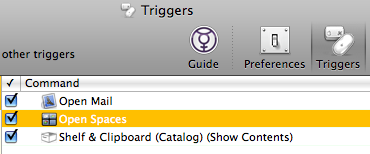
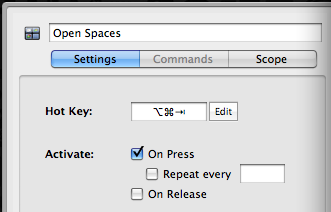
And you can do this with any application. For instance, I also have a custom trigger for Mail configured as CMD+SHIFT+M. Just one more simple way that Quicksilver helps you rock your Mac.